Databricks actions setup
Use Databricks actions to let Glean query Databricks using Genie and SQL from supported Glean experiences.
With this setup, you can:
- Search Databricks with SQL.
- Search Databricks with Genie.
- Use Databricks actions with Glean Agents.
For Glean Assistant specific setup instructions, see Connect Databricks Genie to Glean Assistant.
Prerequisites
Before enabling Databricks actions, ensure:
- You have admin access to Glean Admin console.
- You can sign in to your Databricks account and create an app connection from App Connections.
- You know the Databricks host URL for your deployment. The host URL is the same URL used to sign in to your Databricks instance.
- If you plan to use Genie, you know the Genie Space ID from the Databricks UI URL.
- If you plan to use SQL, you know the warehouse ID to use as the default warehouse.
Setup instructions
Follow these steps to set up the Databricks action pack.
1. Create the Databricks action pack in Glean
- In Glean, go to Admin Console → Platform → Actions.
- Click Add to create a new action.
- Select Databricks Actions.
2. Gather the Databricks URLs and IDs
Use the Databricks host URL that matches your deployment. The host URL is the same URL used to sign in to your Databricks instance.
- AWS:
https://<databricks-instance-id>.cloud.databricks.com/ - GCP:
https://<databricks-instance-id>.gcp.databricks.com/ - Azure:
https://adb-<databricks-instance-id>.<number>.azuredatabricks.net/
If you are using Genie, get the Genie Space ID from the Databricks UI URL. For example: https://<databricks-instance-id>.cloud.databricks.com/genie?rooms/<genie-space-id>/o=<anothernumber>.
3. Configure the action pack in Glean
In the Configuration section:
- In Default Genie Space Id, enter the Databricks Genie Space ID.
- In Default Warehouse Id, enter the default Databricks warehouse ID to use for the action.
- In Host Url, enter the full Databricks host URL for your deployment.
4. Create a Databricks OAuth app
Create a Databricks OAuth app and copy the Client ID and Client Secret into the Authenticate section of the action pack in Glean.
The following steps for creating OAuth application in Databricks is applicable for both AWS Databricks and Azure Databricks:
-
Sign in to your Databricks cloud account.
-
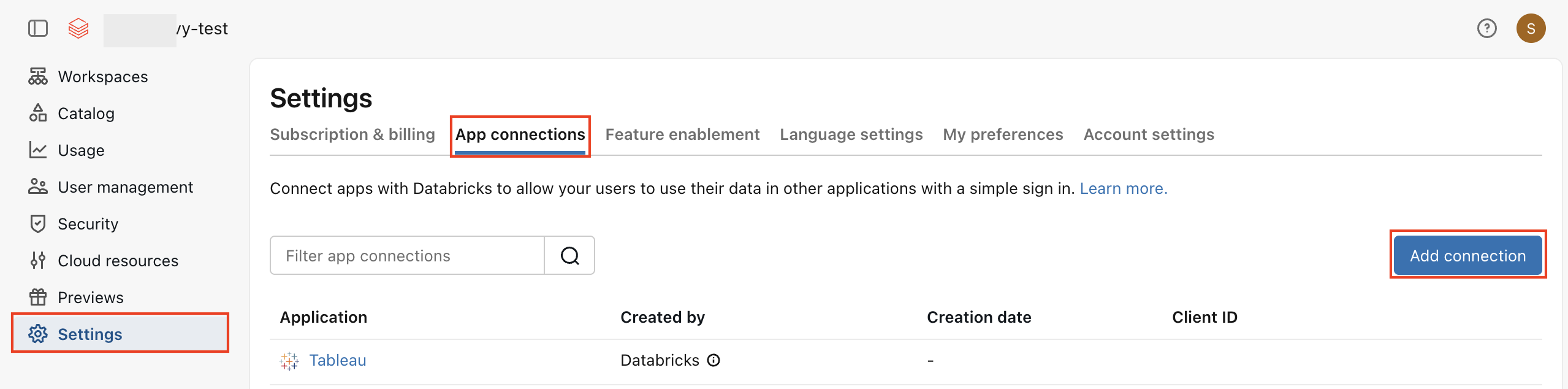
After you log in, go to Settings → App Connections.
-
Click Add Connection.
-
Enter Application Name, for example,
Glean Databricks Genie OAuth. -
Add a dummy URL in the Redirect URL field.
-
Set Access Scopes to All APIs.
-
Select Generate a Client Secret.
-
Adjust the access token and refresh token TTLs as needed. The current guidance recommends 6 hours for access tokens and 3 months for refresh tokens so background agents do not need to reauthenticate frequently.
-
Save the application.
-
Copy the Client ID and Client Secret.
5. Finish authentication in Glean
In the Authenticate section of the Databricks action pack in Glean:
- Enter the Client ID and Client Secret from the Databricks OAuth app.
- Set Authorization url to
https://<AWS-or-GCP-or-Azure-Host-URL>/oidc/v1/authorize. - Set Token url to
https://<AWS-or-GCP-or-Azure-Host-URL>/oidc/v1/token. - Set Scope to
all-apis,offline_access. - Save the action.
6. Update the redirect URL in Databricks
After you save the action in Glean, a callback URL is generated in the Authenticate section.
- Copy the callback URL from Glean.
- In your Databricks account, go to the OAuth app and update the Redirect URLs field with the callback URL.
The action pack is set up and you can add it to an agent.
Next step
Refer to the Databricks action pack documentation for information on testing this action pack in Agent Builder.