Create Redirect Actions
Admins can use the Redirect URL template to create redirect write actions.
Steps to create Redirect action using the template:
- Go to Workspace -> Actions -> Click on New Action
- Select Redirect URL Builder
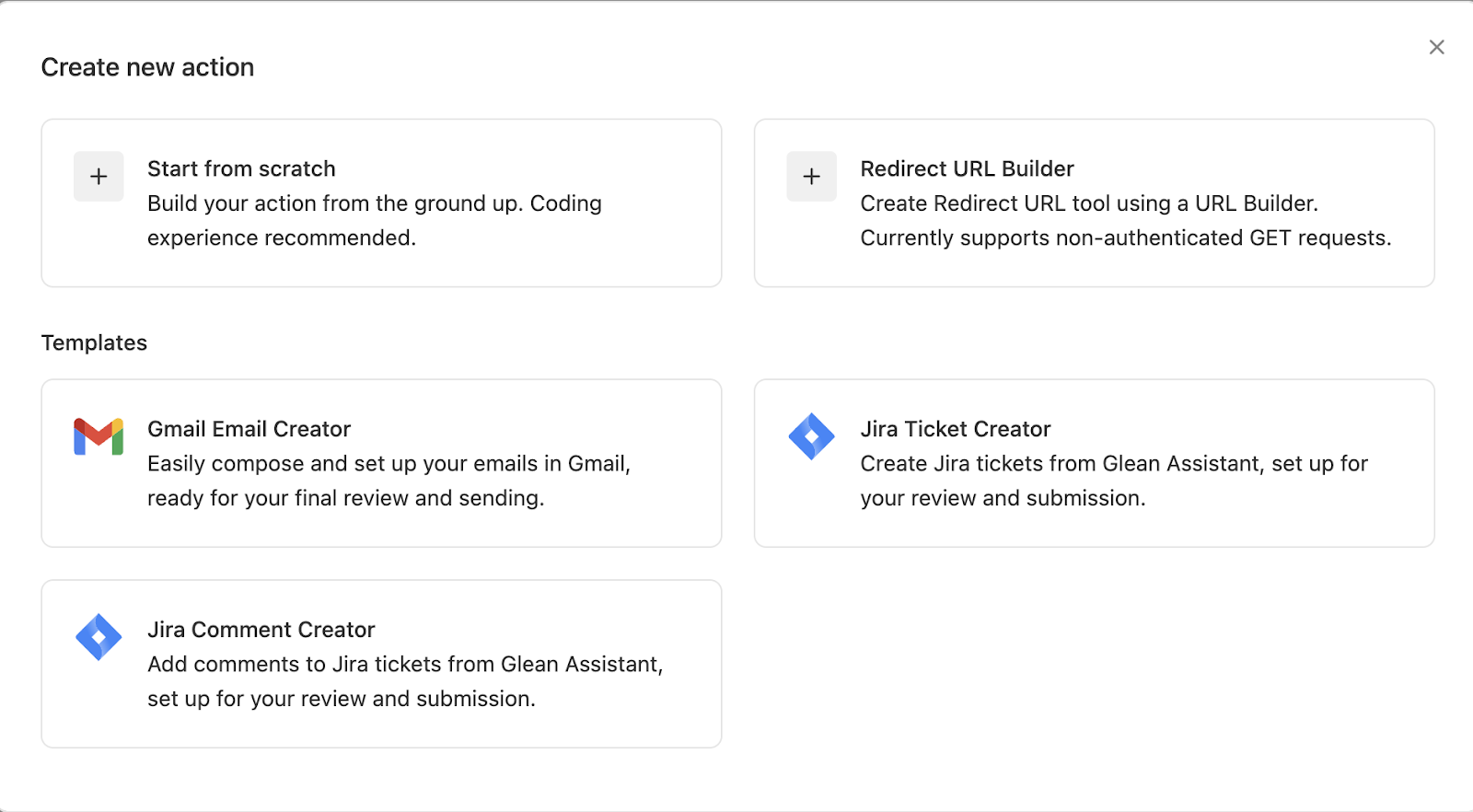
- Fill the Basic Info and Trigger Condition as usual.
Reminder to fill a detailed trigger condition that fully describes when this action should get triggered.
- Under functionality, select “Customize the Redirect URL Builder Template”
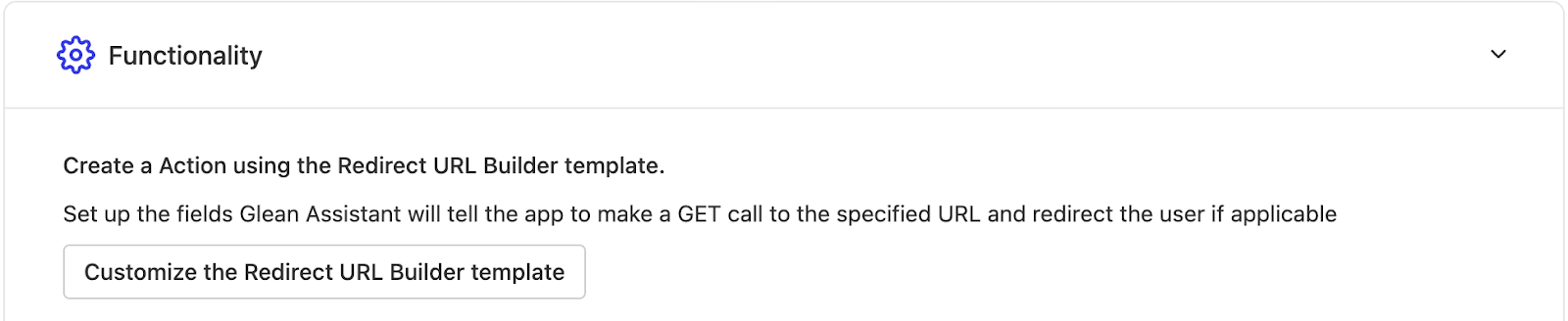
- You will see a screen like this:
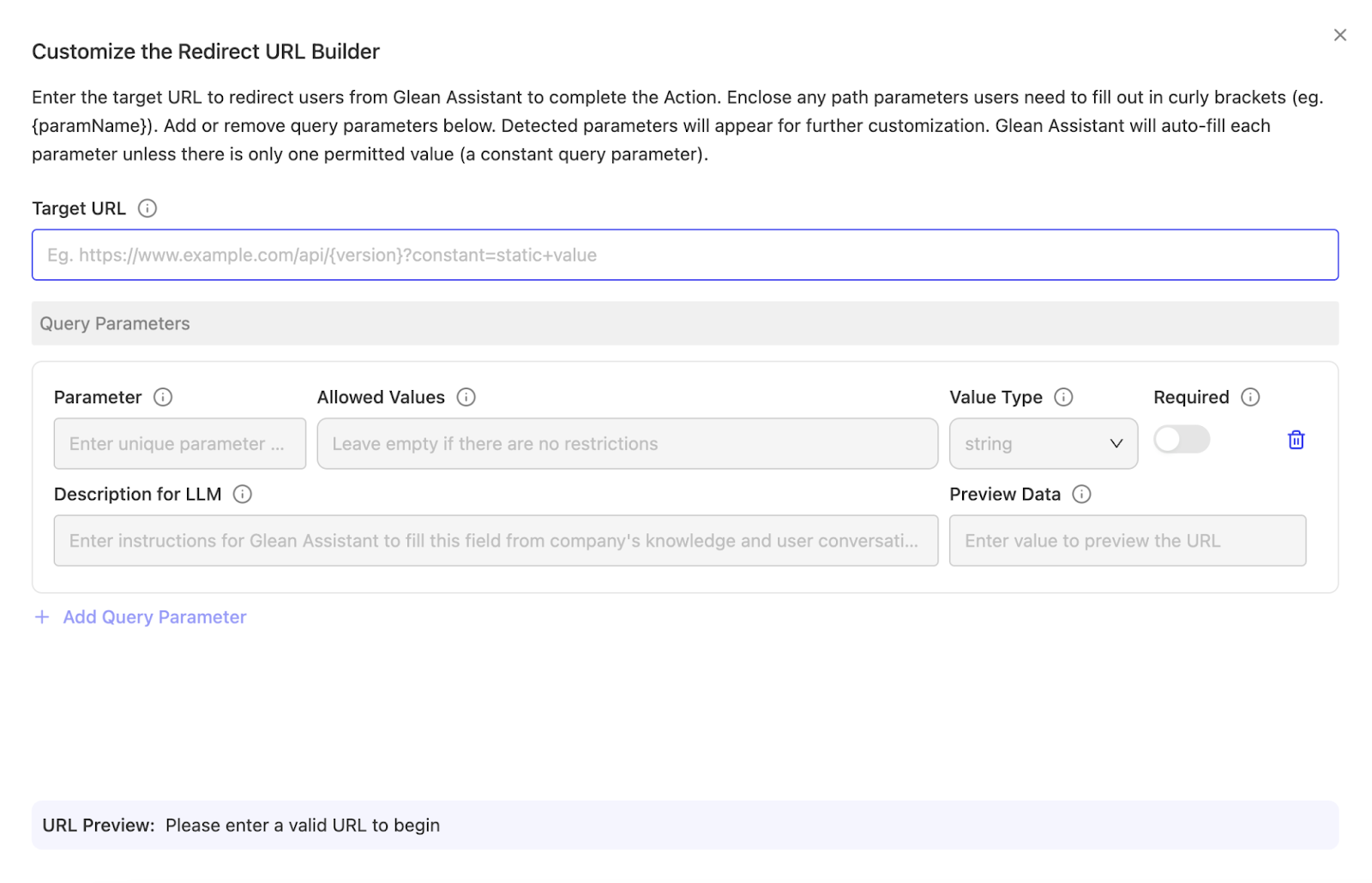
-
Paste the URL you want to redirect to. The path and query parameters mentioned in the URL, along with their values mentioned in the URL, will be auto-filled below.
-
If you don’t want the value of any parameter to be constant, i.e. you want it to change based on the end user query - then please fill in all the allowed values in the “Allowed values” section.
- If only one value is present in Allowed values - that value will be constant
- If multiple values are present in Allowed values - one of those values will be selected by the LLM (Glean assistant) to fill in for this parameter depending on the “Description for LLM” and the end users query.
- If no values are present in Allowed values - any value can be filled for this parameter. If you don’t have a fixed set of values to choose from for a certain parameter, leave the Allowed Values field empty.
-
Please provide a detailed “Description for LLM” - the description/instructions here will help the LLM determine what value should be filled for this parameter. (This will be used for all the parameters that have none or more than 1 allowed values)
-
In order to see a preview/sample url, you can fill in a value in “Preview Data” field for each parameter that will be used to construct the Preview URL, which can be used for testing purposes.
For an example of how to create a redirect action using the Redirect URL Builder, see the Jira Issue Creation Using Redirect Action example on the Glean Developer site.