Slack extension actions setup
Use Slack extension actions to let Glean and supported agent experiences send messages and perform supported Slack tasks without leaving Glean. It uses custom OAuth only for setup.
With this setup, you can:
- Connect Slack to Glean using a customer managed Slack OAuth app.
- Link the action pack to a Slack datasource instance.
- Make Slack actions available in Glean and supported agent experiences.
Prerequisites
Before enabling Slack actions:
- You are a Slack workspace admin, or have equivalent permissions to create and configure Slack apps, approve OAuth scopes, and install apps to the workspace.
- The Glean app is already set up and installed in Slack.
- You can access Admin Console → Platform → Actions in Glean.
- If you want to link the pack to a Slack instance, your Slack datasource must already be configured in Glean.
Setup instructions
Follow these steps to setup the Slack action pack:
-
Create the Slack action pack in Glean:
- In Glean, go to Admin Console → Platform → Actions.
- Click Add.
- From the list in the Add pre‑set actions section, select Slack extension actions under Action templates.
- In the Configuration tab:
- Add the Instance Name.
- Select Datasource Instance to link this action to your Slack instance.
- Configure authentication. Slack actions use only custom OAuth app for authentication.
-
Create a new OAuth app in Slack:
In order to setup OAuth for Slack actions, create an app in Slack using the following steps:
- Log into Slack API apps.
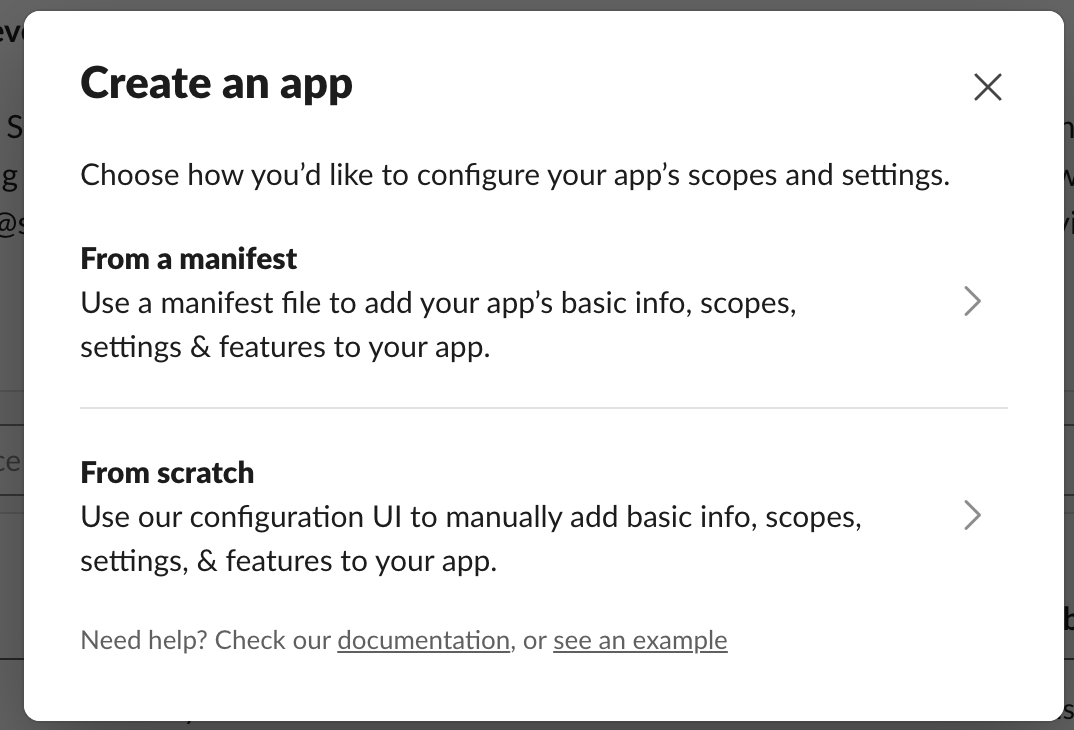
- Click Create New App.
- Create a new app by selecting From scratch.
- Add the App Name.
- Select a workspace where you want to develop your app.
- Click Create App.
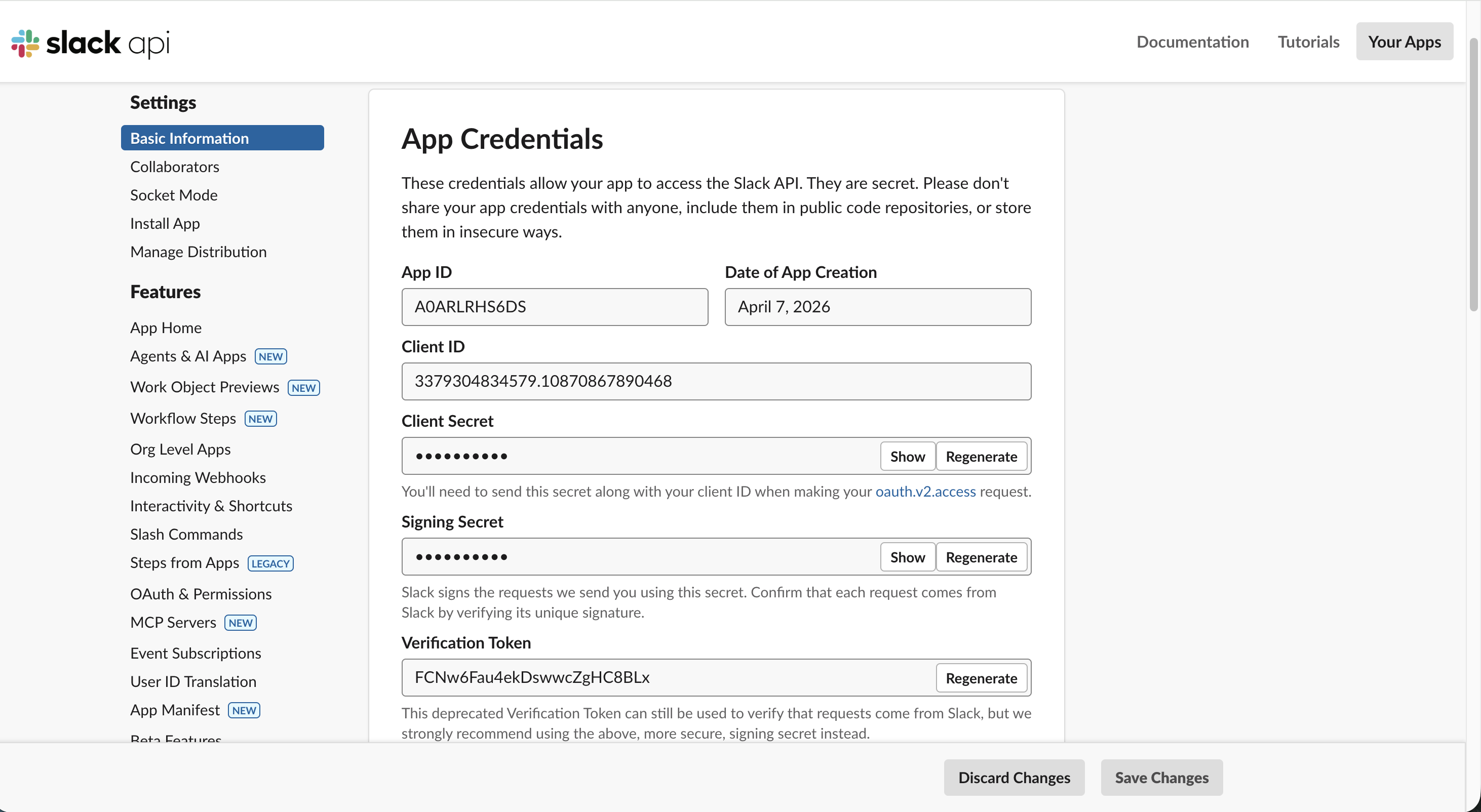
- After the app is created, you are redirected to the Basic information page. Copy the Client Secret and Client ID and save it.
-
Fill the client ID and client secret in Glean configuration page:
- Navigate to Slack extension actions configuration page on the Glean admin console.
- Add the Client ID and Client secret information to the respective fields under the Authenticate section.
- Click Save.
- Copy the Callback URL and the Scopes given in the configuration page and save these details.
-
Set permissions and scopes in Slack
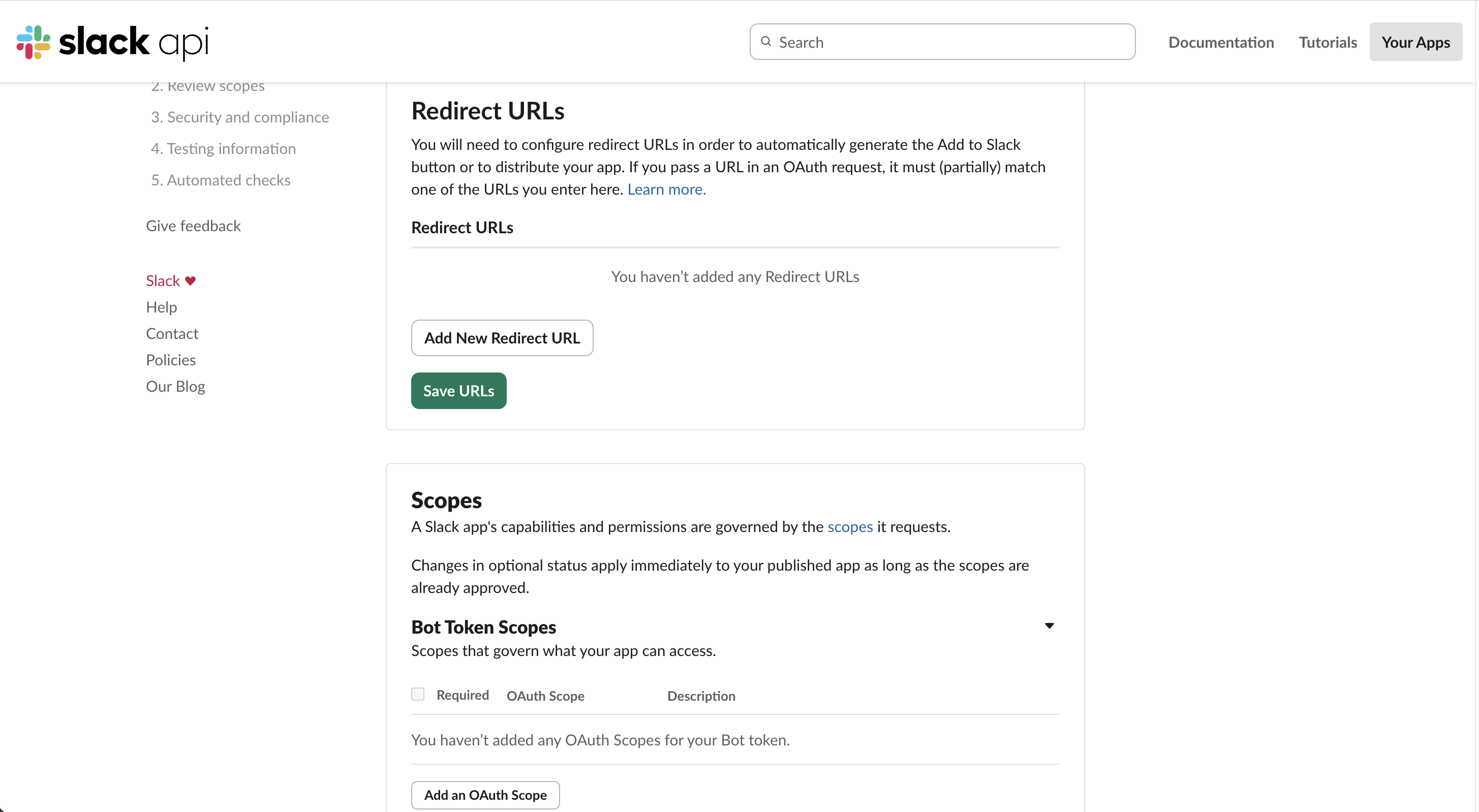
- Go to the OAuth & Permissions tab in Slack.
- Go to the Redirect URLs section:
- Click Add New Redirect URL.
- Paste the Callback URL copied from Glean.
- Click Add.
- Go to the Scopes section:
- Click Add an OAuth Scope.
- Paste the scopes copied from Glean.
-
Reinstall the Slack app to the workspace:
In your Slack app, after adding the redirect URL and scopes, reinstall the Slack app to the workspace so the new scopes and redirect settings take effect:- In the Slack app, go to Settings → Basic Information.
- Scroll to Install app.
- Click Install to Workspace.
- Review the consent screen and Allow.
-
Click Edit settings under Enable Actions section to make actions visible for all or some users within Glean Assistant and Glean Agents.