Zendesk Actions Setup
Configure Glean to automatically add comments to Zendesk tickets, enabling users to respond to support tickets directly from Glean.
This feature allows organizations to streamline their support communication workflows by using Glean to add comments to existing tickets without switching contexts, improving response times and team collaboration.
Zendesk Action Overview
The Zendesk action pack provides:
- Add Comment to Zendesk Ticket: Add internal notes or public replies to existing Zendesk tickets
This action helps streamline support workflows by:
- Quickly adding updates to tickets from Slack or other communication channels
- Documenting troubleshooting steps and internal notes
- Providing customer responses without leaving your current workflow
- Maintaining conversation history and context within tickets
- Supporting both public replies and private internal notes
Enable Zendesk Actions
Admins can enable Zendesk actions by going to the Admin Console and navigating to Platform → Actions.
- Click Actions → Add → Add pre-set actions.
- Select Zendesk Actions from the list of pre-set actions.
- In the Configuration, select Datasource Instance to link this action to your Zendesk instance.
- Set up authentication:
- Option 1: Central - Use the default OAuth App already configured for you. This is the quickest way to start using Zendesk Actions.
- Option 2: Custom - Create a new custom OAuth App. Please follow the Creating a Custom OAuth App to set up a new custom OAuth app.
- Click Save. The Zendesk Action is now ready to use.
Creating a Custom OAuth App
Zendesk access tokens are long-lived, so teammates do not need to reconnect Zendesk actions on a daily basis. If you see repeated re-authentication prompts, see Troubleshooting actions authentication.
Action Configuration
Prerequisites
- Authentication: Each user must authenticate with Zendesk when first using this action. The authentication persists for future use.
- Permissions: Users can only add comments to tickets they have permission to view in Zendesk.
Required Parameters
The Add Comment to Zendesk Ticket action requires the following parameters:
ticket_id(required): The ID of the ticket to comment oncomment(required): The comment text to addpublic(optional): Whether the comment is public (visible to the requester) or Internal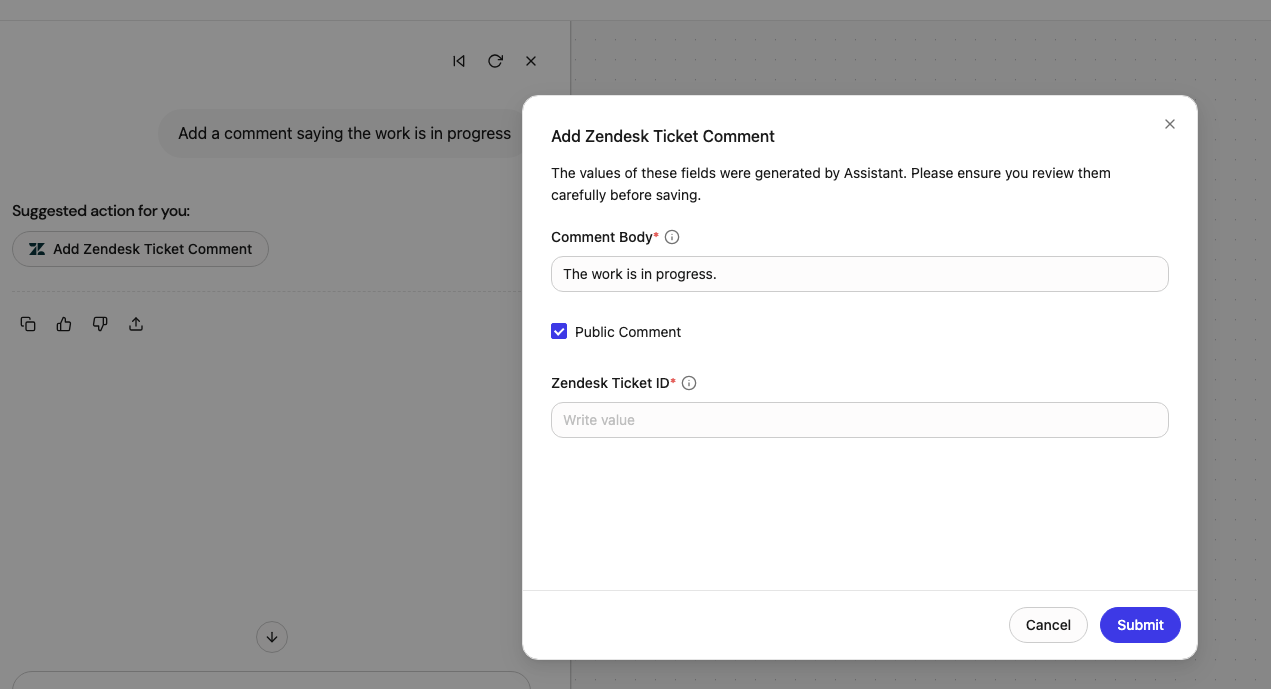
Usage Examples
- Customer Reply: Add a public comment to provide a status update or solution to the customer
- Internal Note: Add a private note documenting troubleshooting steps or internal discussion
- Escalation Note: Add an internal comment when escalating to another team
- Resolution Documentation: Add details about how an issue was resolved for future reference
Testing Your Setup
After completing the setup:
- Navigate to the Agent Builder in Glean.
- Create a new agent or modify an existing one.
- Add the Zendesk Add Comment action to your agent.
- Configure the action with:
- How to identify the ticket ID (from user input, previous search, or extracted from context)
- Whether comments should be public or internal by default
- Any standard signatures or formatting
- Test with sample queries like:
- "Add a comment to ticket #12345 saying we're investigating the issue"
- "Post an internal note on ticket #67890 about the workaround we discussed"
- "Reply to ticket #11111 that the issue has been resolved"
Troubleshooting
Common issues and solutions:
Authentication Errors:
- Verify the Client ID and Client Secret are correct
- Ensure the callback URL is properly configured in both Glean and Zendesk
- Check that the OAuth client has the necessary scopes enabled
Permission Errors:
- Verify the user has appropriate permissions in Zendesk to view and comment on tickets
- Check if the Zendesk instance has API access enabled
- Ensure the OAuth app has the correct scopes for reading tickets and writing comments
Ticket Not Found:
- Verify the ticket ID is correct and the ticket exists
- Ensure the user has permission to access the specific ticket
- Check if the ticket is in a suspended or deleted state
Comment Not Posting:
- Verify the comment text is not empty
- Check if there are any Zendesk triggers blocking the comment
- Ensure the comment doesn't exceed size limits
For additional support, contact your Glean Account Executive or refer to the Zendesk API documentation.