Set up Atlassian service credential
An Atlassian service credential connects Glean to Atlassian's hosted Rovo MCP server (Jira, Confluence, and more) with a single service-account API key, sent as a Bearer token instead of per-user OAuth. Use it when an agent should act under a shared, non-human identity rather than an individual person's login. By default, only agent builders can attach it.
Glean adds the API key to outbound requests to the Atlassian MCP server, so the agent never sees the raw key.
- Authentication: Atlassian service-account API key (Bearer)
- Scope: The Jira projects and Confluence spaces the service account can access
- Access: Read and write (governed by the service account's Atlassian permissions and token scopes)
Only standard Atlassian Cloud is supported. Atlassian Government Cloud (AGC) and Data Center / Server are not supported. This template requires a service-account API key — personal API tokens (the email:token Basic-auth kind) are not supported.
Prerequisites
Complete the following prerequisites:
- Have an Atlassian Cloud organization with Organization Admin access.
- Have permission to create service accounts and manage Rovo MCP server settings.
- Work with a Glean administrator who can create service credentials.
- Enable the Atlassian MCP (Service Account) template for your deployment. If you don't see it in the MCP server catalog, contact your Glean representative.
Enable API token authentication for your Atlassian org
API token authentication is off by default (OAuth is the default), so an org admin must turn it on first.
- Go to Atlassian Administration and select your organization.
- Navigate to Rovo → Rovo MCP server.
- In the Authentication section, toggle API token on.
For API-token access, the domain allowlist doesn't apply — access is governed by your org's IP allowlist and the token's scopes.
Create the service account
A service account is a non-human, admin-managed Atlassian account — the right identity for a shared MCP connection. Creating one requires Organization Admin privileges.
- In Atlassian Administration, go to Directory → Service accounts → Create a service account.
- Name it something clearly identifiable, for example, "Glean Agent."
- Under roles, assign the User role for the products it needs — Jira → User and/or Confluence → User. Use the User role, not an admin role.
- Select Create.
Service accounts with product access don't count toward your user license.
Grant product and in-app access
A service account works like a regular user: its access is the intersection of product access, project/space permissions, and token scopes — all three must allow an action.
- Add to groups — open the service account and add it to the
jira-usersandconfluence-usersgroups. - Double-check access — confirm these groups grant the Jira/Confluence product role and also grant read + write to projects/spaces through the default permission scheme (the case on most sites):
- Jira — the account can browse, create, and edit issues in the target projects.
- Confluence — the account can view, and add/edit pages and comments in the target spaces.
- If a project or space is restricted (not covered by the default groups), grant access explicitly:
- Jira — in the project's Project settings → Access, add the account (or its group) with a role that allows creating and editing issues.
- Confluence — in the space's Space settings → Space permissions, add the account (or its group) and grant View (read) plus Add for pages, blog posts, comments, and attachments (write). View is required for any write to work.
Keep it to content read/write — no site-, org-, or space-admin roles.
Generate the API key
-
In Directory → Service accounts, select the account, then Actions → Create credentials.
-
Grant these scopes (they can't be edited after creation, so add everything you need up front). Omit a product's scopes if you aren't connecting it.
Jira:
read:jira-workwrite:jira-workread:jira-user
Confluence:
read:confluence-content.allwrite:confluence-contentread:confluence-usersearch:confluence
-
The key is shown only once — copy and store it securely. Keys expire after at most 365 days, so set a reminder to rotate it.
Create the service credential in Glean
- In Glean, go to Admin console → Tools → Add → Vendor Provided Tools (via MCP).
- Search for Atlassian MCP (Service Account).
- Enter a short Label, such as
engineering,staging, orproduction, to distinguish this server if you add multiple Atlassian service accounts. - Paste the service-account API key into the API key field.
- Select Save.
After the tools sync, enable the Atlassian actions for the intended agents.
Attach the credential to an agent
-
Go to Agents in Glean.
-
Select the agent to which you want to add the service credentials.
-
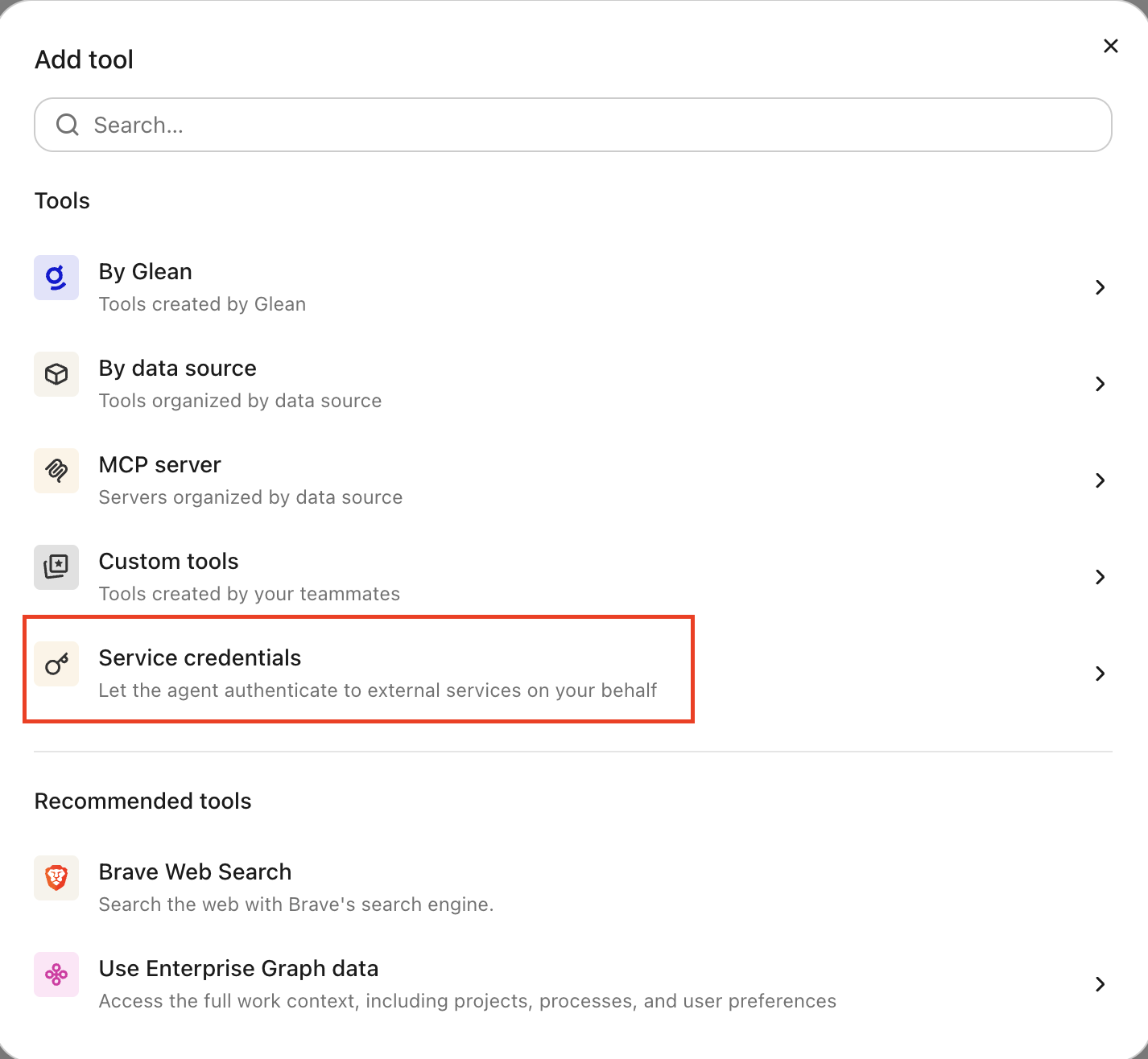
In the Tools tab, select Service credentials and select the Atlassian service credential you created.
Agents must pass a cloudId identifying the Atlassian site when calling the tools. You can pass the site URL (for example, your-site.atlassian.net) directly as the cloudId — no need to pre-resolve it. To make this clear to agent builders, you can rename the MCP server to include that site URL.
Verify it works
Ask the agent to perform a simple Jira action, for example, "List the open issues in the PROJ project." If it returns results, the credential is working.
What the agent can do
With an Atlassian credential attached, the agent can interact with Jira and Confluence as the service account:
- Create, update, and comment on Jira issues
- Search and read Jira issues and projects
- Read and search Confluence pages and spaces
- Add comments to Confluence pages
All actions are attributed to the service account, not the user who invoked the agent.
Security and operational notes
- Token-based auth: Glean stores the API key in the credential broker and injects it as a Bearer header into outbound requests. The agent runtime never receives the raw key.
- Least privilege: grant the service account only the Jira project roles and Confluence space permissions the agent needs. Keep it to content read/write — no admin roles.
- Key rotation: API keys expire after at most 365 days. Set a reminder to rotate before expiry.
- Attributed actions: all Jira and Confluence activity appears under the service account's name, making it easy to audit agent behavior.
- Revocation: to cut off access, delete the API key in Atlassian or remove the Atlassian service credential in Glean.