Set up Cursor service credential
A Cursor service credential lets a Glean agent launch and monitor Cursor Cloud Agents (formerly Background Agents) through the Cursor API. The agent can start a Cursor coding agent on a repository and branch with a prompt, check on it until it finishes, and return the result, including the pull request it opened.
Glean adds the API key to outbound requests to api.cursor.com, so the agent never sees the raw key.
- Authentication: Cursor API key (Bearer)
- Scope: The repositories the team's Cursor GitHub app can access
- Access: Read and write. Agents can list and monitor Cursor agents, launch new agents, and send follow-up prompts.
Cursor doesn't offer read-only API keys, so any agent that holds this credential can launch Cursor agents. Work produced by a Cursor agent lands as a branch or pull request, which goes through your normal code review before it's merged.
Prerequisites
- A Cursor team plan.
- A Cursor team admin to connect GitHub and, on Enterprise, to create a service account.
- The Cursor GitHub app installed on your GitHub organization, with access to the repositories agents should work in.
- A Glean administrator who can create service credentials.
- The Cursor service credential template enabled for your deployment. If you don't see it in the list of templates, contact your Glean representative.
Connect GitHub to Cursor
Cursor agents can only work in repositories the Cursor GitHub app can access.
- Sign in to the Cursor Dashboard as a team admin.
- In the left sidebar, click Integrations.
- Connect GitHub, and install the Cursor GitHub app on your GitHub organization.
- When GitHub asks which repositories to grant, choose Only select repositories and pick the ones agents need.
The GitHub app's repository list limits which repositories the key can reach. Keep it narrow.
Create a Cursor API key
Use a service account key if your company is on Cursor Enterprise. Otherwise, use a user API key.
- Service account key (Enterprise)
- User API key
Service accounts aren't tied to a person and keep working when employees leave. Only Enterprise team admins can create them.
- In the Cursor Dashboard, click API & SSH Keys in the left sidebar.
- Under Service Accounts, click New Service Account. If you don't see this section, your team isn't on Enterprise or you aren't a team admin.
- Enter a name, for example,
glean-agents, and an optional description. - Click Create.
- Copy the API key. Cursor shows it only once.
- In the Cursor Dashboard, click API & SSH Keys in the left sidebar.
- Under User API Keys, click New API Key.
- Give the key a name, for example,
glean-agents. - For expiry, choose Never expires. A key that expires breaks every agent using the credential without warning.
- Create the key and copy it. It starts with
crsr_.
A user API key acts as the person who created it. Cursor attributes agent runs to them, and the key stops working if they leave the Cursor team. When that happens, create a new key and update the credential.
Store the API key securely, for example, in a secrets vault or password manager, until you paste it into Glean. Don't share it in plaintext or over unencrypted channels.
Agent runs started with the key draw from your team's Cursor usage pool and show up in Cursor team analytics. Runs started by a service account are visible to all Cursor team admins.
Create the service credential in Glean
- In Glean, go to Admin console → Platform → Tools → Service credentials.
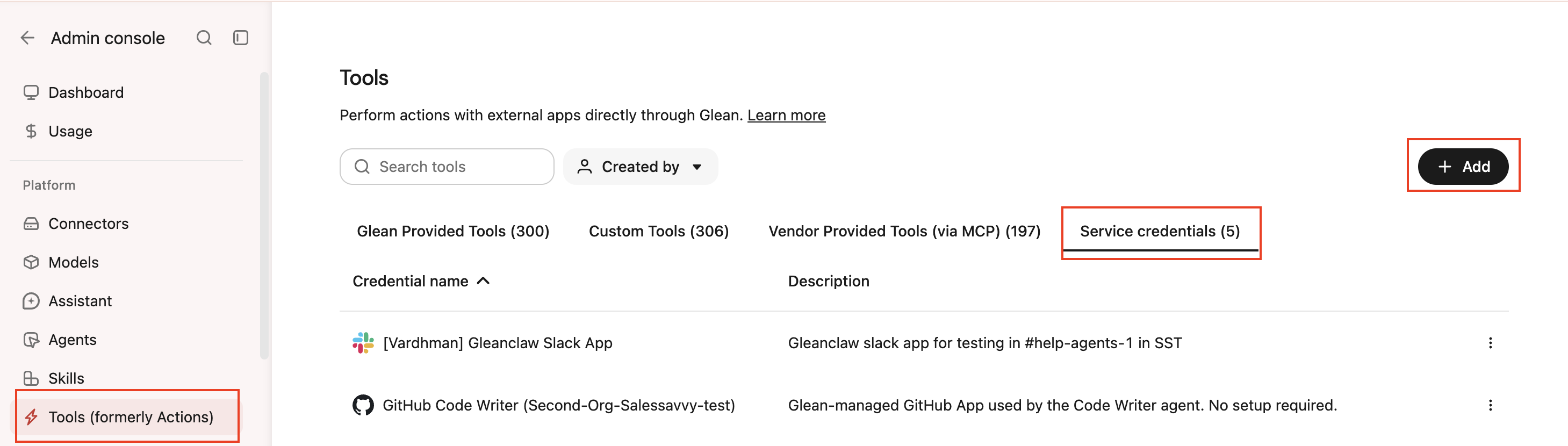
- Click Add.
- Select Cursor under Service credentials.
- Fill in these fields:
- Credential name: A human-readable name, for example, "Cursor Agent — your-team."
- Description: A brief description of what this credential does.
- API Key: The Cursor API key you created in Create a Cursor API key.
- Audience: Which users or groups can attach this credential to agents. New credentials start with no audience, so nobody can use one until you choose one.
- Select Save.
Attach the credential to an agent
-
Go to Agents in Glean.
-
Select the agent to which you want to add the service credential.
-
In the Tools tab, select Service credentials and select the Cursor service credential you created.
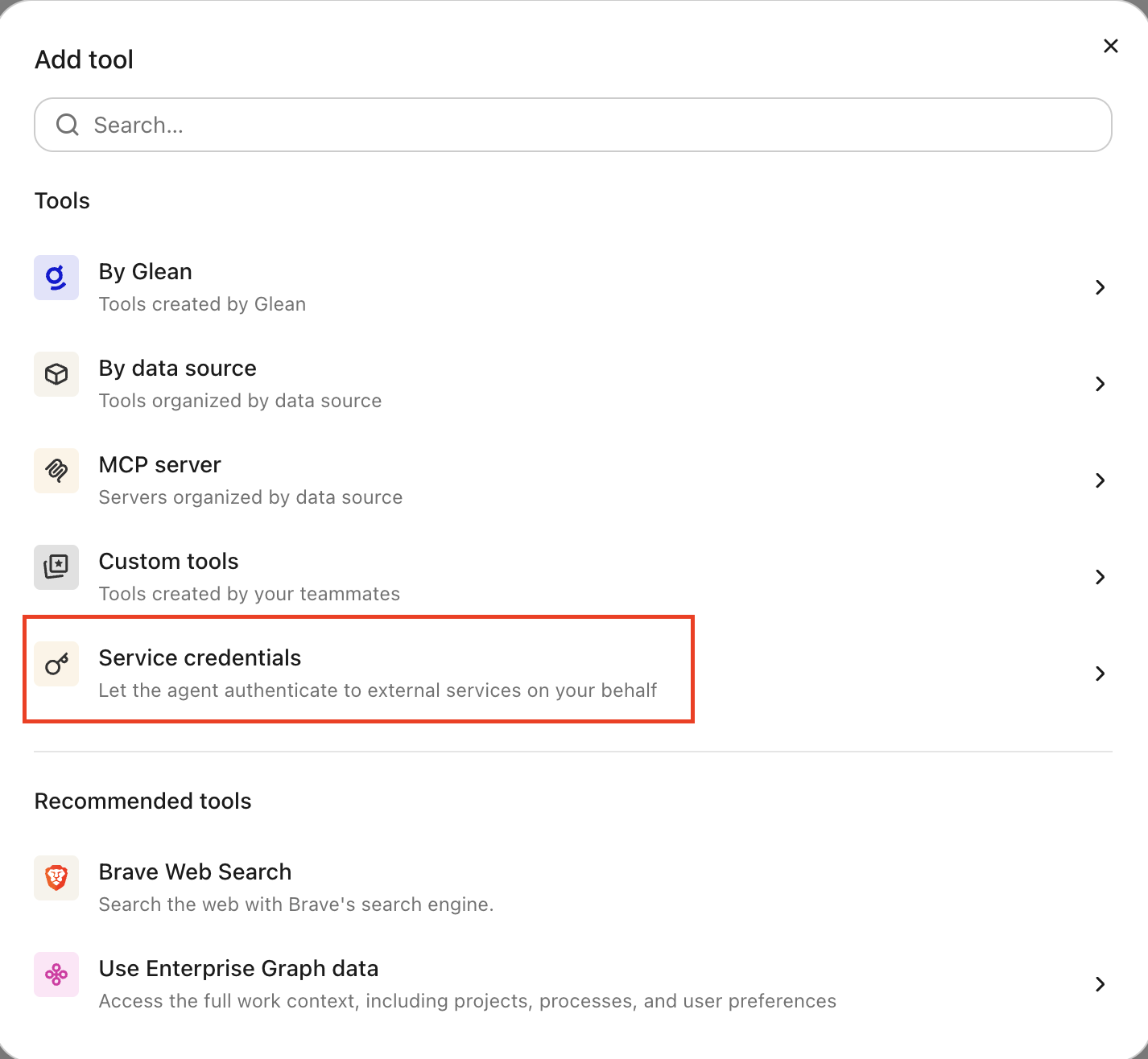
When you attach the credential, the agent also gets instructions for calling the Cursor API.
Verify it works
Ask the agent to list your recent Cursor agents. If it returns a list, even an empty one, the credential is working.
To test end to end, ask the agent to launch a Cursor agent on a test repository with a small task, for example, "Fix the typo in the README of github.com/<org>/<repo> and open a pull request." Then ask it to check the run until it finishes and share the pull request link.
What the agent can do
With a Cursor credential attached, the agent can:
- List Cursor agents and runs, check their status, and read results and pull request links
- Launch a new Cursor agent on a repository and branch
- Send a follow-up prompt to an existing Cursor agent, for example, to address review comments on its pull request
The Cursor GitHub app opens pull requests, not the person who owns the API key. The agent can't delete, archive, or cancel Cursor agents.
Cursor doesn't offer webhooks for this API yet, so the agent checks run status periodically. A Cursor agent can have only one active run at a time, so a follow-up sent while a run is still active fails until that run finishes.
Security and operational notes
- Token-based auth: Glean stores the API key in the credential broker and injects it as a Bearer header into requests to
api.cursor.com. The agent runtime never receives the raw key. - No read-only mode: Cursor keys are all-or-nothing. Control reach through the Cursor GitHub app's repository list and the credential's audience.
- Prefer service accounts: on Enterprise, use a service account key so access isn't tied to one person.
- Code review is the checkpoint: Cursor agents push branches and open pull requests. Keep branch protection and required reviews on the target repositories.
- Rotation: create or rotate the key in API & SSH Keys, then update the credential in Glean. For service accounts, the old key stops working as soon as you rotate it.
- Revocation: to cut off access, remove the Cursor service credential in Glean, or revoke the key in Cursor. Archiving a service account revokes all its keys.