Set up Datadog service credential
A Datadog service credential connects Glean to Datadog's remote MCP server (logs, metrics, traces, monitors, dashboards, incidents, and more) with a Datadog service account's API key and Application key, instead of per-user OAuth. Use it when an agent should act under a shared, non-human identity rather than an individual person's login. By default, only agent builders can attach it.
Glean stores both keys in one service credential and sends them as separate headers (DD-API-KEY and DD-APPLICATION-KEY) on outbound requests. The agent runtime never receives the raw keys.
- Authentication: Datadog API key (organization-level) + Application key (scoped to the service account)
- Scope: The Datadog resources accessible to the service account's role and Application key scopes
- Access: Read and write (governed by the service account's MCP permissions)
This template is in private beta — it's only available once Glean enables it for your deployment. If you don't see it in the MCP server catalog, reach out to Glean to have it turned on.
This template defaults to the US1 Datadog site (app.datadoghq.com). If your org is on a different site, add ;DD_SITE=<site> to the key field (see Create the service credential in Glean) so requests route to your region. Keys are region-bound, so the keys must come from the same site you set.
Prerequisites
Complete the following prerequisites:
- Have a Datadog account with admin access.
- Have permission to create service accounts and manage API/Application keys.
- Work with a Glean administrator who can create service credentials.
- Enable the Datadog MCP (Service Account) template for your deployment. If you don't see it in the MCP server catalog, contact your Glean representative.
Create a service account
A service account is a non-human, admin-managed Datadog account — the right identity for a shared MCP connection, since its credentials aren't tied to any individual's login. Creating one requires admin privileges.
- In Datadog, go to Organization Settings, and under Accounts choose Service Accounts.
- Click New Service Account, then give it a name (for example, "Glean MCP") and an email address.
- In the Assign Roles dropdown, pick a role that carries the MCP permissions you need (see Grant MCP permissions), then Create Service Account.
Grant MCP permissions
Datadog gates MCP access with dedicated RBAC permissions:
- MCP Read — required for read operations (querying logs, metrics, traces, monitors, dashboards, incidents).
- MCP Write — required only if your agents should perform mutating operations.
Assign these to a role held by the service account. Grant the least privilege your agents actually need — MCP Read alone for read-only use. Individual tools also require the matching resource permission (for example, Monitors Read, APM Read).
If you don't see the MCP Read / MCP Write scopes, your org may not be enrolled in Datadog's MCP server preview. Contact your Datadog account rep to request access.
Generate the API key and Application key
The MCP server needs both a Datadog API key (identifies the org) and an Application key (identifies and scopes the caller).
-
API key — in Organization Settings → API Keys, use an existing key or create one. Copy its Key value (the secret), not the Key ID — Datadog shows both, but only the value authenticates.
-
Application key — open the service account you created earlier to its side panel, click + New Key, give it a name, and click Create Key. Scope it to the minimum needed (least privilege). Important: Datadog displays both a Key value (the secret token) and a Key ID — you must copy and use the Key value. This value is shown only once — copy it immediately, as it cannot be retrieved later.
Copy the Key value (the secret), not the Key ID. The Key value is shown only once and cannot be retrieved later.
Create the service credential in Glean
-
In Glean, go to Admin console → Tools → Add → Vendor Provided Tools (via MCP).
-
Search for Datadog MCP (Service Account).
-
Enter a short Label, such as
engineering,staging, orproduction, to distinguish this server if you add multiple Datadog service accounts. -
This template stores both credentials in the single API key field, combined into one value. Paste them in exactly this format (order doesn't matter, but the labels and the
;separator do):DD_API_KEY=<your_api_key>;DD_APPLICATION_KEY=<your_application_key> -
If your org is not on US1, add a third
;DD_SITE=<site>pair set to your Datadog site (the domain in your Datadog web URL):DD_API_KEY=<your_api_key>;DD_APPLICATION_KEY=<your_application_key>;DD_SITE=datadoghq.euSupported sites:
datadoghq.com(US1, default),us3.datadoghq.com(US3),us5.datadoghq.com(US5),datadoghq.eu(EU1),ap1.datadoghq.com(AP1),ap2.datadoghq.com(AP2),ddog-gov.com(US1-FED / GovCloud). OmitDD_SITEfor US1. -
Select Save.
After the tools sync, enable the Datadog actions for the intended agents.
Attach the credential to an agent
-
Go to Agents in Glean.
-
Select the agent to which you want to add the service credentials.
-
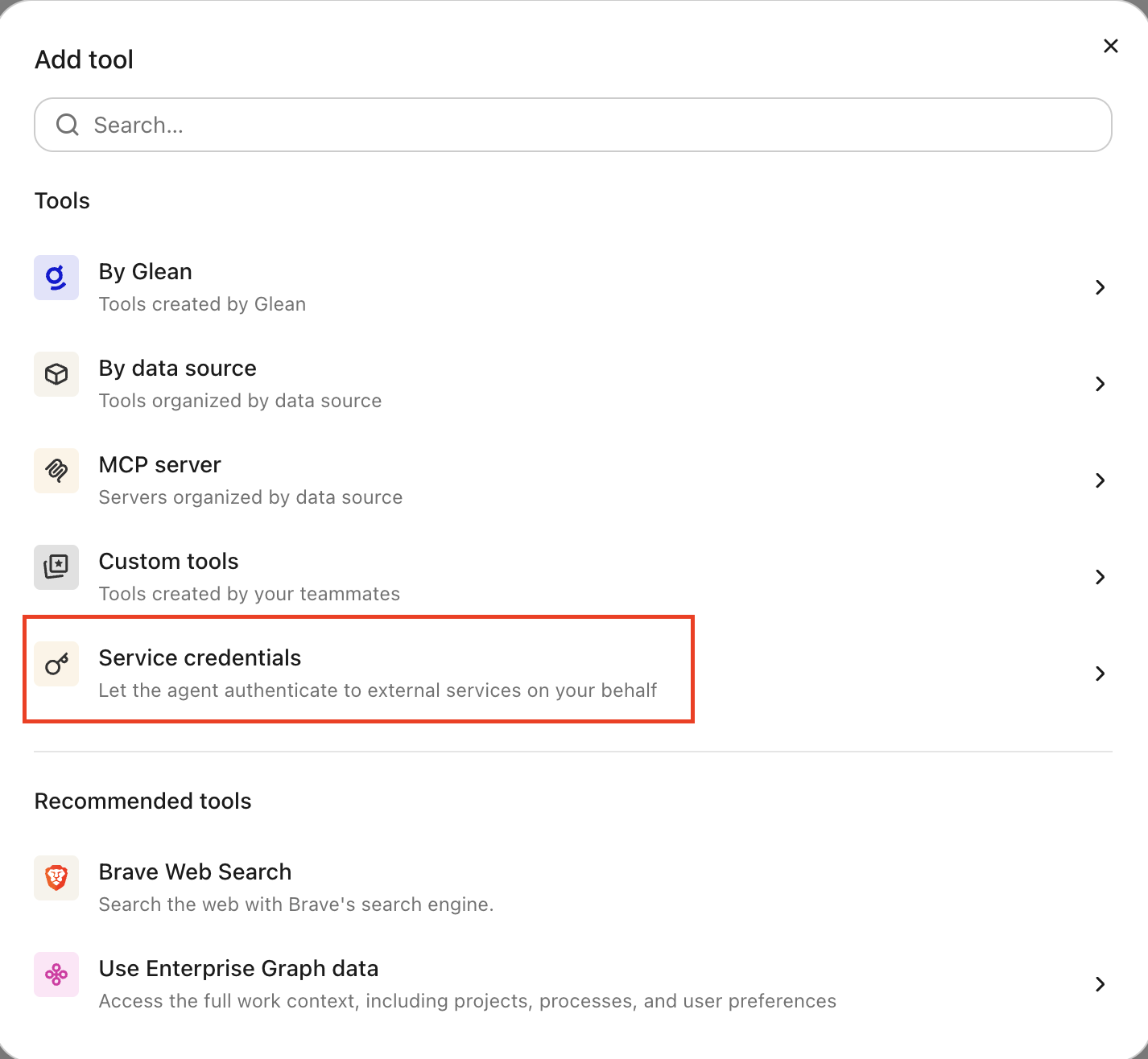
In the Tools tab, select Service credentials and select the Datadog service credential you created.
Verify it works
Ask the agent to check a monitor, for example, "Show the status of all monitors in the production environment." If it returns results, the credential is working.
What the agent can do
With a Datadog credential attached, the agent can query Datadog:
- Query logs, metrics, and traces
- List and search monitors and their statuses
- View incident details and timelines
- Summarize dashboard data
The agent operates under a non-human identity scoped to the service account's MCP permissions and Application key scopes.
Security and operational notes
- Dual-key auth: Glean stores both the API key and Application key in the credential broker and injects them as separate headers into outbound requests. The agent runtime never receives the raw keys.
- Least privilege: grant MCP Read only unless the agent must perform mutations. Scope the Application key to the minimum needed.
- Region-bound keys: the API key and Application key must come from the same Datadog site you set in
DD_SITE. Keys won't authenticate against the wrong site. - Revocation: to cut off access, disable or delete the API key or Application key in Datadog, or remove the Datadog service credential in Glean.