Set up GCP cloud logging service credential
A GCP cloud logging service credential lets a Glean agent call Google Cloud Platform (GCP) APIs such as Cloud Logging as a service account rather than on behalf of an individual user. Glean uses service account impersonation to mint short-lived access tokens, so you never upload or manage long-lived service account keys.
Glean handles authentication automatically. Tokens are minted server-side, and the agent never sees a static key.
- Authentication: Service account impersonation which are short-lived tokens and requires no key upload
- Scope: The GCP projects and resources the target service account can access
- Access: Determined by the IAM roles granted to the target service account, for example, read-only log access
Prerequisites
Complete the following prerequisites:
- Have an active GCP project with the target APIs enabled.
- Have a dedicated service account created specifically for the agent, for example:
agent-bot@<your-gcp-project>.iam.gserviceaccount.com. - Have appropriate IAM roles granted to the service account for the target project or resource.
- Identify the Glean query endpoint service account for your deployment. You need it to configure the impersonation relationship.
- Work with a Glean administrator who can create service credentials.
- Enable the GCP service account template for your deployment. If you do not see it in the list of templates, contact your Glean representative to turn it on.
For a logging use case, the service account of the agent typically requires the Logs Viewer (roles/logging.viewer) role on the projects it will query.
Identify the Glean query endpoint service account
The Glean query endpoint runs as a specific GCP service account using the following format:
query-endpoint@<your-glean-gcp-project>.iam.gserviceaccount.com
Select your preferred method below to locate this service account:
- Using the CLI
- Using the GCP Console
Choose the command that matches your access level.
Via gcloud (requires IAM permissions on the Glean project):
gcloud iam service-accounts list \
  --project="<YOUR_GLEAN_GCP_PROJECT>" \
  --filter="email:query-endpoint@"
Via kubectl (requires cluster access to the GKE deployment):
kubectl get serviceaccount gke-qe \
  --namespace=default \
  -o jsonpath='{.metadata.annotations.iam\.gke\.io/gcp-service-account}'
- Open the Google Cloud Console and navigate to IAM & Admin → Service Accounts within your Glean GCP project.
- Search for the service account prefix:
query-endpoint@.
Grant impersonation access on the target service account
To mint short-lived tokens, the Glean query endpoint service account must be granted the Service Account Token Creator (roles/iam.serviceAccountTokenCreator) role on the target service account.
Select your preferred configuration method:
- Using the CLI
- Using the GCP Console
Execute the following gcloud command to add the required IAM policy binding. Replace the placeholder variables with your specific service account identifiers.
# Set your service account variables
TARGET_SA="agent-bot@<your-gcp-project>.iam.gserviceaccount.com"
QE_SA="query-endpoint@<YOUR_GLEAN_GCP_PROJECT>.iam.gserviceaccount.com"

# Grant the Service Account Token Creator role
gcloud iam service-accounts add-iam-policy-binding "$TARGET_SA" \
  --member="serviceAccount:$QE_SA" \
  --role="roles/iam.serviceAccountTokenCreator"
- Open the Google Cloud Console and navigate to IAM & Admin → Service Accounts in the GCP project that owns the target service account.
- Select the checkbox next to your target service account (for example,
agent-bot@...). - If the info panel on the right is not visible, click Show Info Panel in the top-right corner.
- In the permissions panel, click Grant Access.
- In the New principals field, enter the full email address of your Glean query endpoint service account.
- In the Select a role dropdown, select Service Account Token Creator.
- Click Save.
Confirm the target service account permissions
Make sure the target service account itself has the permissions required for the job your agent will perform.
For example, if the agent needs to read logs, grant the target service account the appropriate logging permissions on the relevant GCP project.
Create the service credential in Glean
- In Glean, go to Admin console → Platform → Tools → Service credentials.
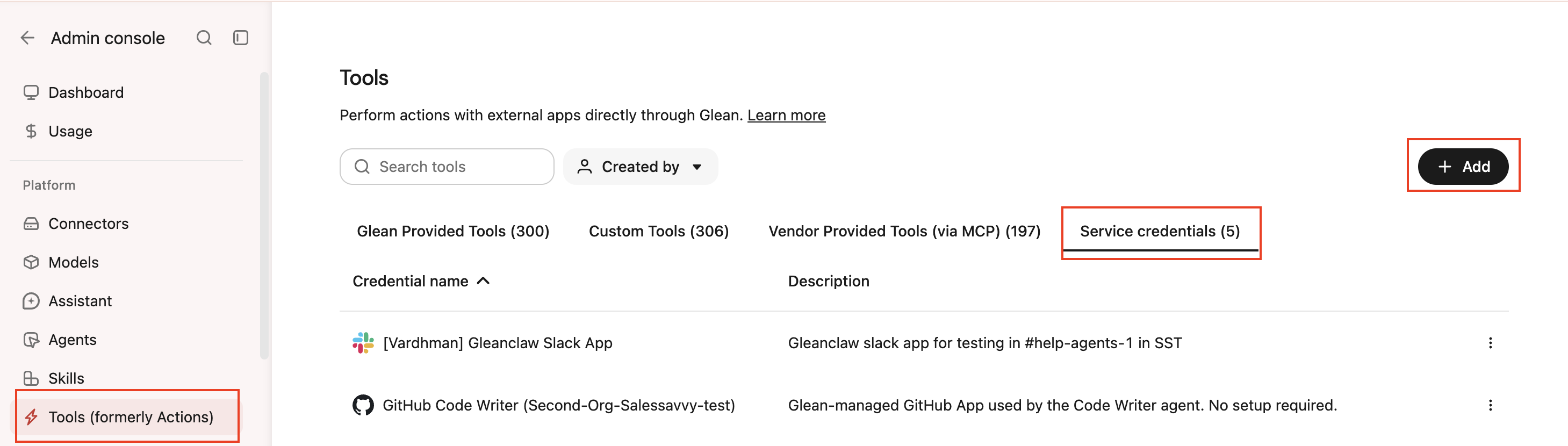
- Click Add.
- Select GCP Service Account under Service credentials.
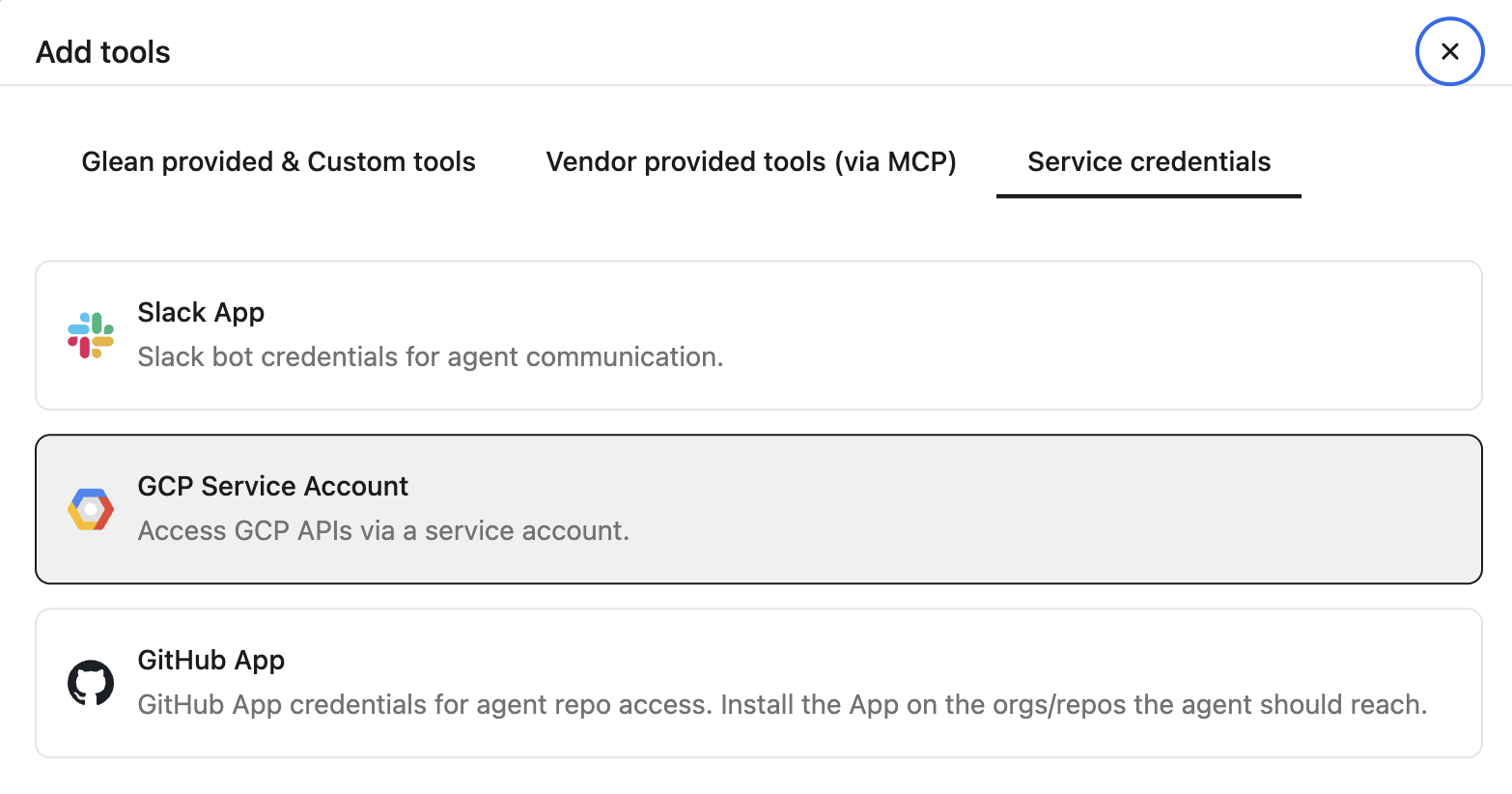
- Fill in these fields:
- Credential name: A human-readable name for the credential.
- Description: A brief description of what this credential is used for.
- Service account email: The full email address of the target service account (for example,
agent-bot@<your-gcp-project>.iam.gserviceaccount.com). - Audience: Which users or groups can attach this credential to agents.
- Select Save.
Attach the credential to an agent
Agent builders can attach the credential from the Service credentials tab in the agent builder. After you attach it, the agent can authenticate to GCP APIs using short-lived tokens minted through service account impersonation.
-
Go to Agents in Glean.
-
Select the agent to which you want to add the service credentials.
-
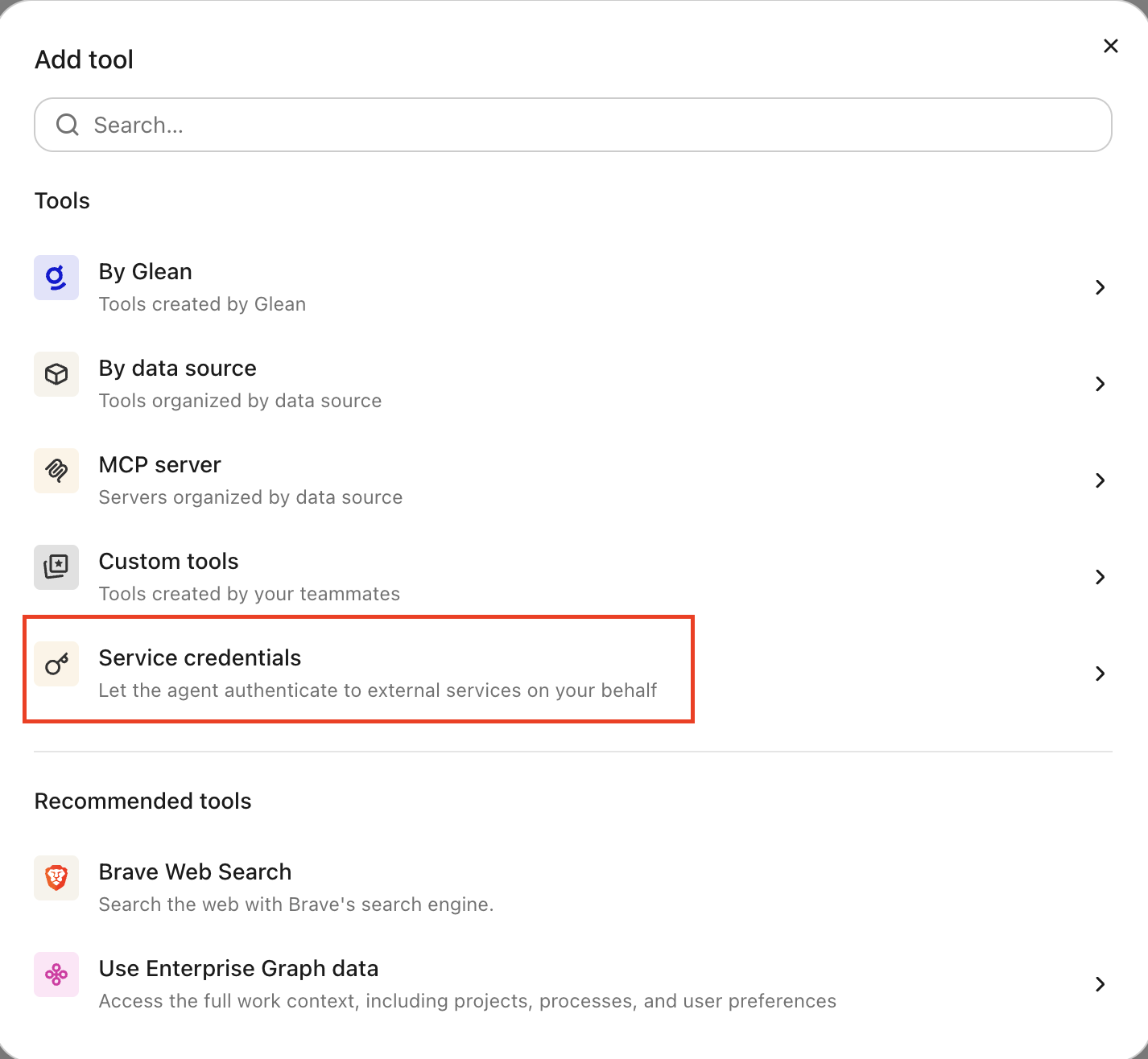
In the Tools tab, select Service credentials and select the GCP cloud logging credential you created.
Verify it works
Ask the agent to do something that needs GCP access, for example, "show me the most recent Cloud Logging errors in <your-project>." If it returns real data, the credential is working.
What the agent can do
With a GCP service account credential attached, the agent can call GCP APIs as the target service account, limited to the IAM roles that account holds. For example, with the Logs Viewer role it can read Cloud Logging entries for the granted projects.
Glean mints a short-lived token for each request. The agent can't exceed the IAM permissions granted to the target service account.
Security and operational notes
- Impersonation, not keys: Glean mints short-lived tokens through impersonation, so there is no long-lived key to store, upload, or leak.
- Injected server-side: the agent runtime never receives a static credential. Glean adds the token only to requests bound for Google APIs.
- Least privilege: grant the target service account only the IAM roles the agent needs, on only the projects it must reach.
- Revocation: to cut off access, remove the Service Account Token Creator binding for the Glean query endpoint service account on the target service account.