Set up GitHub service credential
A GitHub app service credential lets a Glean agent read GitHub repository data as a GitHub app rather than as an individual user. You create a GitHub app, install it on the organizations or repositories the agent should reach, and store its app ID and private key in Glean. Glean signs a short-lived token for the requests of the agent.
Glean handles authentication automatically. The private key is stored encrypted, and the agent never sees it.
- Authentication: GitHub app, private key signs a JWT that is exchanged for an installation access token
- Scope: The repositories where the app is installed, limited to the permissions you grant
- Access: Read-only
Prerequisites
Complete the following prerequisites:
- Have permission to create a GitHub app and install it on your organization or repositories.
- Work with a Glean administrator who can create service credentials.
- Enable the GitHub app template for your deployment. If you do not see it in the list of templates, contact your Glean representative to turn it on.
Create a GitHub app
In GitHub, go to Settings → Developer settings → GitHub Apps and click New GitHub App.
Grant read-only repository permissions
Under Permissions → Repository, grant only what the agent needs to read, for example:
| Permission | Access |
|---|---|
| Contents | Read-only |
| Metadata | Read-only |
| Pull requests | Read-only (if needed) |
| Issues | Read-only (if needed) |
Generate a private key
On the app's page, under Private keys, click Generate a private key. GitHub downloads a PEM file — keep it safe.
Install the app
Click Install App and choose the organizations or repositories the agent should reach. Note the numeric App ID from the app's General page.
Create the service credential in Glean
- In Glean, go to Admin console → Platform → Tools → Service credentials.
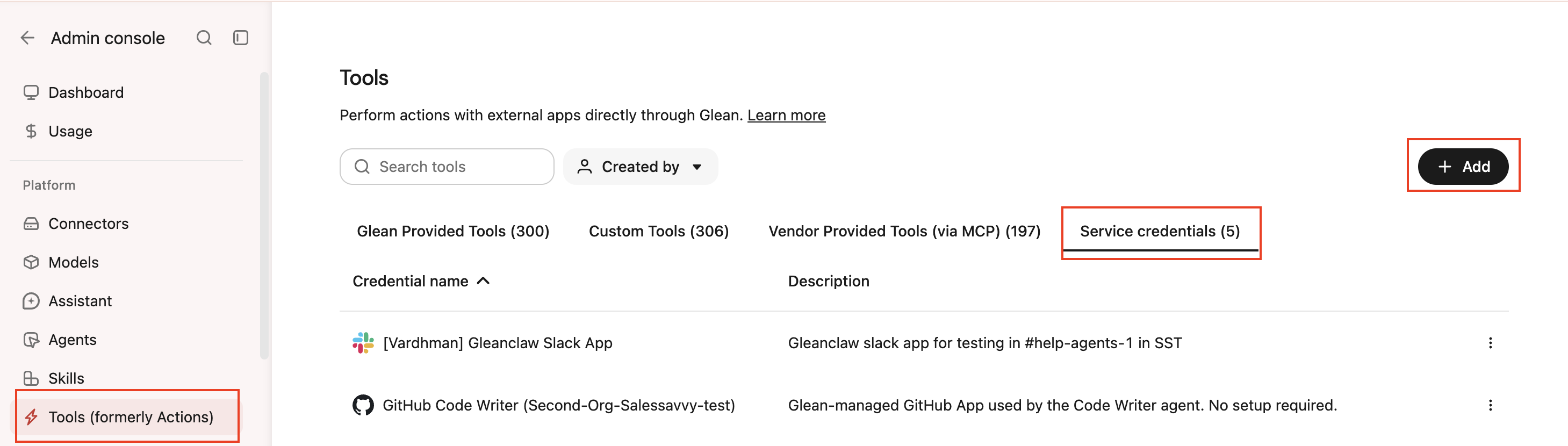
- Click Add.
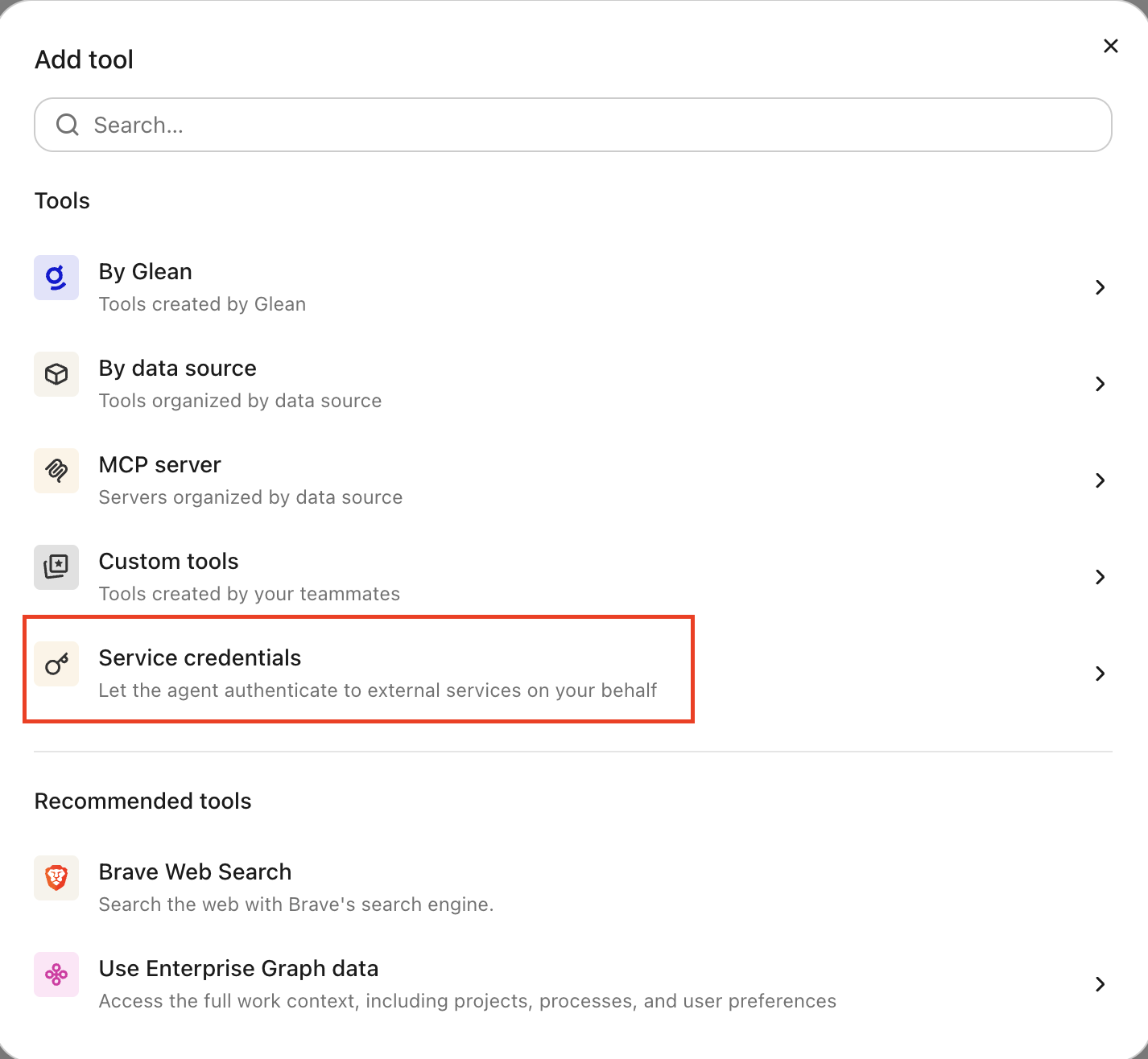
- Select GitHub App under Service credentials.
- Fill in these fields:
- Credential name: A human-readable name for the credential.
- Description: A brief description of what this credential is used for.
- App ID: The numeric GitHub App ID from the app's General page.
- Private Key (PEM): The full contents of the downloaded PEM file (stored encrypted). Used to sign the JWT that is exchanged for an installation access token.
- Audience: Which users or groups can attach this credential to agents.
- Select Save. Glean stores the private key as an encrypted secret and doesn't display it again.
Attach the credential to an agent
When the agent calls api.github.com including through the gh CLI in its sandbox, Glean signs a short-lived installation token automatically and grants the agent a gh skill.
-
Go to Agents in Glean.
-
Select the agent to which you want to add the service credentials.
-
In the Tools tab, select Service credentials and select the GitHub credential you created.
Verify it works
Ask the agent to read something from an installed repository, for example, "show me the README of owner/repo." If it returns the file contents, the credential is working.
What the agent can do
The agent can read repository data through repository-scoped endpoints (/repos/{owner}/{repo}) for the repositories where the app is installed. Other endpoints are denied. Agents are instructed not to perform destructive operations, such as deleting repositories or branches, force-pushing to default branches, or deleting issues or releases.
Security and operational notes
- Injected server-side: the agent never receives the raw private key. Glean signs a short-lived installation token and adds the header only to requests bound for
api.github.com. - Least privilege: grant read-only repository permissions and install the app only on the repositories the agent needs.
- Rotation: to rotate, generate a new private key in GitHub, update the Private Key (PEM) on the credential in Glean, then delete the old key.