Set up Google Workspace service credential
A Google Workspace service credential lets a Glean agent access Google Drive, Docs, Sheets, Calendar, and Gmail through Google Workspace Representational State Transfer (REST) APIs using an admin-managed identity.
Choose one of these identity modes:
- Service account: The agent acts as a service account to access content explicitly shared with its email address.
- Domain-wide delegation: The agent impersonates a specific Google Workspace user to access that user's Drive, Docs, Sheets, Calendar, and Gmail.
- OAuth refresh token: The agent acts as a dedicated Google Workspace user through a stored OAuth refresh token.
Glean handles authentication automatically. The platform manages credentials and tokens server side, preventing the agent from receiving raw client secrets, refresh tokens, or service account keys.
For service account and domain-wide delegation credentials, Glean obtains separate tokens for each Google Workspace API scope and caches them by credential and scope. Glean reuses cached tokens until they near expiration. For OAuth credentials, Glean reuses one cached token containing all scopes granted during consent.
Glean does not enable any of the three Google Workspace service credential templates by default. A deployment specific greenlist entry is required before they appear in the service credential list. Contact your Glean representative if the templates are not available for your deployment.
Authentication modes
| Mode | Agent identity | Access model | Gmail |
|---|---|---|---|
| Service account | Service account | Shared files, folders, shared drives, and calendars | Unavailable |
| Domain-wide delegation | Specific Workspace user | Impersonated user's Drive, Docs, Sheets, Calendar, and Gmail | Read-only |
| OAuth refresh token | Dedicated Workspace user | Any resources accessible to the dedicated user | Read-only |
Service account and domain-wide delegation modes accept either workload identity authentication or a JSON key:
- Workload identity authentication: Glean's Query Endpoint impersonates the service account using workload identity. You do not need to store a service account key.
- JSON key: Upload a service account JSON key to Glean when workload identity is unavailable.
If you provide both service_account_email and service_account_json_key, the JSON key takes precedence. Provide only one authentication method.
Prerequisites
Ensure you have the following before starting setup:
- A GCP project for the service account.
- A Glean administrator account with credential creation permissions.
- Google Workspace administrator access for domain-wide delegation setup.
- Local installation of
gcloud, authenticated for command-line setup. - The Glean Query Endpoint service account for your deployment when configuring workload identity. Follow Identify the Glean Query Endpoint service account to find it.
- The required Google Workspace APIs enabled in your GCP project:
- Drive API
- Docs API
- Sheets API
- Calendar API
- Gmail API, if the agent will access Gmail
Workload identity authentication requires a GCP deployment. Use the JSON key option for AWS or Azure deployments.
Enable Google Workspace APIs
Run the following commands to configure your project and enable the required services:
export PROJECT_ID="my-gcp-project"
gcloud config set project "$PROJECT_ID"

gcloud services enable \
  drive.googleapis.com \
  docs.googleapis.com \
  sheets.googleapis.com \
  calendar-json.googleapis.com \
  gmail.googleapis.com
Choose a Google Workspace identity
Select the identity mode that fits your agent's required access model:
- Bare service account: Use when the agent needs access to specific shared files, folders, shared drives, or calendars.
- Domain-wide delegation: Use when the agent needs to impersonate a specific Workspace user or read that user's Gmail.
- OAuth: Use when the agent must act as a dedicated real Workspace user without a service account.
For security and auditing, isolate bare service accounts from domain-wide delegation accounts.
Select and complete only one path based on the identity mode you selected above. After completing your selected path, continue to Grant Query Endpoint impersonation rights if you selected workload identity authentication, or to Create the service credential in Glean if you selected JSON-key or OAuth authentication.
- Service account
- Domain-wide delegation
- OAuth refresh token
Use this mode to grant access to specific Drive files, Docs, Sheets, or calendars shared with the service account email. Bare service accounts do not have mailboxes and cannot access Gmail.
Create the service account
- Open Identity and Access Management (IAM) & Admin → Service Accounts in the Google Cloud Console.
- Select Create service account.
- Enter a name, such as
glean-agent-workspace-sa. - Select Create and continue.
- Skip granting GCP IAM roles. Grant Workspace access directly by sharing content with the service account email.
- Do not enable domain-wide delegation on this account.
- Select Done.
- Save the service account email as
SA_EMAILfor subsequent CLI steps.
Grant access to Workspace content
Share required resources with the service account email:
- Drive, Docs, and Sheets: Share files, folders, or shared drives directly. Assign Viewer for read operations or Editor for create and update operations.
- Calendar: Open Google Calendar Settings → Share with specific people, then add the service account email. Assign See all event details for read access or Make changes to events for write access.
Use the Calendar calendarList API to discover shared calendars. Do not assume primary calendar endpoints contain target user data.
Configure service account authentication
Choose exactly one authentication option below:
- Workload identity
- JSON key
- Grant the Service Account Token Creator role on your target service account to the Glean Query Endpoint account. Complete Grant Query Endpoint impersonation rights after you finish this tab.
- Continue to Create the service credential in Glean and enter
service_account_email.
- Generate a JSON key:
gcloud iam service-accounts keys create glean-workspace-sa.json \
  --iam-account="$SA_EMAIL"
- Continue to Create the service credential in Glean and enter the key payload in
service_account_json_keyinstead of filling inservice_account_email.
Service account JSON keys act as long-lived credentials. Secure keys, avoid committing them to source repositories, and rotate them regularly.
Use this mode when agents impersonate Workspace users to access Drive, Docs, Sheets, Calendar, or read Gmail. Domain Wide Delegation (DWD) allows service accounts to assume user identities.
Create a dedicated service account
- Open Identity and Access Management (IAM) & Admin → Service Accounts in the Google Cloud Console.
- Select Create service account.
- Enter a name, such as
glean-agent-workspace-dwd. - Select Done.
- Save the service account email, numeric Unique ID, and OAuth 2.0 Client ID.
- Find the OAuth 2.0 Client ID under the account's Advanced settings. Do not substitute the numeric Unique ID for the OAuth 2.0 Client ID.
- Do not reuse the bare service account for domain-wide delegation tasks.
Use the OAuth 2.0 Client ID during delegation configuration.
Authorize domain-wide delegation
- Sign in to the Google Admin console using super administrator credentials.
- Navigate to Security → Access and data control → API controls.
- Select Domain-wide delegation, then select Manage domain-wide delegation.
- Select Add new.
- Enter the service account's OAuth 2.0 Client ID in the Client ID field. Find this value in the service account's Advanced settings. Do not enter the numeric Unique ID.
- Enter the required OAuth scopes:
https://www.googleapis.com/auth/drive,
https://www.googleapis.com/auth/spreadsheets,
https://www.googleapis.com/auth/documents,
https://www.googleapis.com/auth/calendar,
https://www.googleapis.com/auth/gmail.readonly
- Select Authorize.
Authorize only the required scopes. Missing scope approvals cause token generation failures during runtime.
Configure domain-wide delegation authentication
Choose exactly one authentication option below:
- Workload identity
- JSON key
- Complete Grant Query Endpoint impersonation rights to grant the Query Endpoint access to your DWD service account.
- Continue to Create the service credential in Glean and enter
service_account_email.
- Generate a JSON key for the DWD service account:
export DWD_SA_EMAIL="<dwd-service-account-email>"

gcloud iam service-accounts keys create glean-workspace-dwd.json \
  --iam-account="$DWD_SA_EMAIL"
- Continue to Create the service credential in Glean and enter the key payload in
service_account_json_key.
Ensure the service account specified in Glean matches the account authorized in the Google Admin console.
Use this mode when agents run as dedicated Workspace users instead of service accounts. This configuration does not require service account creation, domain-wide delegation, or Query Endpoint impersonation setup.
Create an OAuth client
- Open APIs & Services → OAuth consent screen in the Google Cloud Console.
- Select Internal if the user belongs to your internal organization.
- Add the required scopes.
- Set the publishing status to In production.
- Open APIs & Services → Credentials.
- Select Create credentials → OAuth client ID.
- Choose Desktop app.
- Record the generated OAuth client ID and client secret.
OAuth refresh tokens created during Testing mode expire after seven days. Keep the consent screen In production for a long lived integration.
Mint a refresh token
Execute this workflow while signed in as the dedicated Workspace user:
export CLIENT_ID="...apps.googleusercontent.com"
export SCOPES="https://www.googleapis.com/auth/drive https://www.googleapis.com/auth/spreadsheets https://www.googleapis.com/auth/documents https://www.googleapis.com/auth/calendar https://www.googleapis.com/auth/gmail.readonly"

python3 - <<'PY'
import os
import urllib.parse

params = {
    "client_id": os.environ["CLIENT_ID"],
    "redirect_uri": "http://localhost",
    "response_type": "code",
    "scope": os.environ["SCOPES"],
    "access_type": "offline",
    "prompt": "consent",
}

print(
    "https://accounts.google.com/o/oauth2/v2/auth?"
    + urllib.parse.urlencode(params)
)
PY
- Open the output address in a browser where the dedicated user is signed in.
- Grant access.
- Extract the authorization code from the
http://localhost/?code=...redirect address. - Exchange the authorization code for a refresh token:
read -r -s -p "OAuth client secret: " OAUTH_VALUE
echo

curl -sS https://oauth2.googleapis.com/token \
  -d client_id="$CLIENT_ID" \
  -d "client""_""secret=$OAUTH_VALUE" \
  -d code="<authorization-code>" \
  -d grant_type=authorization_code \
  -d redirect_uri="http://localhost"
- Copy the
refresh_tokenvalue from the JSON response.
Google returns a refresh token on the initial consent flow. If the response omits the refresh token, revoke app access under Google Account → Security → Third-party access and rerun authorization with prompt=consent.
Changing SCOPES later does not update an existing refresh token. Revoke access and repeat token generation to add scopes.
The oauth2l utility can simplify browser consent and token exchange:
oauth2l fetch \
  --credentials <client.json> \
  --scope "<scopes>" \
  --output_format refresh_token
Continue to Create the service credential in Glean.
Grant Query Endpoint impersonation rights
Complete this step only if you selected Workload identity for service account or domain-wide delegation authentication. Skip this step for JSON-key and OAuth authentication.
Grant roles/iam.serviceAccountTokenCreator on the target Workspace service account to the Glean Query Endpoint service account.
# Query Endpoint service account for your deployment.
export QE_SA="<query-endpoint-service-account>"

# Target service account email: the bare service account or DWD service account.
export TARGET_SA="<target-service-account>"

# View the existing policy.
gcloud iam service-accounts get-iam-policy "$TARGET_SA" \
  --project="my-gcp-project"

# Add the binding.
gcloud iam service-accounts add-iam-policy-binding "$TARGET_SA" \
  --member="serviceAccount:${QE_SA}" \
  --role="roles/iam.serviceAccountTokenCreator" \
  --project="my-gcp-project"
Apply the policy to the project hosting the target service account in a multi-project environment. Allow up to 60 seconds for IAM changes to propagate across GCP.
Create the service credential in Glean
-
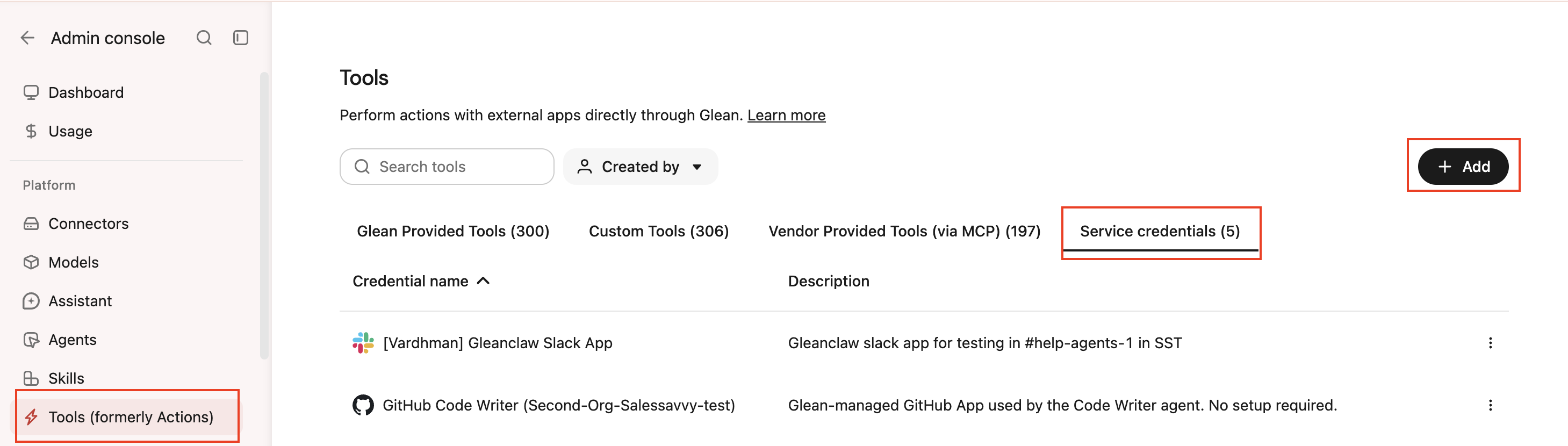
In Glean, navigate to Admin console → Platform → Tools → Service credentials.
-
Select Add.
-
Choose the same Google Workspace template as the identity mode selected in Choose a Google Workspace identity:
- Google Workspace (service account)
- Google Workspace (domain-wide delegation)
- Google Workspace (OAuth)
-
Fill in the fields for your selected authentication method:
- Service account: Enter either
service_account_emailfor workload identity orservice_account_json_keyfor JSON-key authentication. - Domain-wide delegation: Enter
impersonated_user_emailand eitherservice_account_emailfor workload identity orservice_account_json_keyfor JSON-key authentication. - OAuth: Enter
oauth_client_id,oauth_client_secret, andoauth_refresh_token.
- Service account: Enter either
-
Configure the credential audience.
-
Select Save.
Attach the credential to an agent
-
Open Agents in Glean.
-
Select your agent.
-
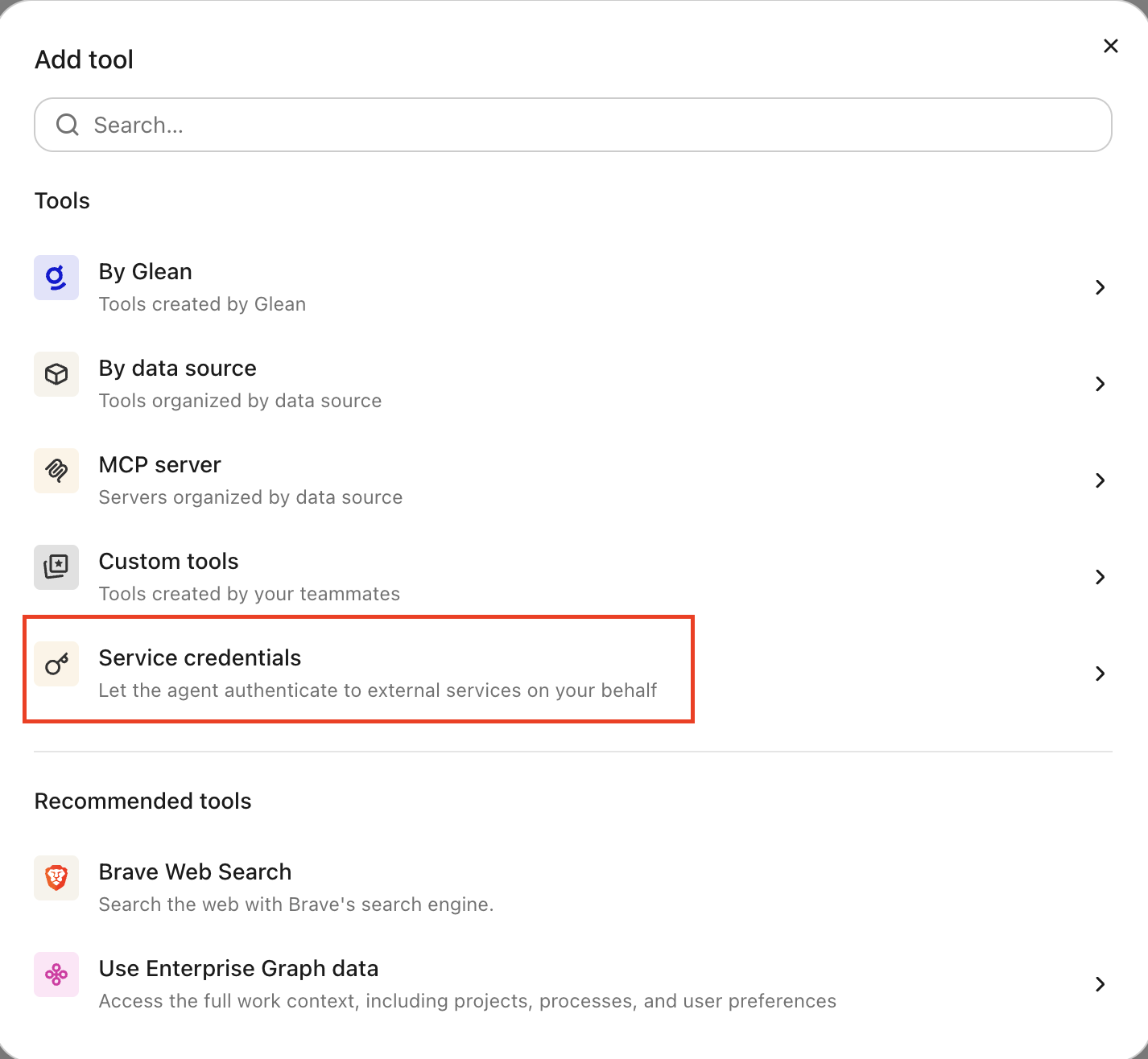
Open the Tools tab.
-
Select your Google Workspace credential under Service credentials.
If you attach multiple credentials that use the same Google Workspace template, ensure the tool request includes credentialId to select the intended credential. Glean rejects a request when it cannot determine which credential to use, such as when multiple Workspace identity modes are attached or same-mode credentials are not disambiguated.
Supported agent capabilities
Attached Google Workspace credentials enable agents to invoke Google Workspace REST APIs to:
- Read, create, and update Drive files.
- Read, create, and update Docs and Sheets.
- Read, create, and update Calendar events.
- Read Gmail messages when using domain-wide delegation or OAuth.
Bare service accounts cannot access Gmail. The integration blocks destructive calls, permission updates, Access Control List (ACL) mutations, deletion, and trash operations.
Verify credentials
Run basic requests to verify authentication behavior without adding manual authorization headers. Glean injects tokens automatically.
Test bare service accounts by requesting shared files:
curl -sS "https://www.googleapis.com/drive/v3/files"
Test domain-wide delegation or OAuth setups by querying user messages:
curl -sS "https://gmail.googleapis.com/gmail/v1/users/me/messages"
Verify setup by executing a basic read operation inside the agent runtime. Successful data retrieval confirms valid configuration.
Security and operational best practices
- Isolate identities: Maintain separate service accounts for bare access and domain-wide delegation.
- Enforce least privilege: Limit file sharing and scope authorization to the minimum operational requirements.
- Avoid static keys: Prefer workload identity authentication over long-lived JSON keys.
- Secure secrets: Store OAuth client secrets and refresh tokens securely.
- Rotate keys: Generate a new JSON key, update the Glean credential, verify runtime calls, and delete the old key.
- Revoke unused access: Remove IAM impersonation bindings, revoke OAuth authorizations, and delete unused Glean service credentials.
- Scope isolation: For service account and domain-wide delegation credentials, Glean caches tokens separately by credential and Google Workspace API scope. For OAuth credentials, Glean reuses one cached token containing all scopes granted during consent.
- Runtime protection: Secret material stays on the server; agent environments never receive raw keys or tokens.