Set up Salesforce service credential
A Salesforce service credential lets a Glean agent call the Salesforce REST API using a service identity not as any individual user. You create a Salesforce connected App with the OAuth 2.0 client credentials flow enabled, store the connection details in Glean, and the agent can then authenticate automatically to call the Salesforce REST API.
Glean handles authentication automatically. The credential is stored encrypted, and the agent never sees the raw client secret.
- Authentication: OAuth 2.0 Client Credentials
- Scope: Whatever the connected App and Salesforce service identity are allowed to access
- Access: Determined by the permissions granted to the connected App
Prerequisites
Complete the following prerequisites:
- Have a Salesforce org with admin access (Developer Edition, Sandbox, or Enterprise).
- Have a user with the System Administrator profile for the initial setup.
- Have support for the Client Credentials flow, which is generally available since Spring '23 and requires API version 54.0 or later.
- Work with a Glean administrator who can create service credentials.
- Enable the Salesforce template for your deployment. If you do not see it in the list of templates, contact your Glean representative to turn it on.
Create a run-as user
The client credentials flow needs a run-as user, the identity the agent assumes when it calls Salesforce APIs.
- In Salesforce, go to Setup → Users → New User.
- Fill in the user details:
- First/Last Name: for example, "Integration Bot".
- Email: your admin email.
- Username: a globally unique username in email format, for example,
bot-service-credential@yourcompany.com. - Role: None specified.
- User License: Salesforce Platform.
- Profile: any profile with the API Enabled permission, for example, a custom API Only profile or Standard Platform User.
- Select Save.
Create a dedicated integration user rather than using a personal admin account. This gives you a clear audit trail and avoids disruption if someone leaves the org.
Create a connected app
- In Salesforce, go to Setup → App Manager.
- Select New Connected App.
- Enter the basic information:
- Connected App Name: for example, Glean Agent.
- Contact Email: your admin email.
- Under API (Enable OAuth Settings), select Enable OAuth Settings and configure:
- Callback URL:
https://localhost/callback(a dummy value — it isn't used for the Client Credentials flow, but Salesforce requires it). - OAuth Scopes: add Manage user data via APIs (api) and Perform requests at any time (refresh_token, offline_access).
- Callback URL:
- Under Flow Enablement, select Enable Client Credentials Flow.
- Select Save.
A newly created connected app can take sometime to propagate before you can use it.
Alternative: use an External Client App
If your org uses the newer Lightning UI, you may see External Client App Manager instead of App Manager. The setup is equivalent:
- Go to Setup → External Client App Manager → New External Client App and choose Local distribution.
- Enter the basic information like name and contact email.
- Under OAuth Settings, set the same Callback URL and OAuth Scopes.
- Under Flow Enablement, select Enable Client Credentials Flow.
- Select Save.
The remaining steps are the same for both connected app and an external client app.
Set the run-as user
- Open the management page of the connected app and go to the Policies tab.
- Under OAuth Flows and External Client App Enhancements, select Enable Client Credentials Flow.
- In the Run As field that appears, select the integration user you created in Create a run-as user.
- Select Save.
Get the consumer key and secret
- On the Connected App page, go to the Settings tab → OAuth Settings.
- Select Consumer Key and Secret.
- Copy both values:
- Consumer Key: this is your client ID.
- Consumer Secret: this is your client secret.
Treat the consumer secret as a sensitive value. Store it securely until you enter it in Glean.
Find your instance name
Your Salesforce instance URL has the form https://<your-domain>.my.salesforce.com. Find your domain in Setup → My Domain, or read it from the address bar of your browser while signed in. The instance name is the subdomain, for example, mycompany for mycompany.my.salesforce.com.
Create the service credential in Glean
- In Glean, go to Admin console → Platform → Tools → Service credentials.
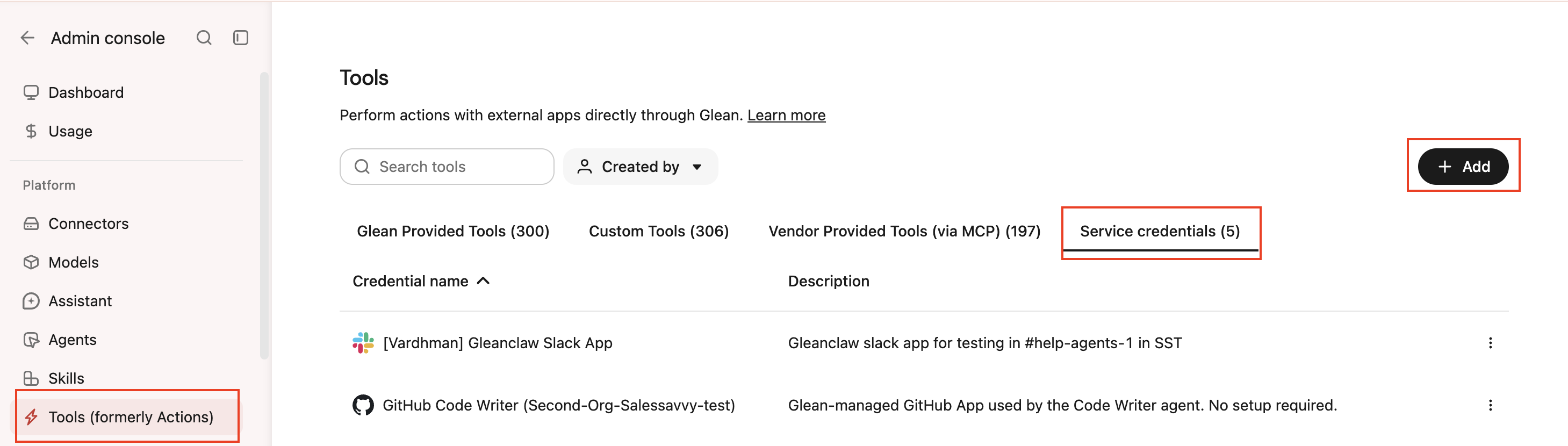
- Click Add.
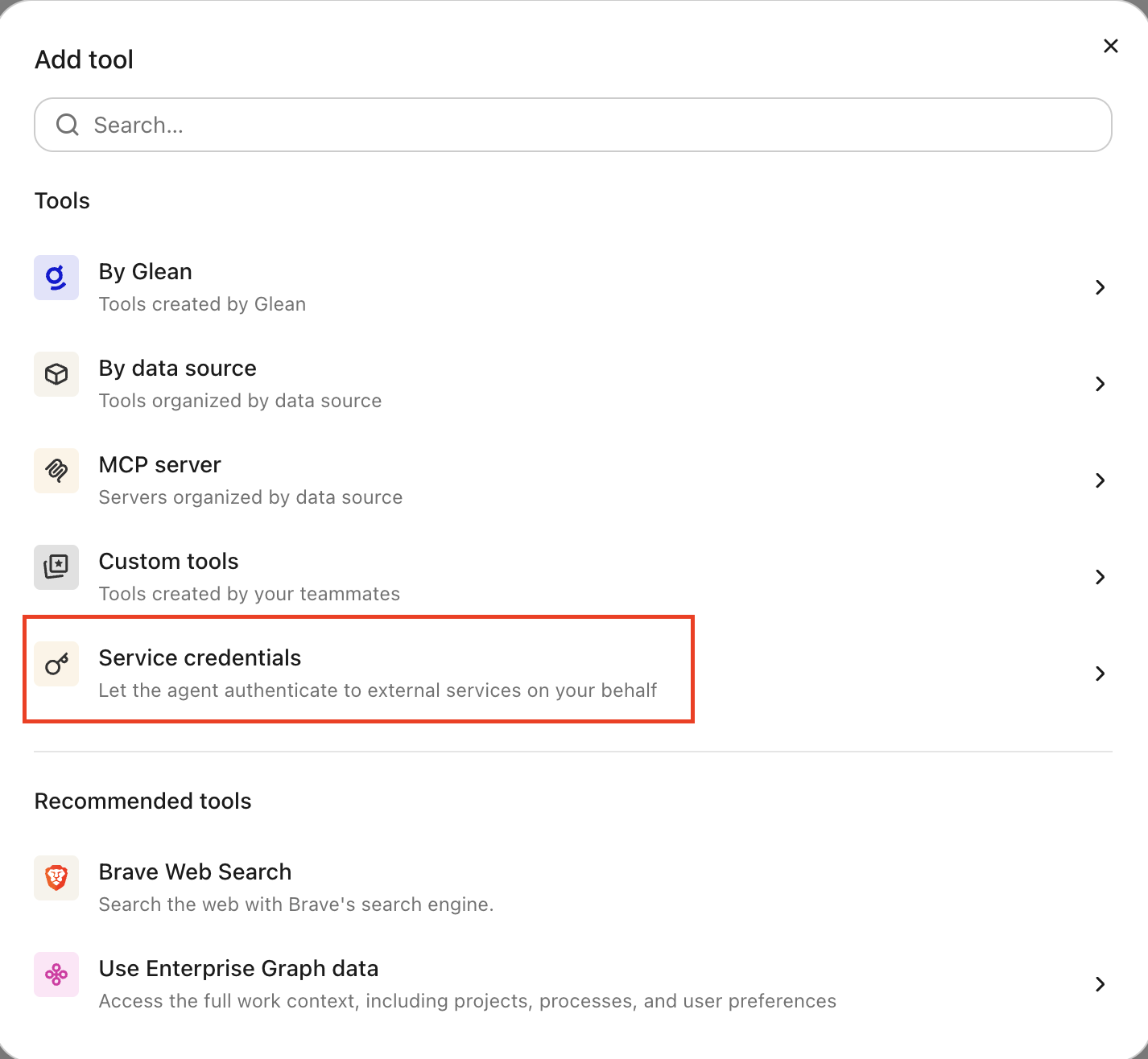
- Select Salesforce under Service credentials.
- Fill in these fields:
- Credential name: A human-readable name for the credential, for example, "Salesforce — Production org".
- Description: A brief description of what this credential is used for.
- Instance name: Your Salesforce My Domain name, for example,
mycompany. - Client ID: The consumer key from Get the consumer key and secret.
- Client secret: The consumer secret from Get the consumer key and secret.
- Audience: Which users or groups can attach this credential to agents.
- Select Save.
Attach the credential to an agent
Agent builders can attach the credential from the Service credentials tab in the agent builder. After you attach it, the agent can call the Salesforce REST API and Glean obtains an access token using the Client Credentials flow and attaches it to each request automatically. The agent also gains a Salesforce skill that explains how to call the Salesforce REST API.
-
Go to Agents in Glean.
-
Select the agent to which you want to add the service credentials.
-
In the Tools tab, select Service credentials and select the Salesforce service credential you created.
Restrict connected app permissions (optional)
It is recommended to restrict connected app permissions to limit what the agent can do in your Salesforce org:
- Restrict permitted users: under App Manager → your app → Manage, set Permitted Users to Admin approved users are pre-authorized, then assign only the integration profile of the user or a dedicated permission set.
- Set field-level security: use the integration profile of the user to control which objects and fields it can read or write.
- Restrict IP ranges: in the Connected App settings, limit allowed IP ranges to Glean's egress IPs where available.
Verify it works
Ask the agent something that requires Salesforce data, for example, "list the 5 most recent opportunities." If it returns data, the credential is working.
What the agent can do
With a Salesforce credential attached, the agent can call the Salesforce REST API using the Connected App identity:
- Query Salesforce objects with SOQL
- Read specific records
- Run SOSL searches
- Describe object schemas
Security and operational notes
- Dedicated Connected App: use a dedicated Connected App for Glean, separate from other integrations.
- Least privilege: grant only the minimum scopes and Salesforce permissions the agent needs.
- Rotation: rotate the client secret regularly. Create a new secret in Salesforce, update the credential in Glean, then revoke the old secret.
- Injected server-side: the agent runtime never receives the raw client secret. Glean manages the OAuth token lifecycle automatically.