Set up Sentry service credential
A Sentry service credential lets a Glean agent read data from Sentry — issues, events, projects, and releases — with an Internal Integration auth token instead of acting on behalf of an individual user. Every call the agent makes is authenticated as one read-only, non-human identity.
Glean adds the auth token to outbound requests to sentry.io, so the agent never sees the raw token.
- Authentication: Sentry Internal Integration auth token (Bearer)
- Scope: The Sentry organizations and projects the integration is installed in
- Access: Read-only
Prerequisites
Complete the following prerequisites:
- Have a Sentry organization with admin access.
- Have an Internal Integration created in Sentry with read-only scopes.
- Have the Internal Integration auth token (format:
sntrys_...), securely stored. - Work with a Glean administrator who can create service credentials.
- Enable the Sentry template for your deployment. If you don't see it in the list of templates, contact your Glean representative.
The token must be an Internal Integration auth token. Do not use an Organization Auth Token (org:ci scope only) or a personal User Auth Token — those will not work with this integration.
Create an Internal Integration in Sentry
- Sign in to Sentry and go to Settings → Custom Integrations.
- Click Create Internal Integration.
- Fill in the details:
- Name: A descriptive name, for example, "Glean Service Credential."
- Scopes: Grant read-only scopes only:
org:readproject:readevent:readteam:read
- Click Save.
Copy the auth token
- On the integration's detail page, locate the generated auth token.
- The token starts with
sntrys_and is shown only once. - Copy the token value and store it securely (for example, in a secrets vault or 1Password) — you'll need it when creating the service credential in Glean.
Store the auth token securely. It is shown only once and cannot be retrieved later. Do not share it in plaintext or over unencrypted channels.
Install the integration in your Sentry organization
- Go to Settings → Integrations.
- Find the Internal Integration you created in Create an Internal Integration in Sentry.
- Click Install next to your target organization.
- Select the projects the integration should access.
Create the service credential in Glean
- In Glean, go to Admin console → Platform → Tools → Service credentials.
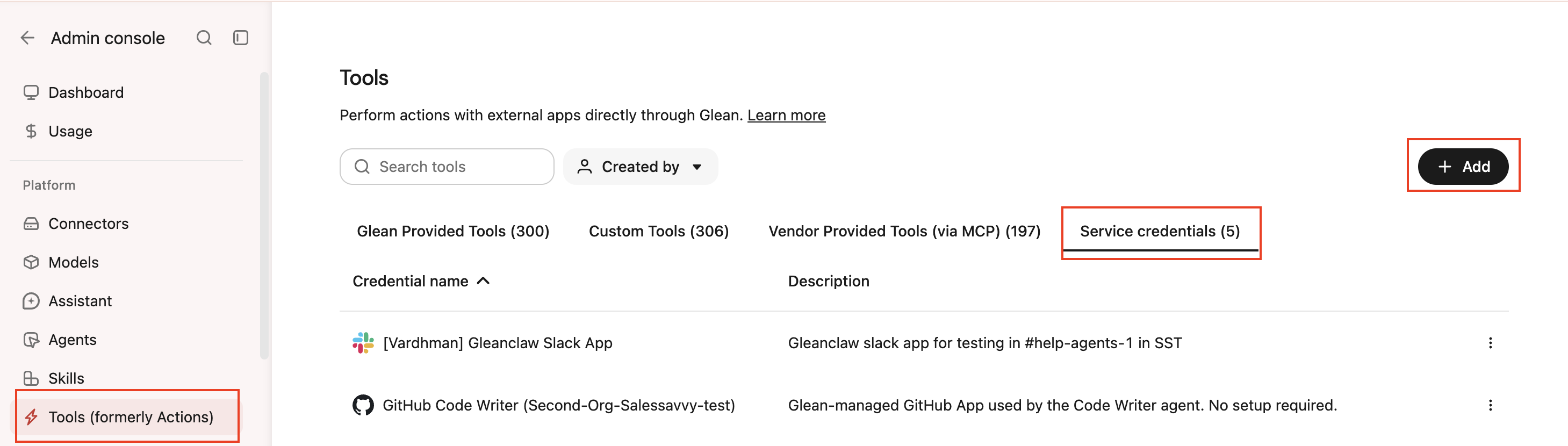
- Click Add.
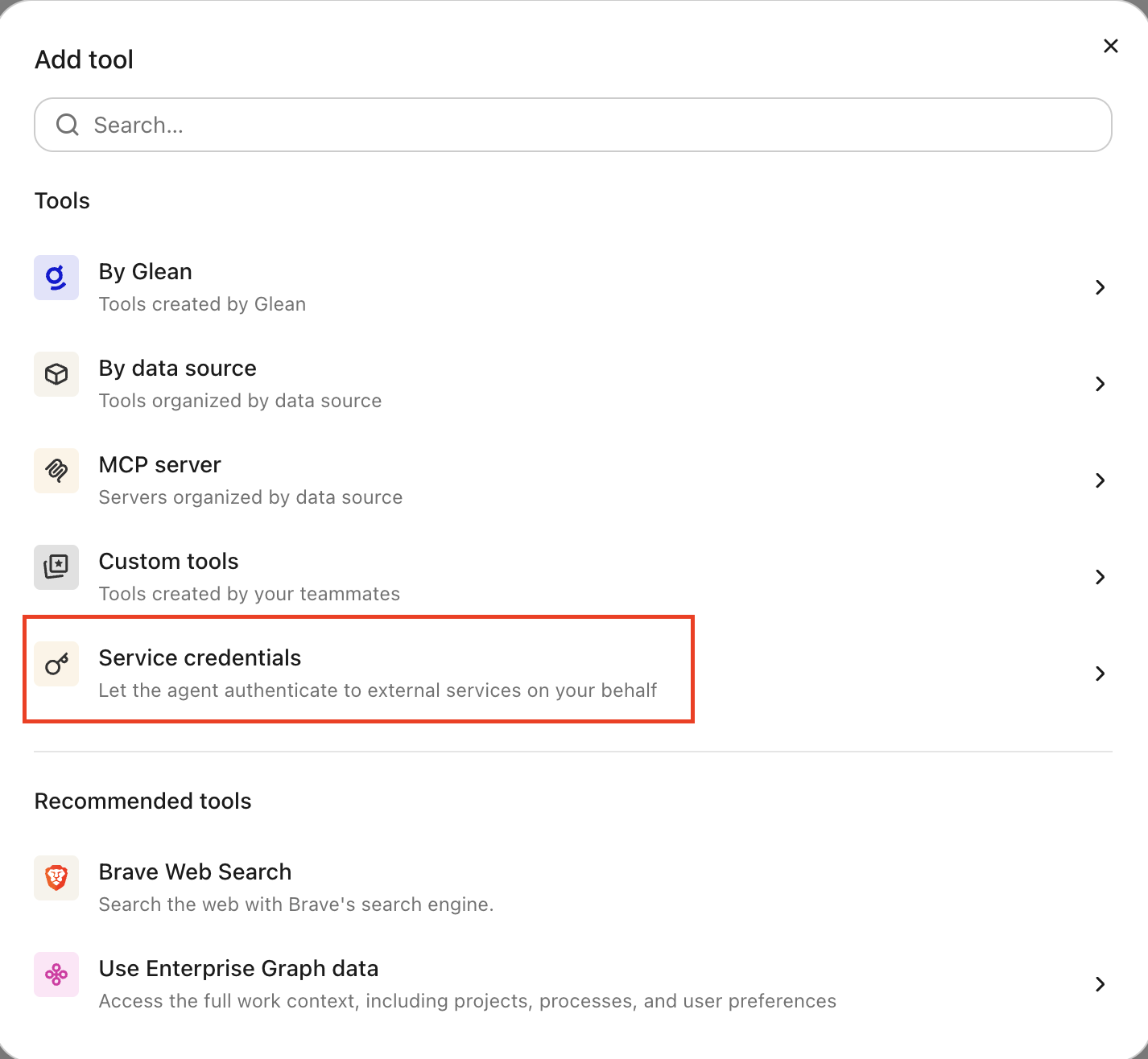
- Select Sentry under Service credentials.
- Fill in these fields:
- Credential name: A human-readable name, for example, "Sentry Agent — your-org."
- Description: A brief description of what this credential is used for.
- Auth token: The Internal Integration auth token you copied in Copy the auth token (format:
sntrys_...). - Audience: Which users or groups can attach this credential to agents.
- Select Save.
Attach the credential to an agent
-
Go to Agents in Glean.
-
Select the agent to which you want to add the service credentials.
-
In the Tools tab, select Service credentials and select the Sentry service credential you created.
Verify it works
Ask the agent to list recent issues in a Sentry project, for example, "Show the latest unresolved issues in the backend project." If it returns results, the credential is working.
What the agent can do
With a Sentry credential attached, the agent can read Sentry data:
- List and search issues across projects
- View issue details, including stack traces and event context
- Check release health and deployment status
- Summarize error trends and frequencies
The integration is read-only — the agent cannot create, update, or delete any Sentry resources.
Security and operational notes
- Token-based auth: Glean stores the auth token in the credential broker and injects it as a Bearer header into outbound requests. The agent runtime never receives the raw token.
- Read-only by design: the integration scopes are set to read-only (
org:read,project:read,event:read,team:read). No mutating or destructive operations are permitted. - Correct token type: only an Internal Integration auth token works. Do not use an Organization Auth Token (
org:ciscope) or a personal User Auth Token. - Revocation: to cut off access, revoke the token in Sentry or remove the Sentry service credential in Glean.