Set up ServiceNow service credential
A ServiceNow service credential lets a Glean agent call the ServiceNow REST API using a shared service account instead of the identity of the user who runs the agent. You create a service account user in ServiceNow, assign it the roles the agent needs, register an OAuth application, and store the connection details in Glean. The agent then authenticates automatically, with no per-user sign-in.
- Authentication: OAuth 2.0 password grant with a ServiceNow service account
- Scope: The ServiceNow tables and records the service account's roles allow
- Access: Read and write, determined by the roles you assign to the service account
Prerequisites
Complete the following prerequisites:
- Have a ServiceNow instance where you have admin access.
- Have permission to create users, assign roles, and register OAuth applications in ServiceNow.
- Work with a Glean administrator who can create service credentials.
- Enable the ServiceNow template for your deployment. If you don't see it in the list of templates, contact your Glean representative to turn it on.
Create a service account user
Follow the ServiceNow instructions for creating a user, with these changes from the defaults:
- Leave Email blank, so the account doesn't appear in people search.
- Clear Password needs reset.
- Set Identity type to Machine Identity, which restricts the account to API-only access.
Note the user ID and password. You'll enter both in Glean.
Assign roles
Follow the ServiceNow instructions for assigning a role to a user, and grant the roles the agent needs:
| Role | Purpose |
|---|---|
snc_platform_rest_api_access | REST API (Table API) access |
itil | Read and write incidents and requests |
catalog | Submit service catalog requests |
knowledge | Read and create knowledge base articles |
snc_platform_rest_api_access is required for any REST access. Add the others only for the areas the agent actually works in.
Create an OAuth application
Follow the ServiceNow instructions for creating an OAuth endpoint for external clients, with these changes from the defaults:
- Client type: select Integration as a Service.
- Scope restriction: select Broad scoped. If this is set to Securely scoped, API calls fail with
Access to unscoped api is not allowed. - Redirect URL: leave blank. The password grant doesn't use browser redirects.
After you submit the form, copy the Client ID and Client secret. You'll enter both in Glean.
Create the service credential in Glean
- In Glean, go to Admin console → Platform → Tools → Service credentials.
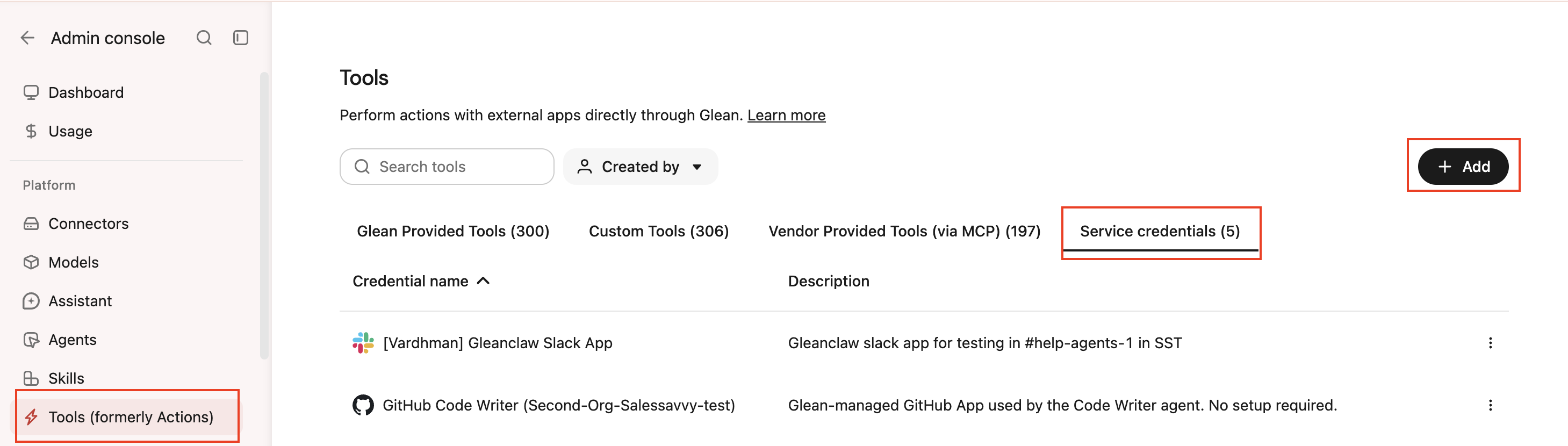
- Click Add.
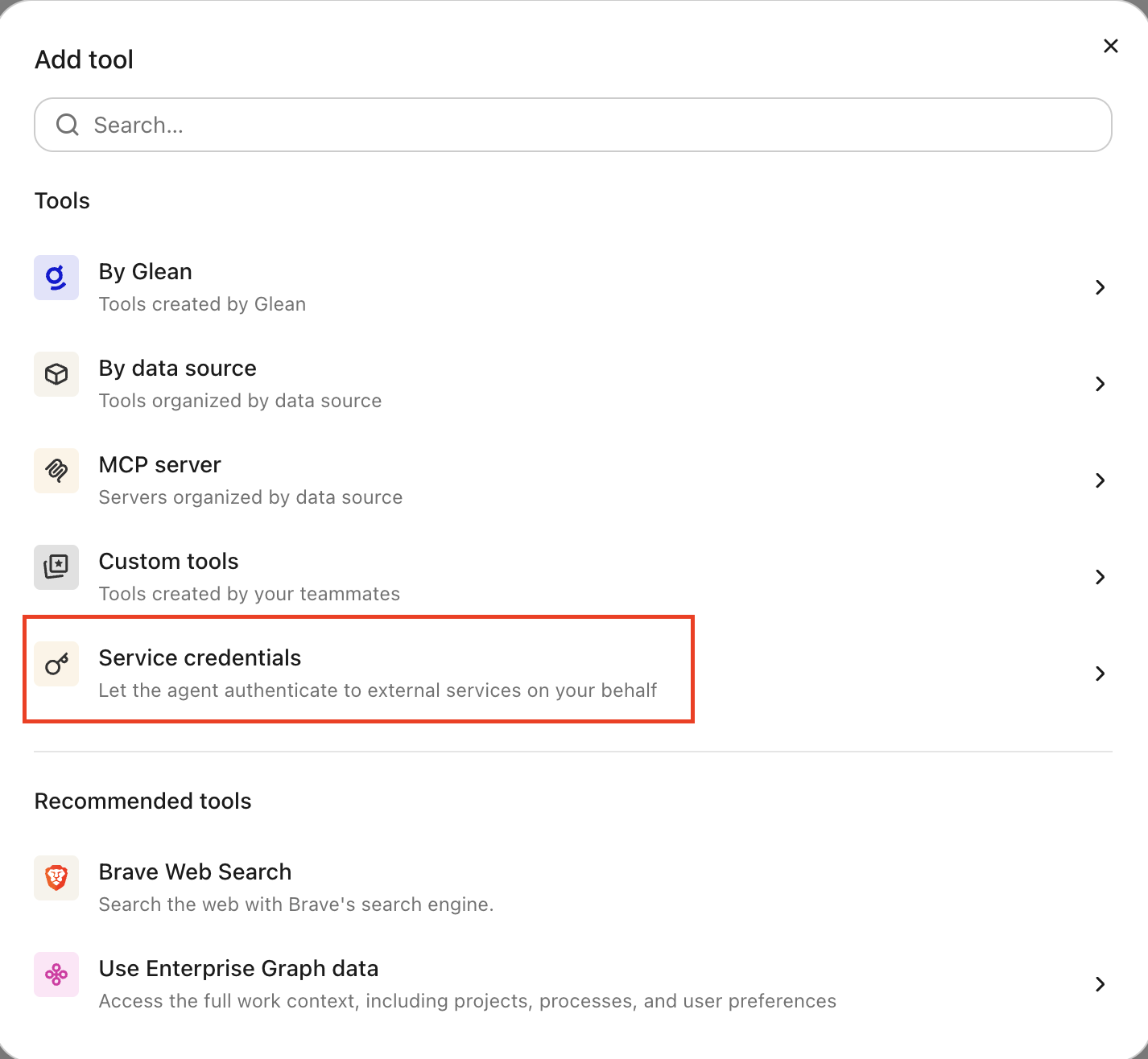
- Select ServiceNow under Service credentials.
- Fill in these fields:
- Credential name: A human-readable name for the credential, for example, "ServiceNow Agent Identity".
- Description: A brief description of what this credential is used for.
- Instance name: Your ServiceNow subdomain, for example,
mycompanyformycompany.service-now.com. - Client ID: The client ID from Create an OAuth application.
- Client secret: The client secret from Create an OAuth application.
- Service account username: The user ID from Create a service account user.
- Service account password: The password from Create a service account user.
- Audience: Which users or groups can attach this credential to agents.
- Select Save.
Attach the credential to an agent
-
Go to Agents in Glean.
-
Select the agent to which you want to add the service credentials.
-
In the Tools tab, select Service credentials and select the ServiceNow service credential you created.
Verify it works
Ask the agent something that requires ServiceNow data, for example, "list the five most recent incidents." If it returns data, the credential is working.
What the agent can do
With a ServiceNow credential attached, the agent can call the ServiceNow REST API under the service account's identity:
- Query ServiceNow tables through the Table API
- Read and update incidents and requests
- Submit service catalog requests
- Read and create knowledge base articles
What the agent can reach depends on the roles you assigned in Assign roles, so its access is exactly what those roles allow.
Security and operational notes
- Dedicated service account: use an account created only for Glean, separate from human users and other integrations.
- Machine identity: setting Identity type to Machine Identity and leaving Email blank keeps the account out of people search and limits it to API access.
- Least privilege: assign only the roles the agent needs.
snc_platform_rest_api_accessis required for REST access; additil,catalog, orknowledgeonly for the areas the agent works in. - Rotation: rotate the client secret and the service account password on your normal schedule, and update the credential in Glean after each rotation.
- Injected server-side: the agent runtime never receives the raw client secret or password. Glean manages the OAuth token lifecycle.
- Revocation: to cut off access, deactivate the service account user or delete the OAuth application in ServiceNow, or remove the ServiceNow service credential in Glean.