Set up Slack service credential
A Slack app service credential lets a Glean agent read and post in Slack as a Slack app as a shared, non-personal identity rather than on behalf of an individual user. You create a Slack app, install it in your workspace, and store its bot token in Glean. Glean attaches the authentication to the Slack API calls of the agent automatically.
Glean handles authentication automatically. The bot token is stored encrypted, and the agent never sees it.
- Authentication: Slack app bot token, with a signing secret to verify inbound events
- Scope: The channels the app is added to
- Access: Read and post messages, reply in threads, and add reactions
Prerequisites
Complete the following prerequisites:
- Have a Slack workspace where you can create apps.
- Have admin access to install the app in that workspace.
- Have your Glean deployment name, which you use in the redirect URL and event request URL.
- Work with a Glean administrator who can create service credentials.
- Enable the Slack app template for your deployment. If you don't see it in the list of templates, contact your Glean representative to turn it on.
Create a Slack app
- Go to api.slack.com/apps.
- Select Create New App.
- Choose From an app manifest.
- Select your workspace and paste the following manifest:
display_information:
  name: Glean Agent Bot
  description: Interact with Glean Agent Bot
  background_color: "#343ced"
features:
  app_home:
    home_tab_enabled: false
    messages_tab_enabled: true
    messages_tab_read_only_enabled: false
  bot_user:
    display_name: Glean Agent Bot
    always_online: true
  assistant_view:
    assistant_description: Ask me anything
    suggested_prompts: []
oauth_config:
  redirect_urls:
    - https://<your-glean-deployment>-be.glean.com/slack/oauth
  scopes:
    bot:
      - groups:read
      - app_mentions:read
      - channels:history
      - chat:write
      - files:read
      - groups:history
      - im:history
      - mpim:history
      - reactions:write
      - users:read
      - channels:read
      - assistant:write
      - im:write
      - users:read.email
settings:
  event_subscriptions:
    request_url: https://<your-glean-deployment>-be.glean.com/slack/events
    bot_events:
      - message.channels
      - message.groups
      - message.im
      - message.mpim
      - app_home_opened
      - assistant_thread_context_changed
      - assistant_thread_started
  interactivity:
    is_enabled: true
    request_url: https://<your-glean-deployment>-be.glean.com/slack/interaction
    message_menu_options_url: https://<your-glean-deployment>-be.glean.com/slack/interaction
  org_deploy_enabled: false
  socket_mode_enabled: false
  token_rotation_enabled: false
Before you create the app, update these fields:
display_information.name: Name of the Agent as shown in Slack.display_information.description: A short description of the agent.bot_user.display_name: The bot name shown in conversations.oauth_config.redirect_urls: Replace<your-glean-deployment>with your Glean deployment name.settings.event_subscriptions.request_url: Replace<your-glean-deployment>with your Glean deployment name.settings.interactivity.request_url: Replace<your-glean-deployment>with your Glean deployment name.settings.interactivity.message_menu_options_url: Replace<your-glean-deployment>with your Glean deployment name.
Leave the listed scopes and event subscriptions unchanged unless you have specific requirements.
- Review the configuration and select Create.
- Click Install to Workspace and complete the install flow.
Verify webhook configuration
The manifest configures the Events API webhook automatically.
- Open Event Subscriptions in the Slack app settings.
- Confirm the request URL is verified.
- Confirm these bot events are listed:
message.channelsmessage.groupsmessage.immessage.mpimapp_home_openedassistant_thread_context_changedassistant_thread_started
- Open Settings → Basic Information. With the basic information, you can verify that inbound webhook payloads are genuinely from Slack.
- Copy the Signing Secret.
Collect the app details you need for Glean
From the Slack app settings, collect these values:
| Value | Location in Slack |
|---|---|
| Bot user OAuth token | OAuth & Permissions |
| App ID | Basic Information |
| Signing Secret | Basic Information |
Create the service credential in Glean
- In Glean, go to Admin console → Platform → Tools → Service credentials.
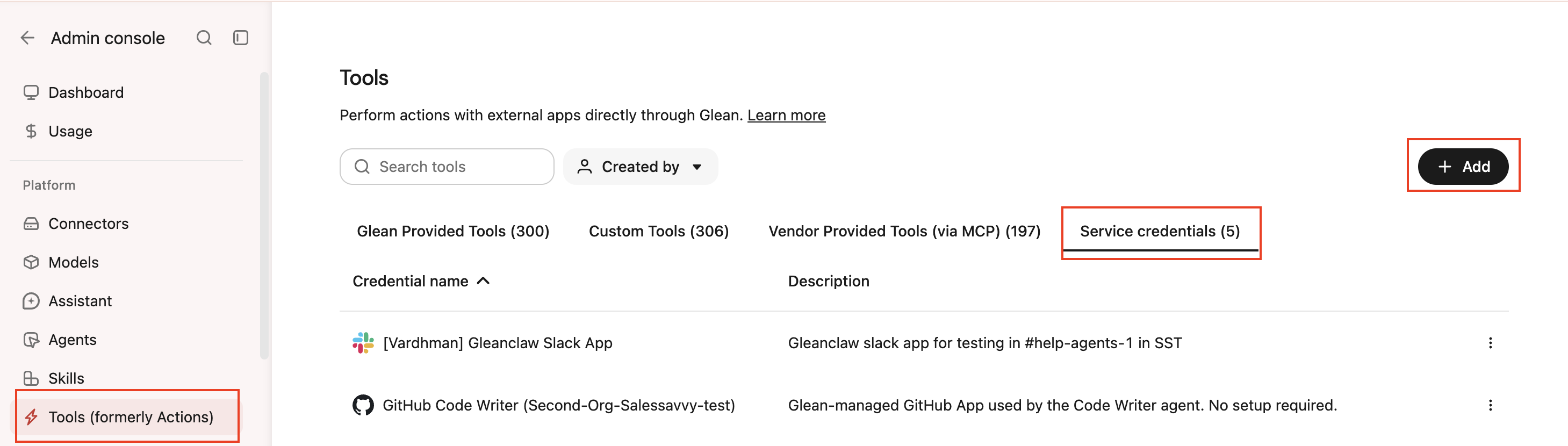
- Click Add.
- Select Slack App under Service credentials.
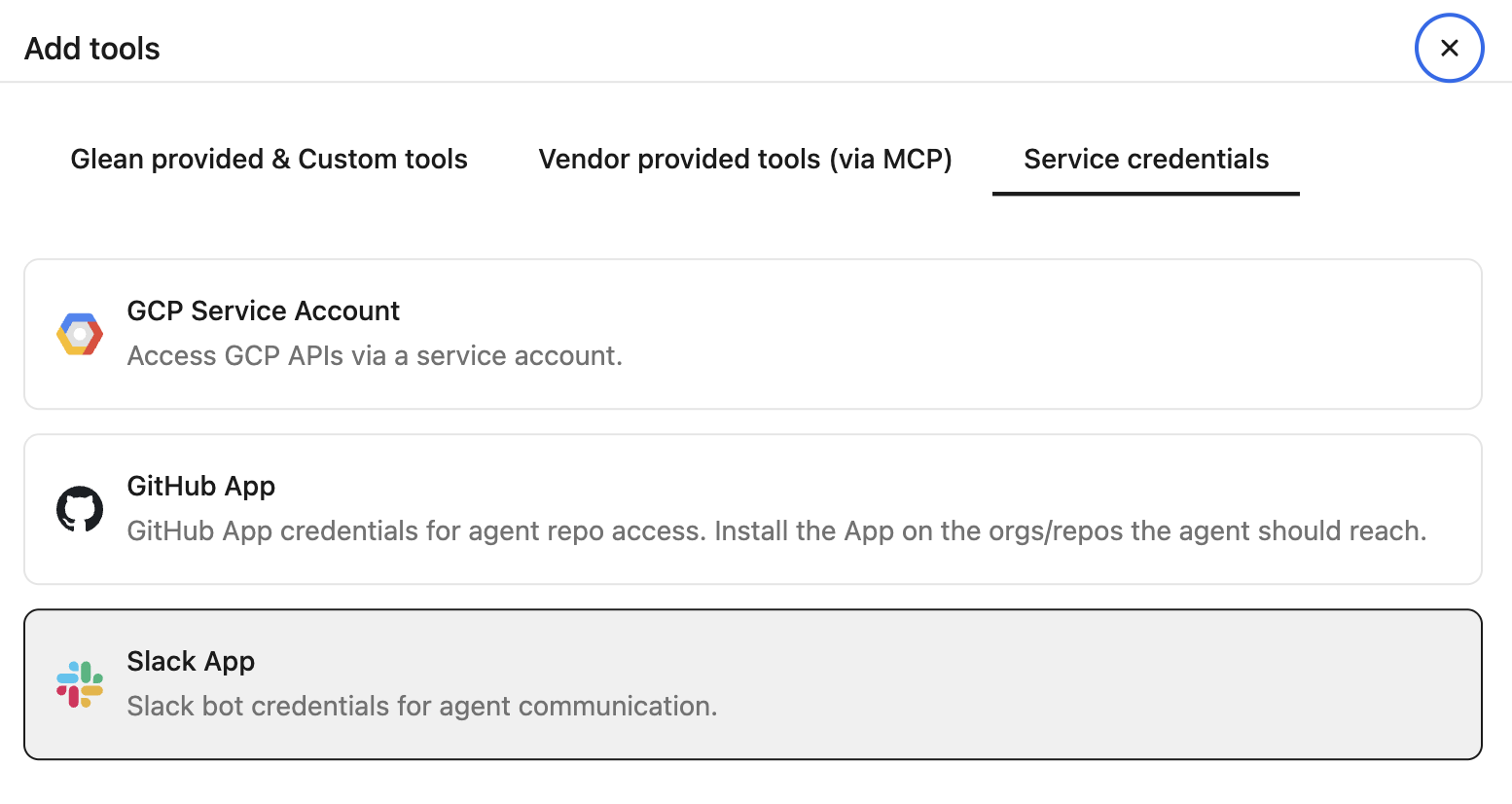
- Fill in these fields:
- Credential name: A human-readable name for the credential.
- Description: A short description for what the credential is used for.
- Bot Token: The
xoxb-...token from Slack. - App ID: The Slack App ID.
- Signing Secret: The Slack signing secret.
- Audience: Which users or groups can attach this credential to agents.
- Select Save.
Attach the credential to an agent
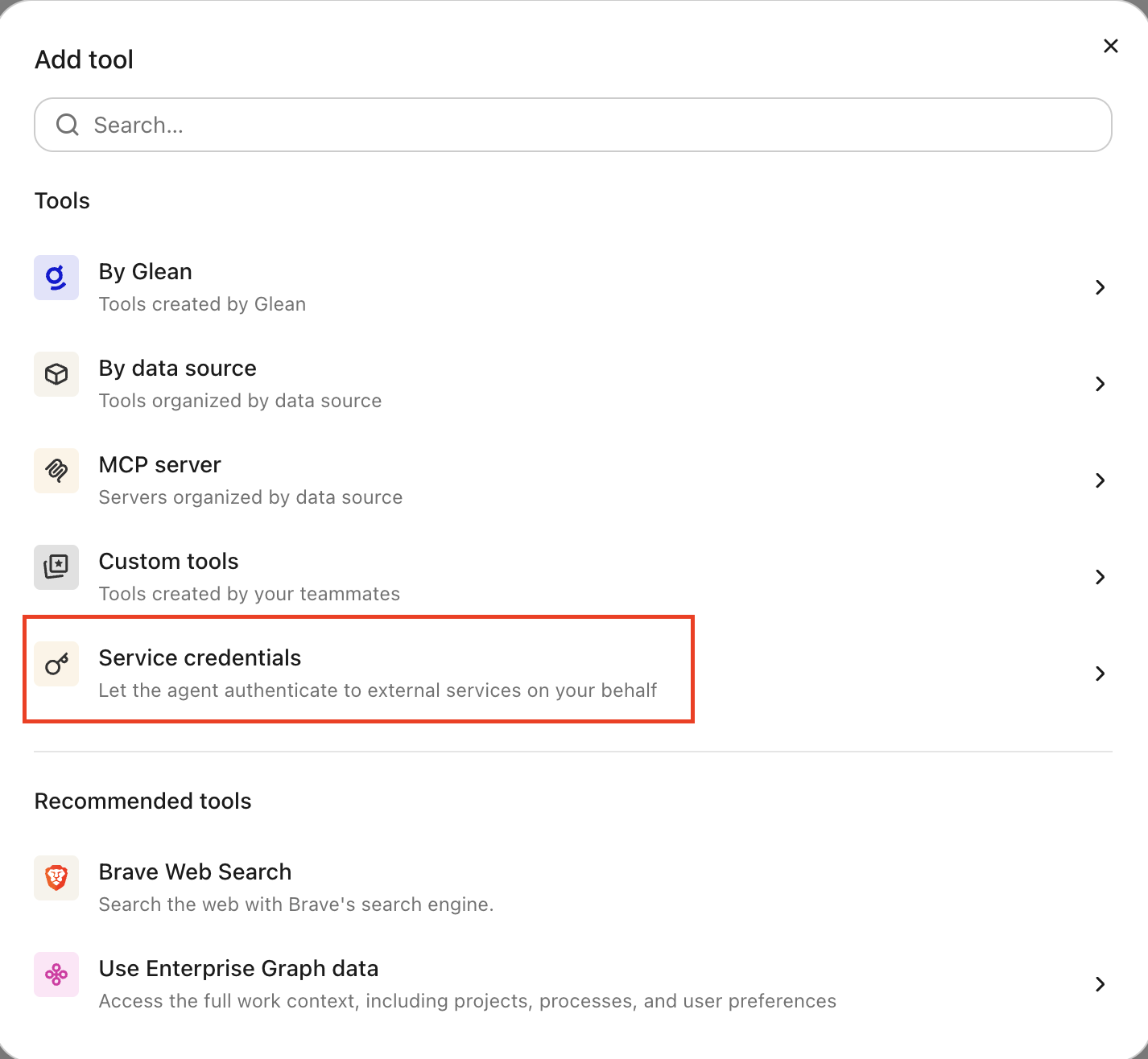
Agent builders can attach the credential from the Service credentials tab in the agent builder. After it's attached, the agent can make authenticated calls to the Slack Web API using the bot token.
-
Go to Agents in Glean.
-
Select the agent to which you want to add the service credentials.
-
In the Tools tab, select Service credentials and select the Slack service credential you created.
Verify it works
Ask the agent to do something in a channel the app belongs to, for example, "post a short summary to #team-updates." If the message appears in Slack, the credential is working.
What the agent can do
With a Slack app credential attached, the agent can act in the Slack channels the app has been added to:
- Read messages and thread history
- Post messages and reply in threads
- Add reactions
The agent can only reach channels where the app is a member. It can't perform workspace-administration actions, such as managing users, channels, or workspace settings.
Security and operational notes
- Injected server-side: the agent runtime never receives the raw bot token. Glean adds the authentication header only to requests bound for the API of Slack.
- Least privilege: the app can act only in the channels it is added to, and only through the scopes in the manifest. Add the app to the minimum set of channels the agent needs, and remove scopes you do not use.
- Rotation: to rotate, reinstall the app or regenerate the bot token in Slack, update the Bot Token on the credential in Glean, then revoke the old token.