Set up Microsoft Teams service credential
A Microsoft Teams service credential lets a Glean agent access Microsoft Teams through a shared application identity and not as any individual user. You register an app in Microsoft Entra ID, grant Microsoft Graph application permissions for reads, configure a Teams bot for sends and replies, and store the connection details in Glean.
Glean handles authentication automatically. The credential is stored encrypted, and the agent never sees the raw client secret.
- Authentication: Microsoft Entra application identity (OAuth 2.0 client credentials)
- Scope:
- Reads: Determined by the Microsoft Graph application permissions granted to the app
- Sends and replies: Handled through the configured Teams bot and Bot Framework, not through Microsoft Graph application permissions
- Access: For reads, access is determined by the Microsoft Graph application permissions granted to the app. For sends and replies, access depends on the Teams bot configuration and whether the bot is installed in the target Teams context.
Prerequisites
Complete the following prerequisites:
- Have permission to create or manage an app registration in Microsoft Entra ID.
- Have permission to grant Microsoft Graph application permissions and admin consent.
- Have access to the Azure portal, Teams Developer Portal, and Teams Admin Center if the agent needs to send messages or replies.
- Work with a Glean administrator who can create service credentials.
- Enable the Microsoft Teams template for your deployment. If you don't see it in the list of templates, contact your Glean representative to turn it on.
Create an app registration in Microsoft Entra ID
-
In the Azure portal, go to Microsoft Entra ID → App registrations and create a new app registration for Glean.
-
Under Certificates & secrets, create a new client secret.
ImportantThe client secret value is shown only once. Copy it and store it somewhere safe. If you lose it, you will have to create a new secret.
-
From the app's Overview page, copy the Application (client) ID and Directory (tenant) ID.
-
Under API permissions, add only the Microsoft Graph Application permissions the agent needs for reads. Common permissions include:
Permission Use when the agent needs to User.Read.AllFind users in the directory Team.ReadBasic.AllDiscover teams GroupMember.Read.AllRead Microsoft 365 group membership ChannelMember.Read.AllRead channel membership ChannelSettings.Read.AllRead channel settings ChannelMessage.Read.AllRead channel messages across the tenant Chat.Read.AllRead chats across the tenant -
Select Grant admin consent and confirm that each permission shows a granted status.
These permissions apply only to Microsoft Graph reads. They don't enable the agent to send messages or replies.
Set up the Teams bot for sends and replies
Skip this step if the agent only needs to read Microsoft Teams data.
To let the agent send messages or replies, complete Phase 1 and Phase 2 in Glean in Microsoft Teams: Admin guide. These phases configure the Azure Bot, create the Teams app, and publish the app through Teams Admin Center.
Use one Microsoft app registration consistently across the bot, Teams app, and service credential. When you configure the Azure Bot, use the app registration from Create an app registration in Microsoft Entra ID. If you create a new Microsoft App ID during bot setup, use the new app registration's client ID, tenant ID, and client secret when you create the service credential.
After publishing the Teams app, copy its App ID from Teams Admin Center. You need this value when you create the service credential.
Create the service credential in Glean
- In Glean, go to Admin console → Platform → Tools → Service credentials.
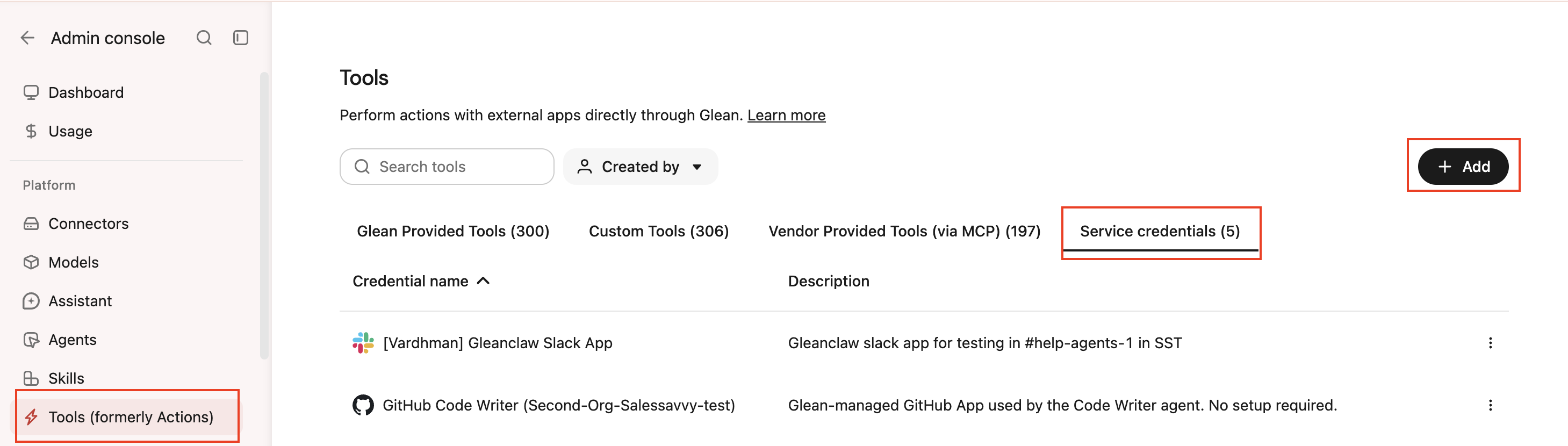
- Click Add.
- Select Microsoft Teams App under Service credentials.
- Fill in these fields:
- Credential name: A human-readable name for the credential.
- Description: A brief description of what this credential is used for.
- Application (Client) ID: The application (client) ID from your app registration's Overview page.
- Client Secret: The client secret you created under Certificates & secrets (stored encrypted). Used to mint Microsoft Graph tokens via the OAuth 2.0 client-credentials flow.
- Directory (Tenant) ID: The directory (tenant) ID of the Microsoft Entra tenant where the app is registered, from the Overview page.
- Teams App ID: The Microsoft Teams app ID from Teams Admin Center in Set up the Teams bot for sends and replies, used to link this credential to an agent.
- Audience: Which users or groups can attach this credential to agents.
- Select Save. Glean stores the client secret as an encrypted secret and doesn't display it again.
Link the service credential to your agent
After creating a service credential, attach it to your agent as a tool. For dedicated Microsoft Teams apps that support direct messages, you also connect the credential through the Teams publishing flow.
Attach the credential as a tool
- In Glean, go to Agents and select your agent.
- Open the Tools tab.
- Under Service credentials, select the Microsoft Teams service credential you created.
Publish a dedicated Teams app
If your agent uses a dedicated Microsoft Teams app that supports direct messages, complete the publishing flow as well:
- From the same agent, click Share.
- Under Publishing, select Microsoft Teams.
- From the credential dropdown, select the Microsoft Teams service credential you created.
- Click Publish and complete the publishing flow.
Glean uses the selected credential to authenticate the agent's Microsoft Teams application connection. When the agent requests data from the Microsoft Graph API, Glean automatically attaches the appropriate authentication token.
Prior to the Agent Identity beta, dedicated Microsoft Teams apps were configured under Admin console → Connectors → Microsoft Teams → Glean in Microsoft Teams by selecting Add Agent.
With the Agent Identity beta enabled:
- New agent setups: The Add Agent option is hidden. Configure new dedicated agent apps by creating a Microsoft Teams App service credential under Admin console → Tools → Service credentials, then connect it in Agent builder → Share → Publishing → Microsoft Teams.
- Existing agent apps: Existing configurations continue to work. They aren't migrated automatically when the beta is enabled. Migration is rolled out on a per-deployment basis.
- Post-migration: After migration completes for your deployment, existing configurations automatically appear under Tools → Service credentials and within the Microsoft Teams publishing flow. You don't need to re-enter secrets on the Microsoft Teams connector page.
Verify it works
Ask the agent something that requires Teams data, for example, "list my recent Teams channels." If it returns data, the credential is working.
What the agent can do
Depending on the permissions you grant, the agent may be able to read Teams data such as:
- Team and channel metadata
- Messages or threads
- Meeting metadata or transcripts
If the Teams bot is configured and installed in the target Teams context, the agent can also send messages and reply in threads.
Security and operational notes
- Dedicated app registration: use a dedicated app registration for Glean, separate from other integrations.
- Least privilege: grant only the Microsoft Graph application permissions the agent needs.
- Admin consent: review admin consent carefully before saving the credential.
- Rotation: rotate the client secret regularly. Create a new secret, update the credential in Glean, then delete the old secret in Entra ID.