Set up Zendesk MCP service credential
A Zendesk MCP service credential connects Glean to the Zendesk MCP server using a shared, non-human identity instead of the Zendesk identity of the user who invokes the agent. Use this setup when an agent needs to search Zendesk without requiring each user to authorize Zendesk individually.
Glean securely stores the OAuth client credentials and obtains short-lived access tokens for the agent. The agent does not receive the client secret.
- Authentication: Zendesk OAuth client credentials
- Access: Read-only Zendesk MCP tools, governed by the permissions of the Zendesk identity associated with the OAuth client
This setup is different from Zendesk Tools setup, which uses per-user OAuth and supports the Add Comment to Zendesk Ticket tool. The Zendesk MCP service credential provides read tools and does not replace the existing Zendesk Tools authentication flow.
Prerequisites
Before you begin, ensure that you have:
- Zendesk admin access, including permission to create OAuth clients.
- A dedicated Zendesk user or service identity with the minimum permissions required by the agent.
- A Glean administrator who can create service credentials.
- The Zendesk MCP (Service Account) template enabled for your deployment. If you don't see the template, contact your Glean representative.
Zendesk client-credentials authentication uses the permissions of the user associated with the OAuth client. Use a dedicated, least-privileged identity instead of a personal Zendesk account. Zendesk ties the client's permissions and API activity to the user associated with the OAuth client, not to the Glean user who invokes the agent. For more information, see Zendesk's Using OAuth to authenticate API requests.
Create a Zendesk OAuth client
- Sign in to Zendesk as an administrator on the dedicated integration account that should own this connection, not your personal admin account.
- Navigate to Apps and integrations → APIs → Zendesk API in the Zendesk Admin Center.
- Select OAuth Clients.
- Select Add OAuth Client.
- Enter a descriptive name, such as
Glean agent. - Set Client kind to Confidential. The Glean service credential uses the client-credentials flow automatically; you don't select a grant type in Zendesk.
- Select Save.
- Copy the Client ID and Client Secret, and store the secret securely. Zendesk shows the client secret only when you create the OAuth client.
You don't need to configure a redirect address for the client-credentials flow.
Create the service credential in Glean
-
In Glean, navigate to Admin console → Tools → Add → Vendor Provided Tools (via MCP).
-
Search for Zendesk MCP (Service Account).
-
Enter your Zendesk subdomain. For example, enter
acmeforacme.zendesk.com. -
Enter a short Label, such as
support,staging, orproduction. This required value distinguishes multiple Zendesk service accounts and is used in the service-account address. -
In the API key field, enter the client credentials in this format:
client_id=<client-id>;client_secret=<client-secret>Replace the placeholders with the values from your Zendesk OAuth client. Keep the semicolons and parameter names unchanged.
The default scope is
read, so adding the scope is optional. To specify it explicitly, append;scope=read:client_id=<client-id>;client_secret=<client-secret>;scope=read -
Select Save.
Don't include write scopes unless they are supported by your deployment and required by your use case.
Attach the credential to an eligible agent
Only agent builders can attach this credential to eligible autonomous agents that run under a service identity. The credential isn't available in Chat.
- Go to Agents in Glean.
- Select the agent that should use Zendesk.
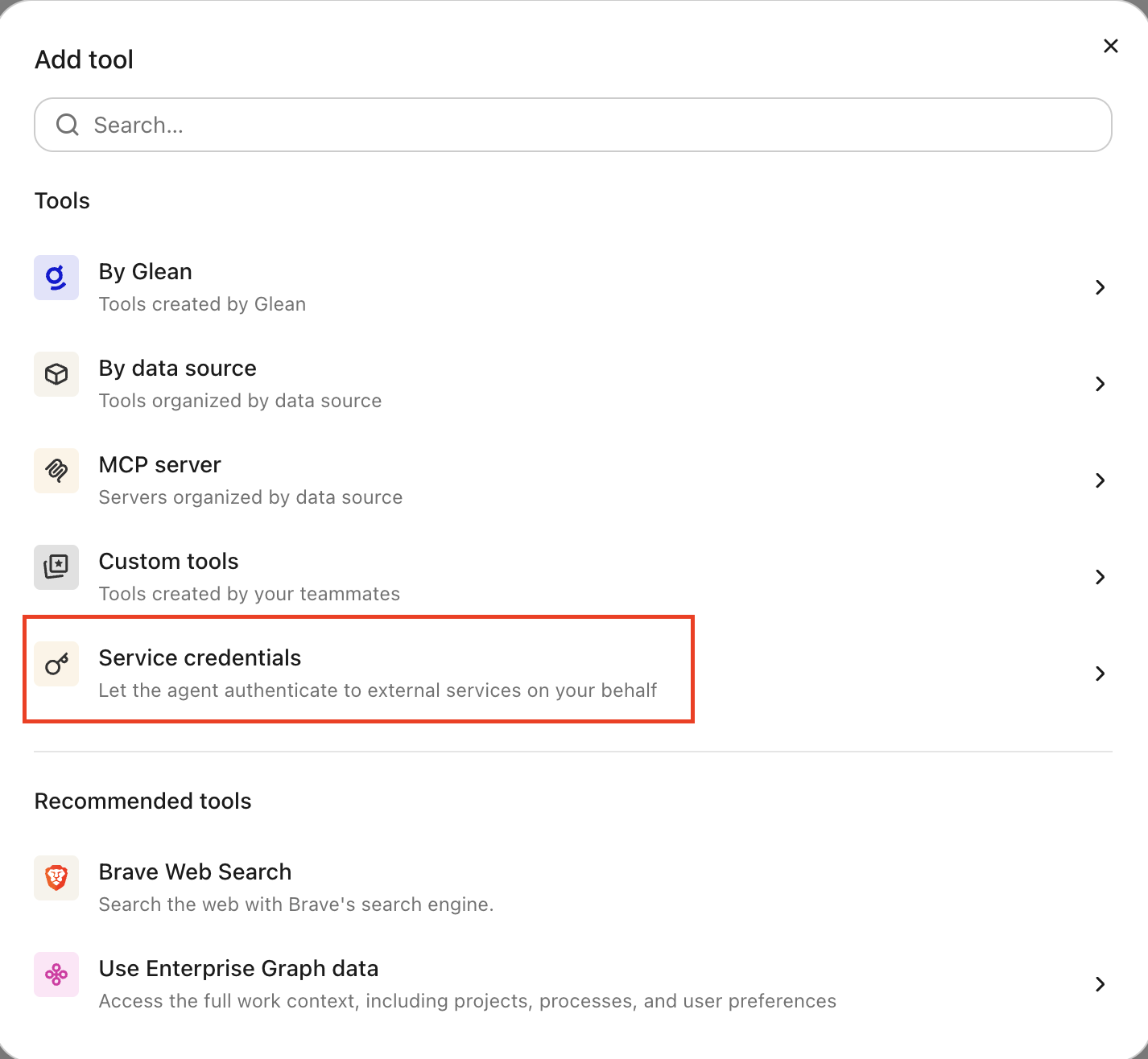
- Open the Tools tab.
- Select Service credentials and choose the Zendesk credential you created.
- Save the agent configuration.
Verify the connection
Ask the agent to perform a read-only Zendesk search, for example:
Search Zendesk for tickets about password reset failures.
If the agent returns matching tickets, the service credential is working. Verify that the returned results are appropriate for the Zendesk identity's permissions.
What the agent can do
With the Zendesk MCP service credential attached, an eligible agent can:
- Search Zendesk tickets and Help Center content with Search Zendesk (
search_zendesk). Results include ticket metadata, the initial description, and aview_url. - Read ticket form and schema metadata with Zendesk Schema Reader (
zendesk_schema_reader).
Search results don't include full ticket comment threads. The agent's access is limited by the Zendesk permissions of the identity associated with the OAuth client.
Security and operational notes
- Least privilege: Grant the associated Zendesk identity only the permissions that the agent requires.
- Shared identity: Actions are authenticated as the Zendesk identity associated with the OAuth client, not as the user who invokes the agent.
- Short-lived tokens: Glean obtains short-lived Zendesk access tokens for the service credential. Users don't need to reconnect Zendesk for each session.
- Secret protection: Don't paste the client secret into agent instructions or prompts. Store it only in the Glean service credential.
- Rotation: Rotate the OAuth client secret in Zendesk, then update the Zendesk service credential in Glean.
- Revocation: To stop access, revoke or delete the OAuth client in Zendesk, or remove the service credential from the agent in Glean.