Configure LLMs in the Model Hub
Configure which models are available in your Glean deployment and choose the models used in Glean Agents and Glean Assistant workflows.
To exclude models or restrict them to specific departments, see Exclude or restrict models.
To change which model Glean uses by default on Customer Key, see Change your default model on Customer Key.
For the list of supported models, availability by hosting environment, and pricing, see Supported LLMs.
Configure models in the Model Hub
You can configure models using either Glean Universal Model Key or Customer Key (BYOK).
Self‑hosted AWS deployments can use Gemini through Vertex AI. Self‑hosted GCP deployments cannot use models hosted on AWS, for example, Bedrock.
Glean Universal Model Key
With Glean Universal Model Key, Glean manages model configuration and provisioning for you. However, you can still configure which models are available in your deployment:
- Go to Admin console → Models.
- On the Models page, use the search bar, capability filter, or scroll to find the model you want to include.
- For the model you want to include, toggle the model on.
- Click Save to apply your changes. This includes the model across Glean, including Assistant and Agents.
The Models page for Glean Universal Model Key shows per-model toggles grouped by creator. This differs from the Customer Key experience, which uses hosting provider-based configuration.
Open models work differently: you control them with one switch per creator region in the Other open models section rather than model by model. See Manage open models by region.
Customer Key
With Customer Key, you can configure which models are available in your deployment. The Models page for Customer Key shows per-model toggles grouped by hosting provider.
For Customer Key deployments, model defaults for image generation models can use a different provider. All other models must use defaults from the same provider.
To configure which models are available in your deployment:
- Go to Admin console → Models.
- Click Add LLM.
- Select a hosting provider and follow the configuration steps:
Select models for workflows
Only models enabled for the Agents appear in the agent builder. Similarly, only models enabled for the Assistant are available when users select models in Glean.
See Exclude or restrict models for more information on how to exclude or restrict models.
How default models are chosen
Which models Glean uses by default depends on your key type:
- Glean Universal Model Key: Glean selects the default models for you, based on evaluations and live usage data. Admins control which models are available rather than which one is the default. To review these settings, go to Admin console → Models and select the Glean Key model configuration. See Model choice.
- Customer Key (BYOK): Admins choose the default models themselves. See Change your default model on Customer Key.
For agents, defaults apply at two scopes. An organization-wide default model set applies to agent steps and is configured in your model configuration in the Admin console. Individual agents and steps can override it.
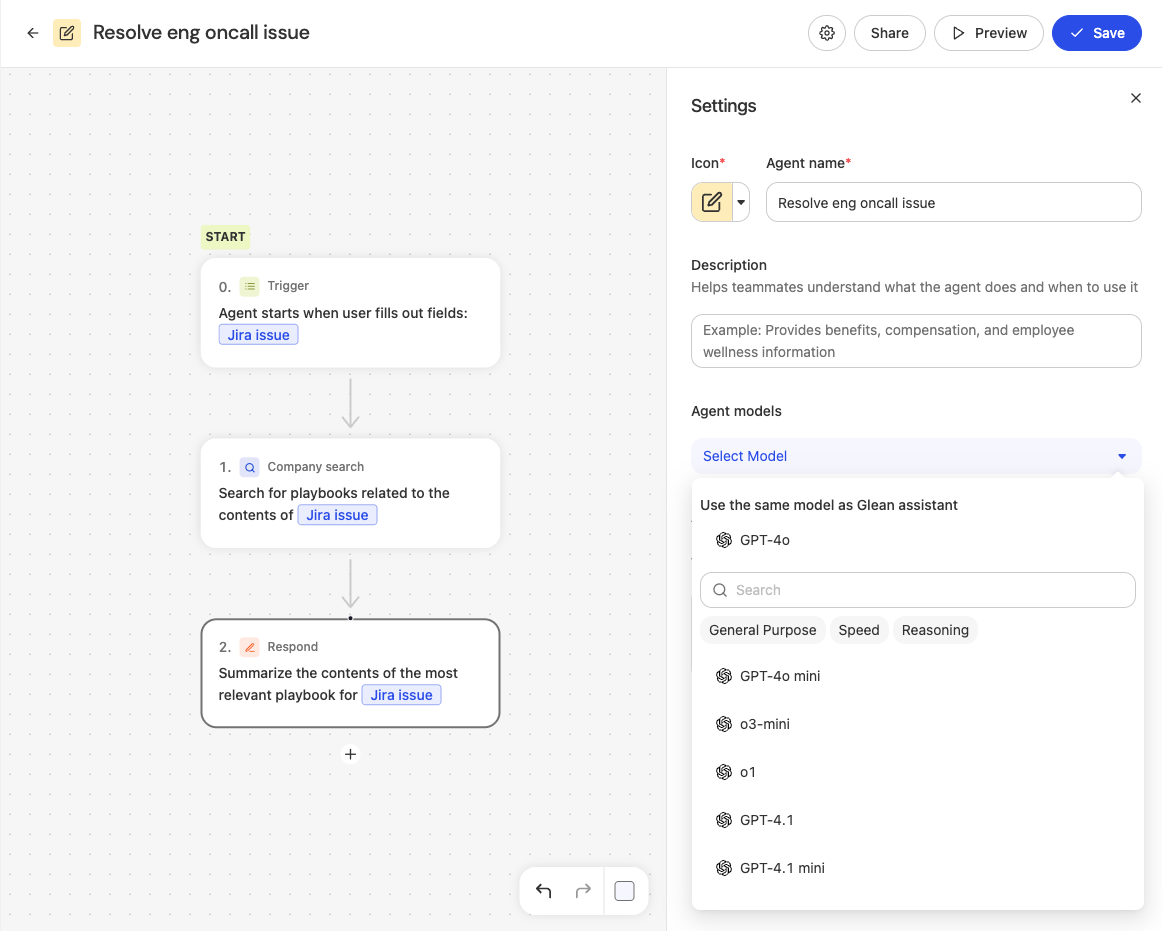
Set default model for an agent
In the agent builder, open Settings (gear icon) → Select Model.
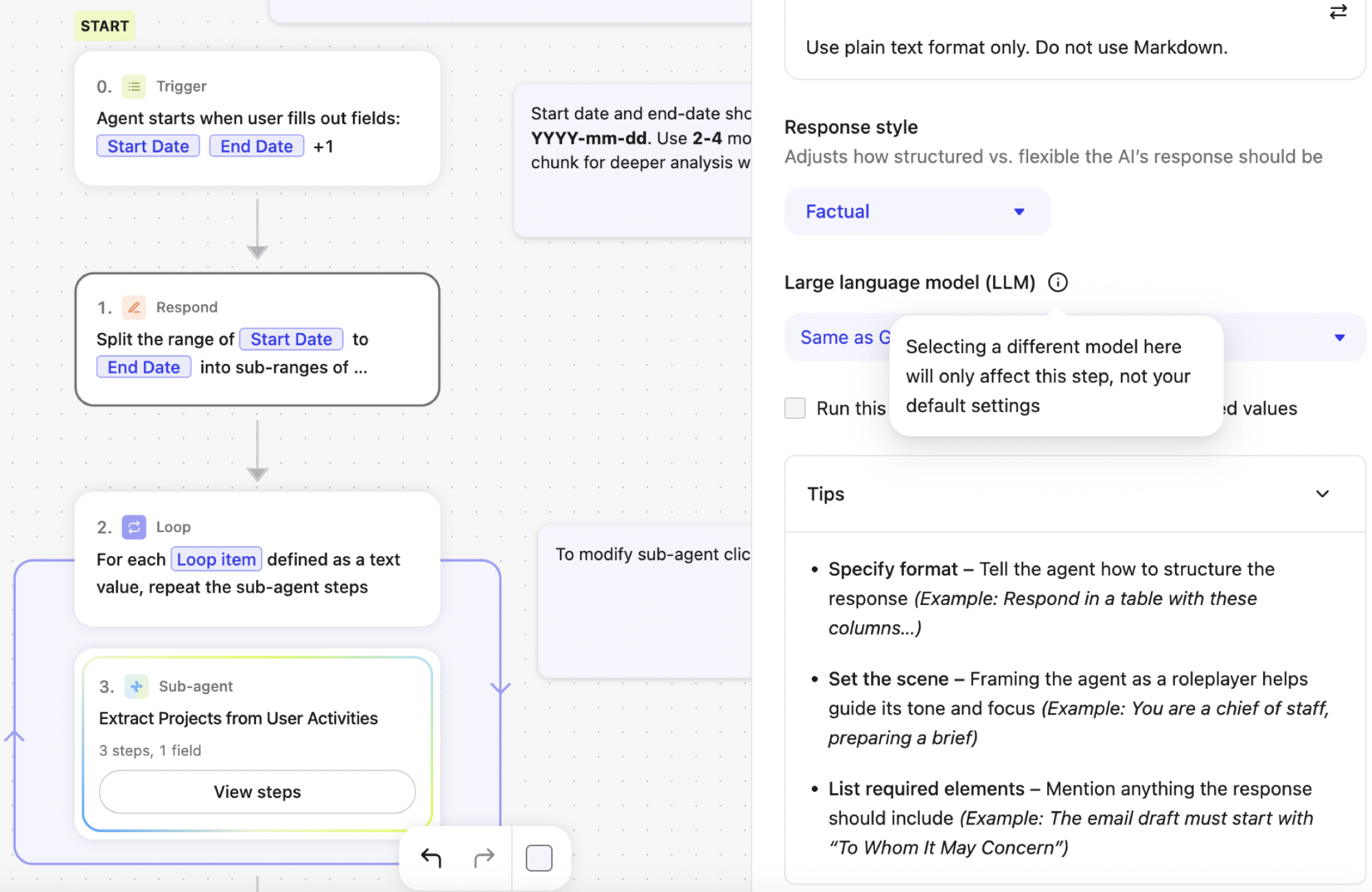
Set per‑step model
In the canvas, select a step and choose a model for that step.
Best practices
- Start with a balanced default model for most tasks and upgrade select workflows to higher‑tier models when you need stronger reasoning.
- Where possible, keep model families consistent across multi‑step workflows for predictable quality and cost.
- For Customer Keys: Align with your enterprise provider contracts and control data routing with cloud restrictions.
See also
- For the list of supported models, availability, and pricing, see Supported LLMs.
- To exclude models or restrict them to specific departments, see Exclude or restrict models.
- To control open-model availability by creator region, see Manage open models by region.
- To learn how Glean handles model deprecation, including notification timelines, migration paths, and actions needed for assistants and agents, see Model deprecation.
- To change your default model on a Customer Key deployment, including capacity planning and rollback, see Change your default model on Customer Key.
- To learn how users can select a model in Glean Assistant, see Model choice.
- To resolve errors when connecting to your LLM provider, see Troubleshoot LLM provider errors.