People data attribute mapping
When you set up a people connector in Glean, the Attribute mapping screen lets you confirm or customize how identity fields from your source map to Glean attributes. Glean uses these attributes for permission enforcement, profile pages, the org chart, location-based personalization, and search ranking signals.
The mapping screen appears after you select a people connector (such as Okta, Entra ID, Google Drive, or Workday) and before you save the connector configuration.
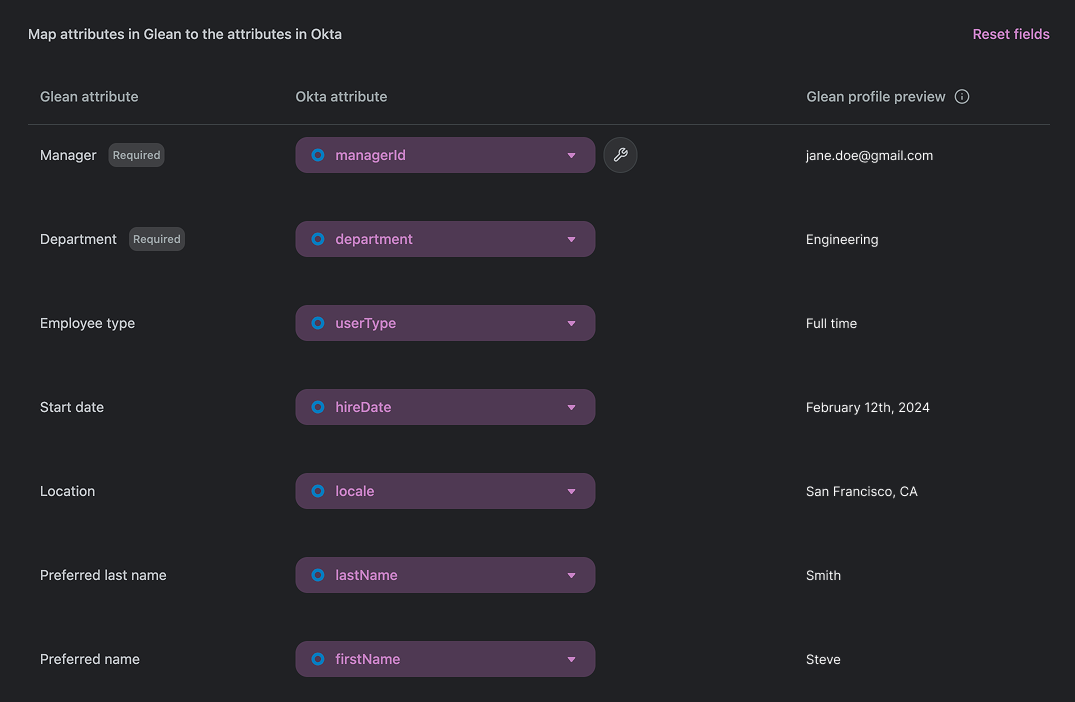
How the mapping table works
The mapping table has three columns:
| Column | What it shows |
|---|---|
| Glean attribute | The Glean field being mapped (for example, Manager, Department, Title). Required attributes are tagged Required. |
| {Source} attribute | The field from your people connector mapped to the Glean attribute. For Okta, this is an editable dropdown. For all other connectors, the mapping is fixed and shown as a read-only value. |
| Glean profile preview | A live preview of how the mapped value appears in Glean for your own profile, based on data from the source. Use this to verify the mapping is producing the value you expect before you save. |
Customization availability
Custom field mapping is only available for Okta. If you select Okta as your people connector, you can change which Okta attribute populates each Glean attribute, and you can use the Reset fields button (top-right of the table) to revert to defaults.
For every other supported people connector — Entra ID, Google Drive, Workday, BambooHR, Pingboard, Lattice — the mapping is fixed. Glean displays the predetermined source attribute for each Glean field; you cannot change it from this screen. Glean shows a banner on the page in this case:
Custom field mapping is not available for {connector}. To continue, click Save to set {connector} as your people connector.
If you require a non-default mapping for a connector that isn't field-mappable, contact Glean support.
Glean attributes and required fields
The Glean attributes Glean populates from a people connector are:
- Manager
- Department
- Employee type
- Start date
- Location
- Preferred name
- Preferred last name
- Team
- Title
The Required tag indicates that the Glean attribute must be populated for that connector before you can save and start the sync. Required attributes vary by connector:
| Connector | Required attributes |
|---|---|
| Okta | Manager, Department |
| Google Drive | Manager, Department |
| Workday | Manager, Department |
| Entra ID | None |
| BambooHR | None |
| Pingboard | None |
| Lattice | None |
If a required Glean attribute has no source value mapped (or has no value populated for users in the source), the sync will fail until the underlying field is populated in your source system.
Save and sync
Click Save at the bottom of the page to commit your mappings. Glean uses the mapped attributes during the next people data crawl and reflects them across search, profile pages, the org chart, and ranking signals.
See also
- Sync people data — the workspace setup step where you select a people connector
- Sync people data from Okta
- Sync people data from Entra ID
- Sync people data from Google Drive
- Sync people data from Workday
- People data issues