About the browser extension
By default, a user must access Glean by explicitly typing https://app.glean.com into their browser, or by clicking the Glean tile in your company's SSO App Library. Both of these options have significant friction to them, and on their own, lead to poor adoption of Glean.
The best way to drive Glean adoption at your company is to deploy the browser extension to their corporate devices.
If your team previously used embedded support integrations in Zendesk or ServiceNow, use the browser extension as a replacement.
- Managed deployment: You can install the extension automatically on company-managed devices. See Deploy the browser extension to managed devices.
- Individual installation: Users can install the extension themselves from Glean setup or their browser's extension store, then sign in and open the Extension sidebar.
Supported browsers
The Glean browser extension is available for:
Extension features
The Glean browser extension provides a better user experience and creates habits for higher adoption and usage, allowing all of your employees to get the most out of Glean.
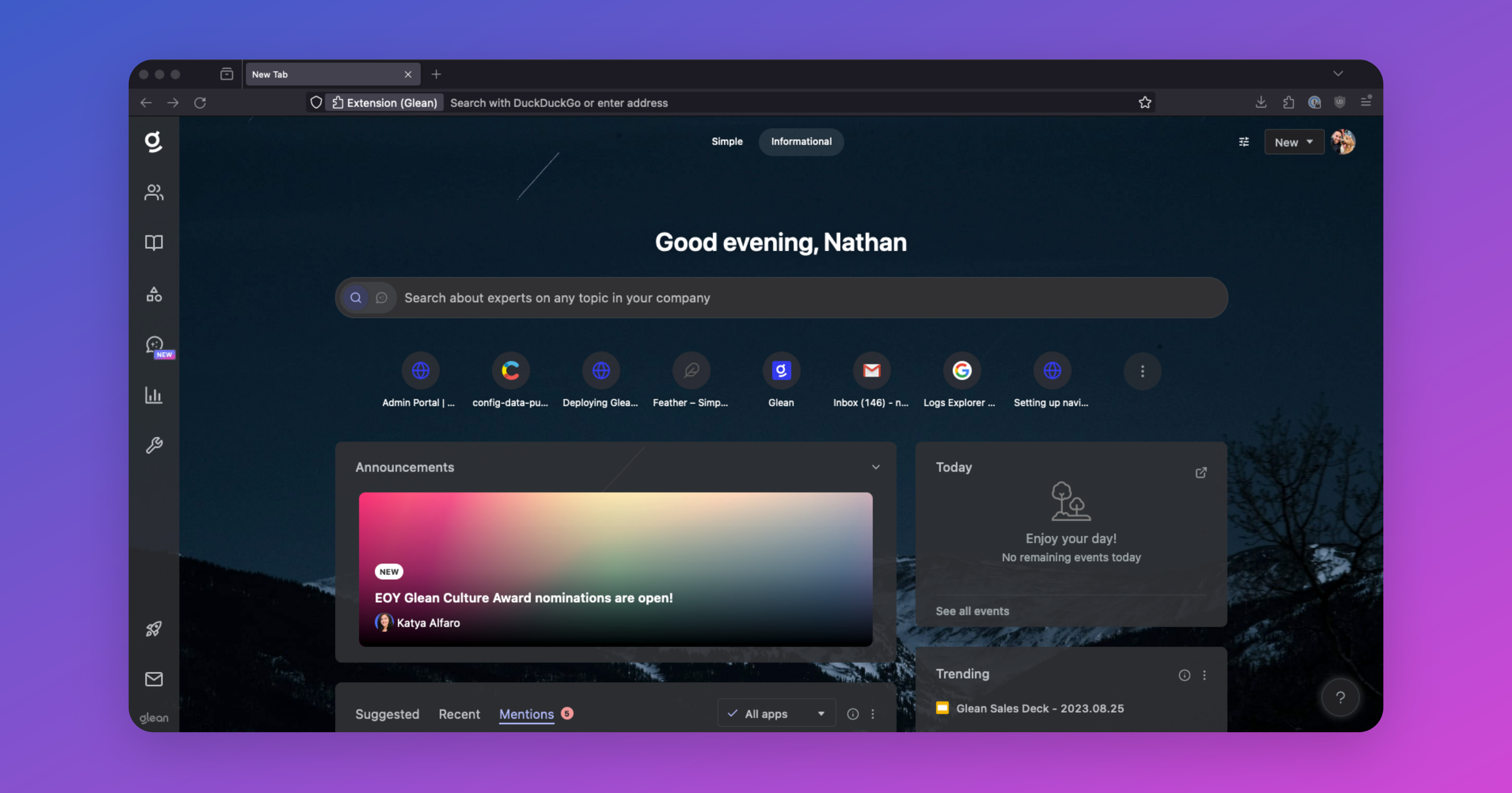
New tab page
Extension users have an option to use Glean as their new tab page. The Glean homepage will open every time users open a new tab and provides easy access to:
- Search
- Knowledge management tools
- Announcements and resources
- Intelligent content feed
- Calendar
Sidebar
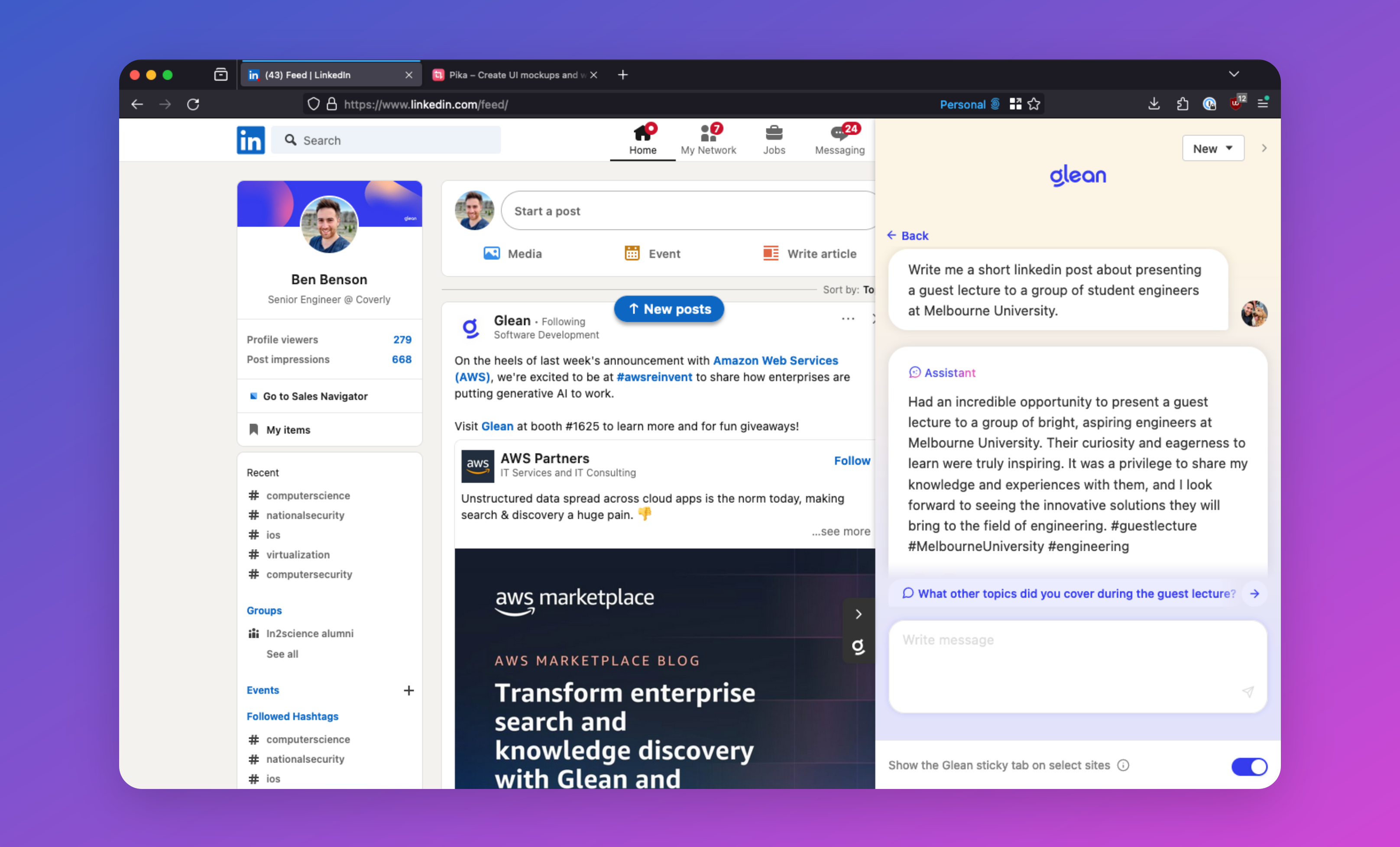
Open Glean in a sidebar on any web page. The sidebar provides the Chat, Search, and Agents tabs so employees can search, ask questions, or run agents without breaking flow. To open the Glean sidebar:
- macOS: Cmd+J
- Windows: Alt+J
- Some company apps that have been connected to Glean, like Google Drive, will have a sticky tab on the right that can also be used to open the Glean sidebar.
The Agents tab appears on supported pages when your organization uses the sidebar with the Chat, Search, and Agents tabs. It isn't available in the older version that showed Search on its own. Configure the browser-extension integration to control which agents appear, and give users access to at least one configured agent to run it. Only the out-of-the-box agents use the page permissions that the Agents tab requests. See Extension Sidebar for the end-user workflow.
Glean has retired the search-only version of the sidebar, which showed Search without Chat or Agents. The setting that let a user switch one extension back to it, labeled the classic view, is gone, and anyone who had it selected now sees the Chat and Search tabs. Deployments that are still configured for search only keep the older version until Glean updates the configuration, so the Agents tab stays unavailable for those users. To change your organization's configuration, contact Glean support.
Configure agents for support platforms
In the Admin console, go to Embedded integrations → Glean browser extension to configure featured agents for supported Zendesk, ServiceNow, or Salesforce domains. The browser-extension integration controls which agents appear on matching pages. It does not grant users access to those agents.
For detailed setup steps, see Configure featured agents.
For higher-quality agent responses, set up the connector for the platform first. For example, set up the Zendesk connector before you feature agents on a Zendesk domain.
After you save the configuration, users must have the browser extension installed, be signed in to Glean, and have permission to run at least one configured agent to use agents on supported pages. Share the Extension sidebar with users for the end-user workflow.
Native search replacement (embedded search)
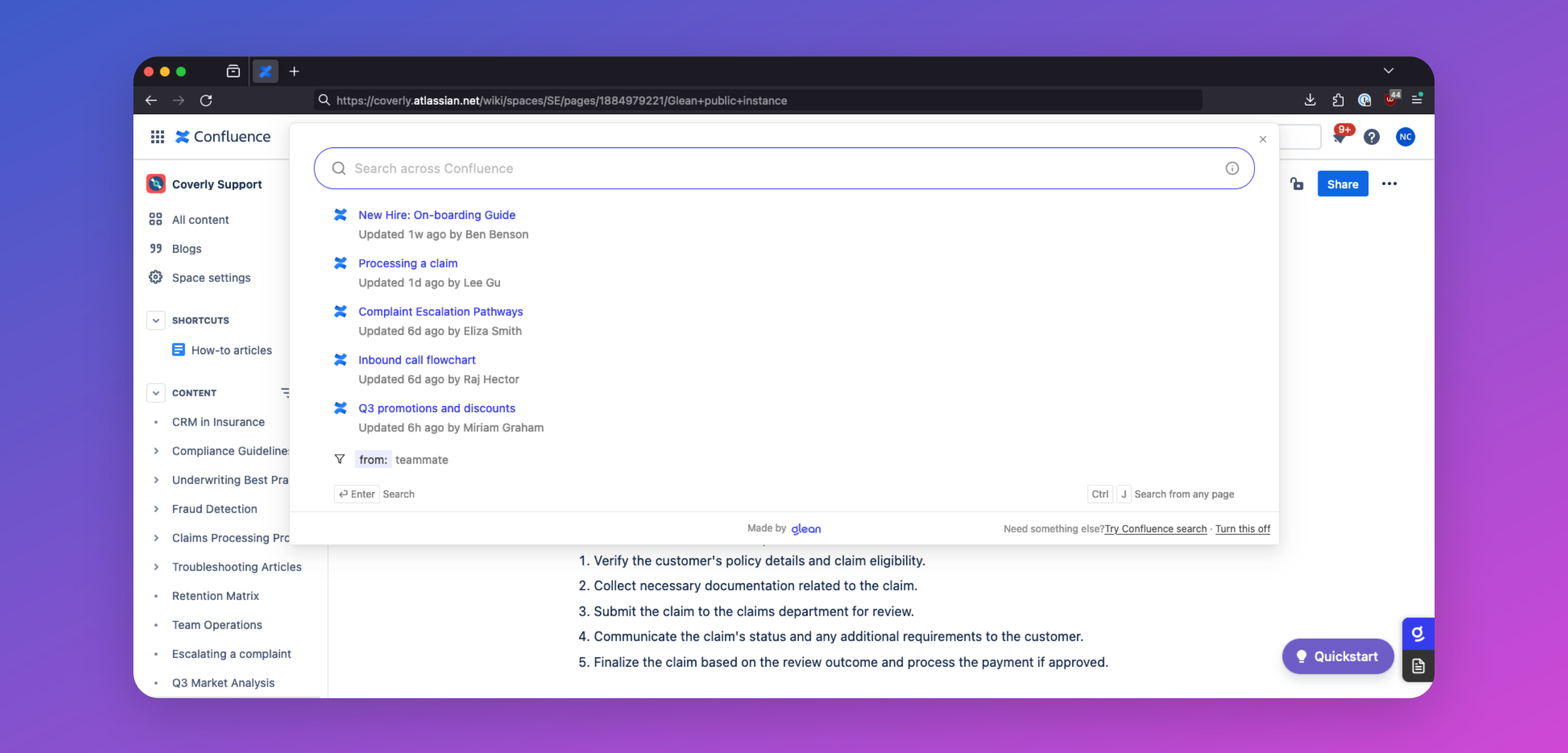
Glean can make searches within other apps better. Clicking or focusing the native search box on certain company-connected apps (like Google Drive and Box) opens Glean search instantly in a modal dialog where typing continues to get Glean's more relevant results.
The following apps are currently supported:
- Box
- Google Drive
- Simpplr
- OneDrive and SharePoint (partial support)
Go Links
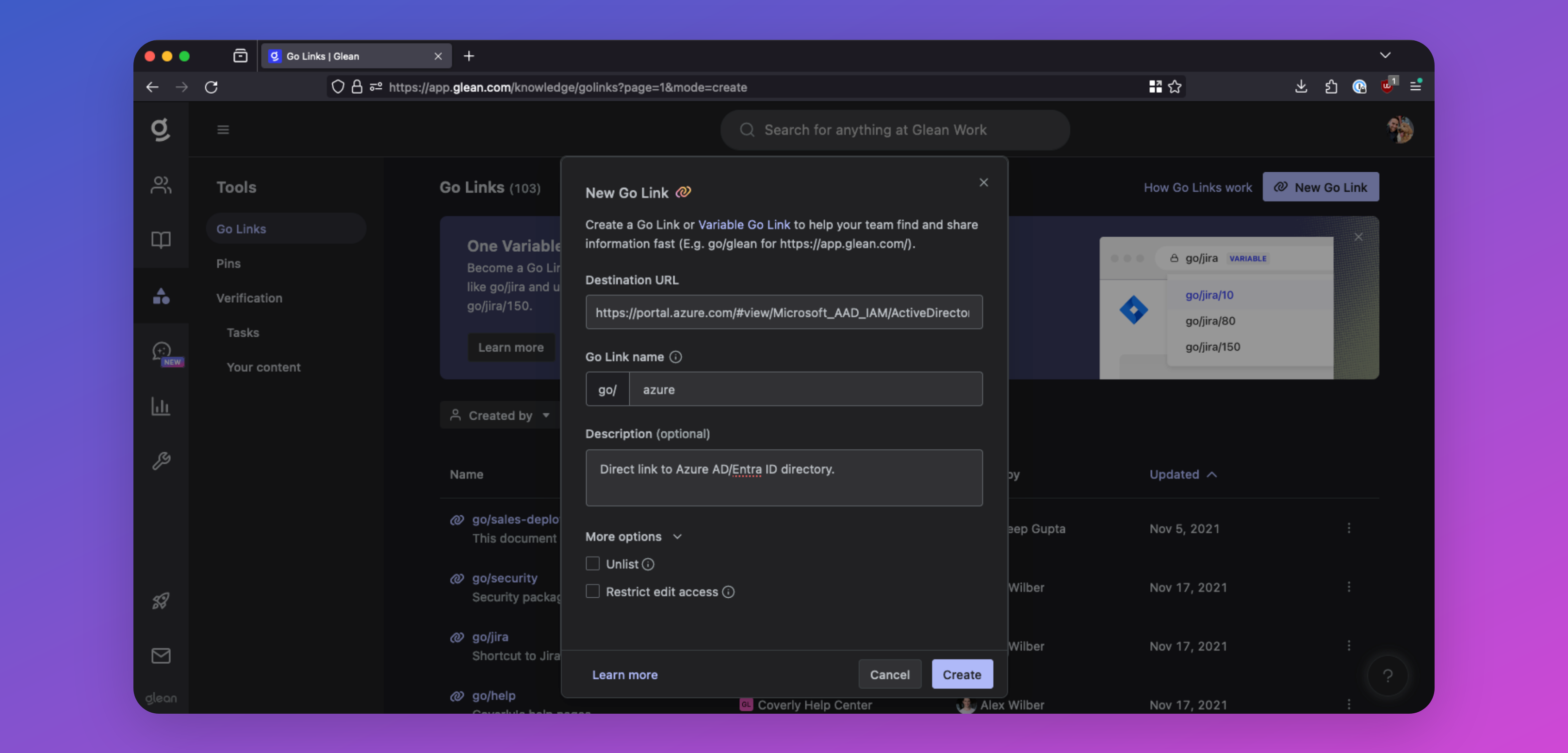
Go Links are short, memorable links that redirect to important URLs within your company. For example, you could create go/401k for your company’s 401k portal, go/it-help for your IT help desk, or go/sprint-planning for your Jira project.
The Glean browser extension enables the use of these Go Links directly from your browser. Type your Go Link in the browser URL bar (for example, go/onboarding), and you will be automatically redirected to the corresponding URL.
To use Go Links on any browser or mobile device without the extension, see DNS-based Go Links.
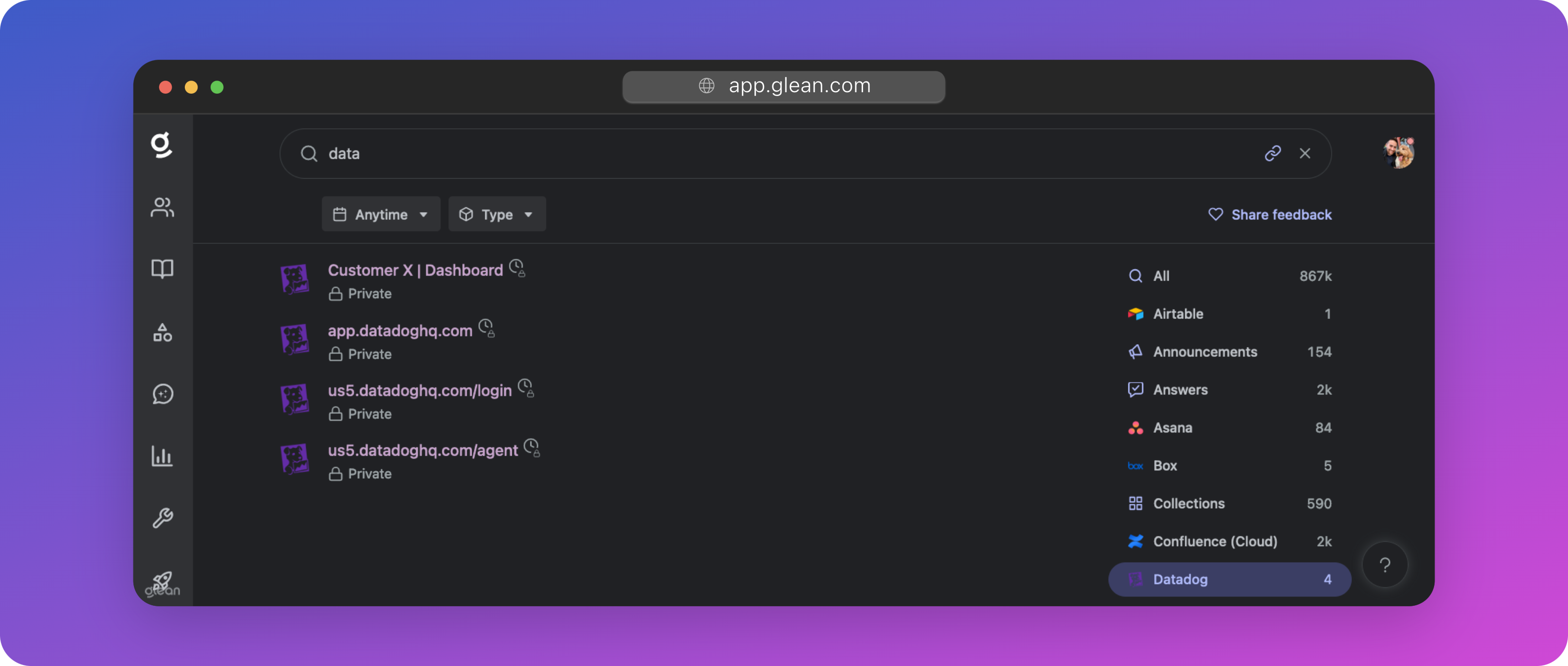
Browser history search results
For specific workplace apps in which Glean cannot build out a native connector (typically due to a limited API from the app vendor), the Glean extension can be used in place to allow employees to see results and suggestions from these apps; pulled from their browser history.
Glean will be able to search across the titles of the pages your employees have visited, but because these are history-based results, users will only be able to view content that they have seen before in these workplace apps.
Results from a user's browser history are completely secure and private to the individual user: the company will not be able to see results from a user's browser history.
URL bar search
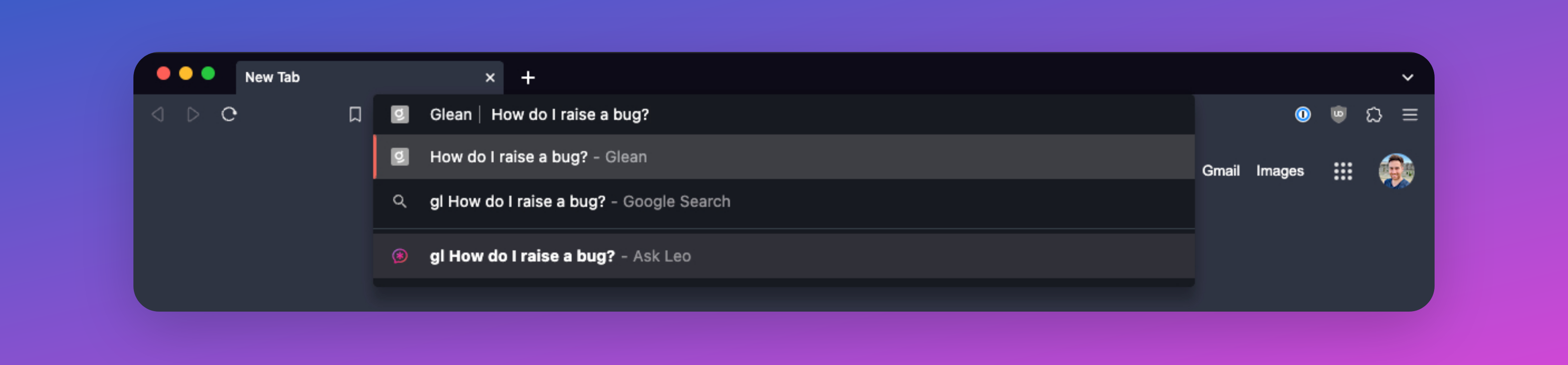
Type Gl+tab in any Chromium browser to search Glean directly from the URL bar.
Enhanced telemetry and activity signals
When using Glean, the extension reports user events back to your Glean tenant so that Glean can provide:
-
Enhanced search result personalization: Glean leverages activity data reported by the extension to learn the relevance of a document and its groupings within an application. This allows Glean to deliver a higher degree of personalization than without the browser extension.
-
Content suggestions: Activity data obtained from the extension helps Glean learn and proactively suggest content that a user might be interested in at any point in time.
-
Insights: The enhanced activity data provides additional analytics available to admins in the Insights dashboard. Glean also uses data captured by the extension (like dwell time) to help improve search rankings.
What information is sent by the browser extension?
- Each event consists of the page URL, title, referring page URL, visit timestamp, dwell time, and the one-way hash encrypted user ID.
- Events are only reported for the limited set of URLs that belong to workplace apps that are configured to be connected to Glean (including both API connected and browser history enabled). They’re not sent for all domains to which the extension has host permissions.
- Care is taken to also prevent this activity reporting for personal instances of an app that is also used in the workplace (for example, Gmail and Google Drive with an account other than the one signed in to Glean are excluded).