Deploy the browser extension to managed devices
This page is for IT admins who want to deploy the Glean browser extension to company-managed devices. You can push a managed rollout of the Glean Chrome or Edge extension to all employees, so the extension installs on company-managed computers.
If you are an end user, see Installing the browser extension for installation and sign-in steps, then follow Extension sidebar to use Chat, Search, and Agents.
- Users can't turn off or uninstall the extension if it's installed in this manner.
- The user's new tab page will be switched to Glean. Users can turn this off in their Glean settings.
- Managed Chrome
- Managed Edge
- Ensure you have or work with someone who has Google Workspace Admin privileges.
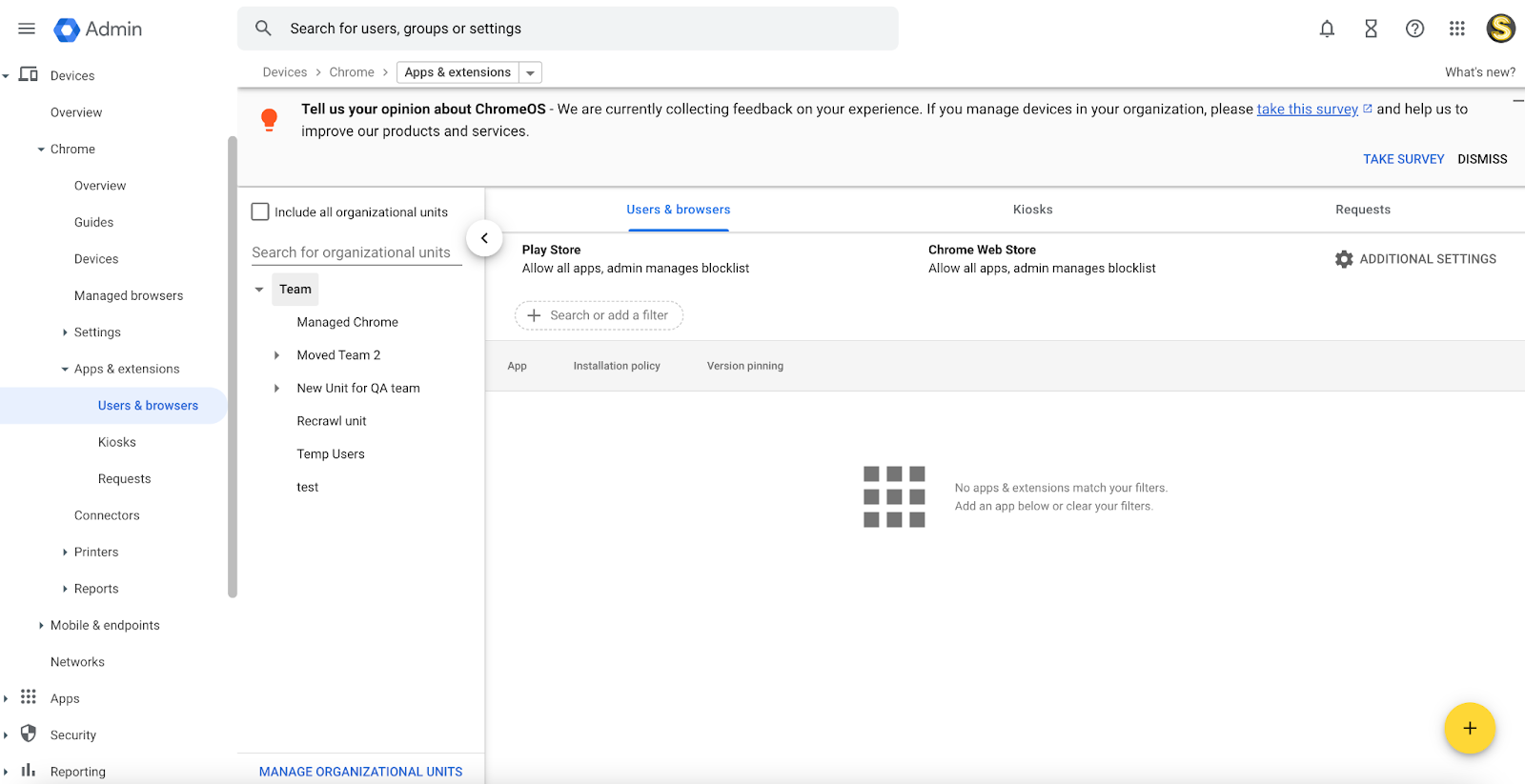
- Go to https://admin.google.com/ac/chrome/apps/user
-
Use the left bar to choose the organizational unit you would like to deploy the extension to. Even if this is being rolled out company-wide, it's good to select a company-wide organizational unit so that the extension will only be pushed on the Chrome profile associated with employees' work account.
-
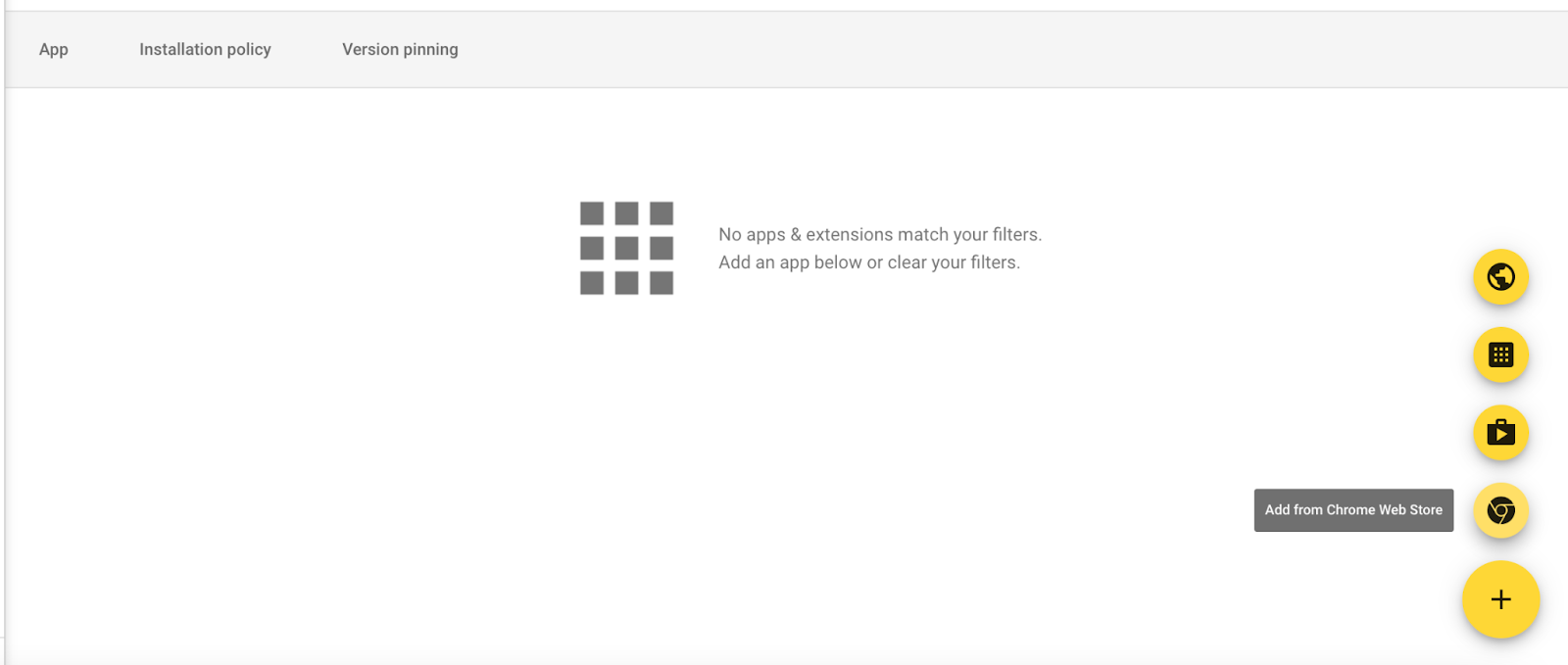
Hover over the + button in the bottom right corner and select Add from Chrome Web Store:
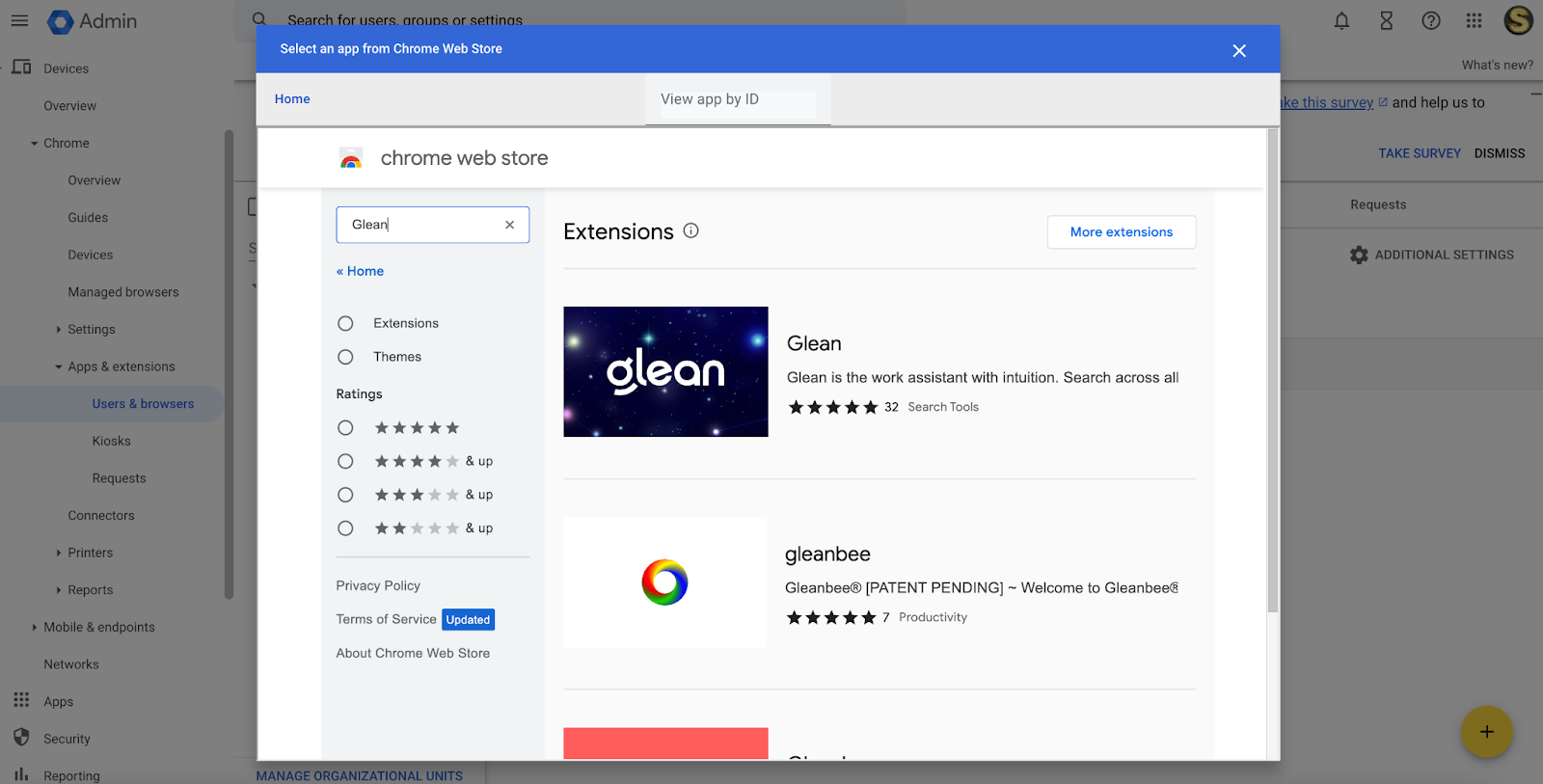
- Search for "Glean" and select the option corresponding to the Glean work extension (the first one pictured here):
- Click Select in the top right:
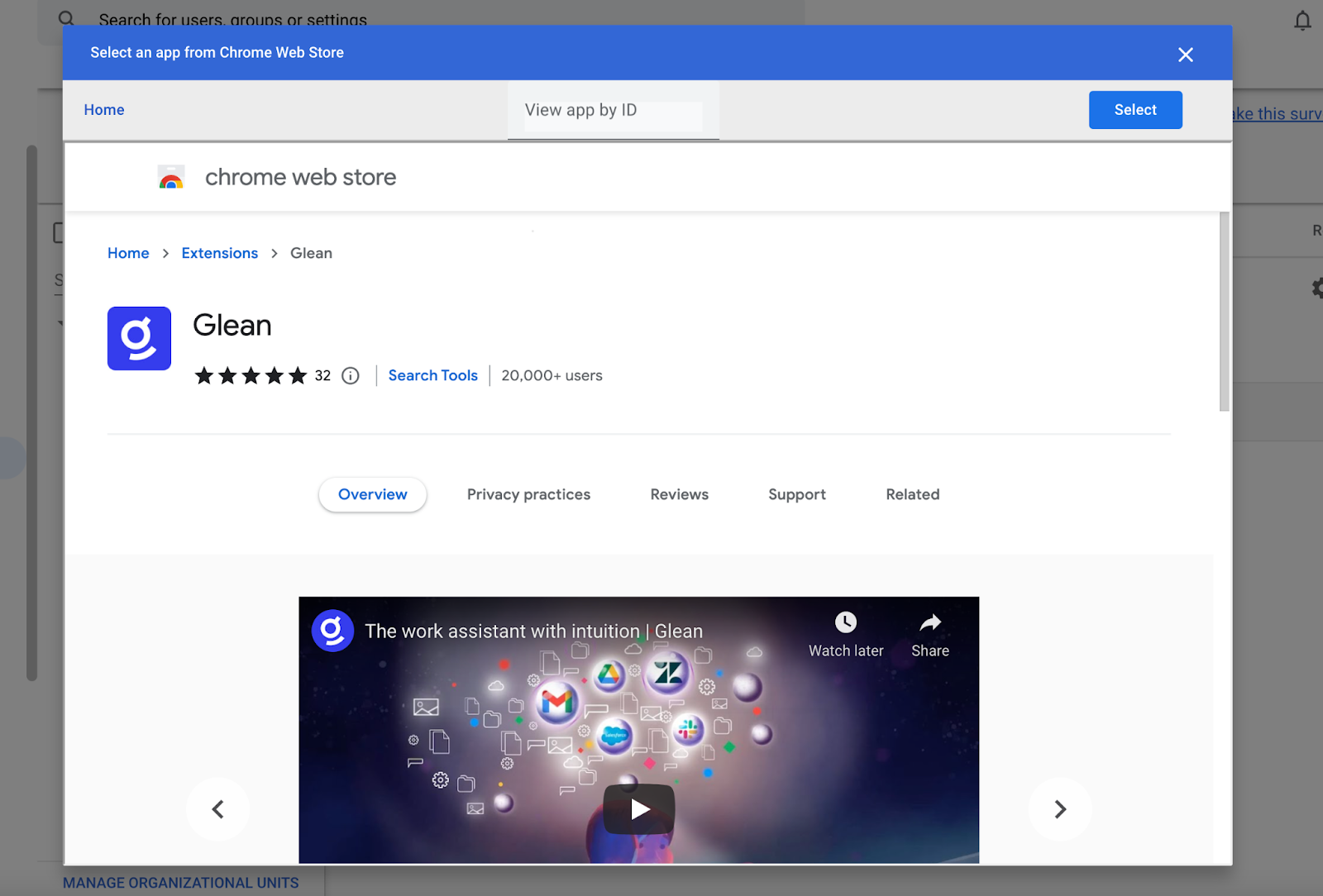
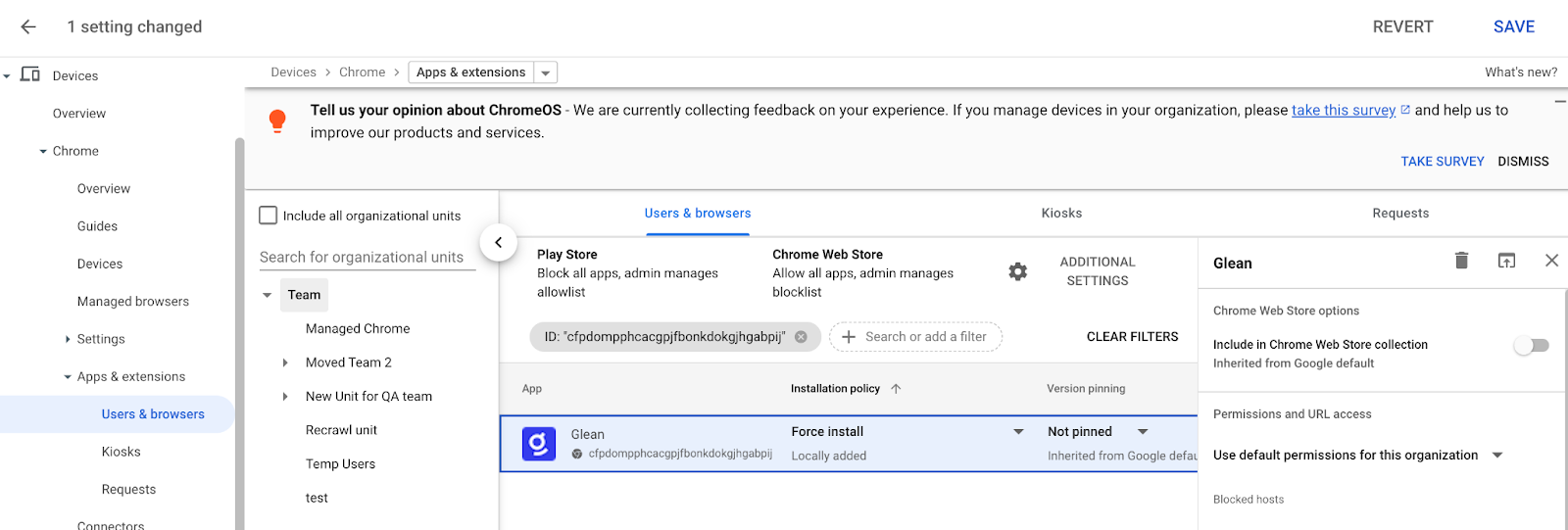
- The extension should appear as below. Click on it to open a right nav bar.
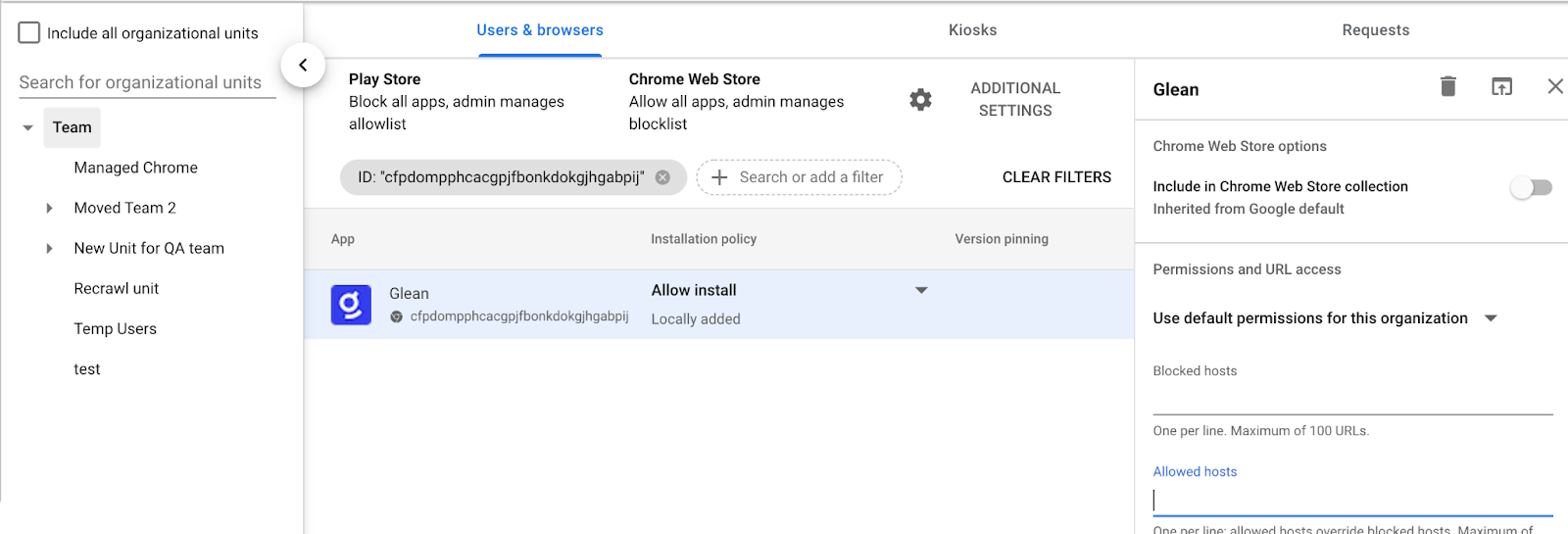
- In Policy for extensions, enter:
{ "BaseUrl": { "Value": "https://tenant_id-be.glean.com" }}
Copy your full backend URL from app.glean.com/admin/about-glean under Server instance (QE), and replace https://tenant_id-be.glean.com with it. An example is shown below.
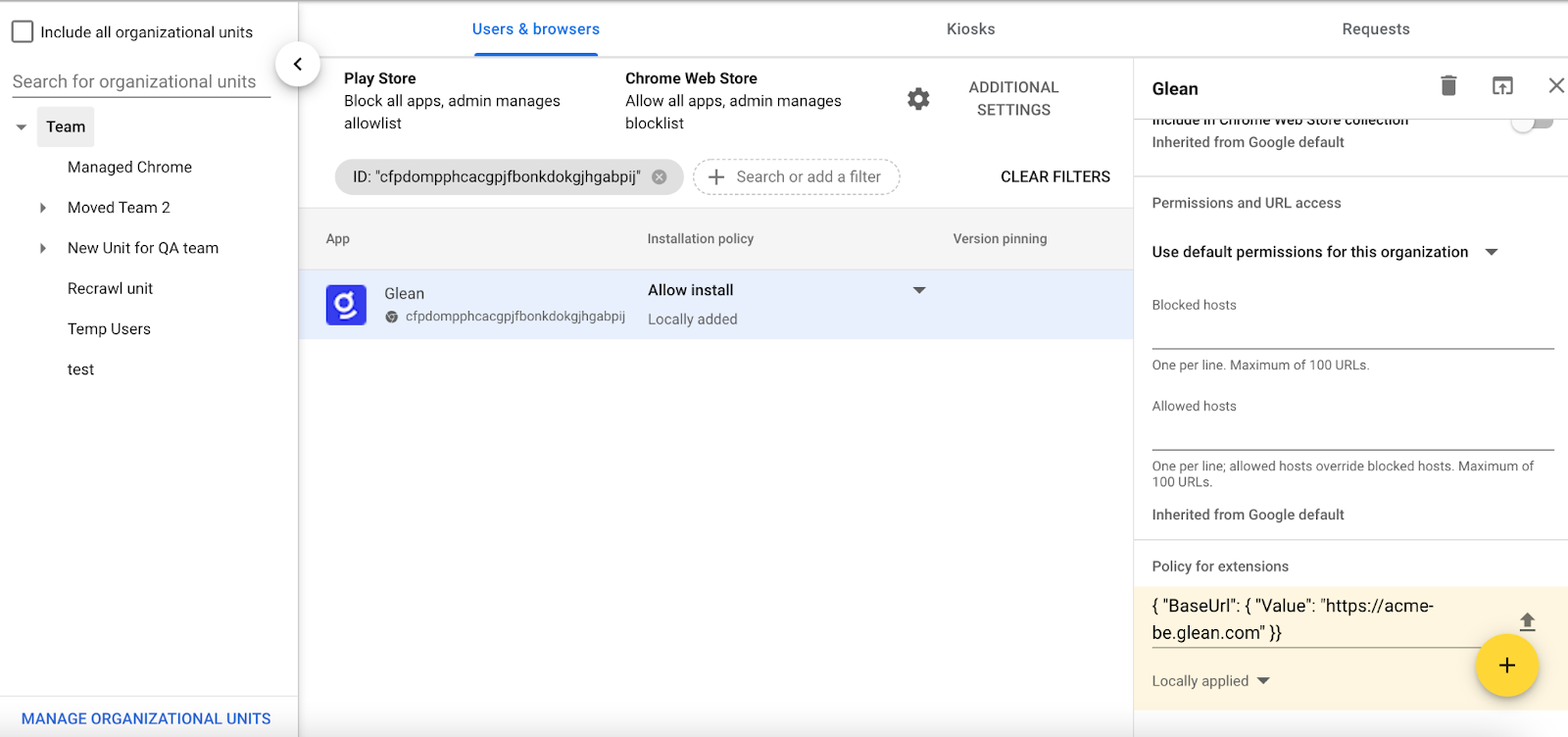
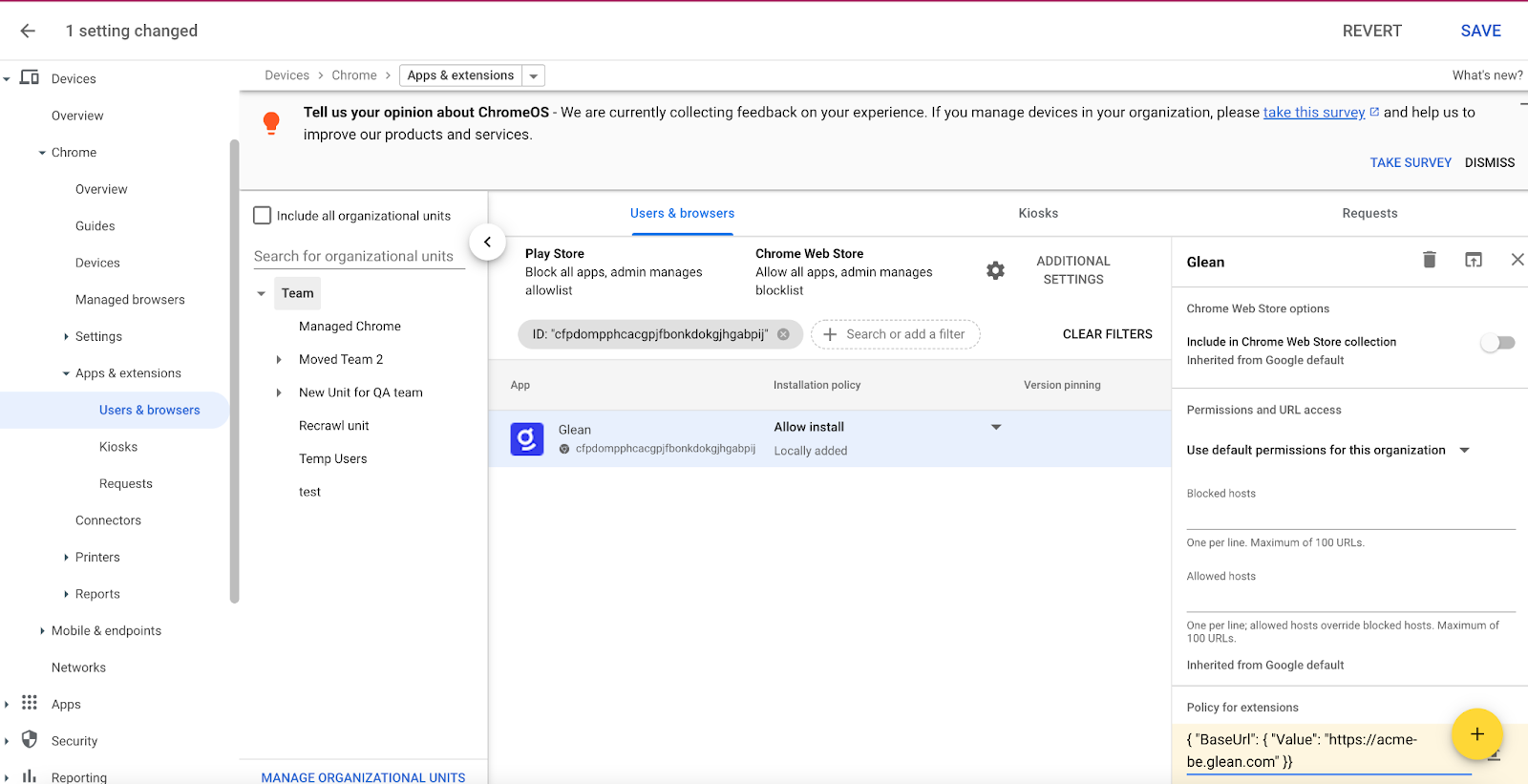
- Click Save at the top after entering the Policy for extensions value:
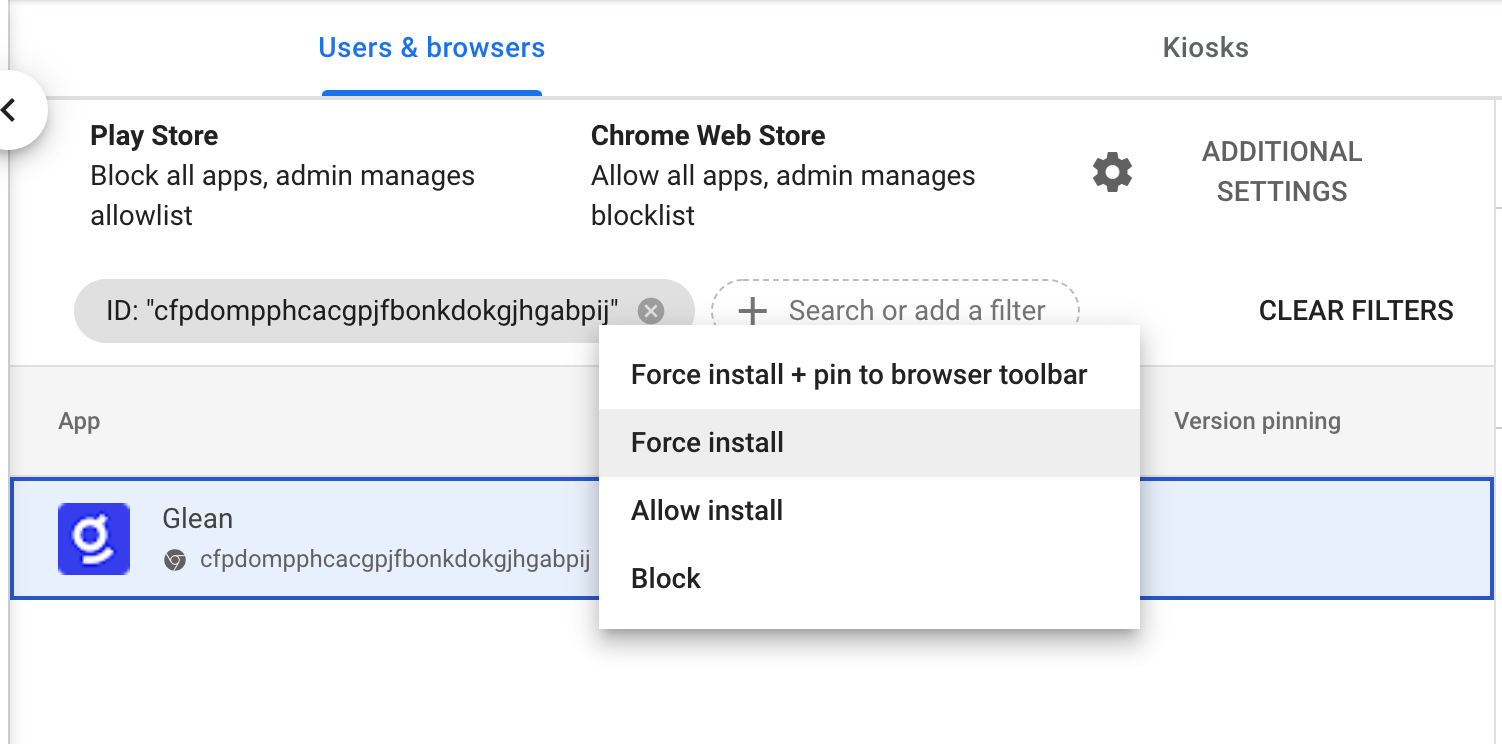
- Hover over Installation policy for the extension and choose Force install or Force install + pin to browser toolbar:
- Click Save at the top:
You can use the ExtensionInstallForceList policy to install the Glean extension silently.
-
In the Group Policy Editor, go to Administrative Templates → Microsoft Edge → Extensions and then select Control which extensions are installed silently.
-
Select Enabled.
-
Click Show.
-
Enter the following ID to install the Glean extension from the Chrome web store:
cfpdompphcacgpjfbonkdokgjhgabpij;https://clients2.google.com/service/update2/crx
Post-install experience
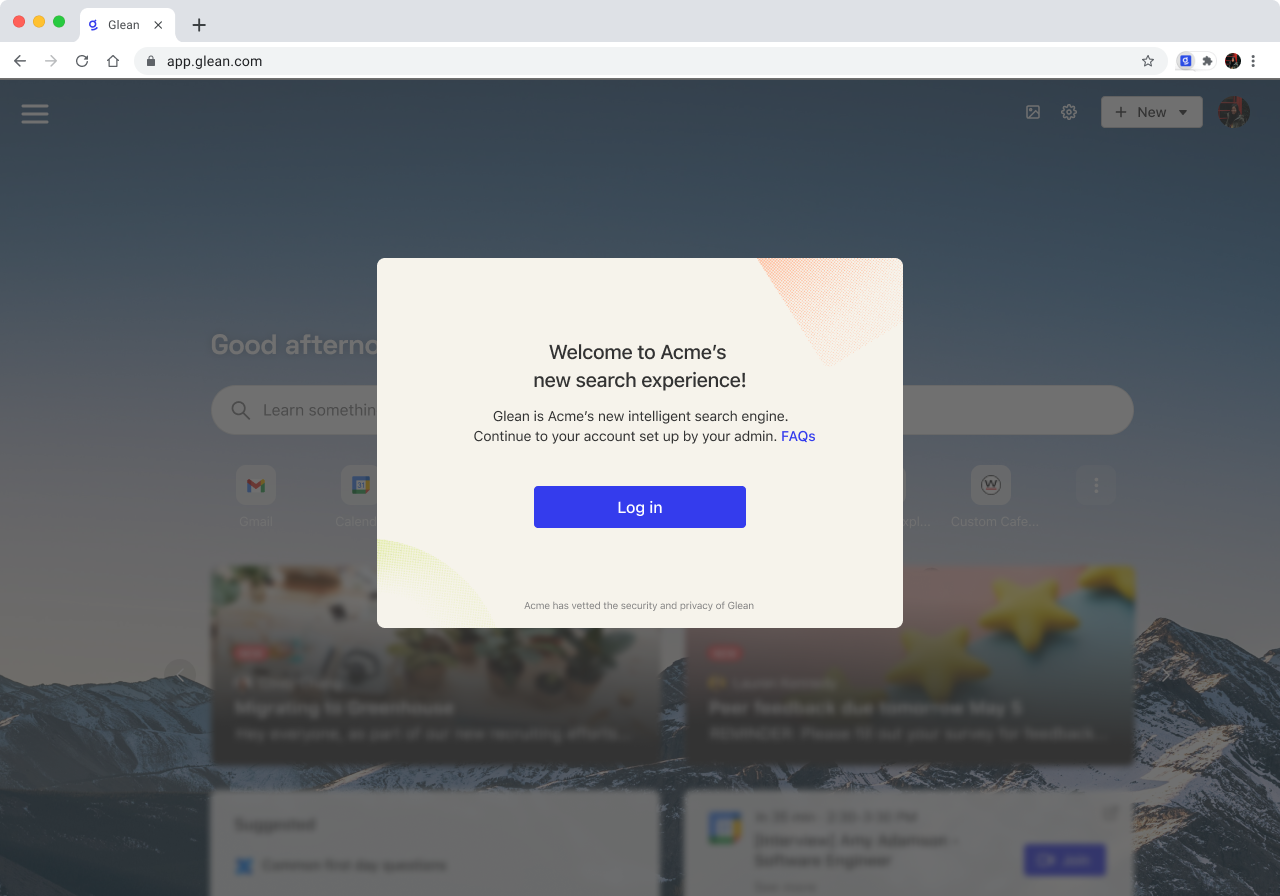
Upon installation of the Glean extension via a managed push, all new users will see the below page to prompt them to sign in to Glean. Your company name, as set in the Glean admin settings, will be automatically populated in the popup to the user.
After signing in, share the Extension sidebar with users so they know how to open the sidebar and use Chat and Search. If you have configured Agents for support platforms, users can follow the Agents workflow on supported pages.
Email template
Refer to the email template below for a company-wide communication to inform employees of a managed Chrome or Edge install.
Subject: New browser extension available for all employees
Title: Key updates to your browser
In [company name]'s continued effort to support employee well-being and productivity, we are rolling out a new company-wide search tool, Glean.
Using Glean, you can search across all work applications we use at [company name]. Whether the document or answer you are looking for lives in [GDrive, Slack, Email, Jira *customize with your company's tools] or with another colleague, Glean will help you search for and discover what you need to get your work done. All without remembering where all your documents are hosted or messaging multiple people.
Starting [launch date], Glean will be installed on your Chrome browser. Note that this launch will replace your current default new tab page with Glean so that you can easily access search across all company apps.