Configure featured agents
Use the Glean browser extension page in the Admin console to feature agents for supported support-platform pages. Featured agents appear at the top of the Agents tab when a user opens the browser extension on a matching page.
Featuring an agent does not grant users permission to run it. Users see only the featured agents they can access.
If you previously configured agents under Glean in Zendesk, Glean in ServiceCloud, or Glean in ServiceNow, Glean automatically migrates those configurations to the corresponding platform entry in Glean browser extension.
The migration preserves the following settings:
- Knowledge sources configured for Generate next steps
- Composer Instructions configured for Draft a response
- Automatic-run settings
- Featured-agent order, with pinned agents remaining at the top and additional agents following them
Before you begin
- Browser extension: Ensure users have the Glean browser extension installed. Users can install it themselves, or an administrator can deploy it to managed devices.
- Admin permissions: You must have the Setup Admin, Admin, or Super Admin role. Members and app developers cannot manage browser-extension integrations.
For users to see and run a featured agent:
- The user must have the browser extension installed and be signed in to Glean. Share Extension sidebar with end users for installation and sign-in steps.
- The user must have permission to run the agent. Featuring an agent does not grant access to it.
- The user must open a page that matches the platform's supported URL pattern. The Agents tab appears only in the new browser extension experience on supported pages.
Supported platforms
Glean defines the platforms and URL patterns supported by this page. You cannot edit the URL patterns. To see the exact patterns, open a platform configuration in the Admin console.
Best practices
For better agent responses, set up the corresponding platform connector before featuring agents. Connector setup is optional when configuring featured agents, but it can provide agents with relevant platform context and improve response quality. For example, set up the Zendesk connector before featuring agents on Zendesk pages.
| Platform | Supported pages |
|---|---|
| Zendesk | Ticket pages |
| ServiceNow | Incident records, Customer Service Management (CSM) case records, and HR case records |
| Service Cloud | Salesforce Lightning case pages |
Configure featured agents
Open a platform configuration
-
In the Admin console, go to Embedded integrations → Glean browser extension.
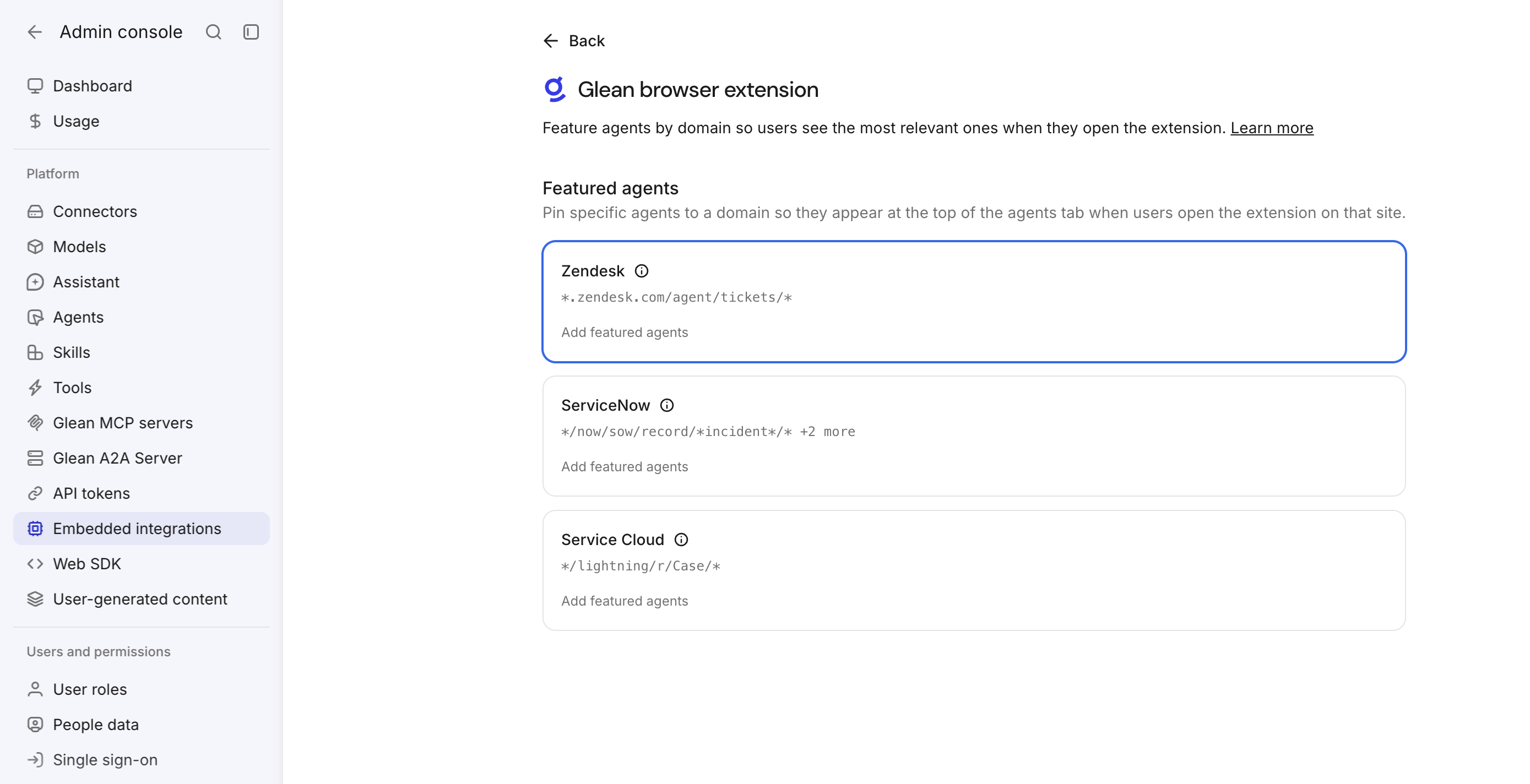
Featured agents overview in the Admin console
-
Under Featured agents, select the platform you want to configure.
The platform drawer opens and displays the platform's URL patterns. These patterns determine which pages show the featured agents.
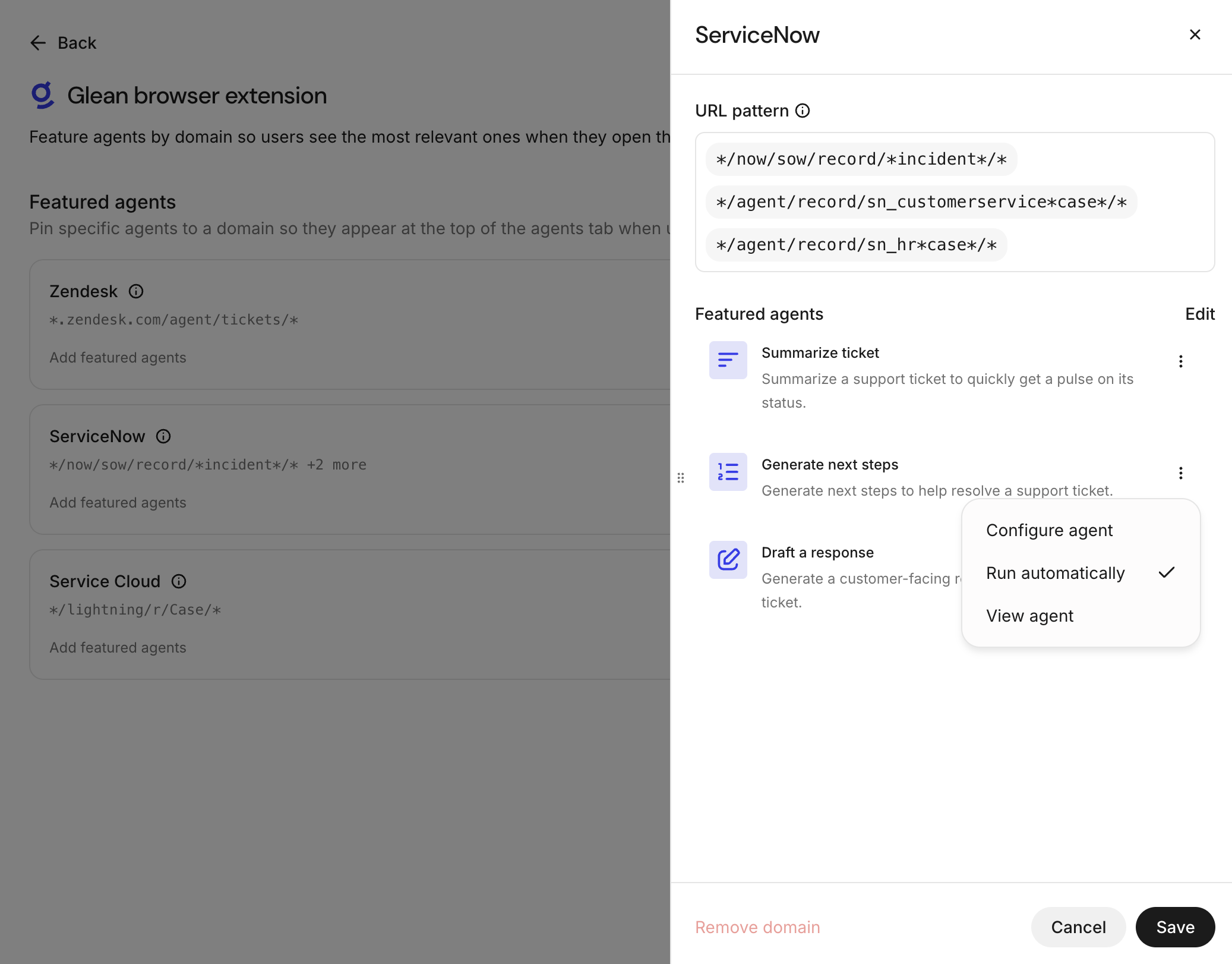
ServiceNow featured-agent configuration drawer
Add agents
-
Select Add agents.
-
Use Search agents to find an agent by name or description.
-
Review the available agents in these sections:
- Suggested by Glean: Glean's out-of-the-box support agents, including Summarize ticket, Generate next steps, and Draft a response.
- Company agents: Agents created in your organization.

Suggested by Glean agents available to feature
-
Select the agents you want to feature. A selected agent shows a checkmark.
-
Use the back arrow to return to the platform drawer.
Configure an agent
From the platform configuration, select the More menu next to an agent to access these options:
-
Run automatically: For eligible agents, allow the agent to run automatically. We recommend enabling automatic runs for frequently used agents to reduce friction for end users. Input-form agents may require you to map all input fields before you enable automatic runs.
-
Configure agent: For supported agents, configure agent-specific settings:
-
Generate next steps: Select the data sources, folders, or URLs that the agent can reference for its recommendations.
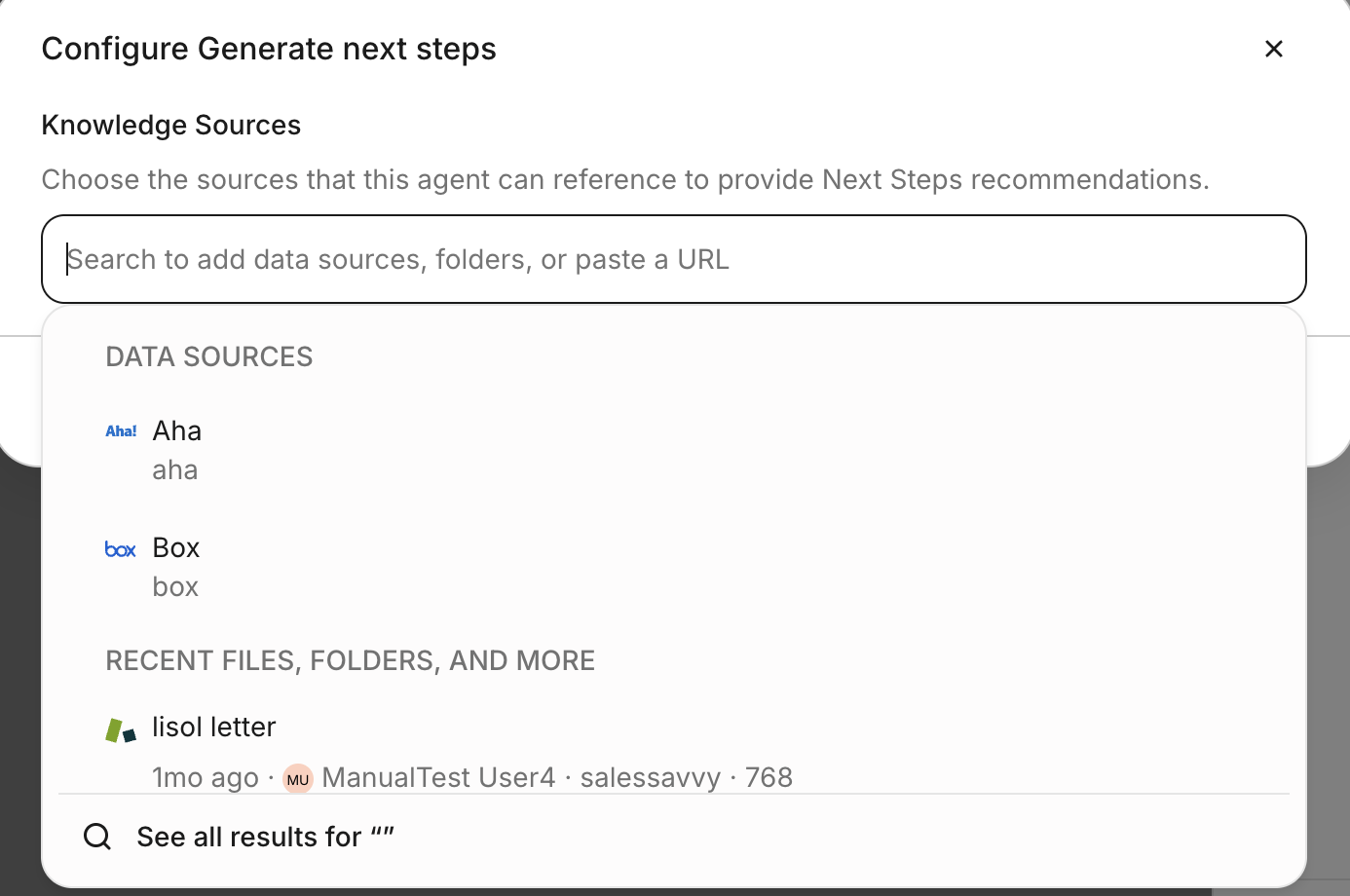
Configure Generate next steps
-
Draft a response: Add Composer Instructions to specify response guidelines such as tone, salutations, and formatting.
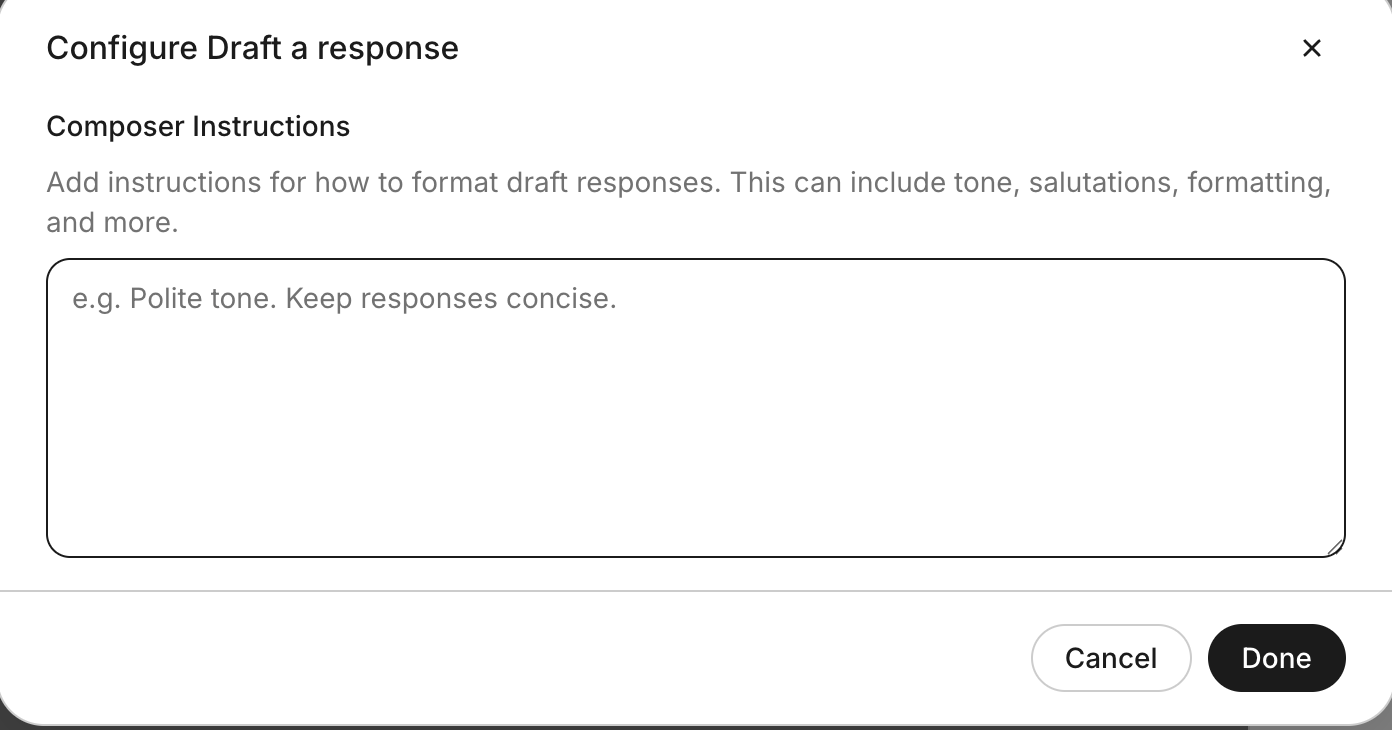
Configure Draft a response
-
-
View agent: Open the agent without leaving the platform configuration flow.
Set the order and save
- Drag the featured agents into the order you want. Users see the agents in this order.
- Select Save. You can save the configuration even when you do not select any agents.
If you haven't configured agents for a platform, the drawer shows No agents featured for this domain yet and an Add agents button.
Edit or remove a configuration
- To change the selected agents or their order, open the platform and select Edit.
- To remove a saved platform configuration, select Remove domain, then confirm. Users on matching pages will no longer see featured agents for that platform.
When users see your changes
Glean can take up to 10 minutes to apply changes to users. If a user already has the browser extension sidebar open when you save a configuration, they must close and reopen the sidebar to see the updated featured-agent list.
How featured agents behave for users
- Order: Featured agents appear in the order you set.
- Permissions: Users see only the featured agents they have permission to run. Featuring an agent does not grant access to it.
- Deleted agents: If someone deletes an agent, it no longer appears for users, even if it remains in a saved configuration.
Billing
During the transition from embedded support integrations (formerly Glean Assist) to the browser extension, replacement support agent runs follow these billing rules:
- During the transition, Glean continues to bill replacement support agent runs in the browser extension in the same way as Glean Assist.
- After the transition, Glean bills these runs as Glean Agent runs. For Glean Enterprise Flex customers, these runs consume FlexCredits according to the rate card.
For timeline details, see Embedded support integrations (formerly Glean Assist). For contract-specific billing questions, contact your Glean account team.