Export Org Chart data
You can export organizational chart data to CSV files and provide structured employee information for analysis or integration with other systems.
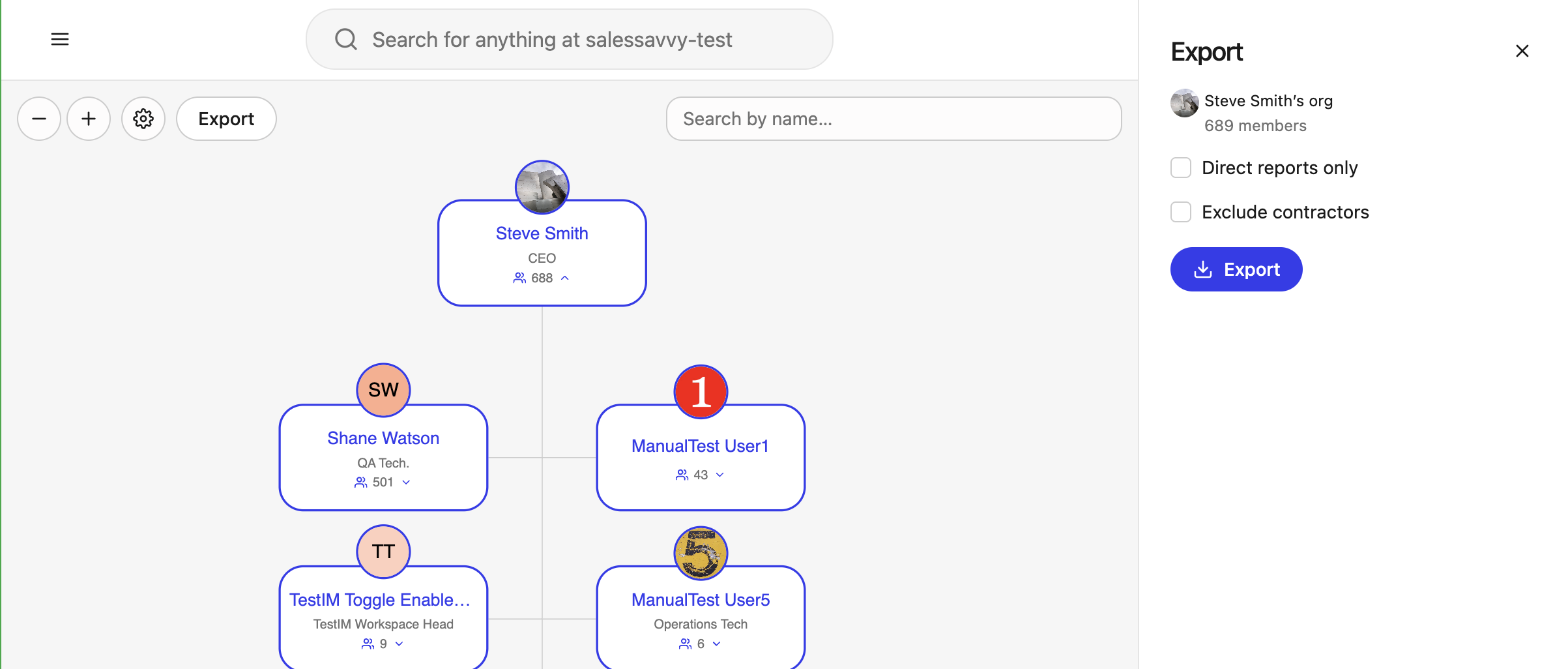
Export process
Access export options
Export is available to administrators from the Org Chart toolbar, alongside the zoom and settings controls. The export process follows these steps:
Select a starting point
Navigate to the person whose organizational data you want to export.
Initialize the export
Click Export to open the export configuration drawer.
Configure export options
Choose your export parameters:
- Direct reports only: Export only the selected person's direct reports. Leave it off to export all reports.
- Exclude contractors: Omit contractors from the export.
Generate the export
Click Export in the drawer to download the CSV file to your local machine.
Exported data fields
The CSV export includes the following employee fields:
Standard fields
- Email address
- Full name
- Preferred name
- Department
- Job function
- Location
- Employee type
- Job title
- Role type
Any custom fields configured in your Glean instance are appended to the export after the standard fields.
Use the export
The exported CSV file provides a structured view of your organizational hierarchy that you can use for:
- Organization analysis
- Team planning
- System integrations
- Reporting purposes
The file downloads directly to your default download directory in CSV format, making it easy to process further in spreadsheet applications or other tools.