Bulk schedule agents
Glean admins and agent moderators can set up scheduled agent executions on behalf of users with bulk scheduling. This feature lets you deploy department or team wide agents at scale, ensuring critical workflows run consistently across your organization without requiring manual setup from each user.
With Bulk scheduling, you can:
- Configure agent schedules once and deploy to entire teams or departments
- Help company critical agents run consistently across target audiences
- Remove the burden of manual scheduling from end users
- Manage bulk scheduled agents from a centralized admin interface
Agent eligibility
You can bulk schedule only the agents meeting the following criteria:
- Published with at least one version
- Shared to target audience
- Allows scheduled execution
- Uses only tools that admins allow to run without user confirmation
Example use cases
- Department wide reporting: Weekly sales pipeline summaries, monthly expense report reminders
- Team updates: Daily standup collection, weekly accomplishment aggregation
- Performance reviews: Self-assessment collection, peer feedback requests during review cycles
- Weekly work reports: Send employees shareable summaries of their work from the past week
Bulk scheduling considerations
Credit usage
Bulk scheduling consumes FlexCredits based on the number of agent executions. The credits consumed scale with your audience size and schedule frequency. Before enabling a bulk schedule, consider:
- Run the agent in preview using Debug Mode to estimate per-execution credit usage.
- Multiply by your audience size and schedule frequency to forecast total consumption.
- Monitor ongoing credit usage through the FlexCredits Dashboard after enabling bulk schedules.
Infrastructure limits
- You can select up to 5,000 users per bulk schedule audience. Glean's infrastructure will automatically spread execution across an appropriate time window to intelligently load balance, so larger audiences will take longer to fully process.
- The selected time slot represents the execution start time. Actual delivery of agent output will vary depending on audience size and agent configuration.
Not a user impersonation feature
Bulk Scheduling is not an act as or user impersonation feature. Admins cannot use it to run agents while impersonating users or to access agent outputs on behalf of users. Instead, the purpose of bulk scheduling is to help end users consume agent outputs without needing to individually discover, configure, and set up those agents themselves. Each agent execution runs in the user's own context with their own permissions.
Setup and configuration
Use the following process to setup bulk scheduling.
Prerequisites
- You must have the admin or agent moderator role.
- Agents must be enabled for your organization.
- Target agents must meet eligibility requirements.
- The intended audience must have access to scheduled triggers. See Scheduled Triggers documentation for setup instructions.
Steps to create a bulk schedule
Access Bulk Scheduling
Navigate to Admin console → Agents → Bulk Scheduling → Add agent.
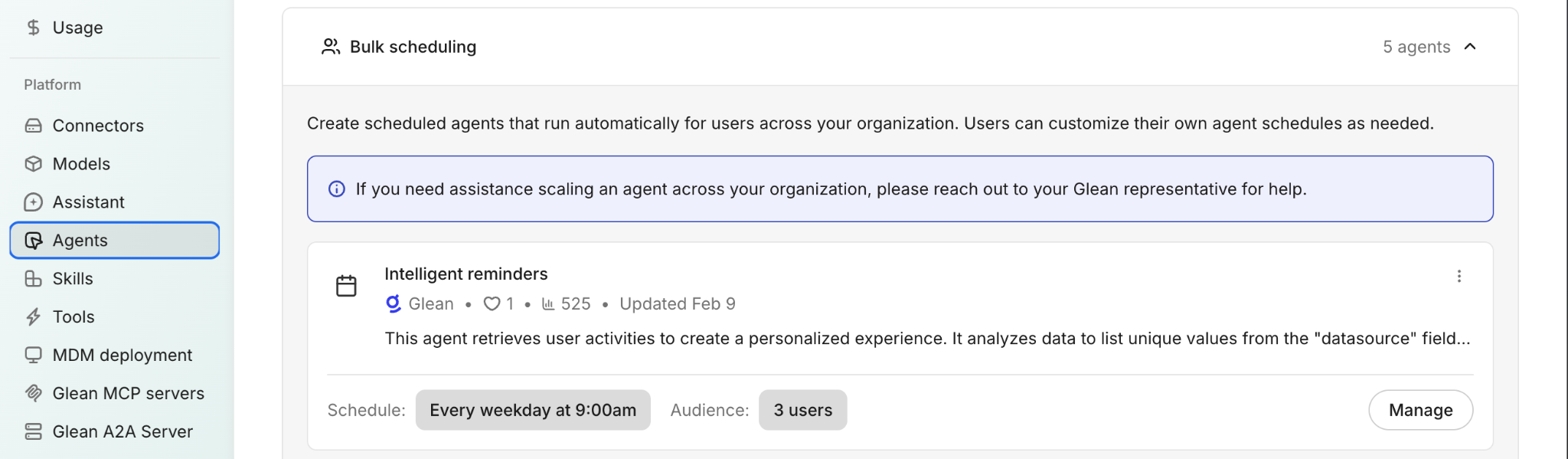
Select Agent
Choose from eligible agents. Only agents meeting eligibility requirements appear in the list.
Configure Audience
Choose one method:
- Individual Users: Search and select by name or email
- Departments: Select from org structure
- IdP groups: Use Google Groups, Microsoft Entra/Azure AD groups, or Okta groups (recommended for custom audiences)
Set Schedule
Choose a start date, frequency, and time. The schedule runs in each user's timezone.
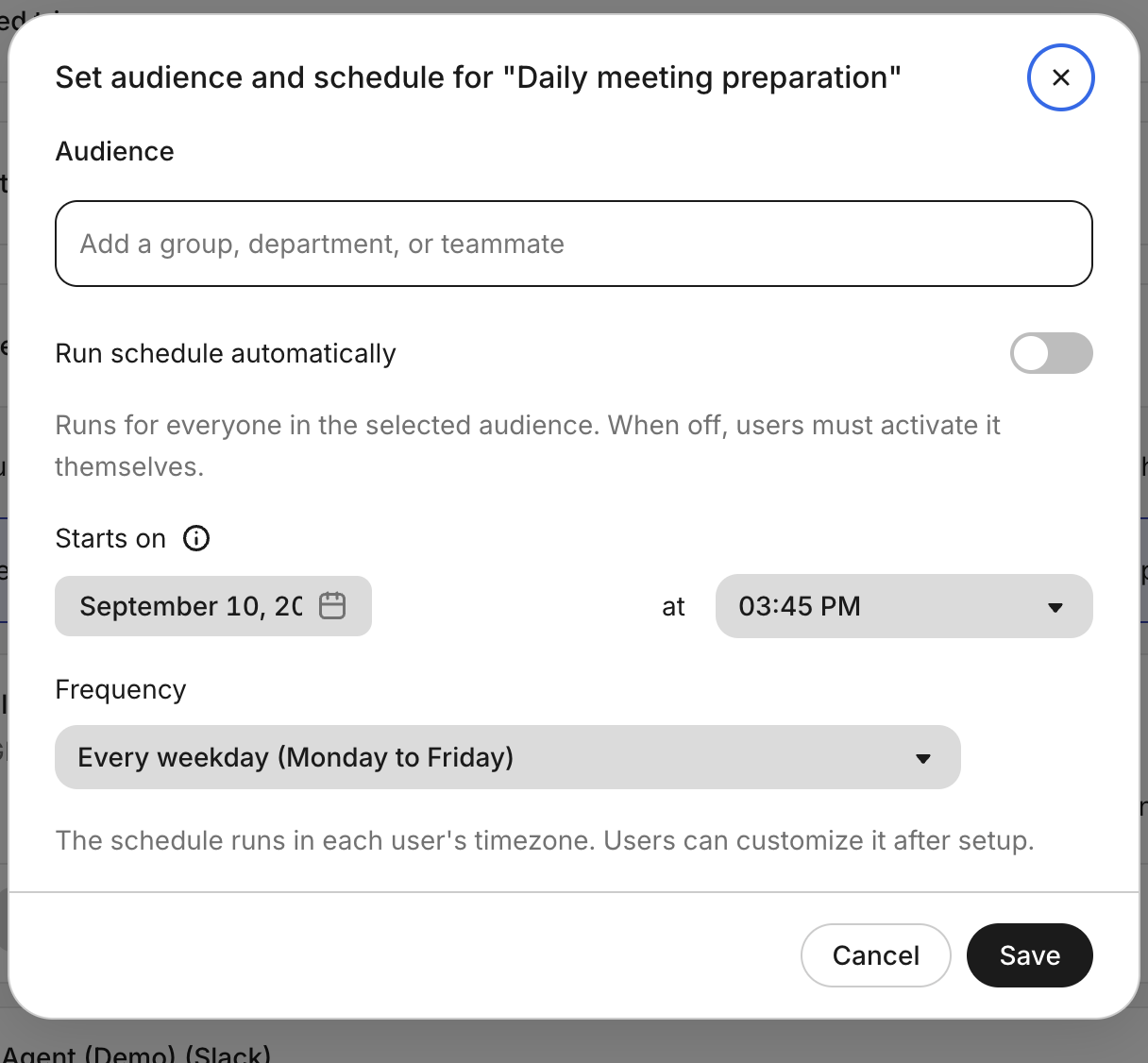
Review & Enable
Choose whether to Run schedule automatically. When the option is on, the agent runs for everyone in the selected audience on the configured cadence. When the option is off, users must activate the schedule themselves.
Review the configuration and select Save. Users can customize their schedule after setup.
Monitor
View status in the Bulk Scheduling list. Pause, resume, or edit as needed.
Configure IdP groups
Glean provides the option to configure a bulk schedule audience with IdP groups from Google Groups and Entra ID (Azure AD). Before using IdP groups, configure the IdP source in Admin console → Platform → Agents:
- Select Google Groups (Google Workspace) or Microsoft Entra/Azure AD Groups (Microsoft 365)
- This setting affects both agent sharing and bulk scheduling
For more details, see Agent Sharing Documentation.
Schedule and status management
Configure a start date, frequency, and time. The schedule runs in the timezone of each user. Users can customize their individual schedule settings after deployment.
With Run schedule automatically on, the schedule runs for everyone in the selected audience. With the option off, each user must activate the schedule themselves.
- Pause: Toggle status to Paused in the Bulk Scheduling list
- Edit: Click Schedule row → Edit → Modify audience/schedule → Save
- Remove: Click Schedule row → Remove → Confirm
Breaking changes to bulk-scheduled agents, for example, removing defaults or requiring confirmations will cause schedules to fail. Coordinate with agent creators before modifications.
FAQs
Known limitations
- You can create only one bulk schedule per agent.
- A bulk schedule can include up to 5,000 users to avoid overloading agent scheduling infrastructure.
Reach out the Glean support team if you have any issues related to bulk scheduling agents.