Enterprise Managed Auth: Glean as the resource server
Enterprise Managed Auth (EMA) lets users reach the Glean MCP server from an AI application without a separate Glean sign-in or consent screen. Admins centrally manage which users and AI applications can access Glean through their identity provider. Your identity provider (IdP) issues a signed identity assertion for the user, and the Glean OAuth Authorization Server exchanges that assertion for a Glean access token in a single back-channel request. The flow is also known as Cross App Access (XAA). For the vendor-side view of the same flow, see Enterprise Managed Auth in Claude and Cross App Access in Okta.
EMA currently supports Claude (Team and Enterprise) as the requesting application and Okta as the IdP. This page will be updated as more applications and identity providers are supported. See Example: Claude and Okta.
This page covers Glean as the resource server and authorization server: an external application (the requesting application) presents an IdP assertion to Glean, and Glean issues the access token for its own MCP server.
It does not cover Glean as the requesting application, where Glean uses Cross App Access to reach another vendor's MCP server on a user's behalf. That is configured separately under Admin console → Cross app access.
How it works
The requesting application obtains a signed identity assertion for the user from your IdP and sends it to the Glean token endpoint with the JWT bearer grant urn:ietf:params:oauth:grant-type:jwt-bearer. Glean verifies the assertion against your trusted issuer, resolves the user by email, and returns an access token for the Glean MCP server. The user sees no redirect and no consent screen.
When EMA is enabled, Glean advertises the JWT bearer grant in its OAuth server metadata at https://<instance>-be.glean.com/.well-known/oauth-authorization-server.
For the underlying standards, see the MCP Enterprise-Managed Authorization extension, the JWT bearer grant specification, and the Identity Assertion Authorization Grant draft.
Prerequisites
- You have the Admin role in Glean.
- The Glean OAuth Authorization Server is enabled (the default setting). See Glean OAuth Authorization Server.
- At least one Glean MCP server is enabled (the default setting). See About Glean MCP server.
- Users are connecting from an EMA-enabled application (for example, Claude) with single sign-on (SSO) configured to an XAA-enabled IdP.
- You have the relevant permissions for configuring XAA in your IdP and SSO plus EMA in your requesting application. In Claude, this requires the Owner role; the Admin role is not sufficient. See Example: Claude and Okta.
Values you need
You enter the following Glean values in your IdP and in the requesting application. Your Glean backend URL follows the pattern https://<instance>-be.glean.com. Find it in Admin console → About Glean under Server instance (QE). The examples below use acme.
| Value | Example | Used for |
|---|---|---|
| Glean OAuth issuer | https://acme-be.glean.com/oauth | Issuer URL when the IdP registers Glean as a resource server |
| Glean token endpoint | https://acme-be.glean.com/oauth/token | Required audience of the assertion |
| Glean MCP server URL | https://acme-be.glean.com/mcp/default | Resource indicator in the IdP; server URL in the requesting application |
| Client ID | Generated by Glean when you create a static client | Must match between the IdP resource connection and the Glean client. Only needed when the requesting application does not support Client ID Metadata Documents (CIMD). |
| Scope | MCP | Scope the requesting application asks for |
You will need the issuer URL from the IdP your requesting application uses for SSO, for example https://acme.okta.com.
Configure Glean
-
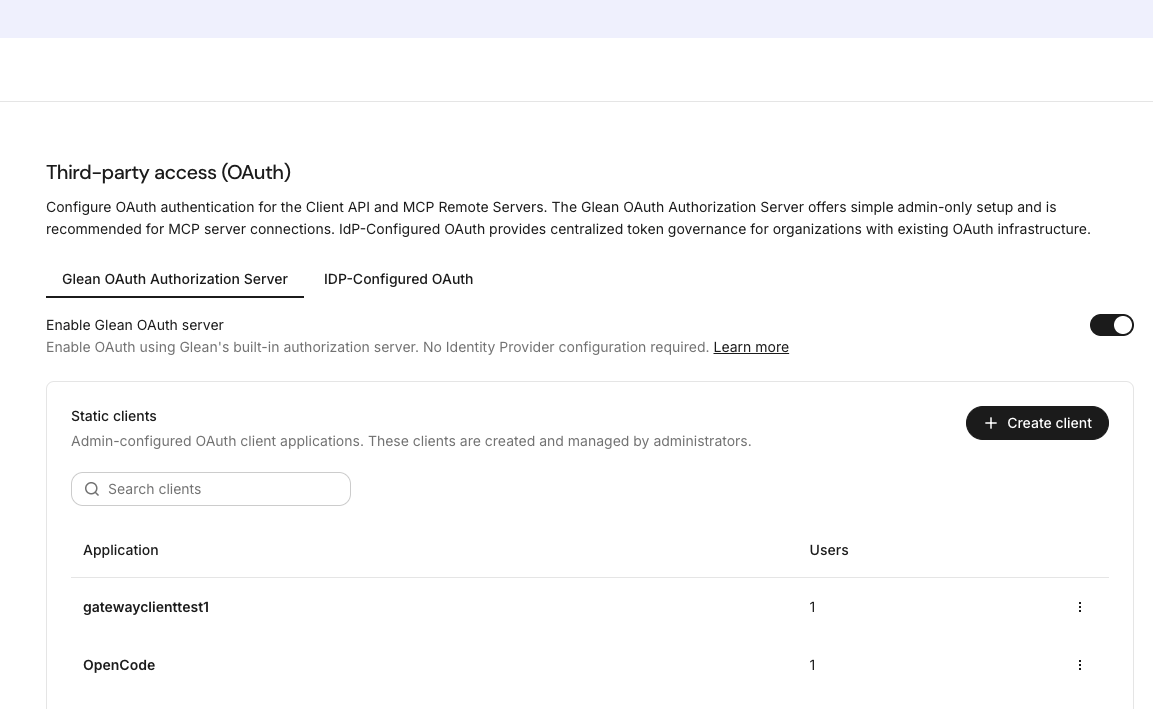
Go to Admin console → Users & permissions → Third-party access (OAuth).
-
Confirm Enable Glean OAuth server is on.
-
In the Enterprise Managed Auth section, turn on the toggle.
-
Set the fields:
Field Value Trusted issuer Your IdP issuer URL. This must exactly match the issclaim in the assertion. Do not add a trailing slash or a path.Identifier claim The assertion claim that carries the user's email. Typical values are emailandsub.Allowed scopes Include MCP. Access tokens issued through EMA are limited to the scopes you select here. -
Click Save.
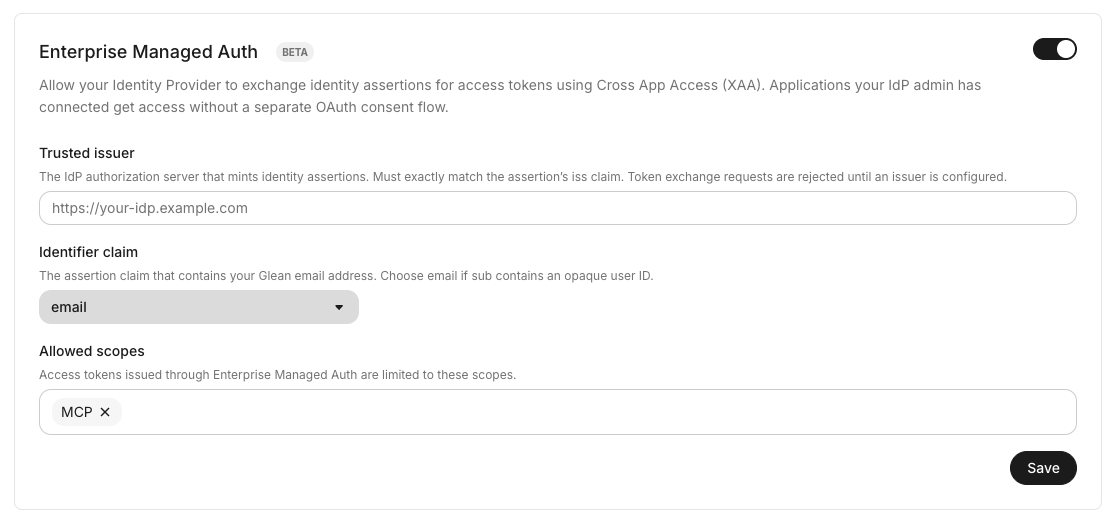
Token exchange requests are rejected until a trusted issuer is configured, even when the toggle is on.
Create a static OAuth client (only if CIMD is not supported)
A static client is only necessary when the requesting application does not support Client ID Metadata Documents (CIMD). With CIMD, the application identifies itself with a URL that hosts its client metadata, so Glean needs no pre-registered client. Claude supports CIMD and does not require this step.
If your requesting application does not support CIMD, create a static client with the JWT Bearer grant type:
- On the same page, next to Static clients, click Create client.
- Enter a Client name.
- Under Grant type, select JWT Bearer.
- Under Scopes, select MCP.
- Click Create.
- Copy the Client ID and Client secret. You enter the client ID in the IdP resource connection and both values in the requesting application. You cannot view the secret again.
Configure your IdP and requesting application
Both steps require elevated access in the respective product (for Claude, the Owner role). Glean does not control those products; see their documentation and the example below.
- In your IdP: register Glean as a Cross App Access resource server using the Glean OAuth issuer, connect the requesting application to it with the Glean MCP server URL as the resource indicator, and assign the users who may connect. If you created a static client, use its client ID in the connection.
- In the requesting application: remove any existing Glean connectors, add Glean as an organization-wide connector with the Glean MCP server URL, enable managed authorization, and run the application's connection test. Enter the static client ID and secret only if the application does not support CIMD. Users do not configure anything.
Verify
- Sign in to the requesting application as an assigned user.
- Start a new session. The Glean connector is already enabled, with no activation step and no Glean sign-in.
- Ask the application to search Glean. The tool call succeeds.
Access token behavior
- EMA access tokens carry only the scopes in Allowed scopes. Requested scopes outside that list are dropped.
- Glean does not issue refresh tokens for EMA exchanges. The requesting application obtains a new assertion from the IdP when a token expires. The user is not prompted.
- Glean rejects assertions whose lifetime (
exp - iat) exceeds 5 minutes, whoseissdoes not match the trusted issuer, or whose audience is not the Glean token endpoint. - Glean resolves the user by the email in the assertion. The user must already exist in Glean.
- EMA sessions are subject to the same admin session controls as other OAuth sessions, including sign out of all sessions.
Turn off or restrict EMA
- To stop all EMA exchanges, turn off the Enterprise Managed Auth toggle. Existing access tokens expire on their normal schedule.
- To stop one requesting application, delete its static client in Glean (if using a static client), or turn off access in the IdP.
Example: Claude and Okta
Claude (Team and Enterprise) with Okta is the supported configuration today, using a Claude custom web connector.
In Claude
You must be an Owner of the Claude organization. Admins cannot add custom connectors or configure managed authorization.
- Ensure SSO is configured for your Claude organization with your Okta org.
- Go to Organization settings → Plugins → Connectors and add a custom web connector. The pre-built Glean connector in Claude's connector directory does not support EMA.
- Enter your Glean MCP server URL, for example
https://acme-be.glean.com/mcp/default. - Set up managed authorization. Claude supports CIMD, so no Glean static client is needed.
- Run Claude's test connection flow. If the exchange fails, the test shows the token claims Claude sent, which helps pinpoint issuer, audience, and claim mismatches.
Add and connect Glean from Organization settings → Plugins → Connectors. Do not use the Connect button on Settings → Customize → Connectors. That page is the personal connector list, and connecting from it starts a per-user OAuth flow instead of managed authorization.
For details, see Enterprise Managed Auth in Claude and Authorize MCP connectors for your entire organization.
In Okta
Okta calls the requesting app an AI agent. The steps below follow Okta's Configure AI agent-to-app with XAA guide.
- Register Claude as an AI agent (the requesting app). See Configure the AI agent.
- Add Glean as a resource app using the Glean OAuth issuer, and turn on Cross App Access on this app only. Leave it off on the requesting app. See Configure XAA on an app integration.
- Open the requesting app (Claude) and use its Resource connections tab to connect the Glean resource app. Set the Glean MCP server URL as the resource indicator and enter the client ID from the Glean static client (unless using CIMD). See Configure the XAA connection.
- Assign the users or groups who may connect. See Configure user access.
- Turn on Cross App Access on the resource app (Glean) only. It stays off on the requesting app (Claude).
- Configure access from the requesting app, not the resource app. The resource app is selected under the requesting app's Resource connections page.
For background, see Cross App Access concepts. For the Admin Console reference, see Configure Cross App Access and Manage Cross App Access connections.
Troubleshooting
| Symptom | Likely cause | What to do |
|---|---|---|
| Requesting application does not offer managed authorization for Glean | Glean OAuth server or EMA is off, so Glean does not advertise the JWT bearer grant | Enable both in Third-party access (OAuth) and retry after a few minutes. |
Token exchange returns invalid_grant | Trusted issuer does not exactly match the IdP issuer, or the client ID in the IdP resource connection does not match the Glean client | Compare the values. Remove trailing slashes. |
Token exchange returns unsupported_grant_type | EMA is not enabled for the deployment | Turn on the toggle, or contact your Glean representative to enable EMA for your deployment. |
| Exchange succeeds, but tool calls fail with 401 or 403 | Allowed scopes does not include MCP, or the user does not exist in Glean | Add MCP. Confirm the user's Glean email matches the IdP. |
| Users still see a Glean sign-in prompt | In Claude, the pre-built directory connector is in use instead of the custom connector; an older Glean connector remains; or the user is not assigned in the IdP | Remove the directory connector and any old connectors. |
Claude: Use the test connection flow
Before comparing values by hand, run the connector's test connection flow in Claude's connector settings. When an exchange fails, Claude displays the specific token claims it sent, including iss, aud, and the identifier claim. Compare them with your Trusted issuer, the Glean token endpoint, and the Identifier claim setting in Glean. This is the fastest way to spot a mismatch.