Configure the Glean A2A server
Turn on the Glean A2A server to connect Glean Assistant to an external AI platform such as Google Gemini Enterprise or Microsoft Copilot Studio. For how the A2A server works and how requests are authenticated, see Glean A2A server.
Prerequisites
Before you turn on the A2A server, make sure:
- You have an Admin or Super Admin role.
- The Glean OAuth authorization server is enabled. See Enable the Glean OAuth authorization server.
- The users who will reach Glean through A2A have access to Glean Assistant. See Configure Glean Assistant for details.
Set up the A2A server
Enable the A2A server
Navigate to Admin console → Platform → A2A server and turn on the Enable A2A server toggle.
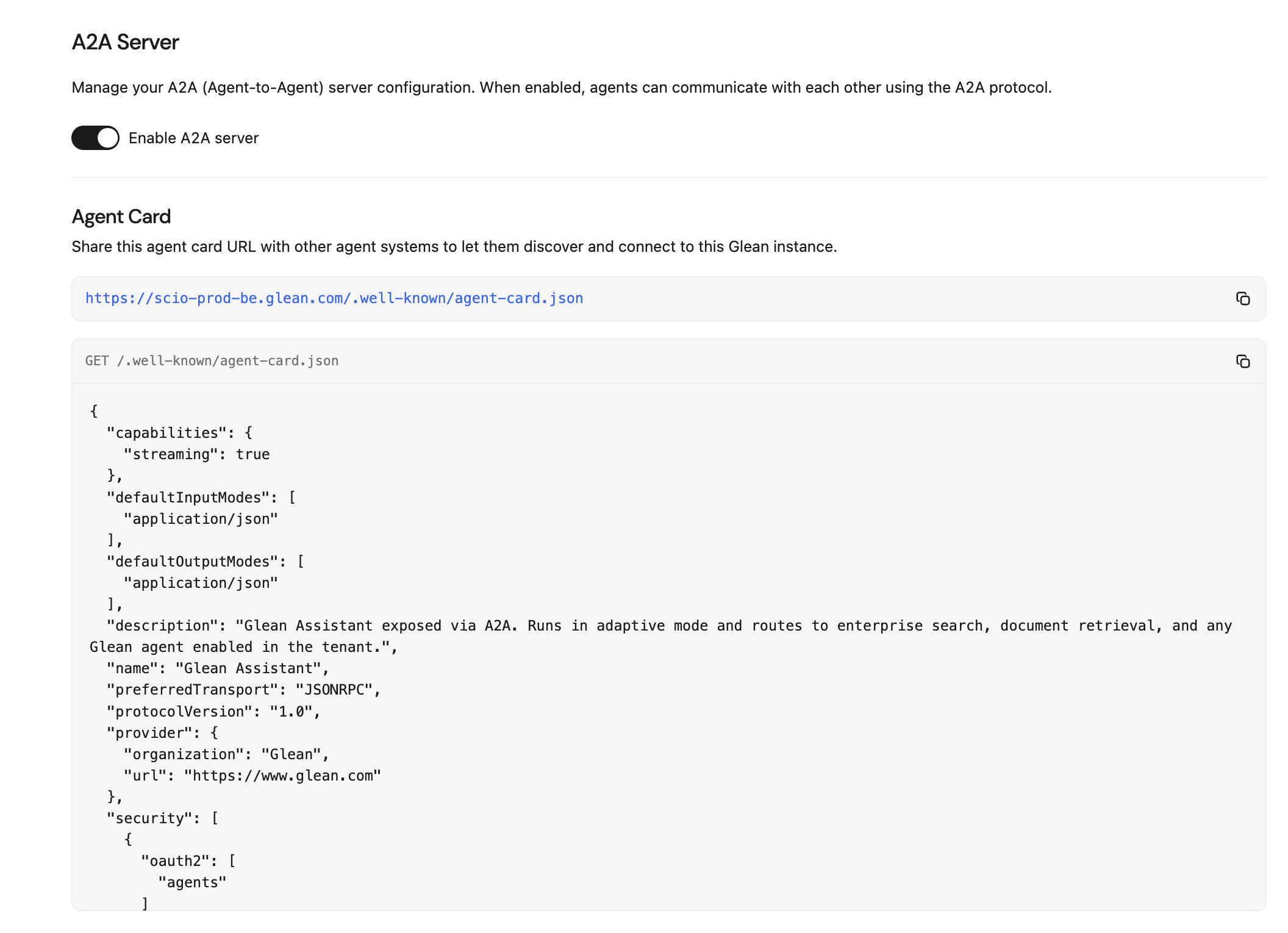
The A2A Server admin page with the agent card URL and agent card contents
Copy the agent card URL
Once enabled, the page displays your deployment's agent card URL (ending in /.well-known/agent-card.json) along with the agent card contents. Copy the URL to share with the external platform.
Connect an external platform
Register Glean in the external platform
In the external A2A client (for example, Google Gemini Enterprise or Microsoft Copilot Studio), register Glean Assistant as a remote agent using your agent card URL. Refer to the external platform's documentation for its specific registration steps.
Complete the OAuth flow
When prompted, sign in to Glean to authorize the connection. Each user authorizes individually, so all requests run with their own Glean permissions.
Verify the connection
Ask a question through the external platform (for example, "Who is my manager?") and confirm that Glean Assistant responds.