Glean in Microsoft Excel
Ask questions about your spreadsheet, update formulas, and create charts without leaving Microsoft Excel. The Glean add-in opens a task pane beside your workbook and combines workbook context with company knowledge you can access in Glean.
Use the add-in in Excel on Windows, Mac, or the web.
- Admins: Review Before you start, then deploy the add-in to users or groups.
- Users: After your admin deploys the add-in to your account, use Glean in Excel and sign in with your own Glean account.
Before you start
Before deploying the add-in:
- Confirm beta access and deployment requirements with your Glean point of contact.
- Work with a Microsoft 365 admin who can deploy custom Office add-ins to users or groups.
- Check Microsoft's admin, licensing, Exchange Online, and group requirements for deployment through the add-in portal. See Determine if centralized deployment of Office Add-ins works for your organization.
- Confirm that participating users can sign in to Glean with their own accounts and open their workbooks in Excel.
The add-in reads and edits the workbook you have open in Excel. Selecting a range helps focus your request, but it does not restrict Glean's workbook access to those cells. Access to company knowledge follows your existing Glean permissions.
Glean is still adding support for applying SharePoint site allowlists and denylists in the Excel add-in. If your organization relies on these restrictions, contact your Glean point of contact to confirm current support before deploying the add-in. SharePoint site restrictions do not cover local copies of workbooks.
See SharePoint crawling restrictions for the connector's site-level controls. Do not assume that these crawling restrictions also restrict the add-in's access to an open workbook.
Deploy the add-in (admins)
Use Microsoft's add-in portal to deploy the XML manifest to users or groups. The manifest registers the add-in as Glean for Office and requests ReadWriteDocument permission to read and edit the open workbook.
- Get the approved Glean for Office manifest XML file from your Glean point of contact and save it to your computer.
- Review the manifest and its requested permissions against your organization's requirements.
- Open the Microsoft 365 admin center and go to Settings → Integrated apps.
- Click Add-ins to open the add-in portal.
- Click Deploy Add-in, then click Next in Deploy a new add-in.
- Choose the option to upload a custom add-in.
- Under Choose how to upload app, select the option to upload the manifest. Click Choose File, select the XML file, and click Upload.
- Select Specific users/groups and choose who should receive the add-in.
- Click Deploy. After Microsoft 365 confirms deployment, click Next and follow the remaining instructions.
Microsoft notes that Office add-ins can take 24–72 hours to appear on the ribbon. Ask an assigned user to restart Excel if the icon does not appear, then follow the sign-in steps in Use Glean in Excel. Confirm that they can open the task pane and ask a question about their workbook.
Microsoft recommends the separate Integrated apps portal for most organizations. For guidance on that deployment method, see Deploy Office Add-ins in the Microsoft 365 admin center.
Use Glean in Excel
Glean can change the workbook directly. Work on a copy when testing changes.
After your admin deploys the add-in to your account:
Open Glean
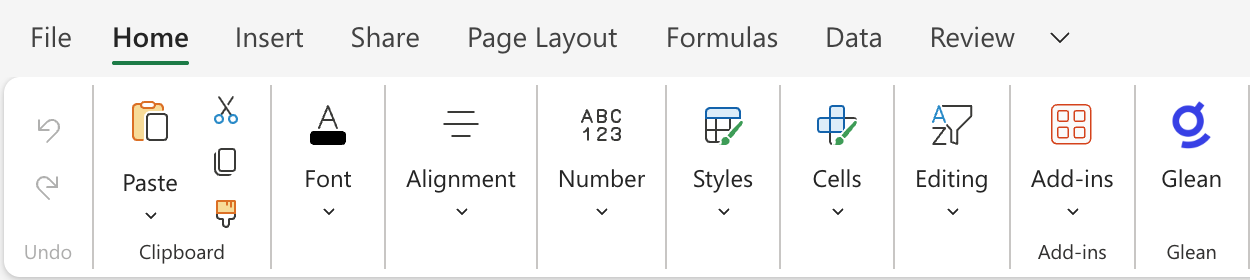
Open the workbook you want to work with in Excel. On the Home tab, click Glean to open the task pane.
Sign in
If Glean asks you to sign in, enter your Work email, click Continue, and complete sign-in with your Glean account.
Send a request
Select the cells relevant to your question, or name the worksheet and range in your message.
Enter your request in Ask Glean anything and click Send.
Review the resulting values, formulas, and formatting before relying on them.
Understand workbook context
When you send a message, the add-in sends Glean samples of your selected cells and active worksheet, along with worksheet names and range dimensions. Glean can read additional cells in the open workbook when it needs more context.
Ask about or update your workbook
Use a specific worksheet name or cell range when you want Glean to work on a particular part of the workbook.
| Task | Example request |
|---|---|
| Understand spreadsheet data | Summarize the selected sales figures and identify the largest changes. |
| Write formulas | In the Sales worksheet, add formulas in D2:D10 that multiply each row's quantity in column B by its unit price in column C. |
| Format cells | Make the selected header row bold and give it a blue background. |
| Create a chart | Create a column chart from A1:B10 in the Sales worksheet. |
| Use company knowledge | Find the office address in company documents and enter it in the selected cell. |
Glean can also create worksheets and tables, insert or delete rows and columns, and adjust row heights and column widths.
Troubleshoot
See also
- Microsoft Excel tools: Configure the separate tools that operate on Excel workbooks from Glean and agents, rather than from the Excel task pane.
- Choose where to use Glean: Find other ways to use Glean alongside your work.