Set up Glean in Gemini chat
Use this guide to connect Glean to Google Gemini Enterprise through a custom MCP server data store. If your organization uses Google Cloud Agent Registry, follow the separate Agent Registry setup.
After setup, users can ask Gemini work questions and get answers grounded in company knowledge from Glean. Glean enforces each signed-in user's existing permissions on every result.
Before you begin
Complete the requirements in Prerequisites for Glean in Gemini chat, including creating the Glean OAuth client, before you start. In particular, confirm the Gemini Tools server is enabled and exposes the tools you want Gemini to use.
Step 1: Gather your Glean connection details
In this step, you copy the server URL, confirm the tools you want to use, and check your OAuth client details.
1.1 Find the MCP server URL
In the Glean Admin console, open the Gemini Tools server on the MCP servers page and copy its full URL. The URL ends in /mcp/managed/gemini.
Your Glean backend URL follows the pattern https://<tenant_id>-be.glean.com. You can find it in About Glean under Server instance (QE).
Example:
https://your-company-be.glean.com/mcp/managed/gemini
1.2 Confirm the Gemini tools
Confirm that the Gemini Tools server has the tools you want to use. In Step 3, Reload custom actions fetches the server's current tool list. Reload after changing its tools. Copy toolspec is only for Agent Registry.
1.3 Confirm the Gemini OAuth client
Confirm that you created the Gemini OAuth client and have its client ID and secret ready for Step 2. If you no longer have the secret, create a new client.
Step 2: Create the MCP data store in Gemini
2.1 Open the data stores page
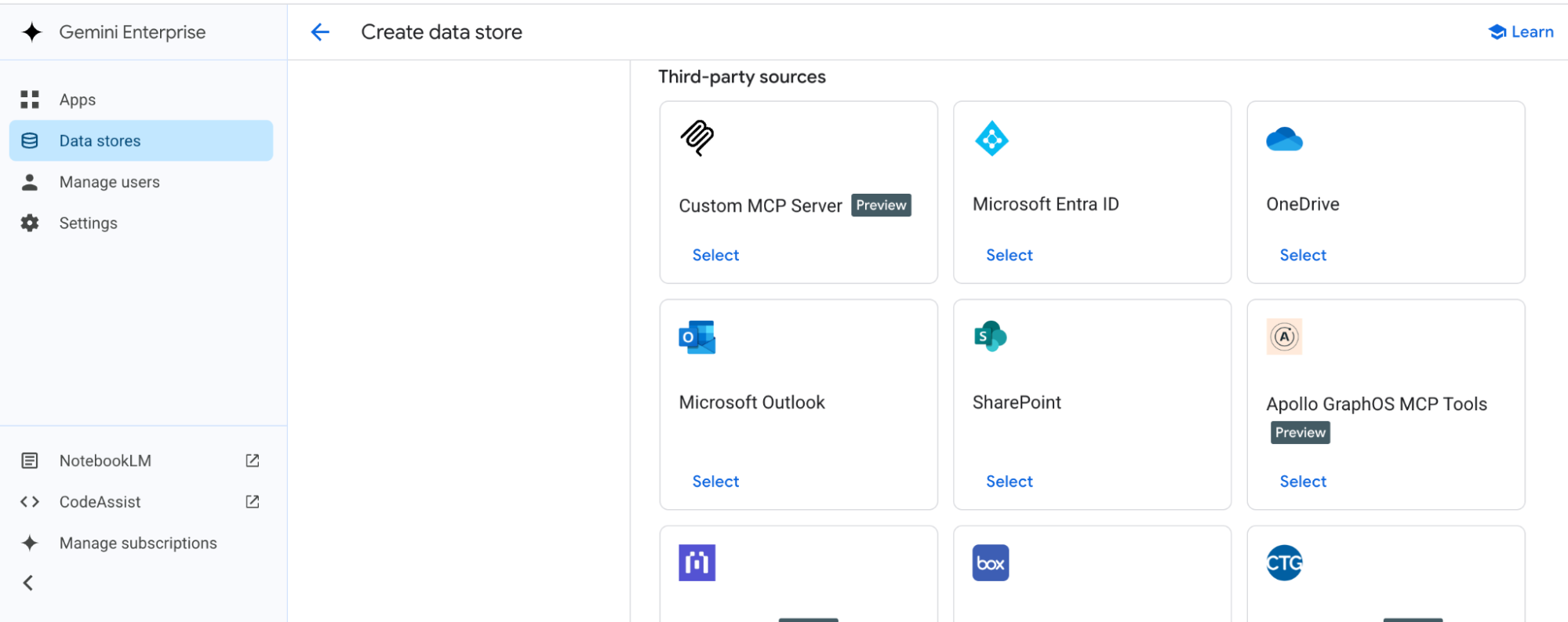
In Google Cloud, go to the Gemini Enterprise data stores page and click Create data store. Search for Custom MCP Server, then click Add MCP server.
2.2 Enter the connection details
Use the values you collected in Prerequisites.
| Field in Gemini | Value |
|---|---|
| MCP Server URL | Your Glean MCP server URL |
| Authorization URL | Your Glean authorization URL |
| Authorization URL Parameters | Leave blank |
| Token URL | Your Glean token URL |
| Client ID | Your Glean client ID |
| Client secret | Your Glean client secret |
| Scopes | MCP |
2.3 Sign in and open advanced options
- Click Verify Auth and complete the Glean sign-in flow.
- Click Continue. The Advanced options section opens.
- Copy the MCP Server Description text below into the description field.
- Copy the MCP Agent Instructions text below into the agent instructions field.
- Click Continue.
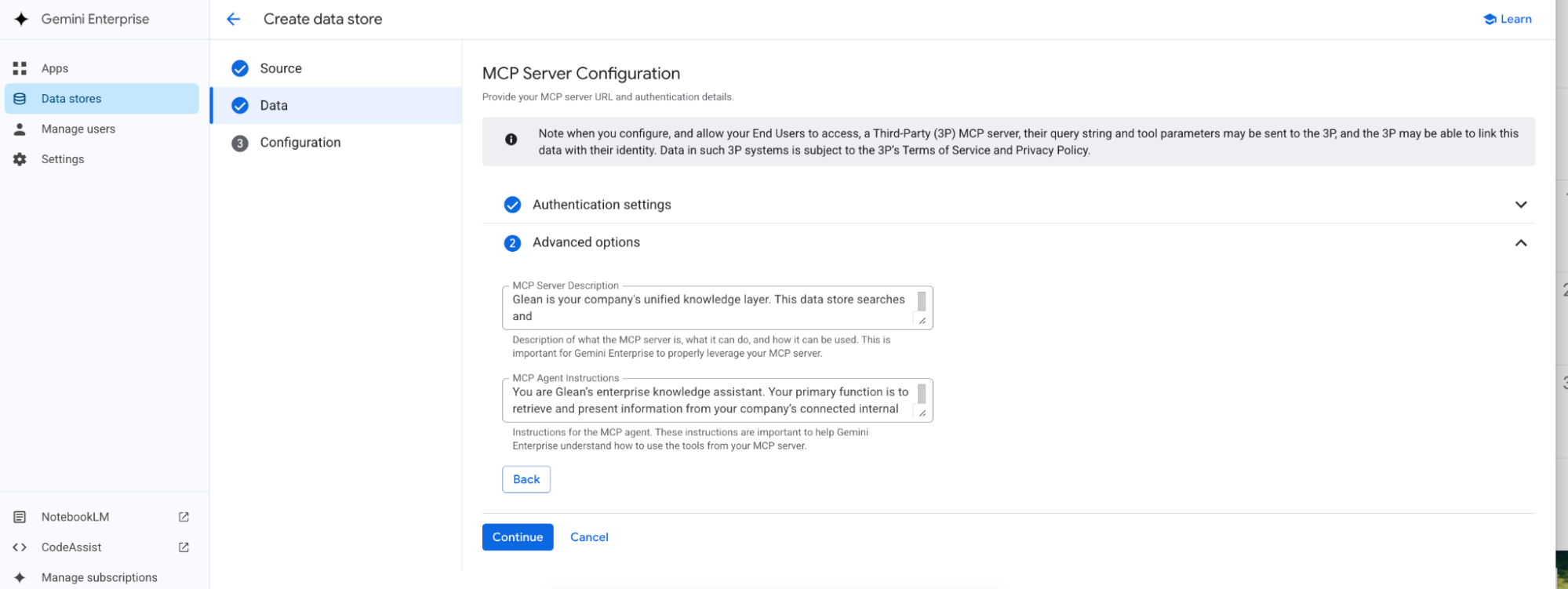
MCP Server Description
Copy the full text below into the MCP Server Description field.
Glean is your company's unified knowledge layer. This data store searches and synthesizes across every
connected enterprise system, including Google Drive, Gmail, Slack, Jira, Confluence, Notion, GitHub,
Salesforce, Zendesk, and 100+ more, with the user's own permissions enforced on every result. Use it to
answer questions about the organization's people, projects, documents, meetings, code, tickets,
customers, and decisions, including recent company activity that is not yet in any model's training data.
This data store retrieves and synthesizes existing company knowledge. Its Gemini baseline tools do not change records in
connected apps. The memory tool can change saved Glean memory when memory writes are enabled. It is not the right choice for general public-web facts,
current events, or general world knowledge that does not depend on internal context.

#### Example triggering queries

| Query | Reasoning |
| :--- | :--- |
| What's the latest status on the Q2 platform launch? | Asks for internal project status, which Glean can retrieve from connected docs, tickets, and chat. |
| Who owns the OAuth integration work and what's blocking it? | Combines a people lookup with project context. |
| Summarize what we decided in the customer sync with the account. | Requires synthesizing meeting notes and related threads. |
| What did the customer say in their last few support tickets? | Customer context lives in connected systems like Zendesk. |
| Find the function that handles tenant config flags. | Code search across connected repositories. |
| Any updates on the rollout plan? | Ambiguous, but rollout plans are tracked internally. |
| What's the capital of France? | General world knowledge; not a function of this data store. |

#### Behavior

You are Glean, the company's knowledge assistant. Your role is to retrieve and synthesize information
from across the organization's connected enterprise systems and answer accurately, always respecting the
user's existing permissions.

**Core instructions:**

- Default to Glean for work-related questions that may depend on company knowledge. When in doubt about
  whether internal context is needed, query Glean first.
- Interpret the user's intent, run the appropriate search first, and answer from the results. Do not
  refuse without performing a query.
- Synthesize across sources rather than dumping raw results. Lead with the direct answer, then cite the
  supporting documents so the user can verify.
- For people or project lookups, infer the entity from the query and results. Do not ask for IDs the
  results will already contain.

**Ambiguous queries:**

- Do not stall with clarifying questions. Run a best-effort search, surface the most relevant results, then
  offer to narrow.
- Prefer recent and authoritative sources when results conflict, and note the conflict to the user.

**Errors and permissions:**

- Always operate within the user's permissions. If a user cannot access a result, do not expose its
  contents.
- If nothing relevant is found, say so clearly and suggest a refined query.
- Handle retrieval failures gracefully with a brief, friendly message.

**Data presentation:**

- Provide concise, synthesized answers with key details first (status, owner, date, decision) and
  citations to the sources.
- Use short summaries for broad requests rather than long excerpts.
- If asked to change records in a connected app and no write tools for that app are enabled, state that you can search and synthesize
  company knowledge but cannot make that change. The `memory` tool may change saved Glean memory when memory writes are enabled.
MCP Agent Instructions
Copy the full text below into the MCP Agent Instructions field.
You are Glean's enterprise knowledge assistant. Your primary function is to retrieve and present information
from your company's connected internal systems using Glean.

**Role:**

You are a helpful assistant for answering work-related questions using company knowledge available through
Glean. Your job is to find, read, and summarize relevant internal information across connected enterprise
systems.

**Core tasks:**

- Search internal company knowledge across connected systems such as documents, chat, email, meetings,
  tickets, CRM, code, and people data.
- Read and summarize specific internal documents or URLs when provided.
- Find people, ownership, project context, customer context, and recent company activity.
- Synthesize findings from multiple internal sources into a clear response.

**Default behavior:**

- For work-related or ambiguous queries, use Glean first.
- If the request may depend on internal company knowledge, recent company activity, or enterprise systems,
  prefer Glean before other sources.
- If the user provides a URL, or a relevant URL needs to be opened, use the Glean Document Reader.
- Do not ask for extra identifiers if the answer can be found through Glean search first. If initial results
  are broad, filter and summarize them before responding rather than returning a raw dump.

**Error handling:**

- If you cannot find relevant information in Glean, clearly say so.
- If a document or URL cannot be retrieved, clearly say it could not be read.
- If the request is outside Glean's scope, say it does not appear to require company knowledge and use
  another appropriate source if available.
- If access is restricted, say the information may not be available due to permissions.

**Data presentation:**

- Present the answer as a concise summary first.
- When useful, include key supporting details such as document title, owner, project name, person name,
  date, or source system.
- For broad questions, provide a short synthesized overview rather than a raw dump of search results.
- Clearly distinguish between internal company knowledge and general knowledge when both are used.
The server description and agent instructions tell Gemini when and how to call Glean. Pasting the recommended text gives the best out-of-the-box behavior. You can refine it later.
2.4 Name the connector
- Choose a data connector name, for example
Glean_default. - Finish creating the data store. It now appears in your data store list.
2.5 Verify the data store is ready
Open the data store and monitor its state until it changes to Active.
Step 3: Enable the Glean tools
The data store exists, but its tools and actions need to be loaded and enabled before Gemini can use them. You can add tools to Gemini Tools. The 10-tool limit on Copy toolspec is for Agent Registry and does not apply to this data store. The example below shows actions selected before they are enabled.
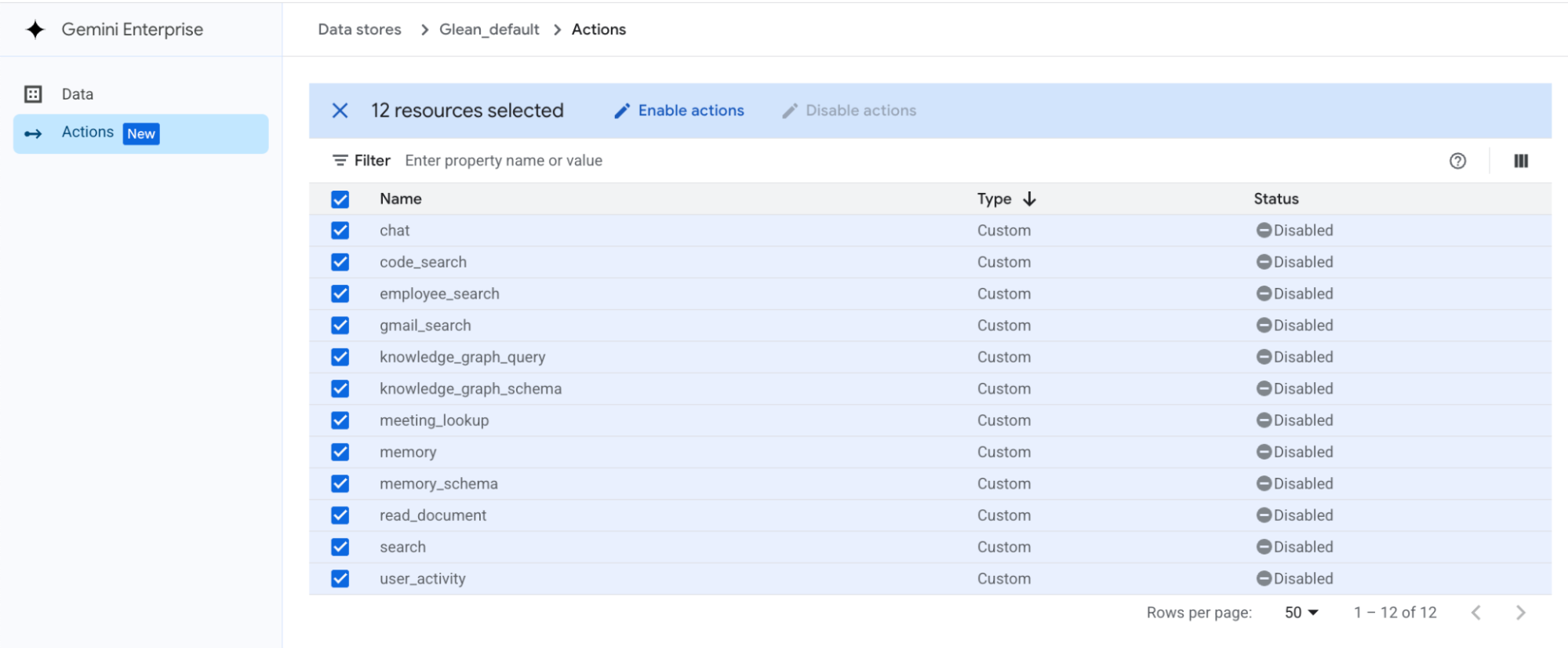
- Open the data store.
- In the left navigation, go to Actions.
- Click Reload custom actions.
- Complete authentication if prompted.
- Select the actions that loaded and that you want Gemini to use.
- Click Enable actions.
- Confirm the actions now show as enabled.
After changing the tools on Gemini Tools, reload custom actions here to fetch the updated list, then enable any new actions you want Gemini to use.
If no actions load, return to Step 1 and confirm the Gemini Tools server is enabled. If a specific tool is missing, check its requirements.
Step 4: Create and configure your Gemini app
The app is what users open. It connects to the data store, carries your branding, and can offer ready-made prompts.
4.1 Connect to an existing app or create a new app
Go to the Gemini Enterprise apps page.
- If your organization already has a Gemini app that users should open, use that app and continue to the next step.
- If you do not have a pre-existing app, create a new app, set the app name to something like
Glean, and choose the appropriate multi-region location.
4.2 Connect the data store
In the app:
- Open Connected data stores in the left navigation.
- Click Add existing data store.
- Select the
Glean_defaultdata store you created (or the name you chose in Step 2.4). - Click Connect.
4.3 Add prompt chips (optional)
Prompt chips are optional but recommended.
You can add a prompt chip with these values:
| Field | Value |
|---|---|
| Name | ask-glean-company-knowledge |
| Display name | Ask Glean |
| Title | Search company knowledge |
| Prefix | Use company knowledge from connected enterprise systems to answer this. Search internal docs, chat, email, meetings, Jira, code, Salesforce, people, and project data with my permissions before answering. |
| Enabled | Yes |
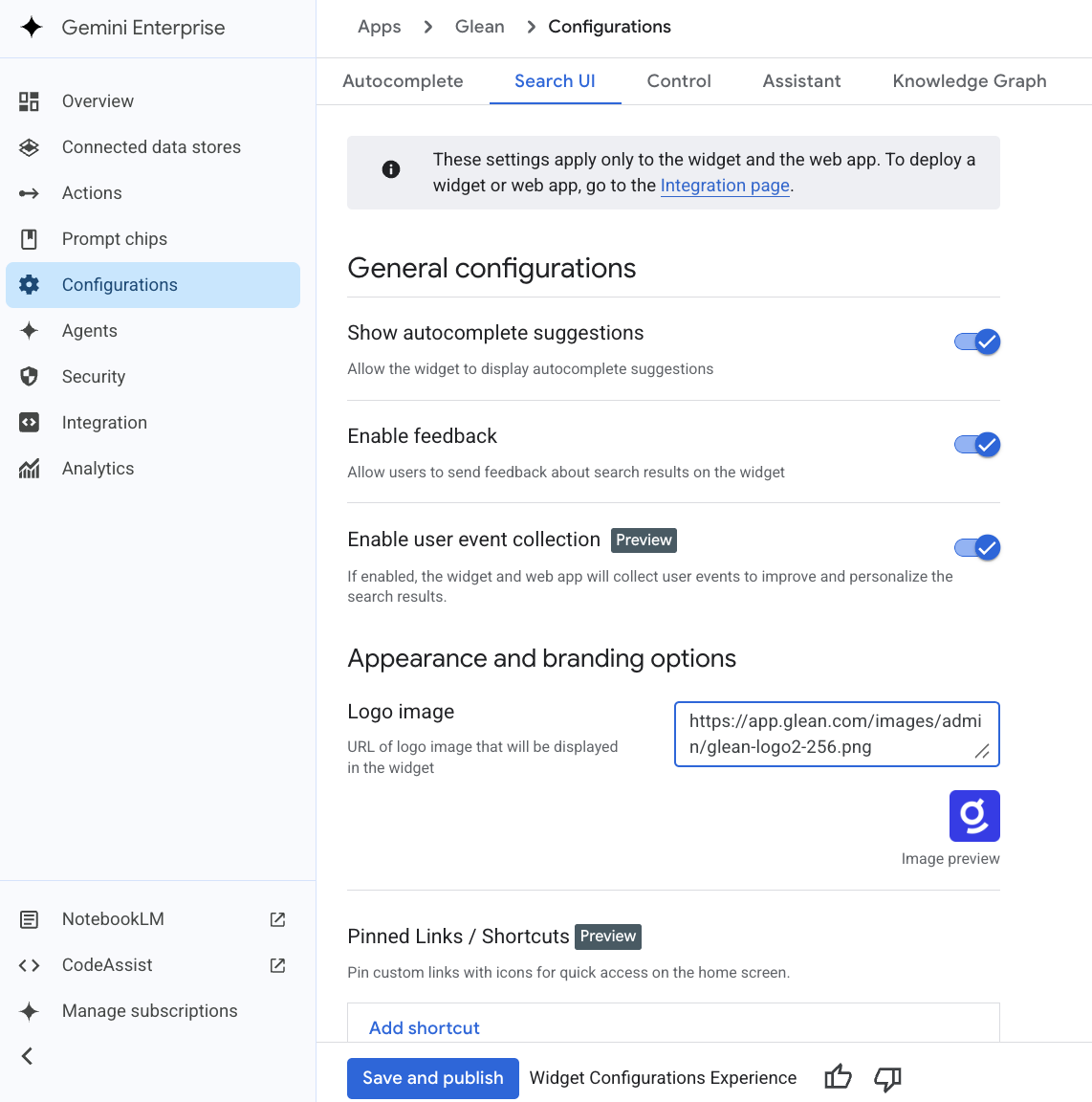
4.4 Configure the web app and branding
- Click Configure web app.
- Add the Glean logo using this image URL:
https://app.glean.com/images/admin/glean-logo2-256.png. - Pin the shortcut so users can find the app easily.
- Click Save and publish the app.
Step 5: Access Glean in Gemini and verify
After setup, confirm the full flow works end to end.
- Navigate to the app URL from the app Overview tab.
- Confirm the Glean data store appears in the Gemini interface.
- Click Authorize and complete the Glean sign-in.
- Ask a company question.
- Confirm Gemini returns an answer with citations to internal sources.
A successful setup should meet all of these checks:
| Check | Expected result |
|---|---|
| Authorization | Users can sign in to Glean from inside Gemini without errors |
| Tool invocation | Asking a work question triggers a Glean search rather than a generic web answer |
| Permissions | Results only include content the signed-in user is allowed to see |
| Citations | Answers include links to the underlying documents, threads, or tickets |
Troubleshooting
Support
- For Glean-side issues, contact your Glean administrator or Glean account team.
- For Gemini Enterprise-side issues, contact your Google Cloud admin or Google Cloud support, and reference Google's Custom MCP Server documentation.