Prerequisites for Glean in Gemini chat
Use this page to prepare access, the Gemini Tools server, and a Glean OAuth client before you create the Gemini Enterprise data store.
Who is involved
This setup involves two admin personas and one end-user persona.
| Persona | Responsibilities |
|---|---|
| Glean admin | Copy the Gemini Tools server URL, confirm the tools you want to use are available, and create the Glean OAuth client. |
| Google Cloud or Gemini Enterprise admin | Create the custom MCP server data store, enable actions, connect the data store to a Gemini app, and publish the app. |
| End user | Authorize Glean the first time they use the app, then ask questions in Gemini chat. |
The two admin roles are often handled by different people.
Required access
Glean admin
You need:
- Glean admin access
- Access to the MCP admin page
- Access to the Third-party OAuth admin page
Google Cloud or Gemini Enterprise admin
You need:
- Google Cloud or Gemini Enterprise admin access
- A Google Cloud project where you can create Gemini Enterprise resources
- Permission to create and manage Gemini Enterprise data stores
Google Cloud requirements
Before you create the custom MCP server data store, make sure the following are in place:
- The organization policy that blocks custom MCP data stores is overridden for the project.
- The Glean MCP and OAuth domains are allowed for egress. If the project uses VPC Service Controls, add
custom_mcpto its allowed data sources. - The admin creating the data store has the
roles/discoveryengine.editorrole. - Gemini Enterprise is registered as an OAuth client application with the authorization redirect URL set to
https://vertexaisearch.cloud.google.com/oauth-redirect.
For the exact org policy name and redirect URL registration steps, see Google's Custom MCP Server setup guide.
Network and transport limitations
Custom MCP server data stores currently have these limits:
- Only StreamableHTTP transport is supported.
- Server-Sent Events (SSE) transport is not supported.
Gemini MCP server
Use the dedicated Gemini Tools server in the Glean Admin console. It is configured with seven baseline tools:
searchread_documentcode_searchuser_activitymemorymemory_schemaemployee_search
Confirm that the server is enabled and exposes the tools you want Gemini to use. Some tools appear only when their requirements are met. You can add tools to the server.
Create the Gemini OAuth client
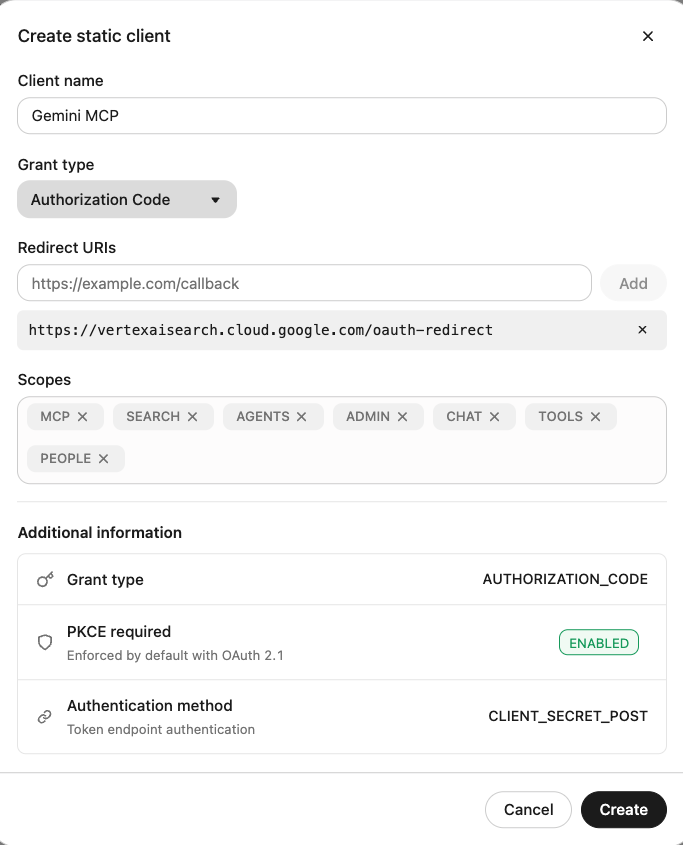
Open the Glean Third-party OAuth admin page and create a new static client with these values:
| Field | Value |
|---|---|
| Client name | Gemini MCP |
| Grant type | Authorization code |
| Redirect URL | https://vertexaisearch.cloud.google.com/oauth-redirect |
| Scopes | MCP |
The client secret is shown only when you create the client. Store it somewhere safe, such as a password manager. If you lose it, you must create a new client.
Save the client ID and secret for the Gemini Enterprise data store.
Gather connection values
Collect these values from Glean before you start the Gemini-side setup. Your Glean backend URL follows the pattern https://<tenant_id>-be.glean.com. You can find it in About Glean under Server instance (QE).
| Value | Where to get it | Example |
|---|---|---|
| MCP server URL | Gemini Tools in the Glean Admin console | https://your-company-be.glean.com/mcp/managed/gemini |
| Authorization URL | Your Glean backend URL + /oauth/authorize | https://your-company-be.glean.com/oauth/authorize |
| Token URL | Your Glean backend URL + /oauth/token | https://your-company-be.glean.com/oauth/token |
| Client ID | Glean Third-party OAuth admin page | Generated when you create the client |
| Client secret | Glean Third-party OAuth admin page | Generated when you create the client |
Copy the full URL from Gemini Tools. It ends in /mcp/managed/gemini. Do not append this server path to the authorization URL or token URL.
Next step
Continue to the Installation guide.