Glean in Microsoft Teams: User guide
Glean in Microsoft Teams lets you search your company's knowledge and get AI-powered answers directly in Teams without switching tabs or apps. Use a direct message for personal answers, or mention Glean in a standard channel for an answer everyone in that channel can read.
Find and install Glean
-
Check whether Glean already appears in your Teams sidebar. If it does, your admin has deployed it and you can start using it right away.
-
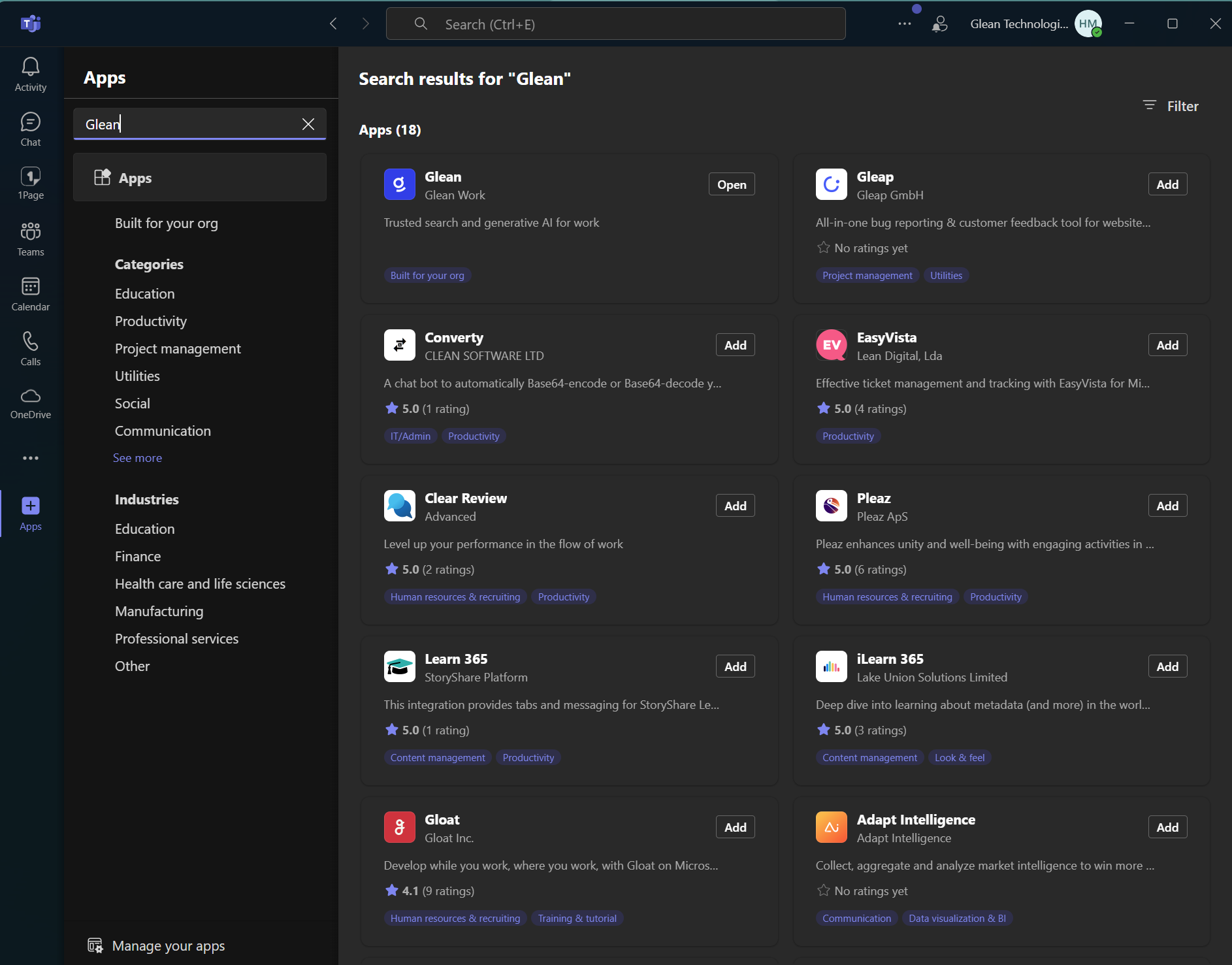
If Glean isn't in your sidebar, click the Apps icon in the left navigation bar, then search for Glean.
-
Click Add and follow the prompts to install Glean in Microsoft Teams.
noteIf Glean doesn't appear in search results, your administrator hasn't enabled it yet. Contact your IT team to request access.
Start a conversation
-
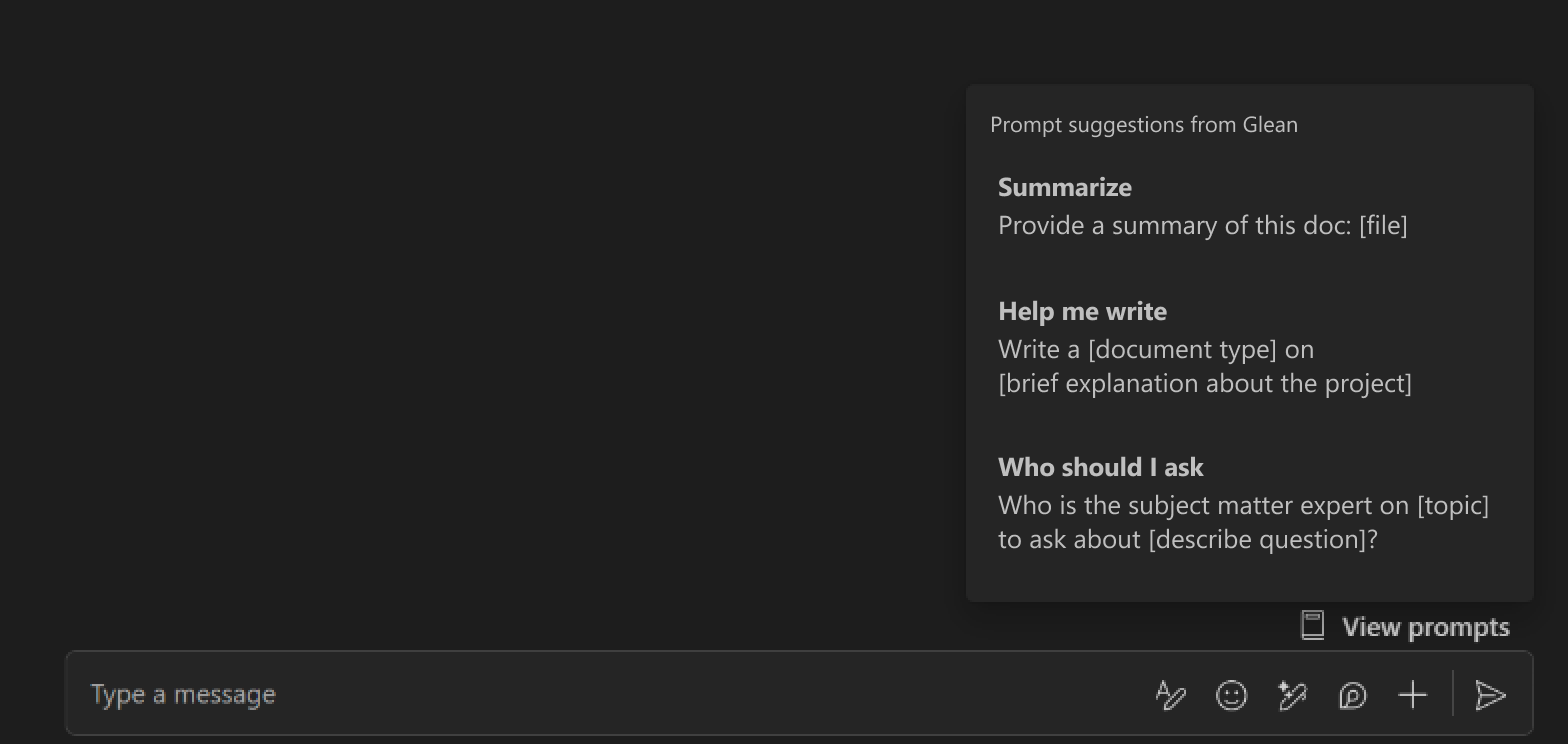
Open Glean from your Teams sidebar. Prompt suggestions appear in the bottom-right of the chat window to help you get started.
-
Select a prompt or type your own question and press Enter. Glean searches across your company's connected apps and connectors to find the most relevant answer.
-
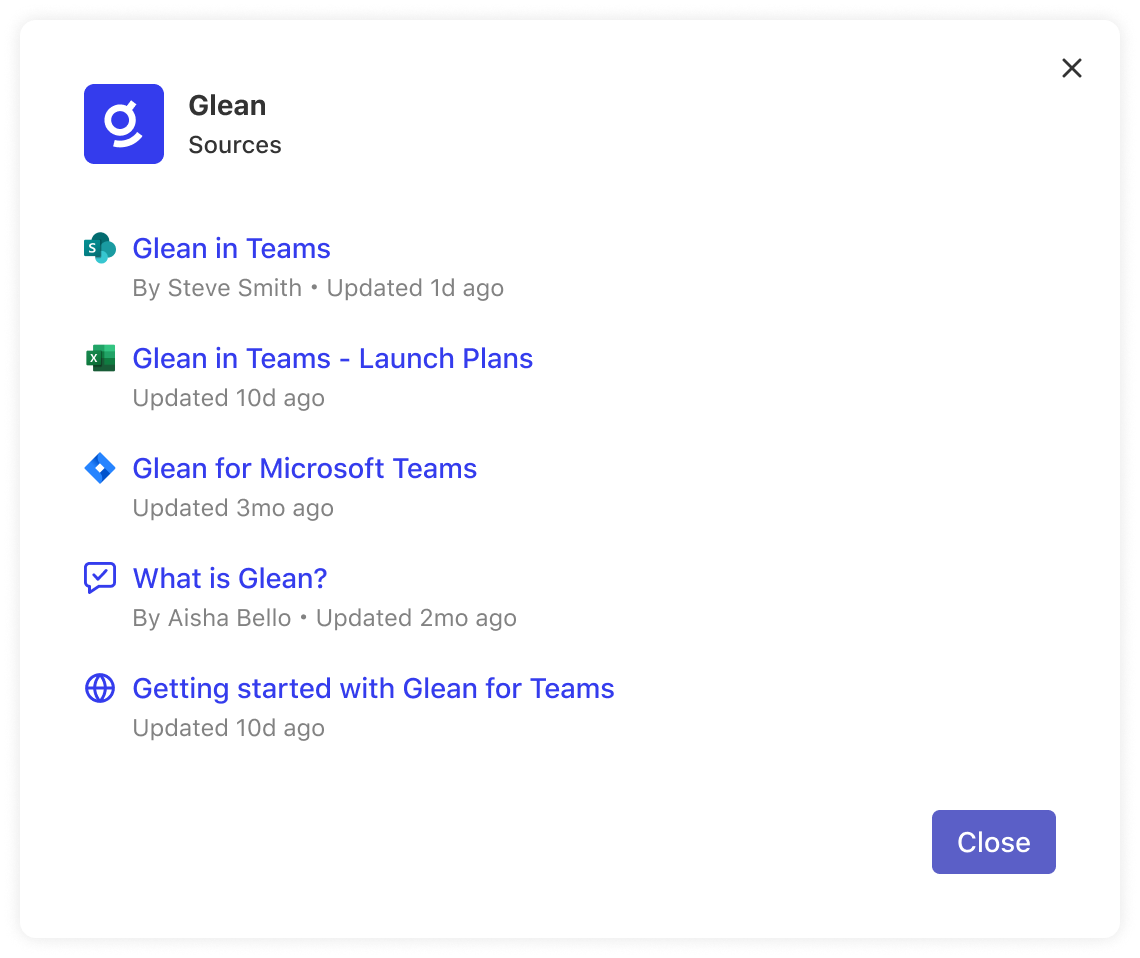
To see what sources Glean used, click Show sources in the response.
Pin Glean to the sidebar
Pinning Glean keeps it accessible from the main Teams interface without searching for it each time.
-
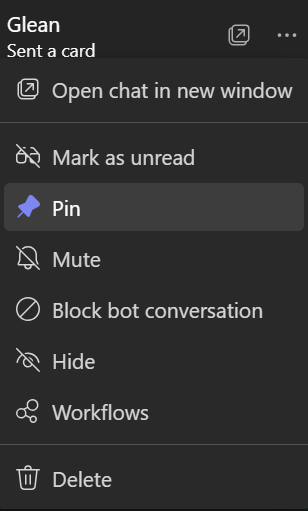
Find Glean in your Teams apps list and click the ... (more options) menu next to it.
-
Select Pin.
Glean will now appear persistently in your Teams sidebar.
Use Glean in channels
Your admin must enable channel replies and add Glean to the team. If your admin limits replies to a custom channel list, your channel must be on that list.
-
Open an allowed standard channel where Glean is available.
-
Type
@Gleanand select Glean from the mention suggestions. Add your question in a new message or thread reply, then send it. -
Glean replies in the thread. To ask a follow-up question, mention Glean again in that thread.
-
If the answer includes sources, click the source count (Show sources) to view them.
-
Use the thumbs-up (Helpful) or thumbs-down (Not helpful) button to give feedback.
Channel replies are visible to everyone who can read the channel and use the content configured for shared replies. They don't necessarily use the same sources as your direct messages. Use a direct message for questions involving personal sources.
Private and shared channels aren't supported. For dedicated agents, use their separate Teams apps in direct messages rather than mentioning them in channels.
If Glean doesn't reply, ask your admin to check app installation, channel enablement, and the custom channel list. See Add Glean to teams.