Use Glean in the Slack sidebar
Beta: This page contains beta features and may change.
Use the sidebar in Slack to access Glean without switching to the web app. From here, you can:
- Chat without leaving Slack: Interact with the assistant directly within your workspace to maintain your workflow.
- Browse and run agents: Use the agent picker to select and chat with specialized agents tailored to your tasks. Currently, agents triggered via chat messages are supported.
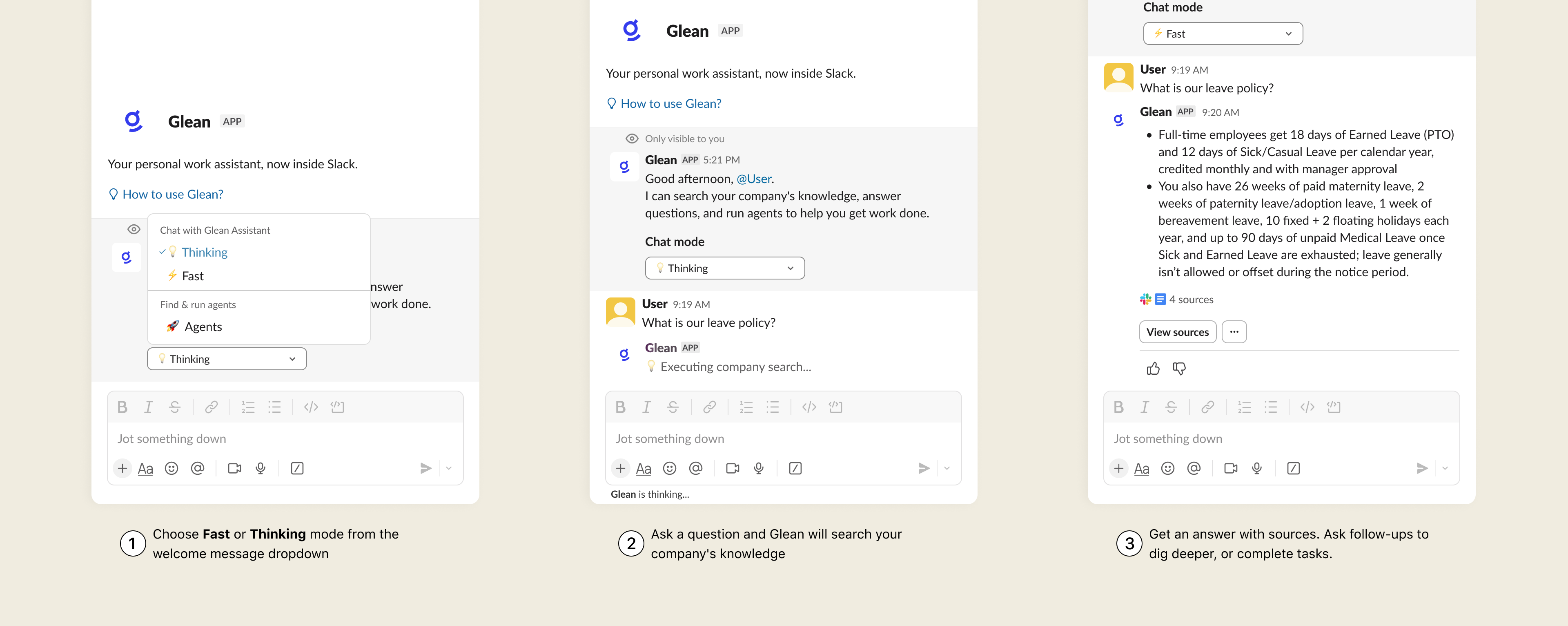
- Choose a response mode: Switch between Fast and Thinking modes for either speedy answers or more detailed, reasoned replies.
Before you begin
Users can access agents in the sidebar only after an Admin completes the Slack integration. To enable the sidebar, an Admin must perform the following:
- Connect and authorize Glean Slack app and data source. See Slack connector
- Enable the Slack Agent or Glean experience
- Enable the sidebar entry point for end users
User roles
| Role | Key actions |
|---|---|
| Admins | Configure the Slack data source, authorize the Glean app, and enable the sidebar entry point for the organization. |
| Users | Open the sidebar, select a supported agent, choose a response mode, and conduct conversations directly in Slack. |
Use Glean in the Slack sidebar
- In Slack, click the Glean icon in the top-right corner.
- Glean opens as a sidebar in Slack.
- Start a conversation in the sidebar. You can choose between the standard Glean or a specialized Agent.
Use Glean in the Slack sidebar
Chat with Glean directly within the Slack sidebar.
Choose a response mode
Glean supports two response modes:
- Fast: Returns a quicker response.
- Thinking: Spends more time reasoning through more complex or multi-step questions.
Thinking mode is the default. If you change modes, your selection remains active for the rest of the conversation.
- Open the Glean sidebar in Slack.
- Click the Chat mode menu.
- Select Fast or Thinking. For more details on these capabilities, see Glean agentic updates.
- Enter your question.
Run an agent in the Slack sidebar
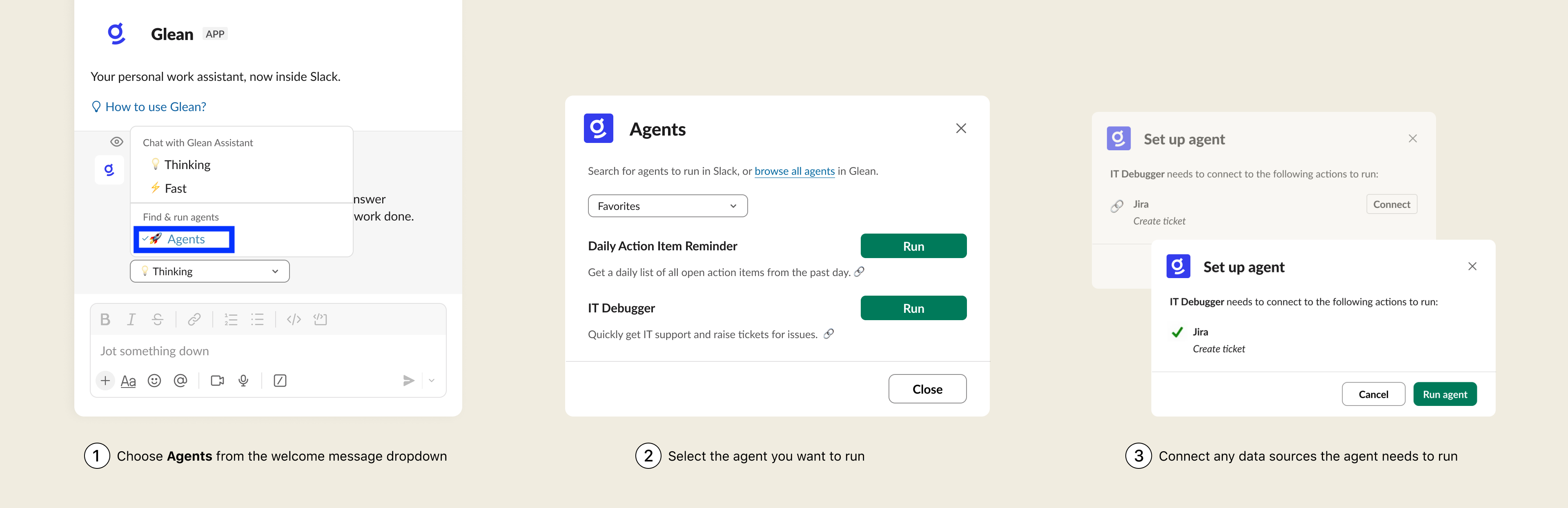
Users can also run supported agents directly from the sidebar.
-
Open the Glean sidebar in Slack.
-
Click the Chat mode menu.
-
Select Agents.
-
Choose the agent you want to use using the Agents picker, then click Run.
-
Select an action for your agent and click Run agent.
-
Enter your request in the message box.
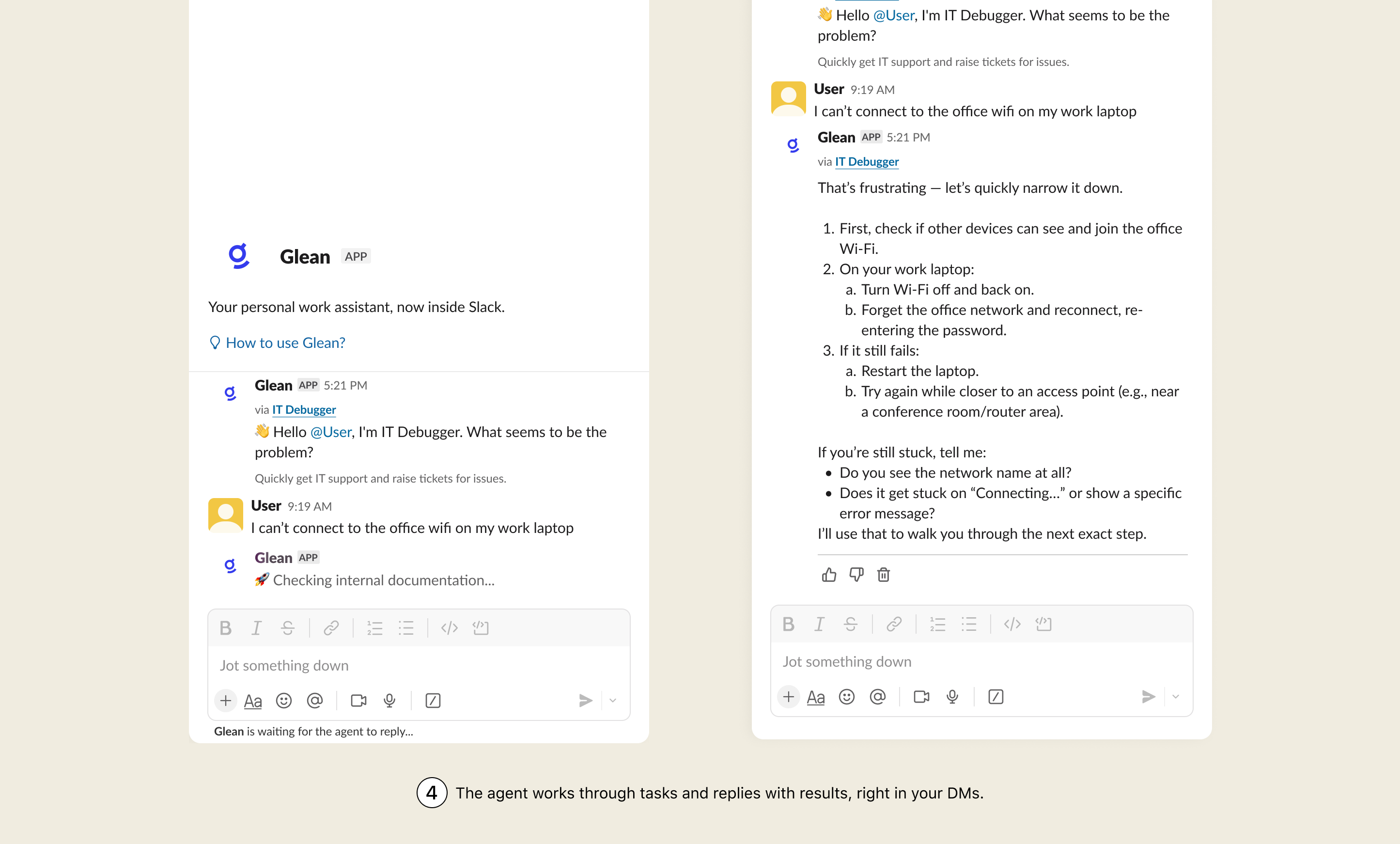
The selected agent stays active for the entire chat session. To switch to a different agent or to Glean, start a new chat.
Use case examples
| Department | Question | Outcome |
|---|---|---|
| IT Support | "How do I get VPN access on a new laptop?" | Get immediate setup steps and ask follow-up questions in the same thread. |
| HR Support | "Where can I find our leave policy?" | Access policy documents and summaries without leaving the Slack workspace. |
| Team Workflows | "Help me triage these support tickets." | Streamline internal operations and recurring workflows using team-specific agents. |
Sidebar vs. channel publishing
Running an agent from the Slack sidebar is different from publishing an agent to respond in Slack channels.
-
Use the sidebar when:
- Chat in a 1:1 space where only you can see the messages and history (sidebar pane or the Chat tab in the Glean app).
- Chat directly with Glean or a selected agent.
- Choose between Fast and Thinking modes for Glean conversations.
- Run a supported agent in a DM-style Slack surface.
-
Use channel publishing when:
- An agent should respond in a shared Slack channel or thread that everyone in the conversation can see.
- You don't need sidebar-only features such as switching agents or chat modes.
- For more information, see Publish agents to Slack.