Customize question detection for Agents in Slack
When you publish an agent to a Slack channel, Glean determines whether it should respond based on the content of the message, the agent's core configuration, and your Slack-specific instructions. This ensures the agent addresses relevant queries while ignoring off-topic conversation.
How question detection works
Glean evaluates the following to decide if an agent should trigger a proactive reply:
- The Slack message content: What the user actually typed.
- The agent’s core configuration: The agent’s capabilities, configured actions, and conversation starters.
- Slack-specific instructions: High-level guidance you provide during the publishing process.
What this feature controls
This feature controls when the agent triggers a reply, not what it says.
- Use the Slack Instructions field to define which messages should get a response. This controls the agent's proactive behavior in the channel.
- This feature only controls when the agent replies in Slack. To change what the agent says, update the agent in the builder.
Roles and responsibilities
To successfully deploy an agent with custom detection, different roles must coordinate:
| Role | Primary Responsibility |
|---|---|
| Admins | Enablement: Connect Slack to Glean and ensure Glean is available in the target workspace. |
| Agent builders | Configuration: Create the agent and write the Slack Instructions that tune when it should (and shouldn't) reply. |
| Channel members | Usage: Interact with the agent. They can use /glean configure in-channel to toggle Glean's overall responsiveness. |
Before you begin
Verify that the following requirements are met:
- Slack is connected to Glean.
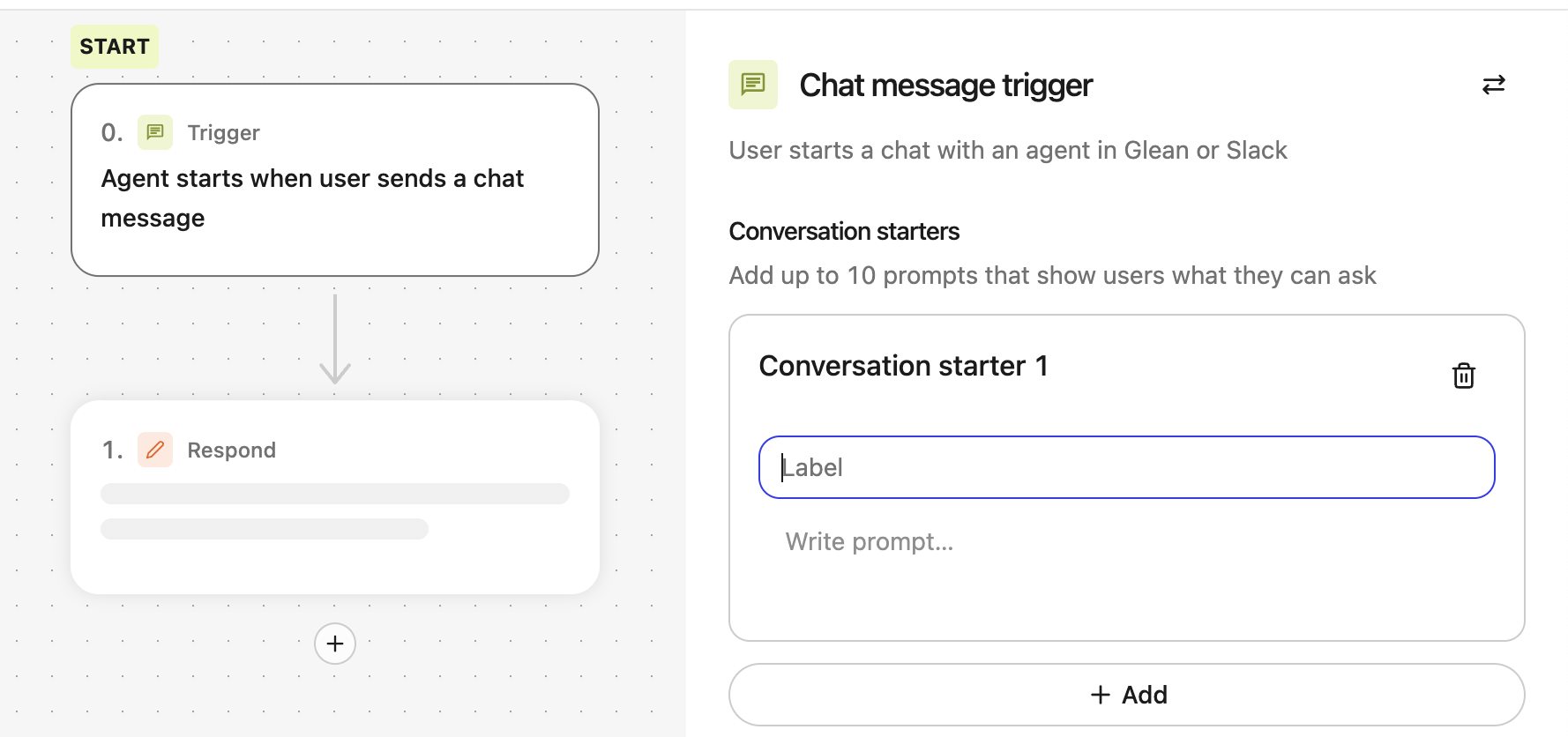
- The agent uses a Chat message trigger and includes a Respond step so it can return a visible answer.
- The agent is shared with the intended users.
- Glean is added to the target Slack channel. Glean does not respond in channels that include external parties.
- You are testing with a top-level channel message, as proactive agents do not trigger from within existing threads.
Configure question detection in Slack
Perform the following steps to configure question detection in Slack using a test agent.
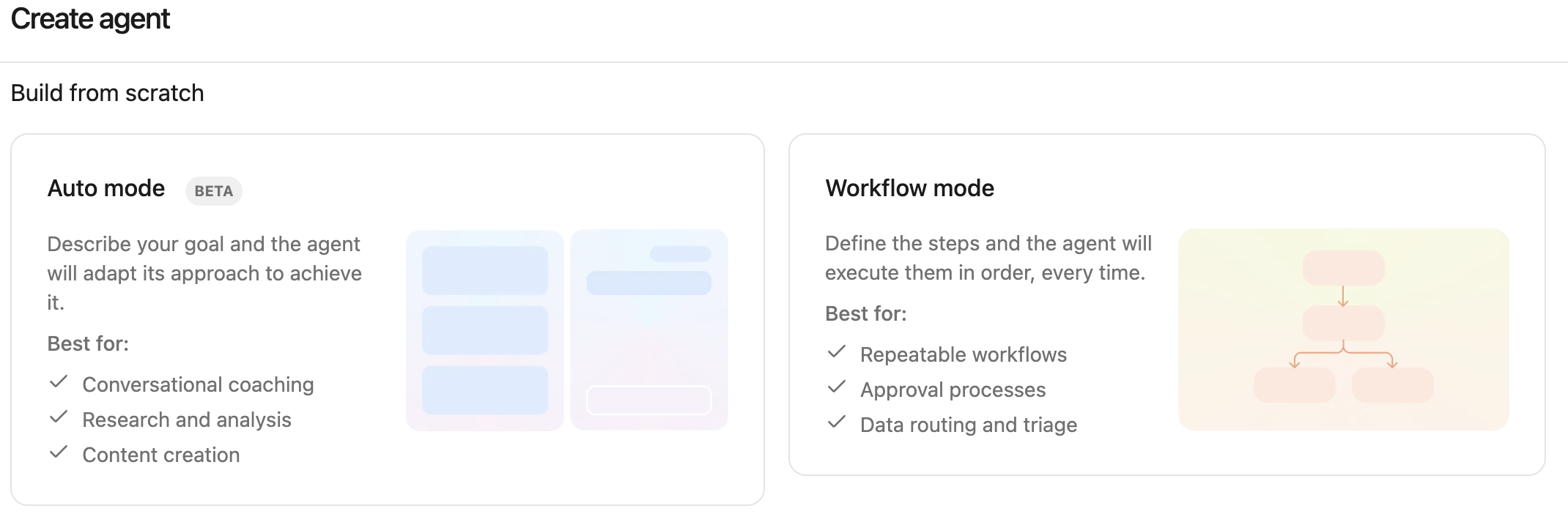
Step 1: Create or open a chat-based agent
If you are creating a new agent, start with a chat-based agent so it can run in Slack.
For a simple setup, create a workflow-based agent with a Chat message trigger.
Step 2: Add a Respond step
Add a Respond step so the agent can return a visible answer.
Step 3: Add conversation starters
Conversation starters help users understand what the agent is for, and they also help Glean understand the agent’s intended scope.
Add a few starters that match real questions people would ask in the channel.
Good examples:
- “How do I publish an agent to Slack?”
- “How does question detection work for Slack agents?”
- “How do I troubleshoot a Slack agent that only responds to @Glean?”
Avoid vague starters such as:
- “Help me”
- “Ask me anything”
- “How can you help?”
Step 4: Publish the agent to Slack
In the agent builder:
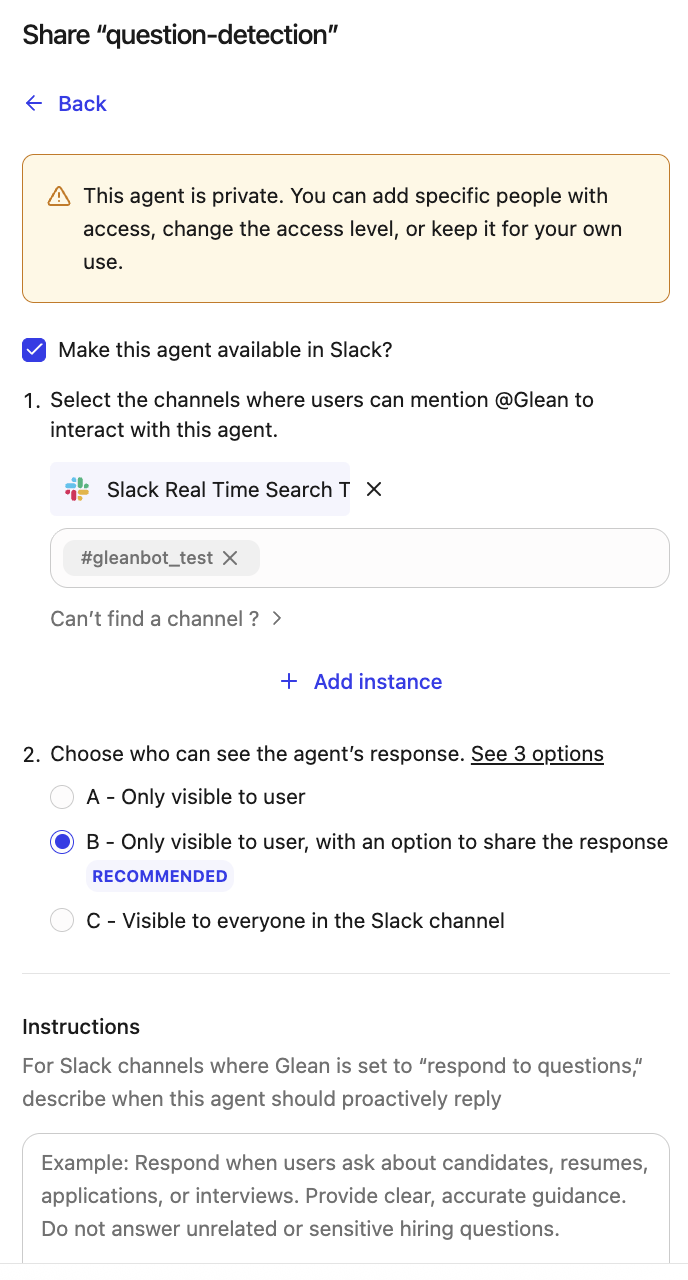
- Click Share.
- Under Publishing options, select Slack.
- Turn on Make this agent available in Slack.
- Select the Slack channel or channels where this agent should respond.
- Choose who can see the response.
A Slack channel can have only one published agent at a time.
Choose who can see the response
You can choose one of these visibility options:
- Only visible to user: The answer is private. The user cannot share it in the thread.
- Only visible to user, with an option to share the response: The answer is private by default, and the user can share it. This is the recommended option for most teams.
- Visible to everyone in the Slack channel: The answer is public in the thread. In this mode, Glean only uses content that is broadly visible to the channel.
Step 5: Add Slack instructions
In the Slack publishing section, use the Instructions field to describe when the agent should proactively reply.
The field accepts plain-text natural language instructions, up to 500 characters.
This field is meant for question detection. It tells Glean what kinds of channel messages the agent should answer automatically.
What to write
Write instructions that include:
- what the agent should answer
- what the agent should not answer
- important keywords or categories to ignore, if needed
A strong instruction usually follows this pattern:
Only respond to questions about <topic A> and <topic B>.

Do not respond to questions about <topic C>, <topic D>, or unrelated company policies.

If a message includes <specific words>, treat it as out of scope and do not answer.
Good instruction examples
Recruiting agent
Respond when users ask about candidates, resumes, applications, or interviews. Provide clear, accurate guidance. Do not answer unrelated or sensitive hiring questions.
IT help agent
Only respond to questions about laptop setup, VPN, Okta, device access, and internal IT troubleshooting. Do not respond to questions about HR policies, payroll, or benefits.
Slack agent support agent
Only respond to questions about Slack agents, publishing agents to Slack, and question detection. Do not respond to questions about PTO, benefits, holidays, or company policies.
Avoid vague instructions
Avoid instructions like these:
- “Be helpful”
- “Answer relevant questions”
- “Respond when it makes sense”
These are too broad and make the behavior harder to predict.
Step 6: Configure the Slack channel
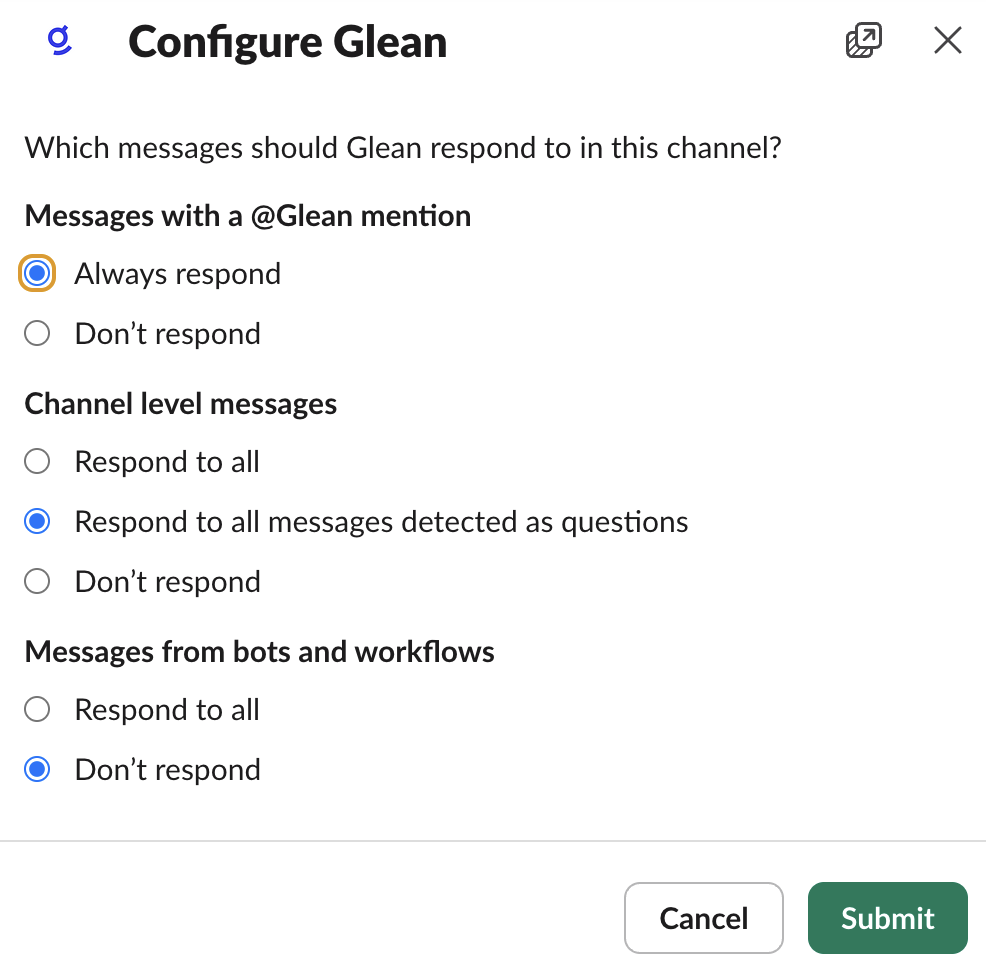
Question detection in the agent works together with the channel’s Glean settings.
In the Slack channel where the agent is published, run:
/glean configure
Then choose how Glean should respond in that channel.
For question-detection testing, use this setup:
- Messages with a @Glean mention:
Always respond - Channel level messages:
Respond to all messages detected as questions - Messages from bots and workflows:
Don’t respondunless you specifically want Glean to handle workflow or bot messages too
Step 7: Test the behavior
Always test with both an in-scope question and an out-of-scope question.
- If someone uses
@Glean, that is an explicit request for a response. - If you want to test question detection, test with messages that do not mention
@Glean.
Test 1: In-scope question
Post a top-level message in the Slack channel without @Glean.
Example:
How does question detection work for published Slack agents?
Expected result:
- The agent replies.
Test 2: Out-of-scope question
Post another top-level message in the same channel without @Glean.
Example:
What is our PTO policy?
Expected result:
- The agent does not reply, if your instructions explicitly exclude HR and policy questions.
Test 3: Explicit mention
Now test with @Glean.
Example:
@Glean How does question detection work for published Slack agents?
Expected result:
- Glean responds, because this is an explicit mention path.
Example: HR policy agent
Agent purpose
Help employees find policy information about time off, leave, and benefits.
Good Slack instructions
Only respond to questions about PTO, leave, holidays, benefits, and employee policies. Do not respond to questions about IT setup, engineering workflows, or product documentation.
Good conversation starters
- “What is our PTO policy?”
- “How does sick leave work?”
- “Where can I find holiday information?”
Should trigger
- “How many company holidays do we have this year?”
- “Where can I find our leave policy?”
Should not trigger
- “How do I set up Okta on my phone?”
- “How do I publish an agent to Slack?”
Best practices
Use these practices to improve quality and predictability:
- Keep each Slack-published agent focused on one job.
- Write conversation starters that look like real user questions.
- Use the Slack instructions field to define both scope and exclusions.
- Start in a test channel before using a large production channel.
- Use Only visible to user, with an option to share the response for early testing.
- Use public visibility only when the agent’s content is broadly shareable.