Installation guide
This guide walks you through enabling Glean in Slack after your Slack connectors are configured. Set up both the Slack connector and Slack Real Time Search (RTS) first; this page then focuses on enabling Glean in Slack features, adding the app to channels, and verifying the installation.
Installation overview
Setting up Glean in Slack involves three phases:
- Configure the Slack connectors: Complete the connector setup for your deployment and Slack environment. The Slack connector provides engagement signals and supports proactive answers in channels where the bot isn't present, while Slack RTS retrieves Slack messages live at query time.
- Enable Glean in Slack features: Turn on bot responses, configure channel settings, and enable optional features.
- Add Glean to Slack channels: Add the Glean app to the specific channels where you want it to respond.
Step 1: Configure the Slack connectors
The Slack connector and Slack RTS together provide the foundation for Glean in Slack. The Slack connector provides engagement signals and supports proactive answers in channels where the bot isn't present. Slack RTS retrieves Slack messages live at query time. Gleanbot and Slack actions require both connectors.
Select the setup that matches your Glean deployment and Slack environment. See Choose your setup. Complete the selected setup guide, then return here to enable Glean in Slack features.
Wait for both connectors to be healthy before enabling Glean in Slack features. In particular, the initial Slack RTS identity crawl must complete at least once for Slack search, Glean in Slack, and ranking signals to work correctly.
Step 2: Enable Glean in Slack features
After the Slack connectors are configured, enable Glean in Slack from the Admin console.
-
In the Glean Admin console, navigate to Platform → Embedded integrations.
-
Select Glean in Slack.
noteThis option only appears after the Slack connectors are configured. For setup instructions, see Choose your setup.
-
Under Slack connector, select your Slack connector. This dropdown lists all Slack sources where Glean in Slack tab is configured.
-
Toggle on Enable Gleanbot to respond in channels.
-
Under Channel Settings, select how Glean should respond:
- Respond in all channels where Glean is added, and all public channels: recommended for maximum reach.
- Respond in all channels where Glean is added: limits responses to channels where the app is explicitly added.
- Respond in a specified set of channels where Glean is added: restricts responses to specific channels you select.
-
Configure any additional settings such as emoji reactions and response behavior.
-
Click Save.
For detailed configuration of bot responses, see Configure bot responses.
Step 3: Add Glean to Slack channels
To make Glean active in a specific Slack channel, add the app to that channel:
- Go to the Slack channel where you want to add Glean.
- Type
/to open the command menu. - Select Add apps to this channel and select Glean.
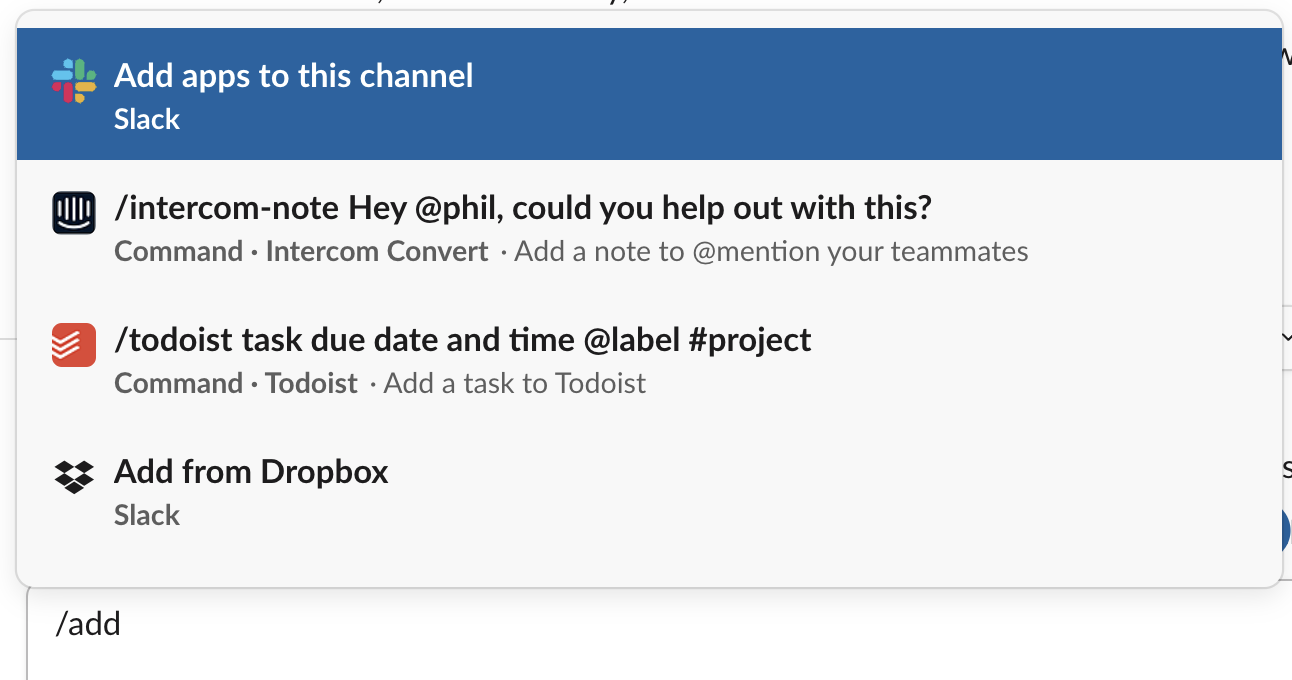
For more information, see Slack's Guide to apps in Slack.
Start by adding Glean to a small number of channels to test the integration before rolling out to your entire workspace.
Verify the installation
After completing the setup, verify that Glean in Slack is working correctly:
- Test
/gleansearch: go to a channel where Glean is added and type/gleanfollowed by a search query. You should see search results from Glean. - Test automated answering: post a question in a channel where Glean is added. Depending on your configuration, Glean should either respond automatically or when mentioned with
@Glean. - Check emoji reactions: when Glean detects a question, it adds emoji reactions to the message to indicate processing status. Verify that these appear (default: ⏳ while processing, 👀 when suggestion is available).
- Confirm permissions: ask different users to test the bot. Responses should be personalized based on each user's content permissions.
If the bot does not respond as expected, see Troubleshooting Slackbot.
RTS-specific installation
Slack Real Time Search (RTS) is part of the standard Slack setup for Glean.
- For new RTS setups, authorize the Glean app from the Slack Marketplace during RTS setup.
- For migrations from an existing custom Slack app, update the existing custom app manifest first, then authorize Slack RTS.
- Each user must authorize Slack to see permission-aware private channels, DMs, and group DMs.
- During migration, backend sync typically takes about 10 minutes, channel invitation usually takes about 20 more minutes, and the new bot can take 1–2 hours to appear in all channels where the previous bot was present.
For setup instructions, see Choose your setup. For migration details, see Slack connector changes: Gleanbot impacts and FAQ.
Troubleshooting
For additional troubleshooting, see Troubleshooting Slackbot.
What's next
- Enable daily digest: enable personalized daily summaries
- Integrate Glean sidebar in Slack: set up the Slack sidebar
- Use Code Writer with Glean in Slack: turn Slack conversations into pull requests