Troubleshooting Glean in Slack
Learn more about what Glean in Slack does and how to set it up here.
There are many possible reasons.
1. Glean may not be set up properly in Slack.
- Is Gleanbot enabled either across your workspace, or in the specific Slack channel where you're noticing the issue?
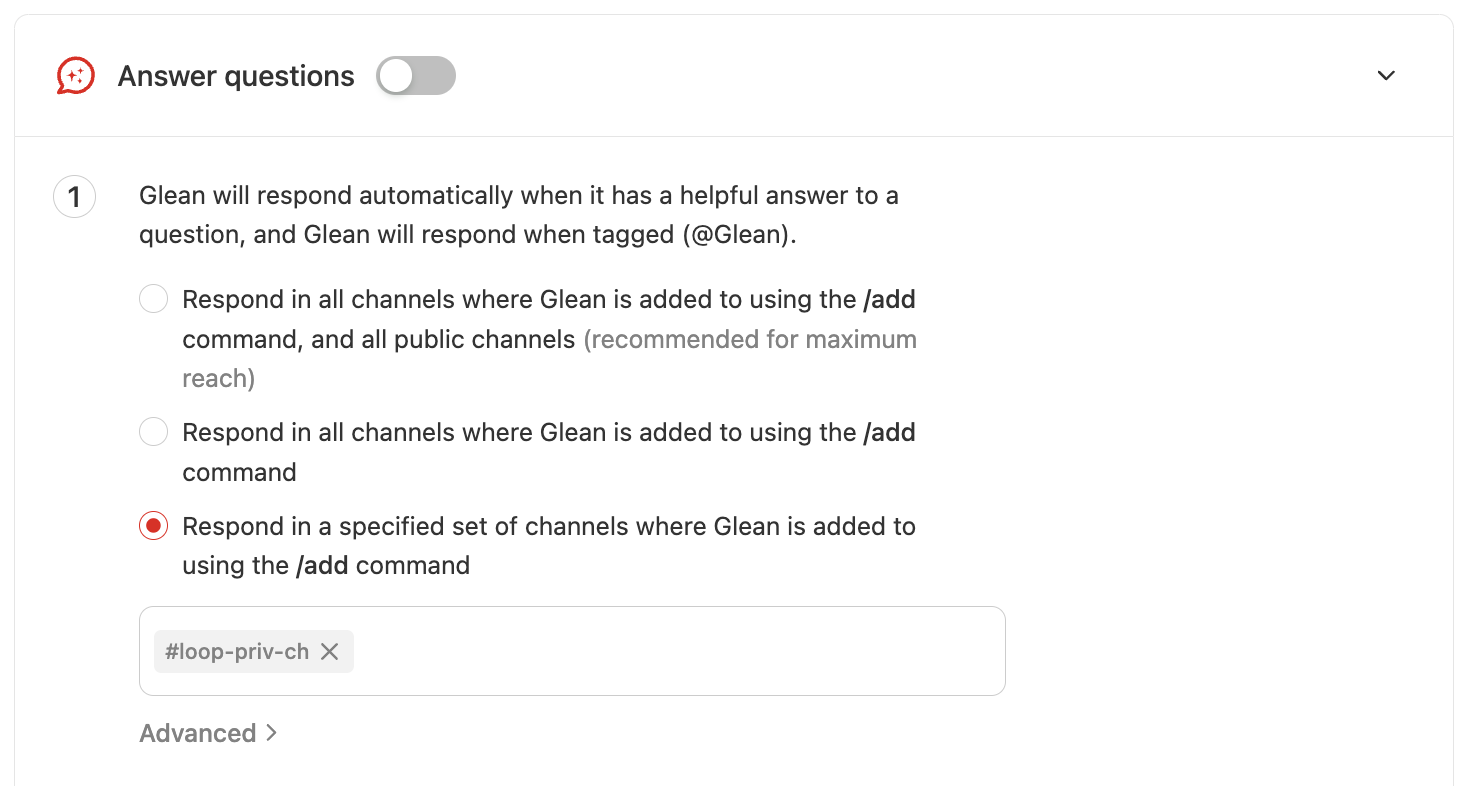
-
Within Slack, is the Glean app added to the channel? See Slack's instructions for how to add apps to a channel.
-
Is the channel an external channel? Gleanbot only responds in internal channels.
-
Is the Glean app set up with the correct scopes? The required scopes are listed in Admin Console → Platform → Connectors → Slack → Setup.
2. The person who asked the question may not have access to Glean.
Glean only responds in Slack to users who have logged into Glean and have Glean access.
3. Glean may not have a confident answer to the question.
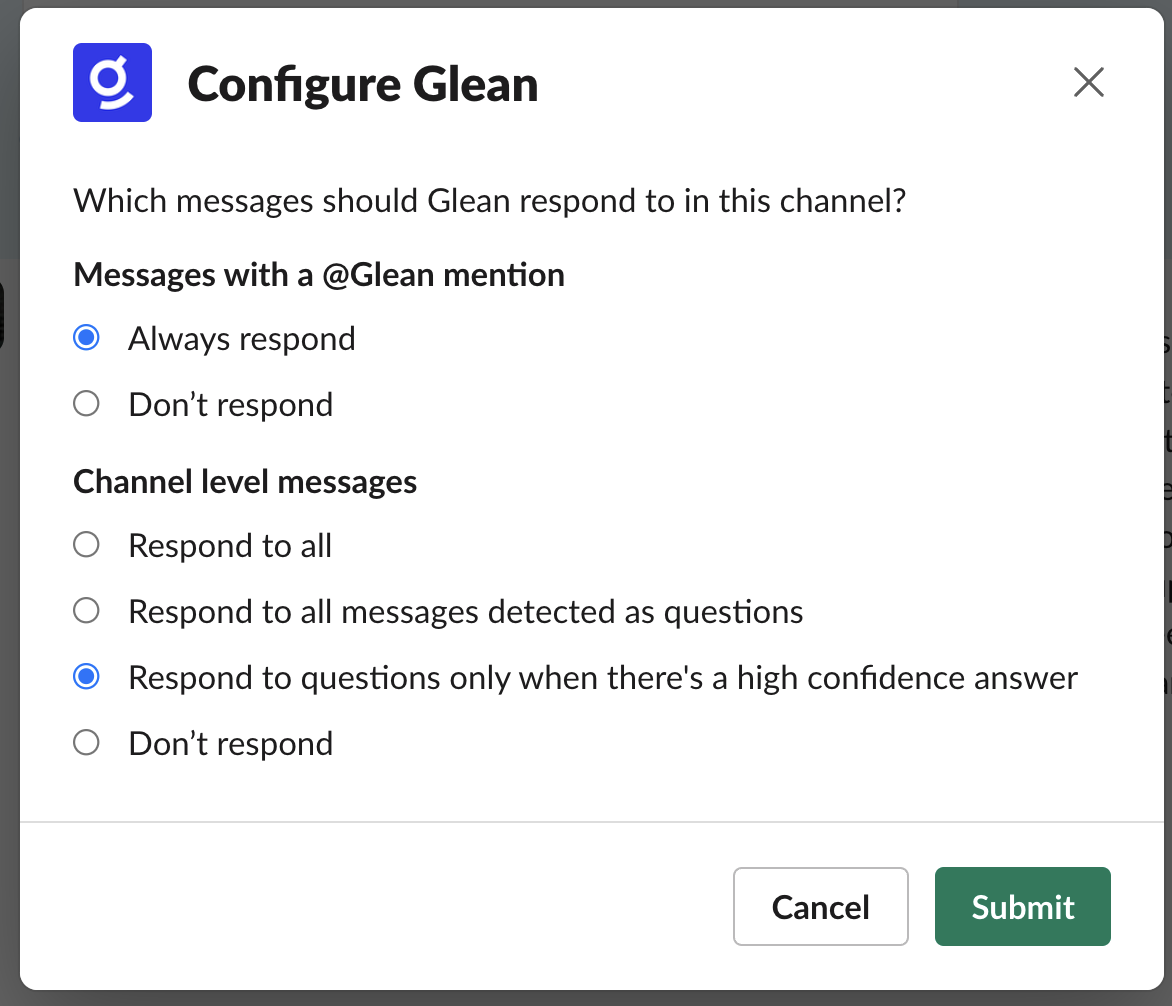
By default, Glean only responds automatically when:
- The message is a question, and it's posted at the channel level and not within a thread
- Glean is able to generate a high confidence response, using the permission set of the person who posted the question
You can try asking the same question and tagging @Glean directly, or configuring Glean to respond to more questions by typing /glean configure.
4. Glean has hit a rate limit.
5. The question is in a thread. Glean currently only automatically responds to channel-level messages.
It takes up to a minute for Glean to generate a full answer and evaluate whether it's worth showing. Additionally, the Slackbot is configured to only respond if it has a high degree of confidence.
-
Be sure to add Glean to each of the Slack channels you wish it to work in.
-
If emojis still don't show up, ask your Slack admin to check if
reactions:writeis added as a Bot Token Scope under https://api.slack.com/apps → Assistant → OAuth & Permissions. If not, that scope needs to be added and the app needs to be republished.
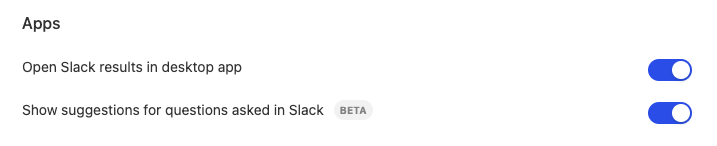
Ask them to go to Your Settings in Glean and toggle off "Show suggestions for questions asked in Slack."
When there are issues with Gleanbot's setup, Glean will send an alert. These alerts indicate issues which cause either some or all of bot functionality to break. These could be caused by a range of issues including missing or invalid tokens and missing scopes.
To fix the setup issues, follow these steps:
-
In Admin console → Setup → Apps, navigate to the app you've been alerted about. Alternatively, you can directly navigate to the following URL by plugging in the connector you've been alerted about: app.glean.com/admin/setup/apps/slack/<connector>
- If the alert refers to a Slack instance that you are no longer using, navigate to the Gleanbot tab and disable all the toggles in order to prevent receiving alerts in the future
-
Navigate to the Setup tab and redo the setup steps
-
Navigate to the Gleanbot tab, and toggle on the elements of Gleanbot behavior you'd like enabled. If a particular toggle is already enabled, switch it off and then on again.
-
If toggling Glean in Slack tabs shows an error that refers to
missing_scopes, resolve it based on how you set up Slack:If you did not create a Slack app during setup:
- Navigate to the Glean setup page for Slack.
- Click Create Authorization Link.
- Click the access link that is created.
- Follow the on-screen instructions.
If you created a Slack app during setup:
- Add the missing scope to your existing Glean Slack app:
- Go to https://api.slack.com/apps and click the Glean app
- Navigate to OAuth & Permissions
- Scroll down to Bot Token Scopes
- Click Add an OAuth Scope and add the scope that is missing
- When the banner prompts you that permission scopes have changed, click reinstall your app.
- Navigate to the Glean setup page for the Slack or Slack Enterprise app that corresponds to Glean in Slack, then follow the sidebar instructions to re-enter the required values and authenticate again.
If the Glean sidebar is not visible in Slack, check the following:
- Verify that the Glean Slack app is authorized at https://api.slack.com/apps.
- Confirm that the Agent or Assistant experience is enabled in the Slack app settings.
- Verify that
assistant:writeis present in the bot token scopes. - Check that event subscriptions
assistant_thread_startedandassistant_thread_context_changedare added. - For Enterprise Grid: ensure the app is installed and enabled in the correct workspaces.
- For workspace settings: check that "Show in top bar" is enabled under App Agents and Assistants.
See Set up Slack sidebar integration for full setup steps.
During a Slack RTS upgrade, you may experience the following temporary effects:
- Commands like
/gleanor@Gleanmay not respond for 20–30 minutes. - You may briefly see responses from two different Glean apps as the transition completes.
- Automated messages or Slack Actions from Glean Assistant or Agents may fail until the upgrade is finished.
These effects are temporary and resolve automatically once the backend sync is complete. After the upgrade, use the Glean app for all /glean commands and @Glean mentions — not the background Enterprise Graph app.
See Upgrading to Slack RTS for details.
If Glean provides incomplete or incorrect answers, consider the following:
- Glean answers are based on the content the asking user has permission to access. If the answer seems incomplete, the user may not have access to relevant sources.
- Try tagging
@Gleandirectly to force a response even when automatic detection doesn't trigger. - If answers are consistently wrong, review the connectors connected to Glean and ensure they are active and up to date.
- Use the feedback buttons (thumbs up/down) on responses to help Glean improve.
If you need further assistance, please contact Glean Support.