Configure Glean in Zoom
-
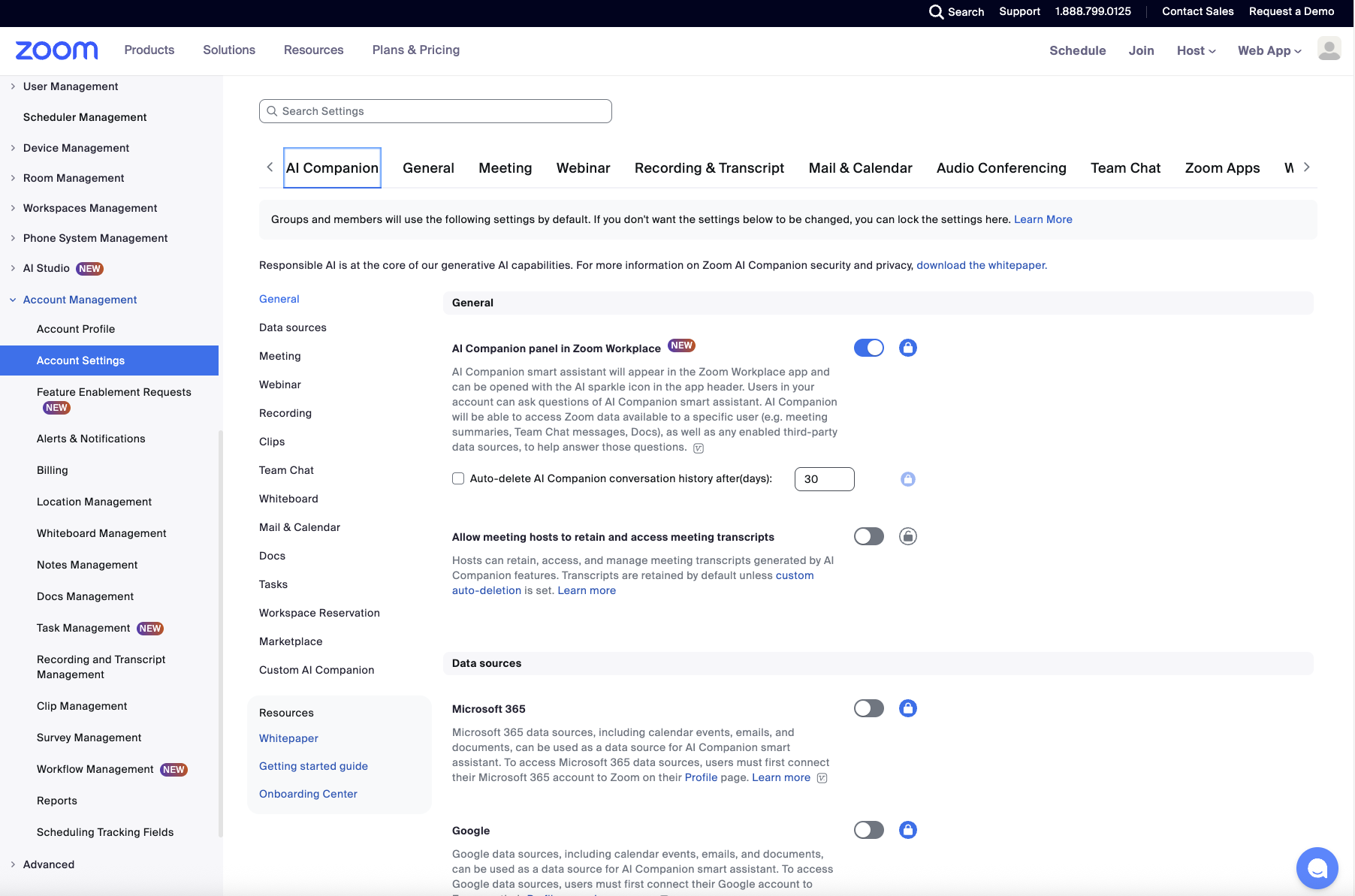
Login to Zoom.us as Administrator. Go to Account Management → Account Settings. Ensure that the AI Companion panel in Zoom Workplace is on.
-
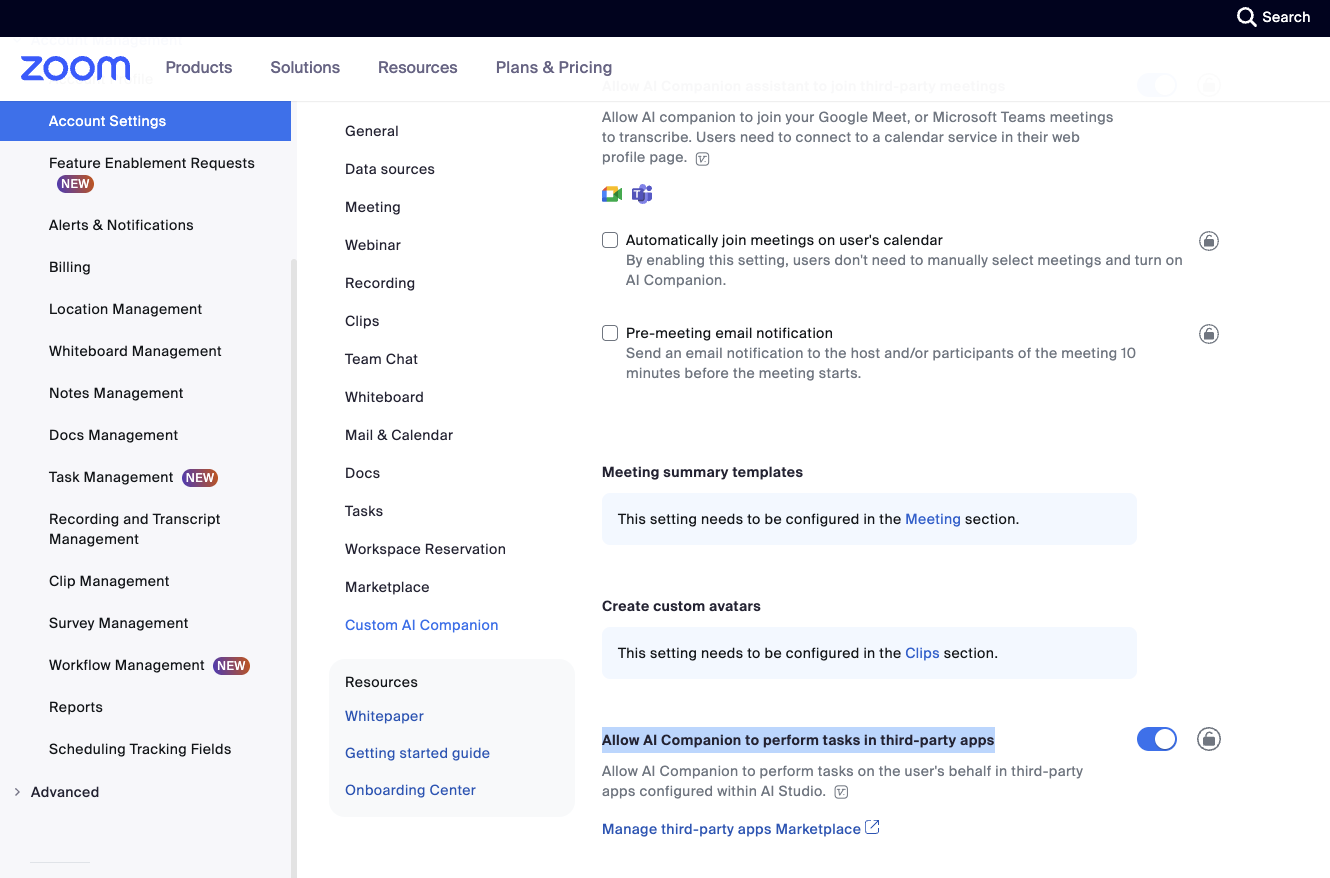
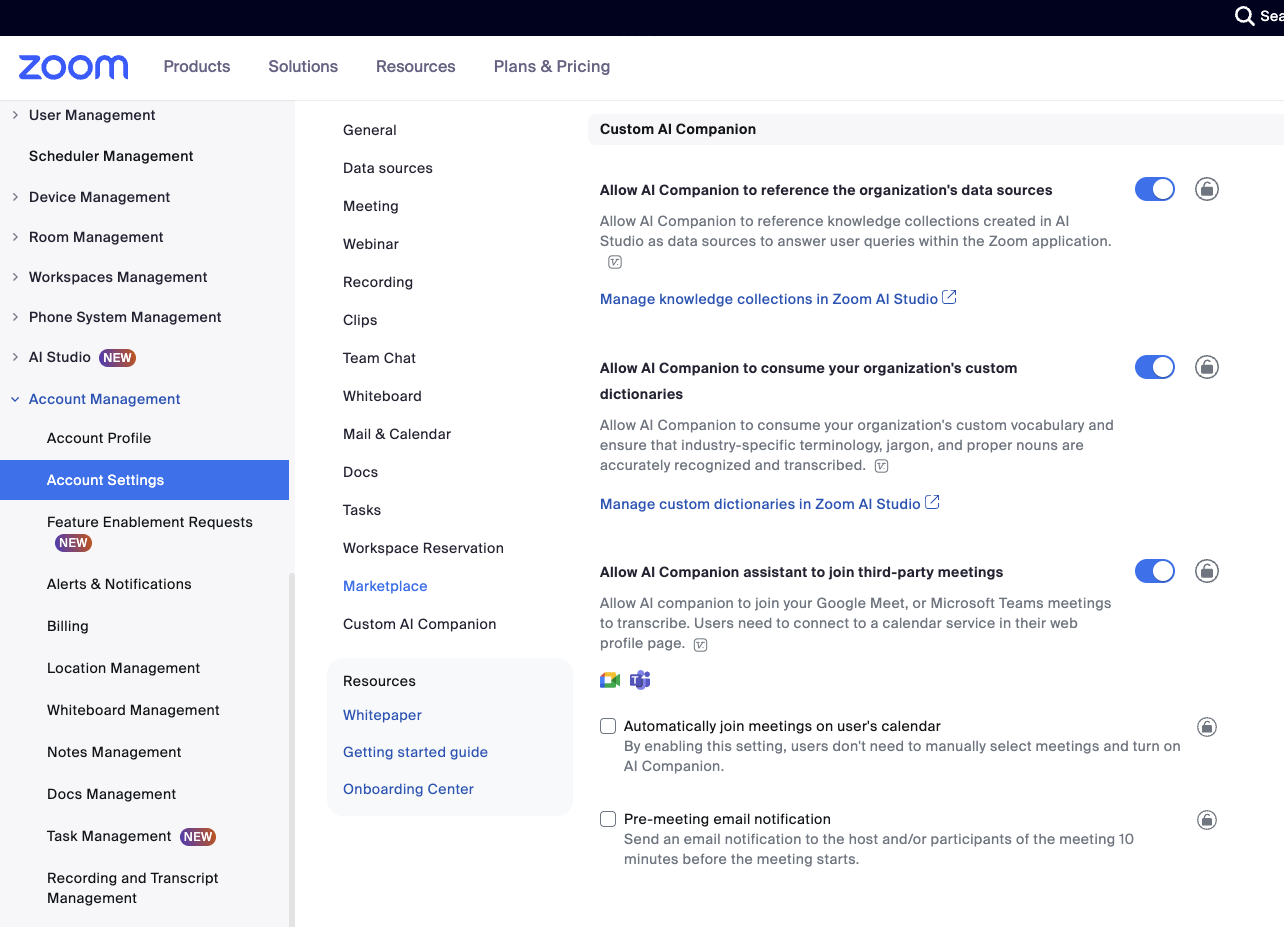
Scroll down to the bottom to Custom AI Companion section and ensure the following items are switched on:
- Allow AI Companion to reference the organization's connectors
- Allow AI Companion to consume your organization's custom dictionaries
- Allow AI Companion assistant to join third-party meetings
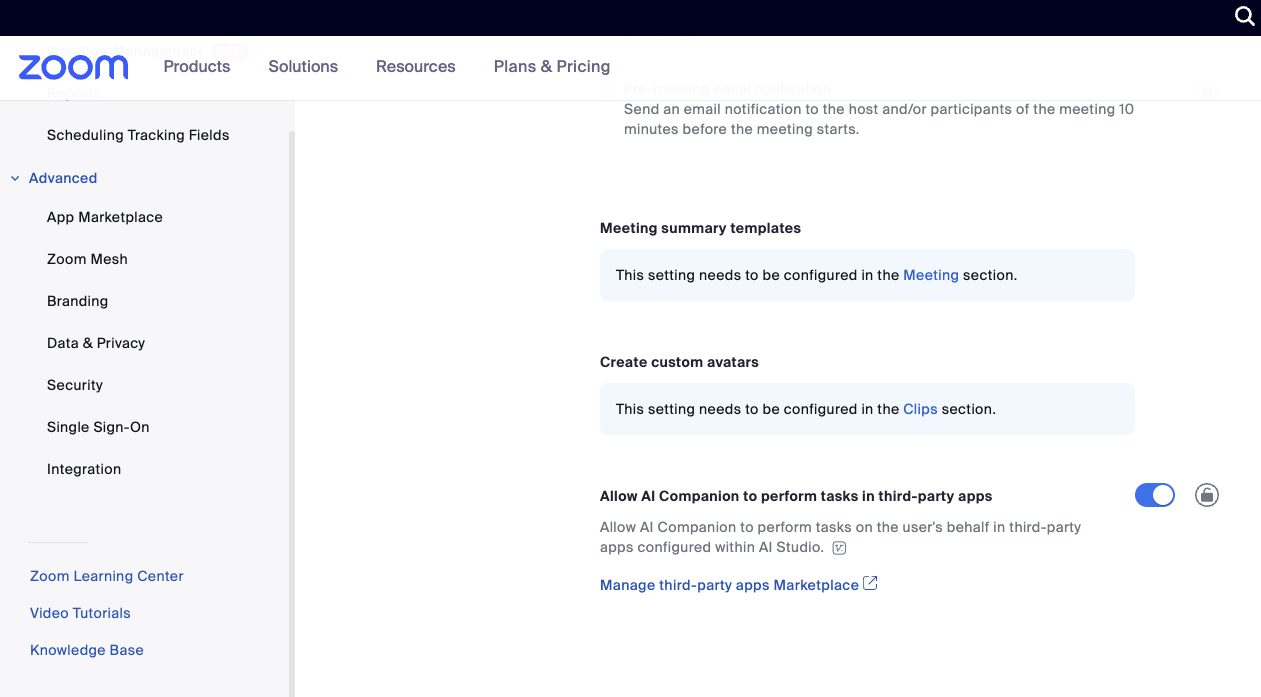
- Allow AI Companion to perform tasks in third-party apps (might have to scroll down farther)
-
Next in the Admin console navigate to Advanced → then App Marketplace, which surfaces a new tab.
-
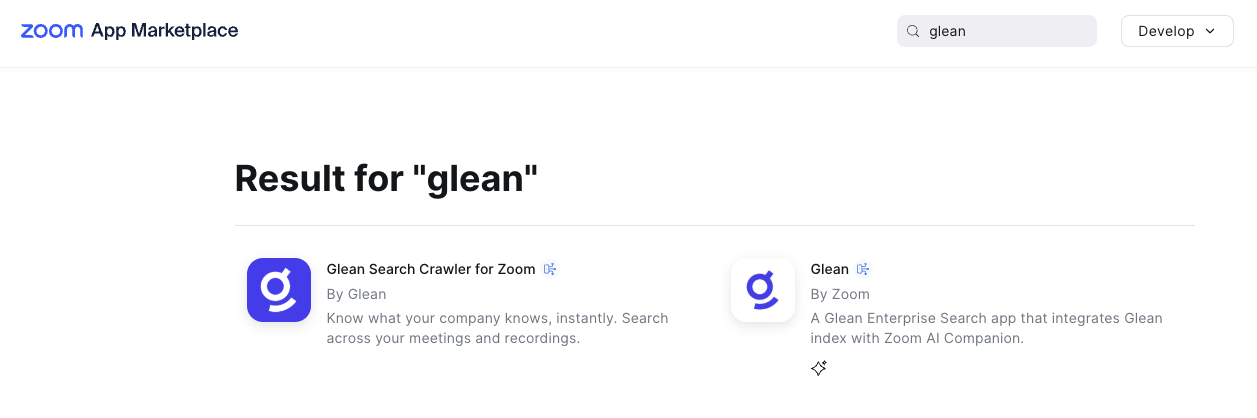
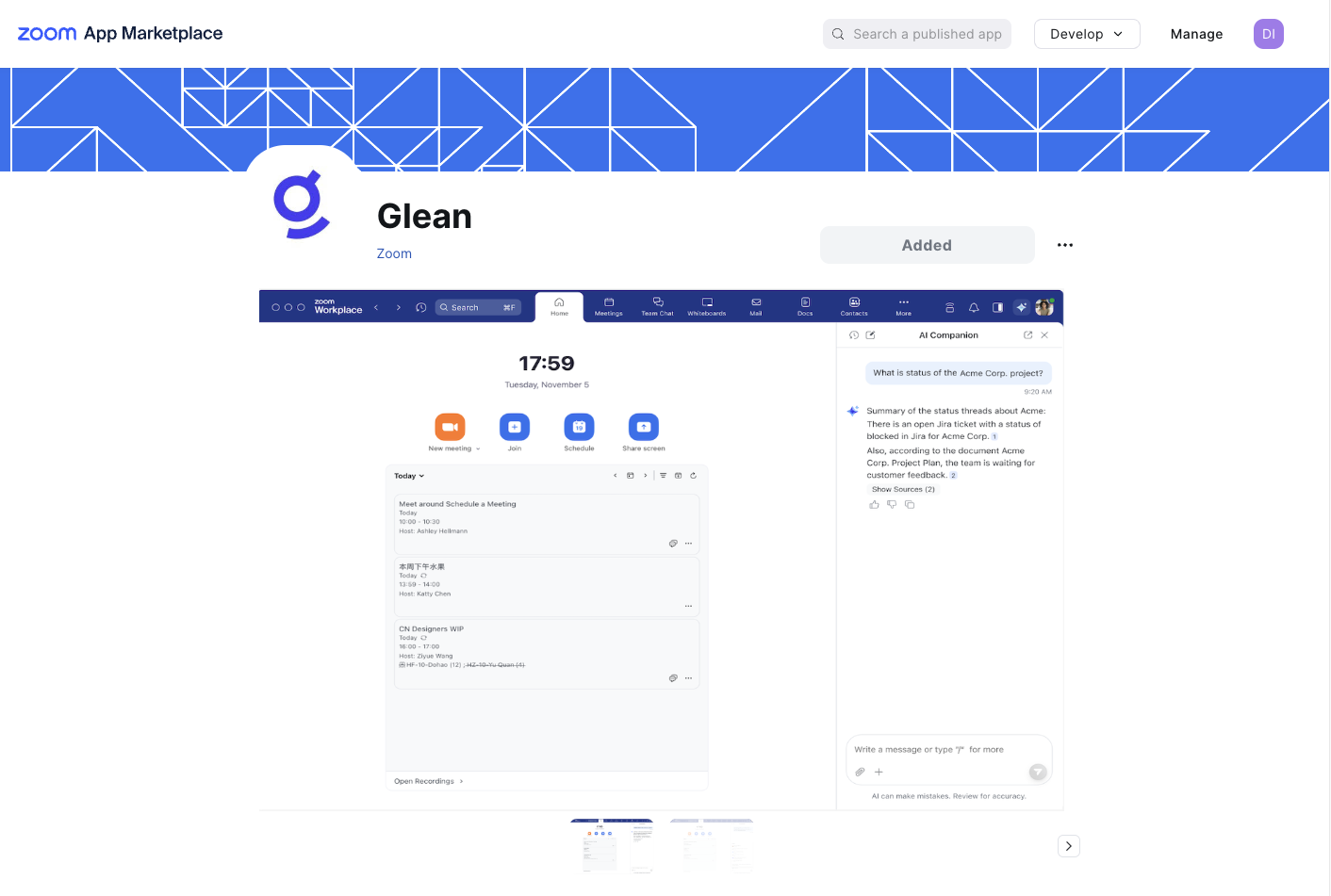
Search for Glean in the upper-right search bar. Then click Glean by Zoom, with the description of "A Glean Enterprise Search app that integrates Glean index with Zoom AI companion."
- Click Add.
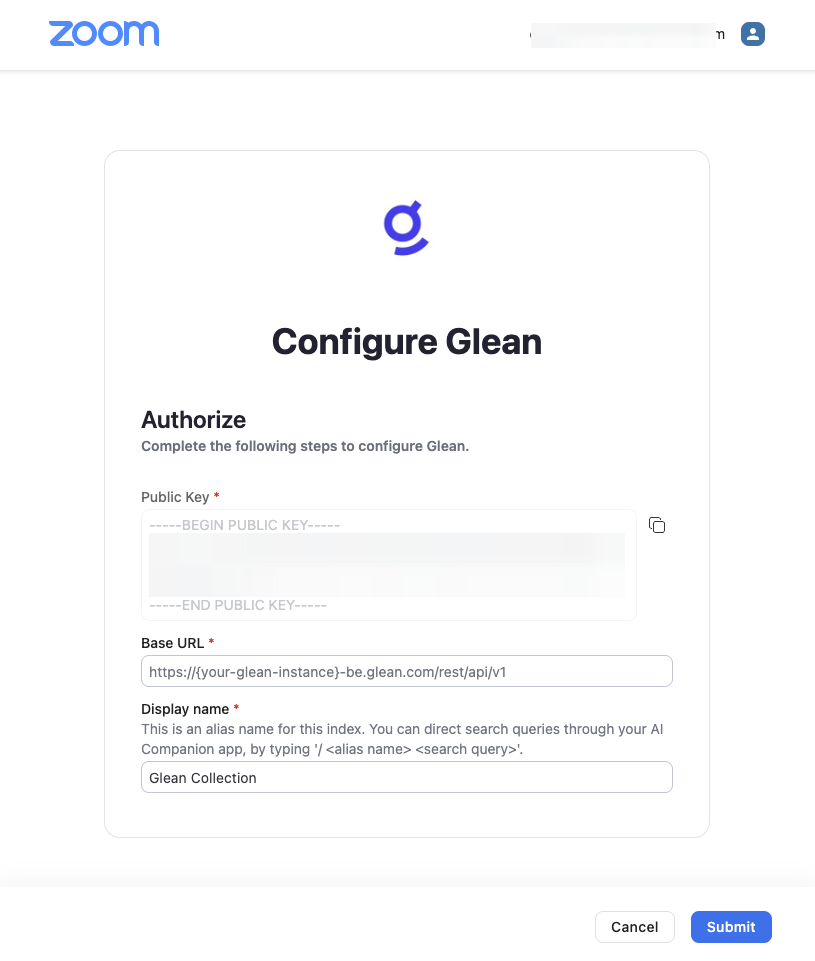
- Put your full rest api name in:
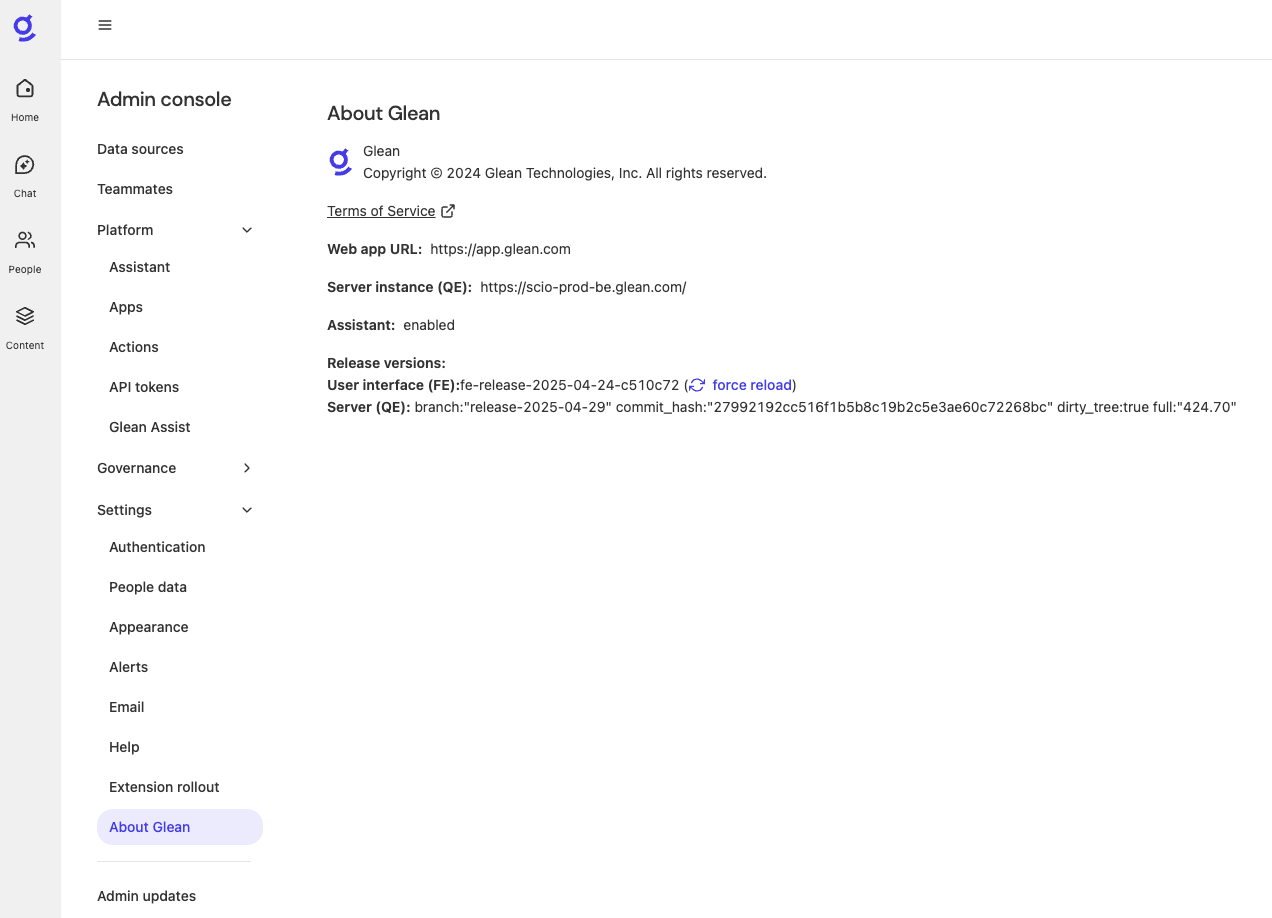
https://scio-prod-be.glean.com/rest/api/v1 (This is an example API endpoint. You can find your actual API endpoint in the Glean Admin console under Settings → About Glean.)
- Copy the Public Key to a safe spot. Do not click submit until Glean portion of setup is complete.
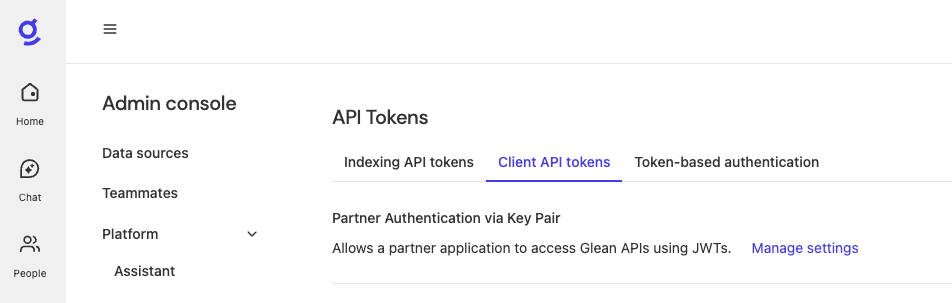
- Navigate to Admin console → Platform → API Tokens → Client API tokens → Partner Authentication via Key Pair → Manage settings.
-
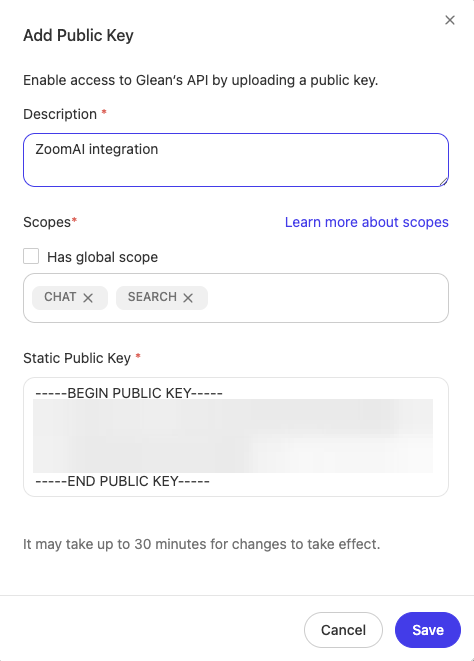
Input Description ZoomAI integration and Scopes:
- Chat
- Search
-
Paste the Static Public Key from Zoom Marketplace setup and click save. You must include both the key header and footer for it to work:
\-----BEGIN PUBLIC KEY-----
Key
\-----END PUBLIC KEY-----
PLEASE HIDE KEY BEFORE publishing
- Click Submit on Glean app in Zoom Marketplace
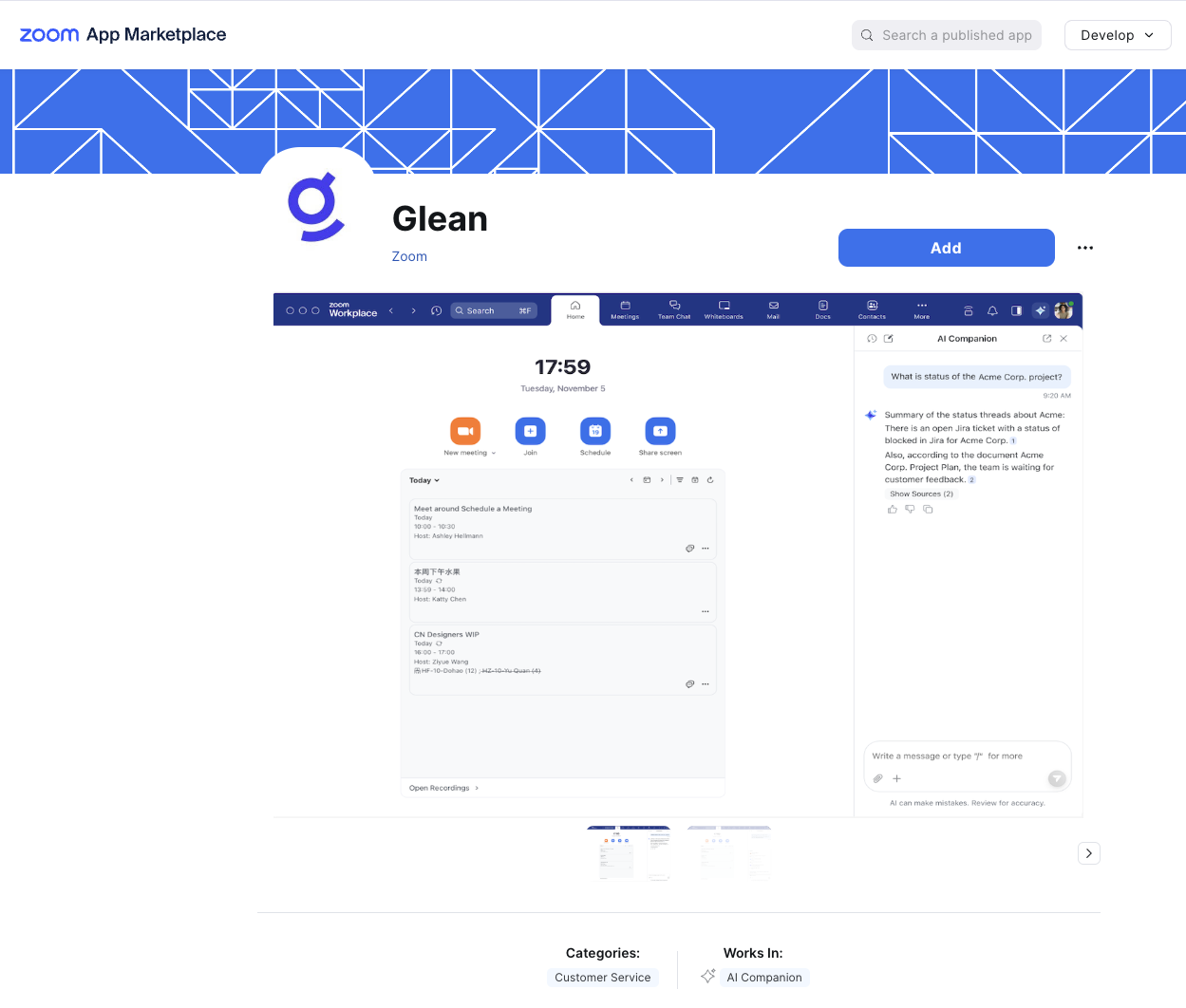
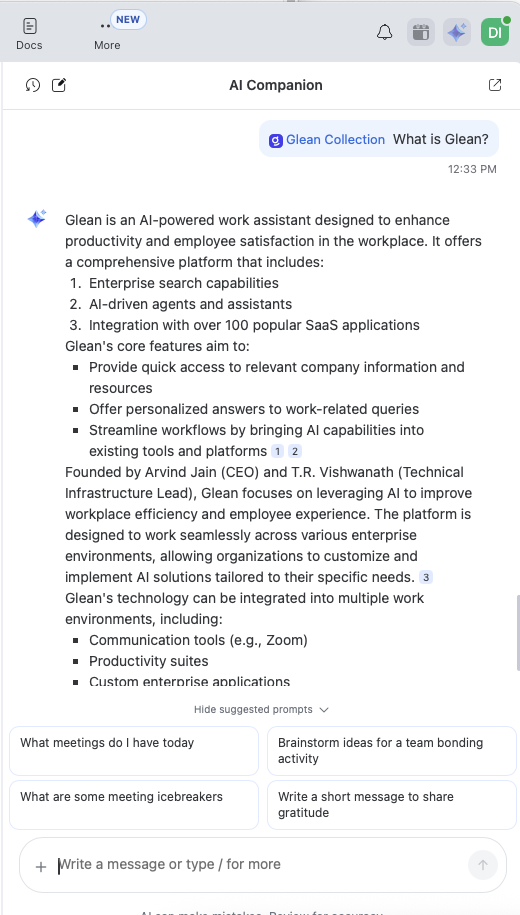
- Success looks like this: