Host apps
The Host apps tab in Admin console → Platform → Glean MCP server gives you a single place to see every supported AI assistant and coding tool, understand which ones your users are already connected from, and push setup to devices so users don't have to configure anything manually.
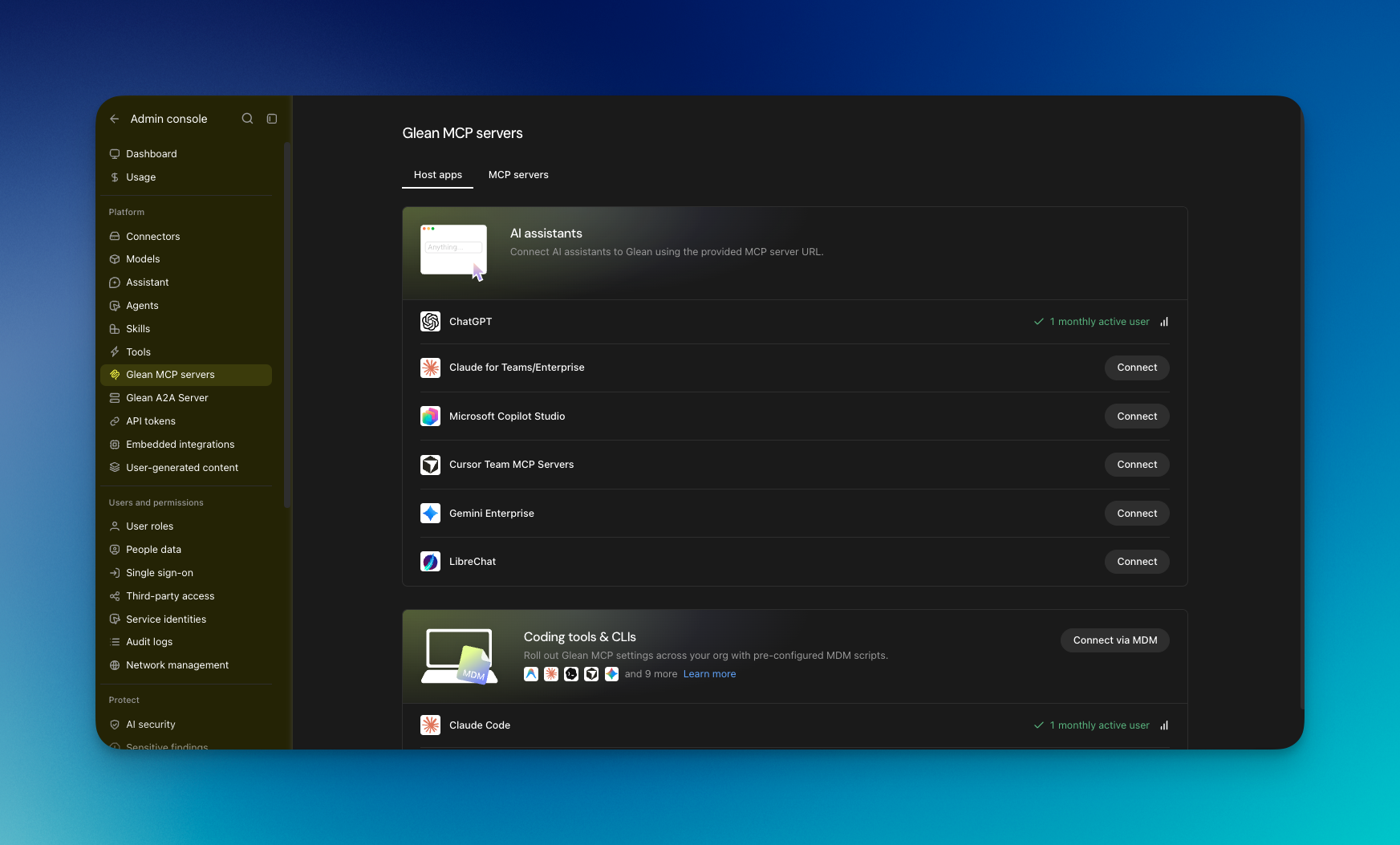
The Host apps tab in the Glean Admin console
Supported host applications
Glean supports the following MCP host applications:
- Antigravity
- Antigravity CLI
- Claude Code
- Codex
- Cursor
- Cursor Agent
- Gemini CLI
- Goose
- JetBrains AI Assistant
- Junie (JetBrains)
- OpenCode
- VS Code
- Windsurf
What the Host apps tab shows
Open Admin console → Platform → Glean MCP server to view the Host apps tab, which opens by default. It shows:
- The Host apps tab displays cards for supported AI assistants and coding tools that are available in your organization. Coding tools appear only when they are allowlisted and have current or prior usage.
- The Connection setup section lets you select an MCP server and copy the configuration that users need to connect manually. Use Connect via MDM to download scripts for managed devices.
Set up a host app manually
Use this to share configuration with users and have them connect themselves.
- Go to Admin console → Platform → Glean MCP server and select the Host apps tab.
- Choose the host app and click Connect to set up.
- Save the Glean MCP server URL.
- Continue to the host app to set up.
Paste the configuration into the host app settings to connect to Glean.
Deploy a host app with MDM
Use Connect via MDM to distribute MCP configuration to managed devices. Users may still need to sign in and authorize the connection.
- Go to Admin console → Platform → Glean MCP servers and select the Host apps tab.
- In the Coding tools & CLIs section, click Connect via MDM.
- If the central MDM deployment page opens, click Get started and configure the script. If Create MDM installer opens instead, use the MCP-only installer instructions.
See Deploy MCP servers and LLM Gateway with MDM for both flows.
Claude for Desktop must be configured separately using its dedicated host guide. This does not affect the Claude Chat Application or Claude Cowork.
Next steps
- Deploy MCP servers with MDM for the full MDM deployment walkthrough
- Create MCP servers to create and configure custom MCP servers
- Set up Glean MCP server to review OAuth and default-on settings