Manage Glean plug-in access and security
The Glean plug-in follows the access controls already configured in Glean. Installing it doesn't grant access to restricted tools, Skills, connectors, or connector content.
Control access
These controls determine what users can access through the plug-in:
- Tool visibility determines which users and groups can invoke a tool
- Connector permissions determine which content users can access
- Skills rollout and sharing settings determine which Skills are available
- Write tools may require confirmation before they run
Set per-tool access
Per-tool role-based access control lets you choose which users or groups can use each tool exposed through the plug-in:
- In the Admin console, go to Tools.
- Select the application you want to configure.
- Go to Configuration → Edit settings.
- For each tool, choose the users or departments that should have access.
- Click Save.
To apply the same access setting across every tool for that application, use Copy to all tools.
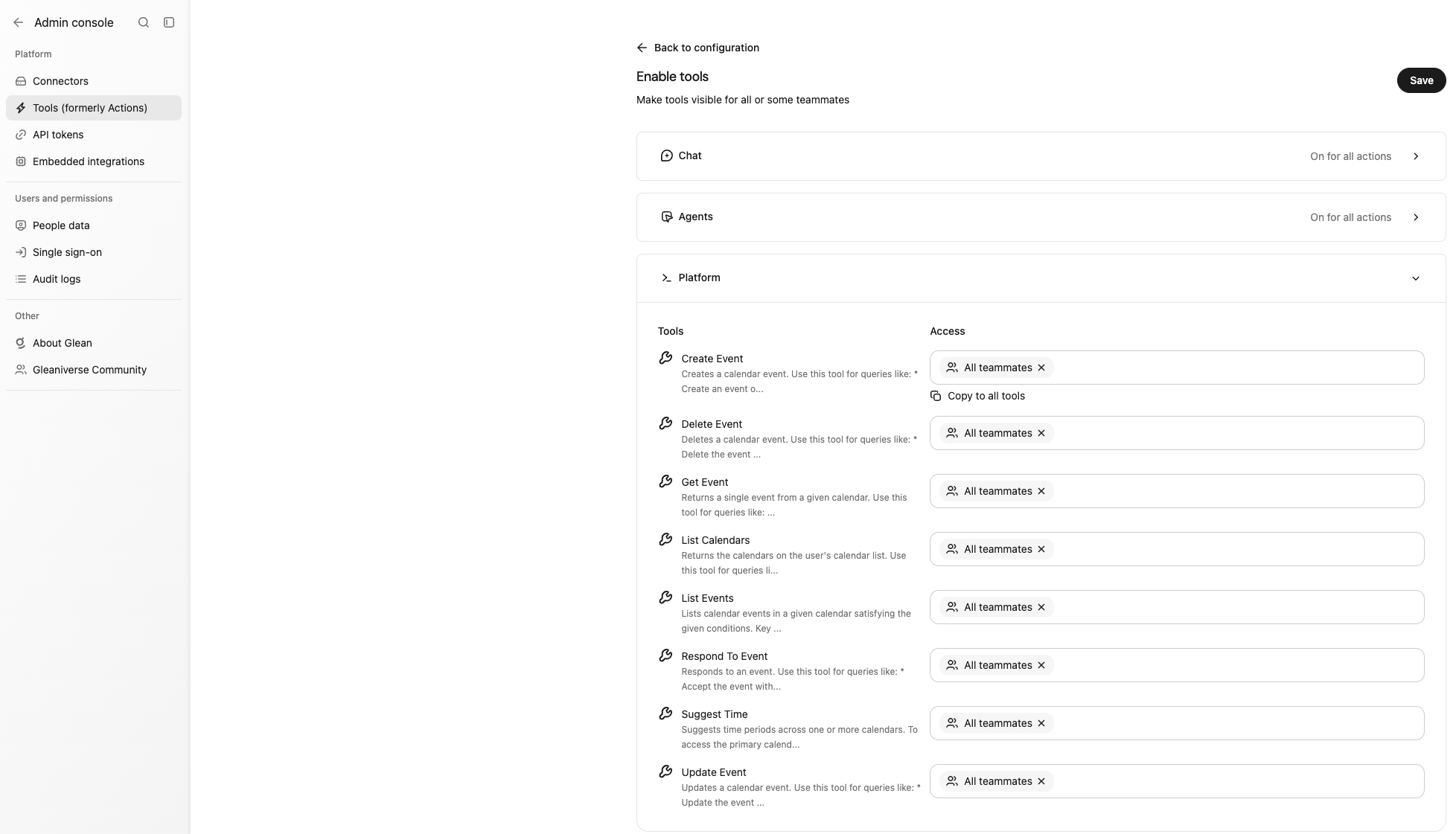
Per-tool access settings in the Admin console
Use a standard Glean MCP connection
Users can enable the plug-in and a standard Glean MCP connection in the same host. Glean uses the connection best suited to the request, so users don't need to turn off an existing connection before installing the plug-in.
Configure write-action approvals
Approval behavior depends on the host:
- Cursor uses its native approval prompt for plug-in tool execution
- Codex uses its native approval prompt for plug-in tool execution
- Claude Code uses the plug-in's approval flow when confirmation is required
Glean governs the write tools that run through the plug-in. It still asks the user to confirm a write action when Claude Code runs in auto mode or with permissions bypassed.
Host-level permission modes govern the top-level find_skills and run_tool calls. Glean governs the underlying connector write tools, such as creating a Google Doc.
Users can override the confirmation requirement for an application. In Glean, go to Your settings → Connectors, then select the application. Include this option in your security policy because it lets individual users skip confirmation for a connector.
Tool access and approval requirements are separate controls. A user may have access to a tool but still need to approve a write action.
Monitor plug-in activity
If your organization's MCP Insights dashboard includes plug-in events, use the host, user, tool, and time filters to analyze activity. Confirm dashboard coverage with your Glean representative.