Deploy MCP servers and LLM Gateway with MDM
Use the central MDM deployment page in the Admin console to generate scripts for your organization's mobile device management (MDM) provider. The scripts configure supported host applications to connect to Glean MCP servers, use LLM Gateway, or both.
Downloading a script does not run it or confirm deployment to any device. You must distribute it through your MDM provider and verify the resulting host configuration.
Deploying MCP configuration through MDM is separate from installing the Glean plug-in. Deploy the Cursor plug-in through the Cursor administration settings. Plug-in setup for Claude Code and Codex follows each host's marketplace installation flow. See Glean plug-in for coding hosts.
Prerequisites
Before you generate a deployment script:
- Sign in to Glean through SSO with an account that can manage workspace settings.
- Have an MDM provider that can run scripts on your managed macOS or Windows devices.
- Configure at least one of the products you want to deploy, as described in the table.
The hub shows product cards based on what your workspace has enabled. These requirements determine whether you can include each product in a script.
| Product card | When it appears | Required to generate a script |
|---|---|---|
| MCP Servers | Glean MCP servers are on for the workspace | At least one enabled MCP server other than the built-in ChatGPT server |
| LLM Gateway | LLM Gateway is on for the workspace | A static OAuth client with the LLM Gateway scope (LLM_PROXY), selected for at least one gateway host |
You can deploy either product without the other. LLM Gateway deployment does not require Protect+ AI guardrails. The Available label is not evidence that a script has run on managed devices.
For MCP setup, see Set up Glean MCP server. For OAuth client registration, see Static OAuth clients.
Generate a deployment script
Choose the products and settings to include in the script:
- In the Admin console, open MDM deployment.
- Click Get started to open Deploy Glean via MDM.
- Use the MCP Servers and LLM Gateway checkboxes to choose which products to include. Glean selects available products by default. Clear the checkbox for any product you don't want to configure.
- For MCP Servers, choose the server your host applications should connect to. Glean preselects the default server when available, or the first eligible server otherwise.
- For LLM Gateway, select an OAuth client for each host you want to configure: Claude, Codex, or OpenCode. Leave a host's client selection empty to omit it from the gateway configuration. The OpenCode list includes only public clients that do not require a client secret.
- Choose macOS or Windows and open your MDM provider's tab for deployment instructions.
- Click Download script. The download is
install-glean-helper.shfor macOS orinstall-glean-helper.ps1for Windows.
The script includes both products if you select both. It uses Glean's helper to apply the selected configuration on managed devices.
If Download script is unavailable, check that you selected at least one product and supplied its required settings. If you select LLM Gateway, you must select at least one host's OAuth client, even if you also selected MCP Servers. Clear LLM Gateway if you want an MCP-only script.
Deploy and verify the configuration
Use the provider instructions in Deploy Glean via MDM to distribute the downloaded script:
- Upload the script to your MDM provider and assign it to the intended device groups. Configure it to run with the privileges specified in the provider instructions, such as root on macOS or the system account on Windows.
- Deploy to a test group first. Check the MDM execution results and confirm that the intended host configuration is present before expanding the rollout.
- Ask users to open the host application. If prompted, they must sign in and authorize the connection. Verify that the host can use the selected MCP server or LLM Gateway.
Provider instructions vary by operating system. For Windows, follow the provider's instructions to use the 64-bit PowerShell host. The generated script requires PowerShell 5.1 or later with administrator privileges.
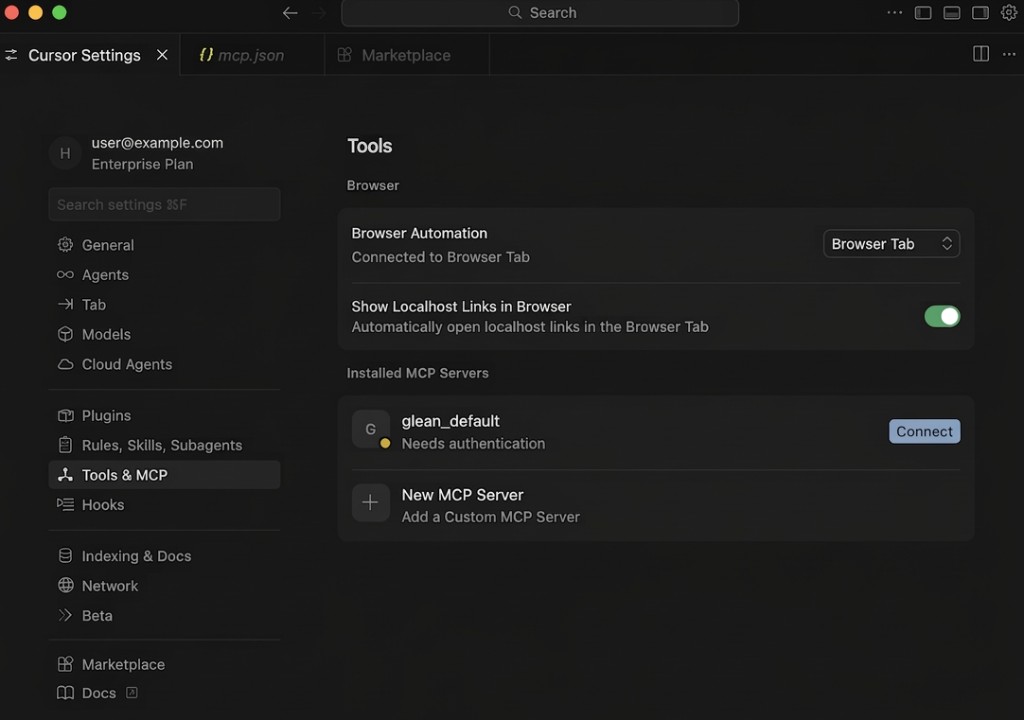
For example, Cursor can prompt users to connect to the configured MCP server:
Use the MCP-only installer
If Connect via MDM opens Create MDM installer instead of the central hub, use this MCP-only flow:
- Choose an MCP server in Choose a MCP server.
- Review the platform tabs and, if needed, expand Advanced settings to change Update automatically (Recommended).
- Click Download installer. Glean downloads
glean-mdm-installer.zip. - Unzip the archive and distribute the script for your device platform through your MDM provider. The archive includes macOS and Linux scripts. It includes a Windows script when the Windows tab is available.
This installer does not configure LLM Gateway. For the entry point in Host apps, see Host apps.
Configure automatic updates
The Update automatically (Recommended) control applies to the MCP-only Create MDM installer flow. It is on by default. When on, the installed MDM binary checks for and installs updates. When off, the installed version stays fixed until you update it manually.
The central Deploy Glean via MDM dialog does not include this control. Do not apply the MCP-only installer's update instructions to scripts downloaded from the central hub.