Configuring Policies
Glean Protect+ policies help you control how AI security guardrails are applied across Glean Assistant and agents.
You can use these policies to reduce the risk of prompt injection, sensitive data exposure, and unsafe generated content. For each policy, you choose where the policy applies and what happens when the policy is violated.
To understand what each policy covers and see examples of flagged versus allowed content, see Policies and examples.
How policies are enforced
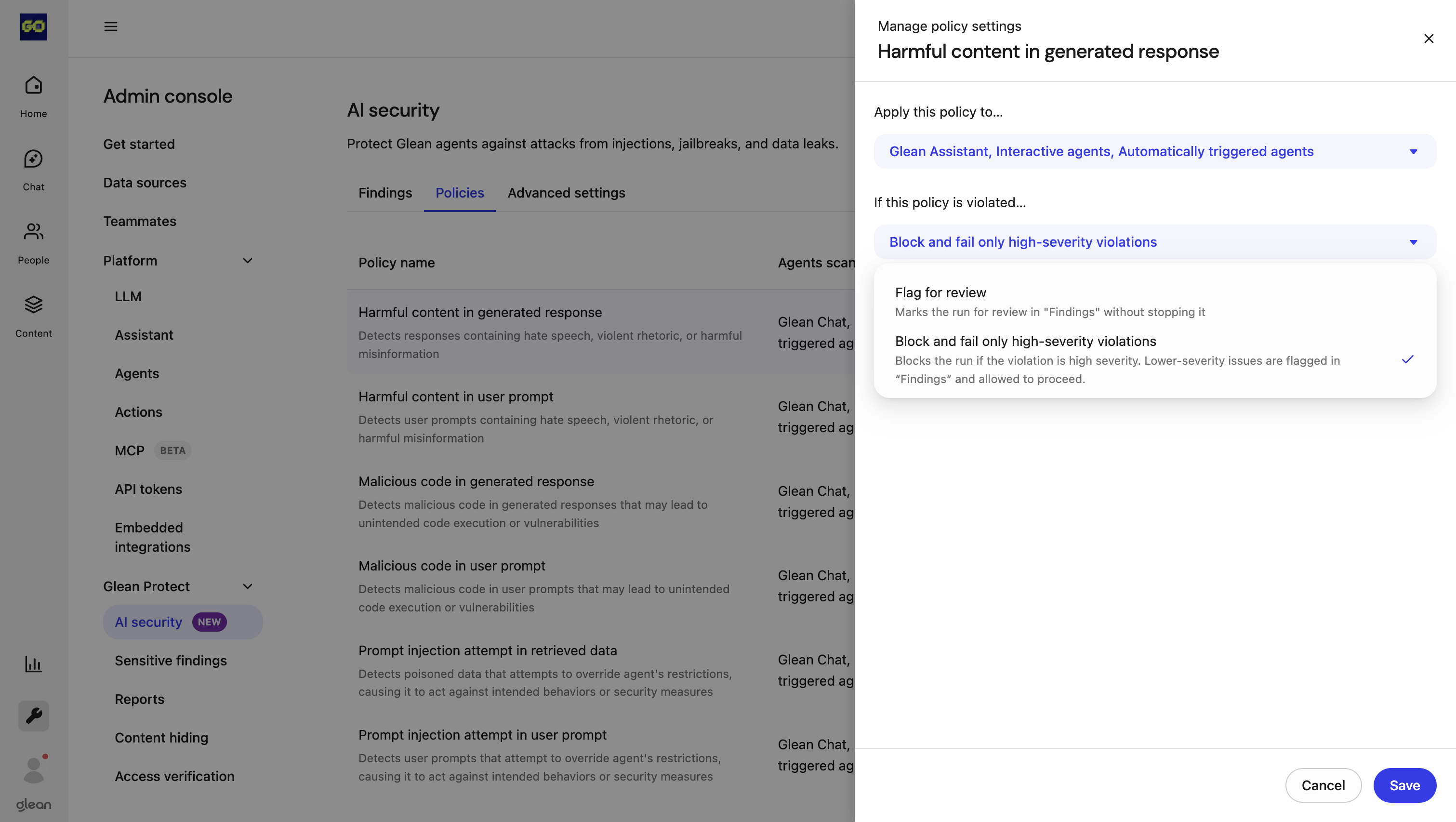
The enforcement rules you define determine what happens when an AI agent's behavior violates a policy. The severity of a violation—whether it's high or low—is a key factor in how the rule is applied.
- Block and fail only high-severity violations: If a prompt or a generated response is flagged as a high-severity threat, the agent's run is immediately stopped and the tool is blocked. Lower-severity issues, however, are simply flagged for your review in AI security issues, allowing the agent to complete its task without interruption.
- Flag for review: Marks the run for review in AI security issues without stopping the process. This is useful for monitoring potential threats without disrupting agent workflows.
Where Policies Can Be Applied
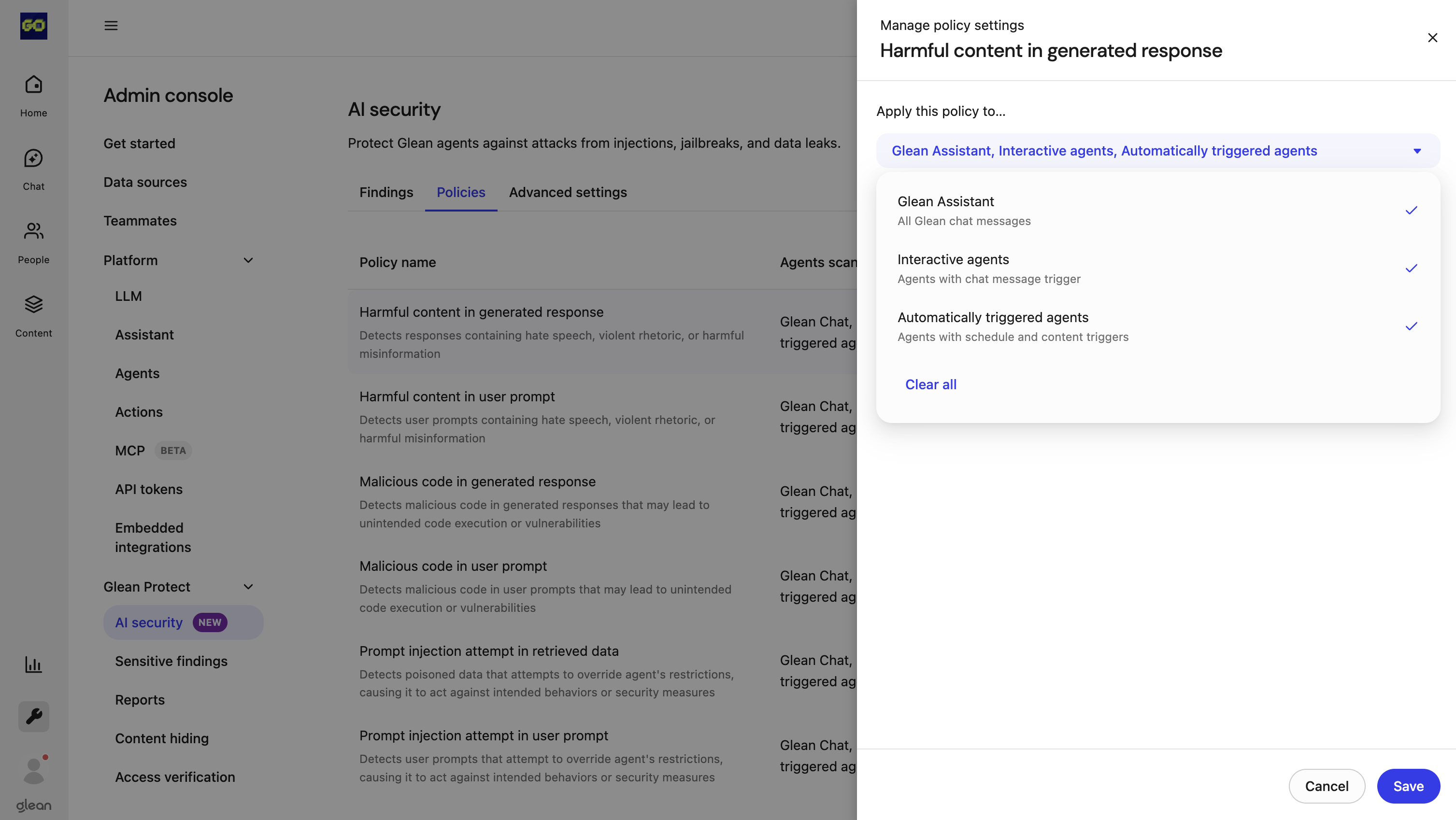
Glean's security policies can be applied across different types of AI agents to fit your organization's specific needs.
- Glean: This includes all messages sent to the main Glean chat interface.
- Interactive agents: These are agents that are triggered by a chat message.
- Automatically triggered agents: These agents are configured to run on a schedule or when content is updated, like an agent that summarizes daily reports or analyzes new knowledge base articles.
Configure AI security policies
You can customize where an AI security policy is enforced and how Glean responds when a violation occurs. This flexibility allows you to phase in security controls, for example, auditing a new policy in Glean Assistant to monitor user impact before applying strict enforcement to automated background agents.
To configure a policy
- Open Protect from the Glean navigation, next to Admin console. Under AI security, click Policies.
- Click Edit next to the policy you want to update.
- Under Apply this policy to, select one or more deployment targets:
| Target | Description |
|---|---|
| Glean Assistant | Applies the policy to messages sent within the main Glean Assistant interface. |
| Interactive agents | Applies the policy to agents triggered during user-initiated, chat-based interactions. |
| Automated agents | Applies the policy to agents that execute on a set schedule or trigger automatically in response to content updates. |
- Under If this policy is violated, choose an enforcement action:
| Action | Behavior |
|---|---|
| Block and fail only high-severity violations | Blocks the execution only when a violation is classified as high severity. Lower-severity issues are logged for review. |
| Flag for review | Allows the execution to continue uninterrupted and logs the incident in AI security issues. |
- Click Save.
The updated configuration appears immediately in the policy list.
Agent alignment check policy for write tools
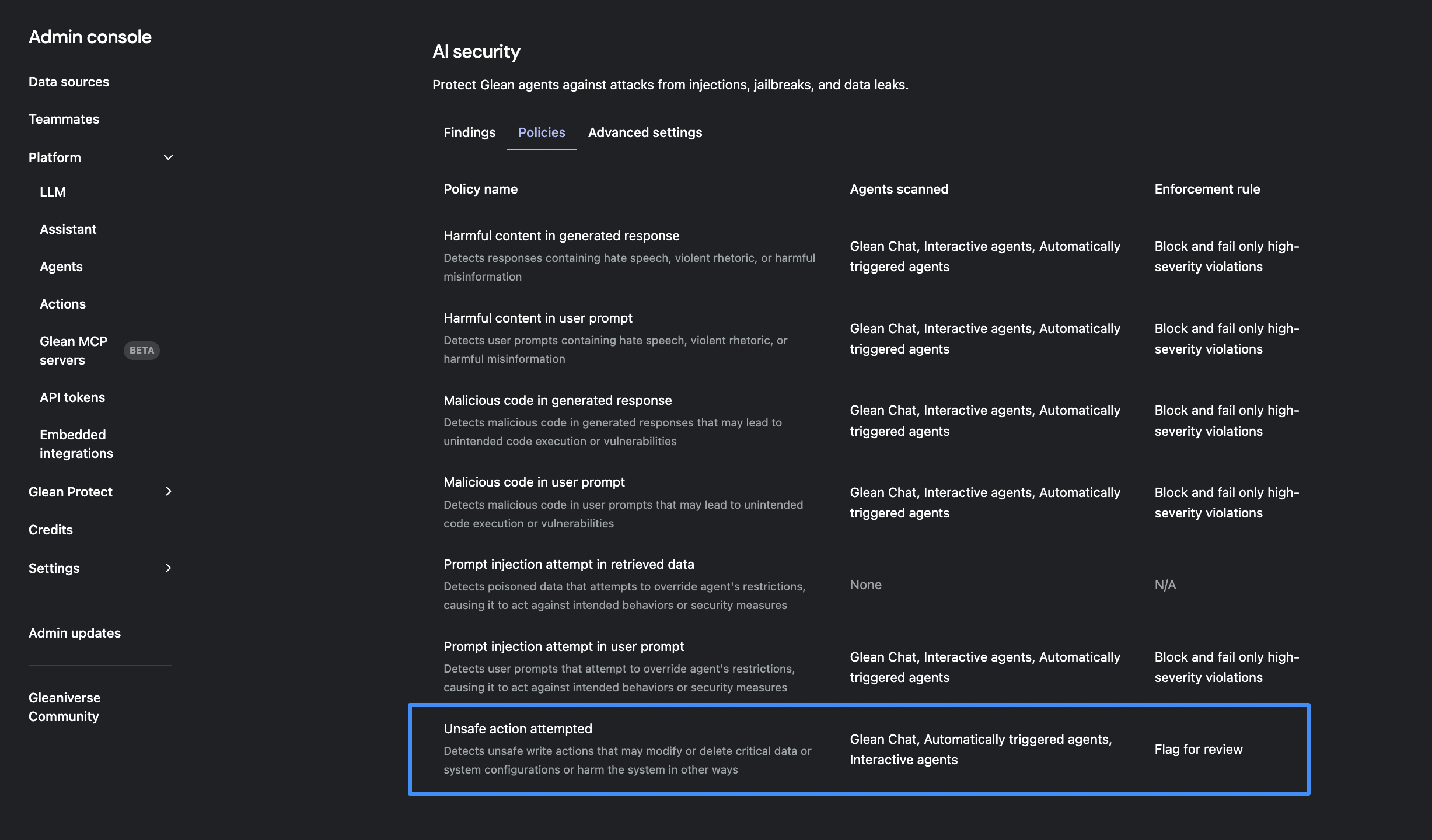
Use the Agent alignment check policy to monitor whether the write tools of an agent align with the explicit request of the user and the configured behavior of the agent.
This policy is critical for high-risk workflows, such as automatically triggered agents that execute write tools without user confirmation.
How agent alignment check works
When the policy is enabled, the system evaluates auto-approved write tools before they modify data in connected systems. If a potential misalignment is detected, the run is paused or flagged for review in AI security issues, allowing administrators to investigate the event and fine-tune their policies.
Configuration options
You can configure this policy by opening Protect from the Glean navigation, next to Admin console, then clicking Policies under AI security.
Within the Agent alignment check policy, you can:
-
Select agent types: Apply the policy to specific agents, including Glean Assistant, interactive agents, and Automatically triggered agents.
-
Set enforcement rules: Configure the system to Flag for review when a policy violation occurs.
-
Audit flagged runs: Review and investigate flagged actions in AI security issues.
Detection examples
This policy helps surface common AI misalignments, such as when an agent:
- Executes the wrong tool: Uses an incorrect write tool entirely unsuited for the task.
- Applies incorrect parameters: Uses the correct write tool but injects unintended or malicious arguments.
- Violates instructions: Attempts a write tool that deviates from either the user's prompt or the agent's system instructions.
Disable a Policy
To disable a previously enabled policy:
- Change the Apply this policy to… setting in the policy edit view from the relevant agent types to No agents.
Reduce False Positives
To help reduce noise and improve the accuracy of AI security detections, you can configure threshold settings:
Adjust Detection Thresholds
You can adjust the sensitivity of policy detections by configuring confidence thresholds. This allows you to fine-tune how strictly policies are enforced based on your organization's risk tolerance.