Restricted topics
The Restricted Topics feature in Glean Protect+ enforces topic-based controls on AI conversations. It detects and controls content related to specific themes, helping enterprises in regulated industries comply with internal policy and regulatory requirements.
Administrators can block or flag user queries on sensitive subjects (for example, performance reviews, disciplinary actions, or compensation) to enforce Acceptable Use Policies.
Prerequisites and roles
| Role | Responsibilities |
|---|---|
| Super Admin | Sets up security features, assigns elevated roles, creates global-scope API tokens. Can assign the Sensitive Content Moderator (SCM) role. |
| Sensitive Content Moderator (SCM) | Reviews findings, triages incidents, and drives remediation with content owners. Day-to-day review doesn't require Super Admin once configured. |
Only a Super Admin or SCM can see the Glean Protect admin menu and findings.
You can test Protect+ initially using a Super Admin account, but it's recommended to identify and configure the SCM role for sustained operations.
Quick start
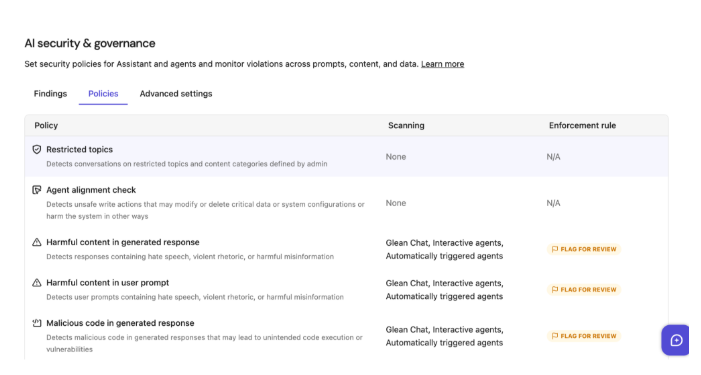
- Open Protect from the Glean navigation, next to Admin console. Under AI security, click Policies.
- Select Restricted topics.
- Create and enable custom topics, or enable out-of-the-box (OOB) topics, and configure:
- Scope — which users, groups, or agents the policy applies to
- Enforcement — Flag for review, Redact Response, or Block
Out-of-the-box topics
Out-of-the-box (OOB) topics are predefined, read-only, tested topics that ship with Glean Protect+. They appear under the Provided by Glean section. The following OOB topics are currently available:
- Compensation & Pay Discussions
- Personal Financial & Investment Advice
- Performance and Personnel Decisions
These topics provide enterprises with readily available, compliant policies and also serve as model examples for creating new custom topics.
OOB topics are read-only — you can enable or disable them, but you can't edit or delete them.
Custom topics
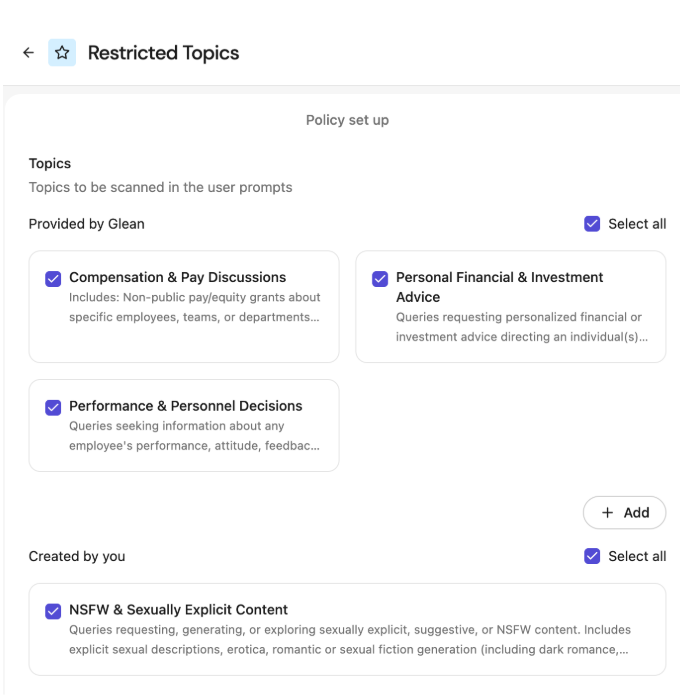
Custom topics appear under the Created by You section.
Create a custom topic
- Open Protect from the Glean navigation, next to Admin console. Under AI security, click Policies, then open Restricted topics.
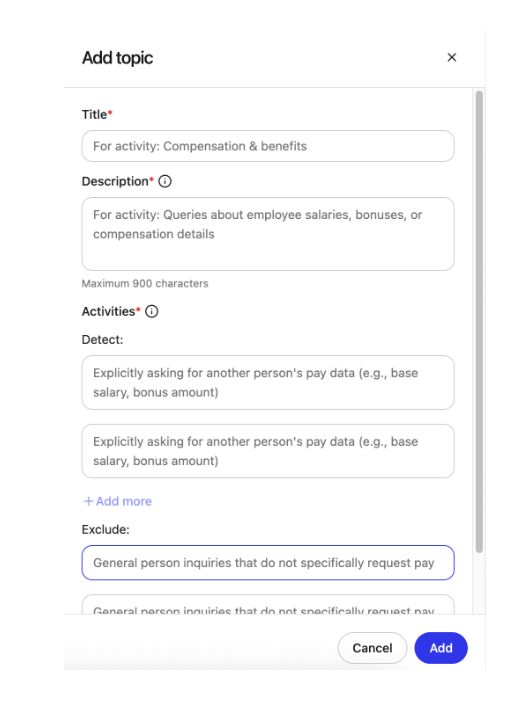
- Click Add.
- Configure the topic:
- Name — a clear, concise label (3–50 characters).
- Description — briefly describe what should and shouldn't be covered (10–900 characters).
- Activities — add examples that clarify intent and boundaries:
- Define at least two UNSAFE activities under Detect (max 150 characters each). These activities are detected and disallowed.
- Define at least two SAFE activities under Exclude (max 150 characters each). SAFE activities are excluded from restriction and are allowed.
- You can define up to five SAFE and five UNSAFE activities per topic.
Edit a custom topic
- Open Protect from the Glean navigation, next to Admin console. Under AI security, click Policies, then open Restricted topics.
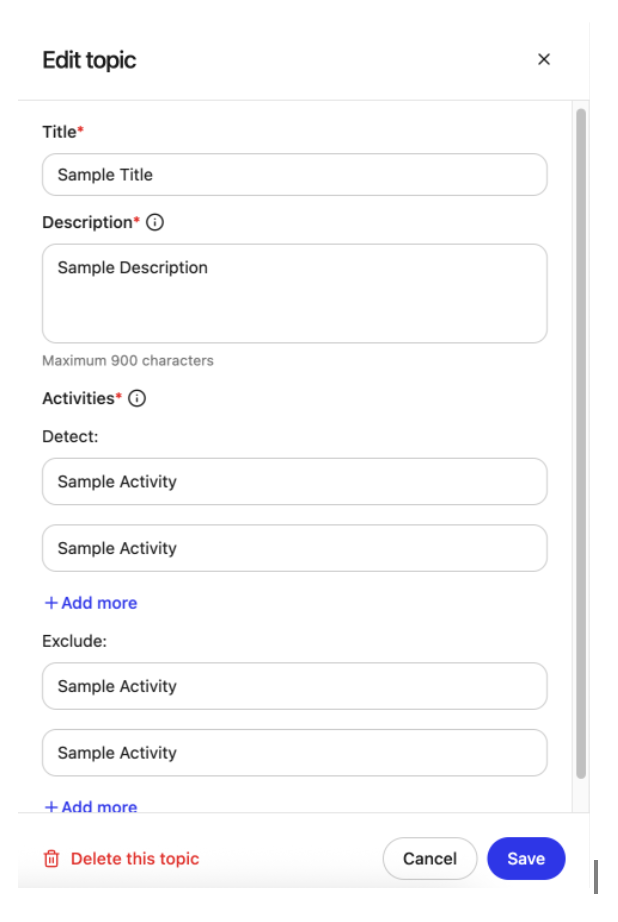
- Click the topic name you want to edit (custom topics only).
- Update any of the following (subject to the same limits as creation):
- Name (3–50 characters)
- Description (10–900 characters)
- SAFE / UNSAFE activities (2–5 of each, max 150 characters per activity)
- Click Save.
Delete a custom topic
- Open Protect from the Glean navigation, next to Admin console. Under AI security, click Policies, then open Restricted topics.
- Click the topic name you want to delete (custom topics only).
- Click Delete and confirm.
Enable and turn off topics
You can control whether a topic is currently applied to AI conversations at runtime with a checkbox next to the topic name on Protect → AI security → Policies.
A maximum of 10 custom topics can be added, and a maximum of 10 topics (custom + OOB) can be enabled at the same time.
Match confidence levels
Match confidence levels indicate the probability that a user query reflects intent to violate a policy, based on context and potential risk.
| Level | Meaning |
|---|---|
| Low | The content clearly poses no policy risk and aligns with allowed, legitimate usage. |
| Medium | The content is ambiguous and may relate to a sensitive topic, but intent to violate policy is unclear. |
| High | The content shows strong indicators of policy violation intent based on context and phrasing. |
A topic is considered violated only if the match confidence is High.
Test topics
Use the Test panel in Restricted Topics to validate how your topics behave before enforcing them.
- Open Protect from the Glean navigation, next to Admin console. Under AI security, click Policies, then open Restricted topics.
- Ensure the topics you want to evaluate are enabled (checked).
- Enter a sample query in the Test Panel, or choose from the sample list.
- Click Run test.
- Review the results — for each enabled topic, the test shows:
- Match confidence level (Low, Medium, High)
- Reasoning for the classification
Use these results to decide whether you need to tighten or relax topic descriptions and SAFE/UNSAFE activities.
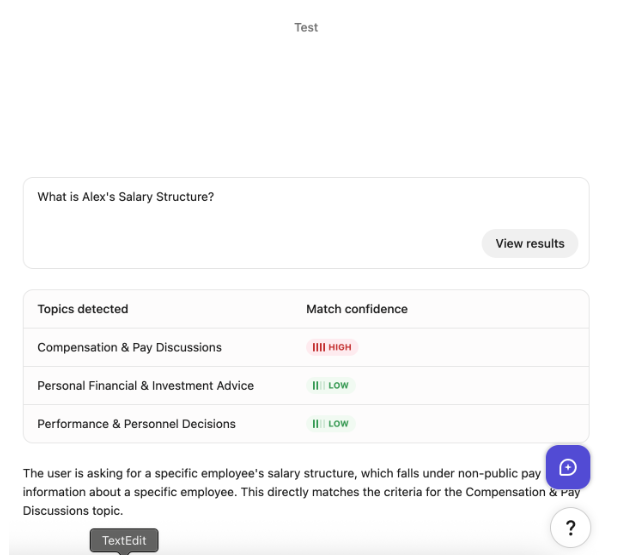
Only topics that are currently enabled are evaluated in the Test panel. Topics that are turned off are ignored by the test flow.
Enforcement options
Enforcement controls what happens when a restricted topic is detected.
Target
Use Target to choose where the policy is applied. You can select one or more:
- Glean (Chat) — applies to all messages in the main Glean chat surface.
- Interactive agents — applies to interactive (chat-based) agents.
- Automatically triggered agents — applies to scheduled or content-triggered agents.
If at least one topic is selected, you must also select at least one target.
Action
Use Action to decide what happens when an enabled topic is violated (match confidence is High):
| Action | Behavior |
|---|---|
| Flag for review | The agent or chat continues normally and returns the response. The incident is logged as a finding in the AI Security dashboard with the problematic snippet, detected topics, match confidence, and reasoning. |
| Redact Response | The response is redacted and replaced with a policy-violation message so sensitive content isn't shown to the user. The incident is logged as a finding. |
| Block | The chat or agent workflow is stopped before any response is shown to the user. The incident is logged as a finding. Chat and agent workflow latencies may be slightly higher with this option. |