Configure Protect notifications
Glean Protect notifications give your security team a recurring email summary of recent AI Security and Sensitive Findings activity.
The workspace setting is enabled by default for weekly notifications.
Prerequisites
Have the Super Admin or Sensitive Content Moderator role to configure and receive Protect notifications. See Administrator Roles.
What each email digest includes
Each digest covers the time window selected for your workspace and can include:
- A summary of the total Sensitive Findings and AI Security violations detected during the period
- Sensitive Findings grouped by severity, status, connector, policy, info type, and assignee
- AI Security violations grouped by severity, action, status, policy, and agent
- Links to review Sensitive Findings and AI Security violations in Protect
The digest uses the selected time window. Daily digests cover one day, weekly digests cover seven days, and monthly digests cover 30 days. Sections with no activity might not appear in the email, but the summary still shows the total for the period.
Configure workspace notifications
A Super Admin or Sensitive Content Moderator can enable or disable Protect notifications for the workspace and choose how often Glean sends them.
- Go to Admin console → Protect → Notification Settings.
- Turn Protect digest on or off.
- Under Frequency, choose Daily, Weekly, or Monthly.
- Save your changes.
The default frequency is Weekly. Changing the workspace setting changes the cadence and reporting window for all eligible recipients.
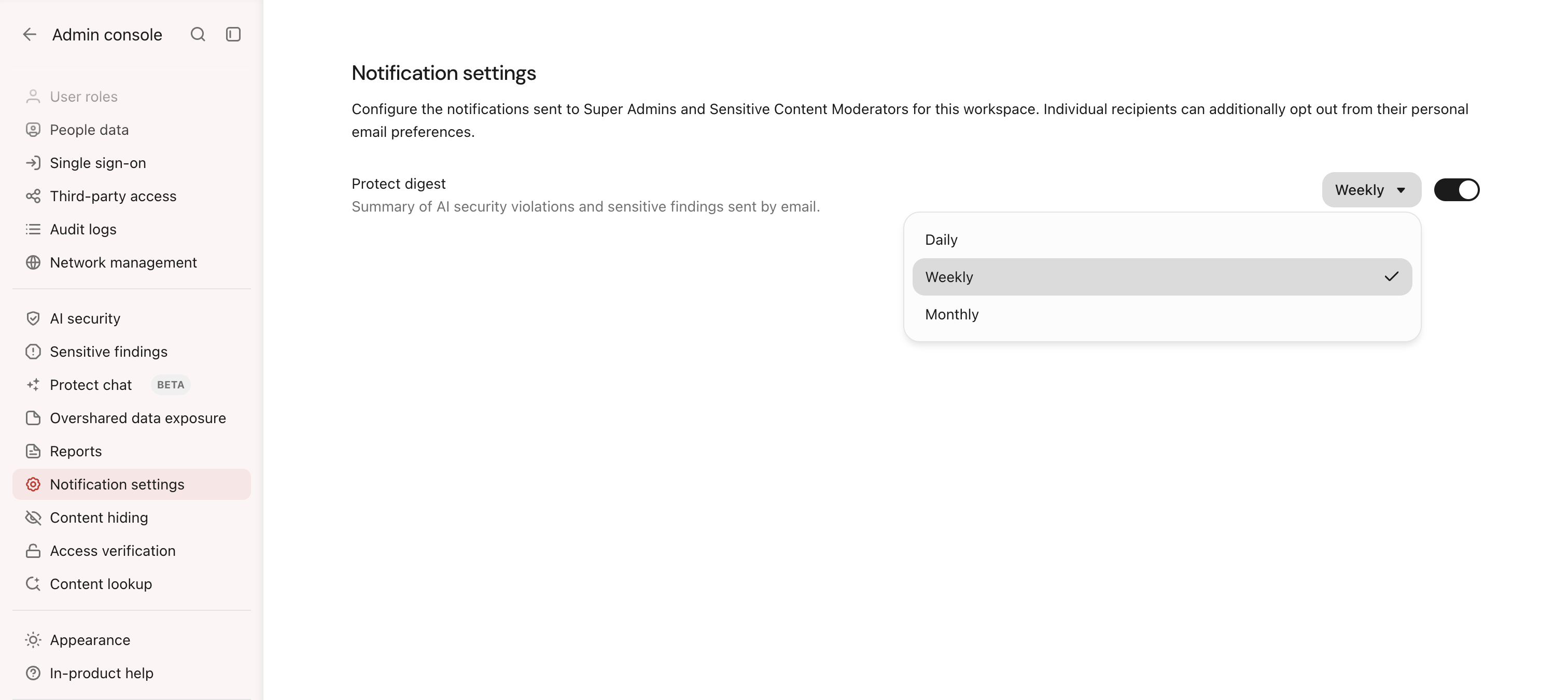
Turning off Protect notifications at the workspace level stops the digest for everyone. Eligible recipients can also turn off delivery for themselves in their personal email preferences.
Manage your personal email preference
Protect digests are sent to users with the Super Admin or Sensitive Content Moderator role. Each eligible recipient can control whether they receive the digest without changing the workspace setting.
- Open Settings → Email preferences.
- Find Protect notifications.
- Turn the preference on or off.
The preference is on by default for eligible recipients. Users without the Super Admin or Sensitive Content Moderator role don't receive Protect digests and don't see this preference.
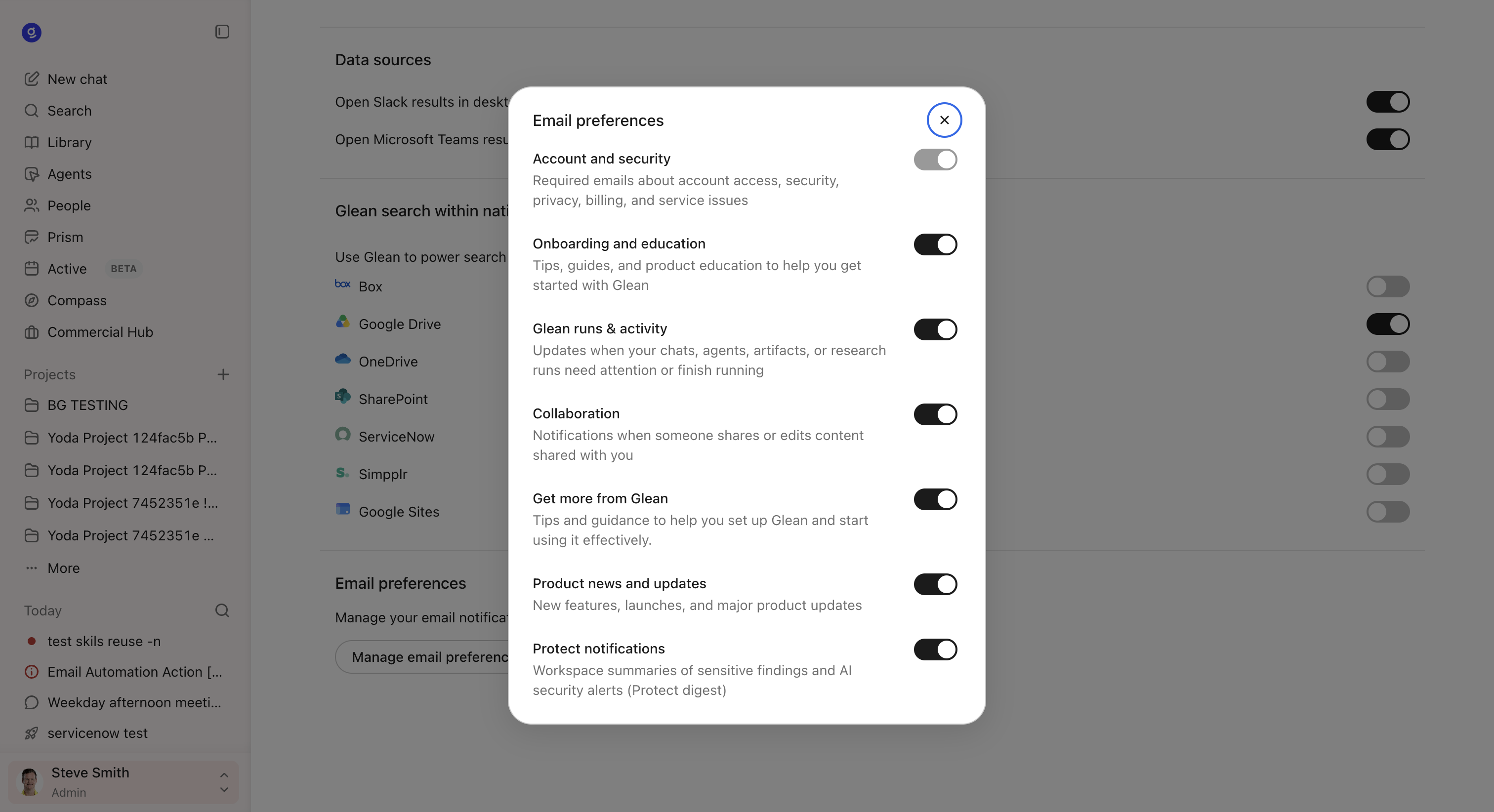
If you don't see Protect notifications, ask a Super Admin to confirm that you have the Sensitive Content Moderator role and that Protect notifications are available for your workspace.
Understand the email
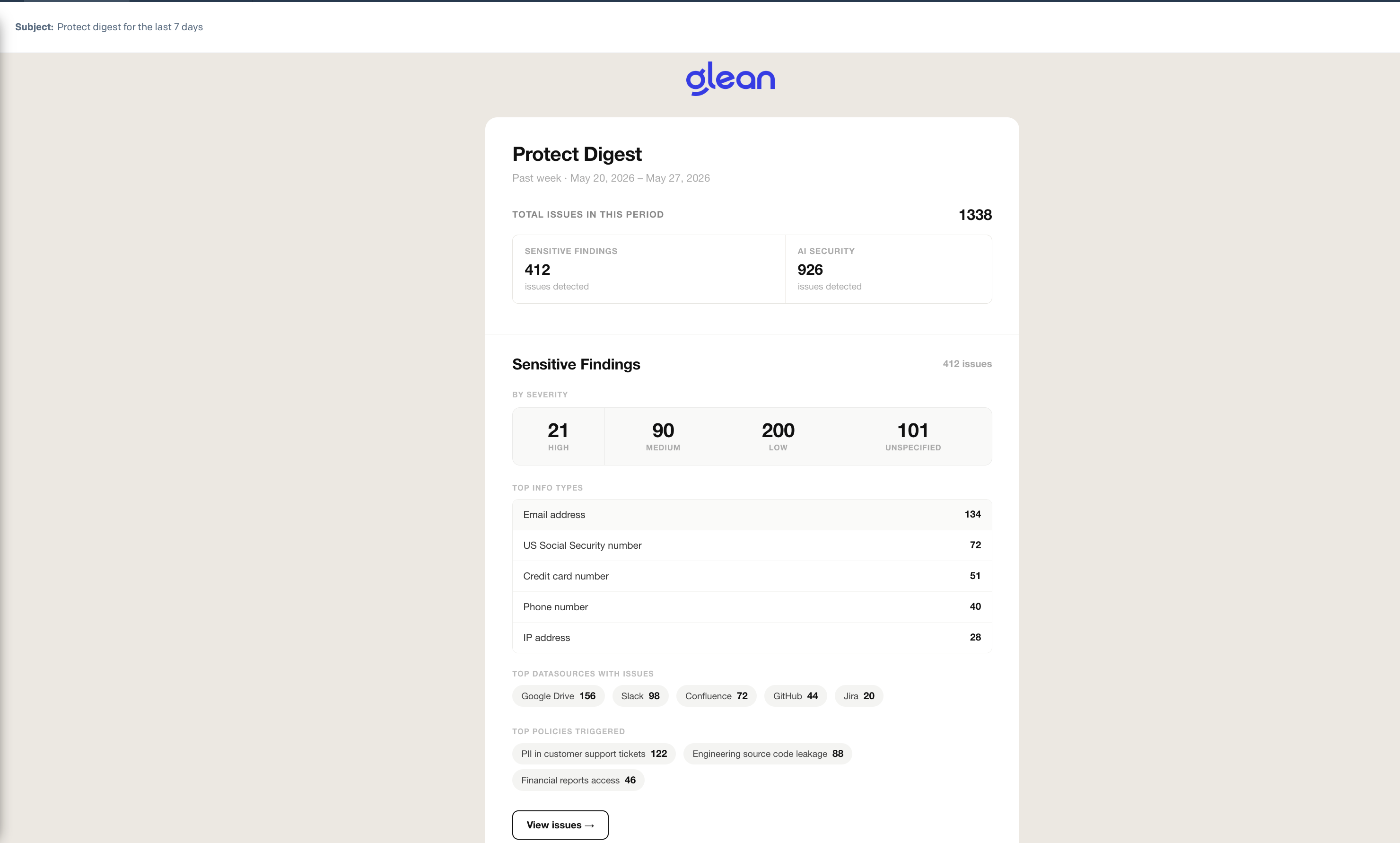
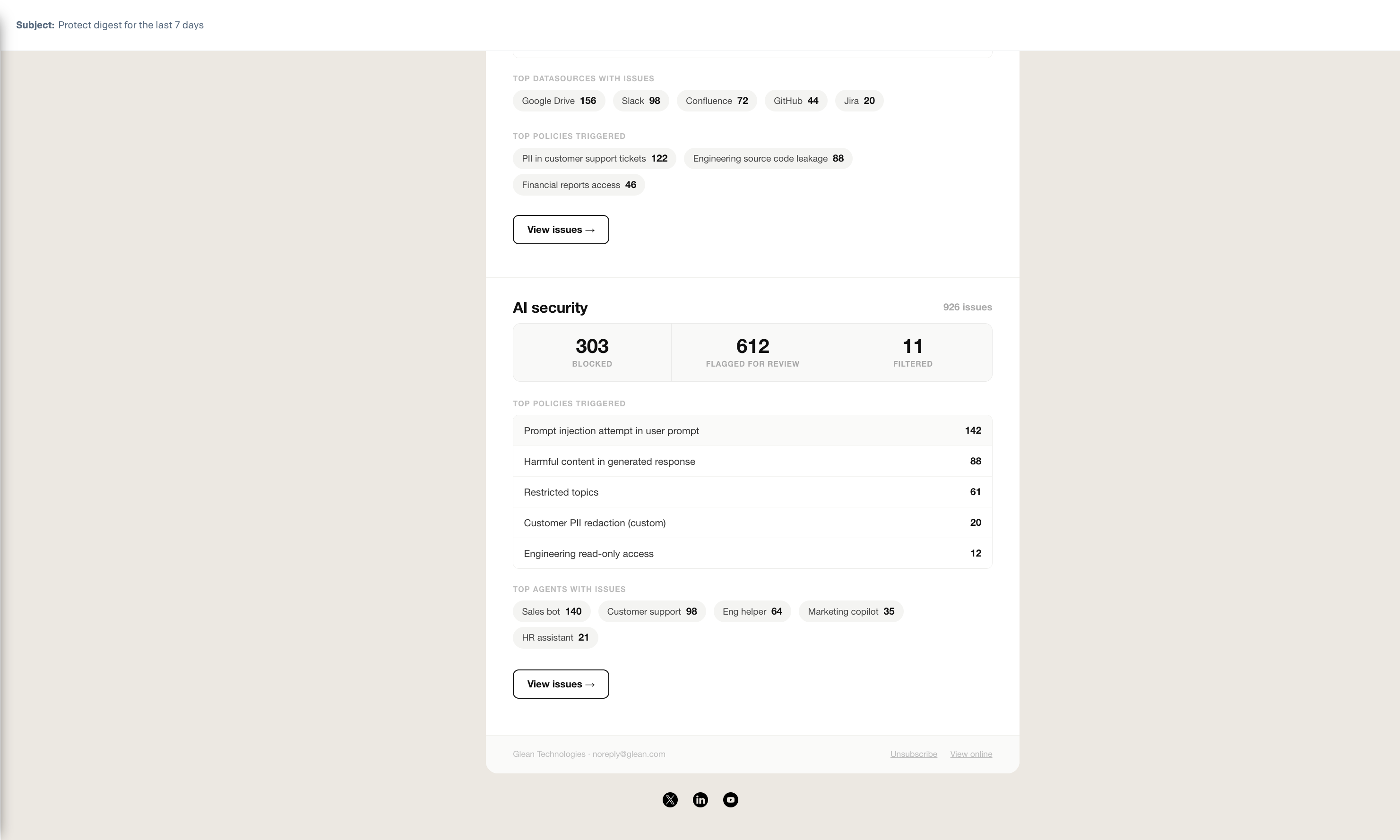
In each Protect notification email digest, the subject identifies the reporting window, for example, Protect digest for the last 7 days. The email starts with the activity summary, then provides separate sections for Sensitive Findings and AI Security.
A typical weekly digest can look like this:
Protect digest for the last 7 days
Issues this period Total: 42 · Open: 18 · In progress: 12 · Resolved: 12
Sensitive Findings High: 5 · Medium: 16 · Low: 21
Top info types: Credit card number, Social Security number, Email address
Top connectors: Google Drive, SharePoint, Confluence
Top policies: PII detection, Credentials scan, Financial data
AI Security Flagged for review: 18 · Blocked: 5
Top policies: Prompt injection, Harmful content, Malicious code
Top agents: HR Assistant, Code Generator, Glean Chat
Review in Glean: Open Protect dashboard · Review AI Security violations
The values and sections vary with your Protect activity. Top lists are highlights, so their counts don't need to add up to the total number of findings or violations. Links from the email open the corresponding Protect page in your workspace.
Delivery and access
- Glean sends the digest by email only. Slack, Microsoft Teams, and in-product Protect notifications aren't included.
- Only Super Admins and Sensitive Content Moderators are recipients.
- A recipient who turns off Protect notifications in Settings → Email preferences is excluded from future digests.