Connect remote MCP servers to Glean
Glean as an MCP host enables you to connect remote Model Context Protocol (MCP) servers so end users can securely discover and invoke third‑party tools (such as Notion, Asana, Canva) directly from Glean Assistant and Glean Agents experience. Glean offers centralized control over which MCP servers and tools are available to users in your organization. With this feature, users can automate workflows, fetch live data, and complete tasks through Glean's unified interface.
Use Glean as an MCP host when:
- You already expose business workflows or data through MCP servers and want to reuse them inside Glean.
- You need to support any MCP‑compatible model provider, not just a single LLM or vendor.
- You want to keep sensitive logic or data access inside your own network or VPC, while still enabling Glean to invoke those tools.
Glean as an MCP host has the following capabilities:
- Admin‑gated connection to remote MCP servers for Glean Assistant and Glean Agents.
- Centralized control of available MCP servers and tools at the tenant level.
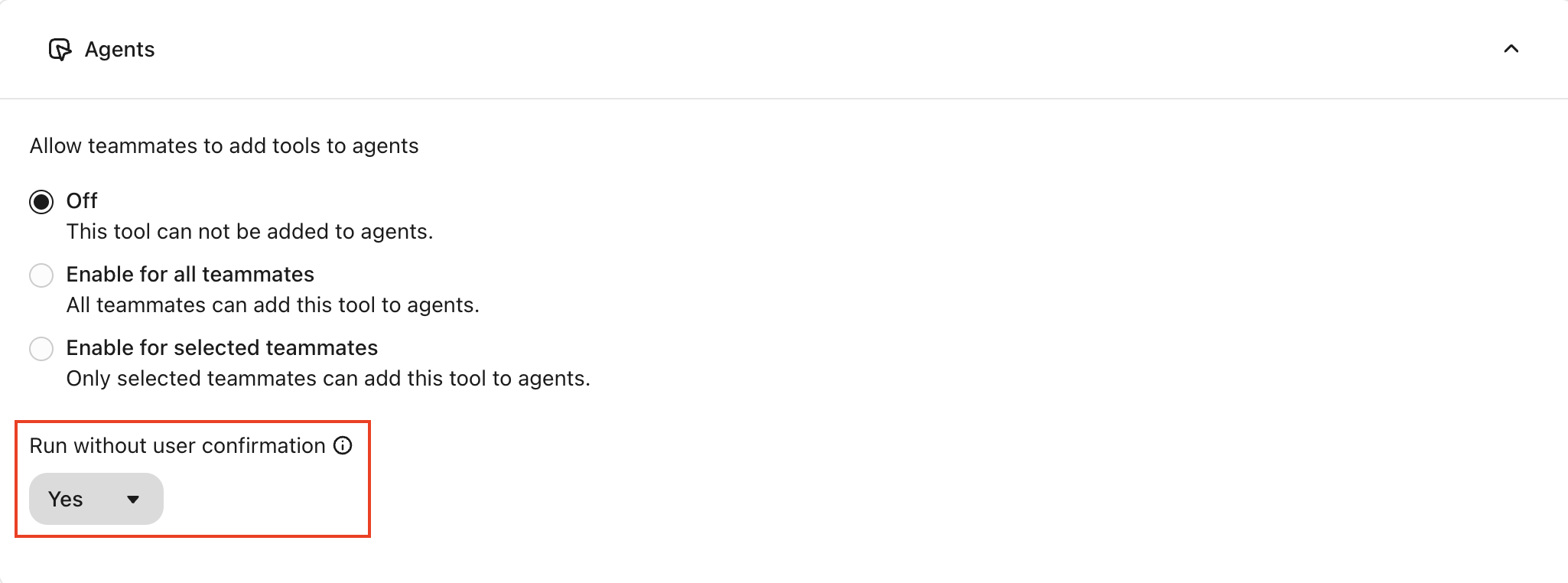
- Users can engage with connected MCP servers through Glean Assistant and Glean Agents, with human‑in‑the‑loop experiences for write tools.
If you primarily want to bring the knowledge graph of Glean into other MCP hosts such as Cursor, Claude, or ChatGPT, use the Glean MCP server instead. See About Glean MCP server for more information.
Glean fully supports remote MCP servers in Glean and currently offers beta support for servers in agents.
Key concepts
- Glean as an MCP host: Glean runs the assistant experience (chat, agents) and invokes tools from remote MCP servers on behalf of users.
- Your remote MCP server: Your server implements the Model Context Protocol. It exposes tools (for example,
search_tickets,run_report) that the Glean MCP host can discover and call. - MCP tools in Glean: A configuration in the Admin console that connects Glean to a specific MCP server and publishes its tools to Glean Assistant and Glean Agents.
- Verified MCP servers: Pre‑built templates for specific third‑party MCP servers that Glean has validated for connectivity and workflow quality. These include pre‑filled URLs, scopes, and recommended tool selections to simplify setup.
- Custom MCP servers: Any MCP server you host yourself in your own VPC or infrastructure, exposed securely to Glean via allowlisted endpoints. You can register a custom MCP server in Glean by providing its URL and OAuth details.
Supported MCP servers
Glean supports remote MCP servers that comply with the Model Context Protocol specification. The verified remote MCP servers list includes servers known to work with Glean.
Authentication methods
Glean supports multiple authentication methods for remote MCP servers. You do not need to use Dynamic Client Registration (DCR) or CIMD — choose the method that matches your MCP server's requirements.
| Method | Description | When to use |
|---|---|---|
| None (No authentication) | The remote MCP server doesn't require any token or API key. | Internal servers on a trusted network with no auth requirement. |
| OAuth Admin | The remote MCP server requires a one-time authentication by the developer or admin to authorize the use of the action for all end users. After the one-time authorization, Glean sends the token for all requests from authorized users. | Servers where a single admin credential grants access on behalf of all users (for example, shared service accounts). |
| OAuth User | The remote MCP server requires an initial OAuth connection setup by the developer or admin. After users authorize the action on first use, Glean uses the token for subsequent requests. | Servers that require per-user authorization (for example, personal access to third-party tools). |
| API Key | You provide your own API key to Glean, and are responsible for managing usage capacity. By default, Glean sends the key as a Bearer token in the Authorization header. | Servers that authenticate with a static API key, API token, or Bearer token. |
| OAuth Client Credentials | Glean acquires and refreshes access tokens using a client ID and client secret, without requiring interactive user authorization. This is a service-to-service (machine-to-machine) flow. | Servers that authenticate via service-to-service OAuth rather than user-authorized OAuth flows (for example, enterprise gateways or internal APIs). |
If your MCP server uses Bearer token authentication (for example, Authorization: Bearer <token>), select the API Key method and provide the token value. Glean passes the key in the Authorization header as a Bearer token, which is compatible with most token-based MCP server implementations.
API key header formats
For custom MCP servers that use API Key authentication, Glean sends Authorization: Bearer <key> by default. If your server expects a different API-key placement, use Use a different header in the API key configuration when that control is available.
| Header format | Outbound header |
|---|---|
Authorization: Bearer <key> | Sends the credential in the Authorization header with the Bearer scheme |
Authorization: Token <key> | Sends the credential in the Authorization header with the Token scheme |
Authorization: ApiKey <key> | Sends the credential in the Authorization header with the ApiKey scheme |
X-API-Key: <key> | Sends the credential in the X-API-Key header and doesn't send an Authorization header |
These header formats apply to API Key authentication only. OAuth-authenticated MCP servers use Bearer tokens. For MCP server templates, the template manages the vendor-specific authentication behavior, so custom header selection isn’t available. If you don't see Use a different header for a custom server, contact Glean Support.
Glean supports PKCE (Proof Key for Code Exchange) for all MCP server OAuth flows. If you choose an OAuth method where the authorization client is public and doesn't provide a client secret, Glean uses PKCE to complete the token exchange. Glean sends PKCE parameters for all OAuth flows regardless of the authentication method.
Custom HTTP headers
Some third-party MCP servers and API gateways require HTTP headers beyond standard OAuth or Bearer authentication, for example, gateway API keys, tenant routing metadata, or request time user identity. Glean supports custom static and dynamic headers on outbound MCP requests.
If your server needs headers that are not covered by the authentication methods above, see Custom HTTP headers for remote MCP servers for more information.
Prerequisites
Before you connect a remote MCP server to Glean, meet the following prerequisites:
- Admin access to Glean:
- You must be able to open the Admin console and access Platform → Tools.
- A running MCP server that:
- Implements the Model Context Protocol.
- Exposes an HTTPS URL reachable from Glean directly or via allowed proxy.
- Supports OAuth 2.0 with authorization code flow, with or without Dynamic Client Registration (DCR).
- OAuth details for the MCP server. For authorization code flow, provide the Authorization URL, Token URL, Client ID, client secret (not required for public authorization clients, Glean uses Proof Key for Code Exchange (PKCE) to complete the token exchange), and scopes.
- Private network or VPC deployments
- If your MCP server is hosted in a private network or VPC, you must add it to the allowlist so that Glean can reach it.
- Coordinate with your Glean Solutions Engineer or account team to:
- Confirm the proxy endpoints and IP ranges to allowlist.
- Validate connectivity and TLS requirements.
- (Optional) Role-based access to actions
- If you plan to restrict who can add or configure MCP‑backed tools in agents, familiarize yourself with role‑based access to tools in the Admin console. See Role-based access to tools for more information.
- Vendor-specific token requirements
- Some remote MCP servers only share their tools with Glean if the token you connect with has the right vendor license. Without it, the connection succeeds but Glean receives no tools to display.
- For ZoomInfo, the user who creates the ZoomInfo developer or OAuth token for https://mcp.zoominfo.com/mcp must have a ZoomInfo Copilot license or ZoomInfo Copilot Bundle product assigned. An admin-only ZoomInfo license isn't enough. Without one of these licenses, Glean connects to the server successfully, but ZoomInfo rejects the request to list tools. No ZoomInfo tools appear in the Glean tools list, so you can't add them to agents. If you connect the server and no tools appear, check which license is assigned to the user who created the token.
- Vendor-specific OAuth application requirements
- Some remote MCP servers require you to configure the OAuth application for production before other users can authorize it.
- For Airtable, if only the admin who created the connection can use it, open Builder Hub → Integrations → OAuth integrations and review the Support information section. Enter the OAuth application owner’s email address in Support email. Add the application owner’s privacy policy and terms of service URLs to the corresponding fields, then select Save changes. For a Glean-owned application, use
https://www.glean.com/privacyfor the privacy policy URL andhttps://www.glean.com/legal/termsfor the terms of service URL. Ask the other users to retry the connection after you save the changes. - If Airtable still limits the application to development use, other users may receive an
access_deniederror even when the redirect URI, scopes, and credentials are correct.
Steps to configure a remote MCP server as tools
Here's how to connect a remote MCP server in the Admin console and publish its tools.
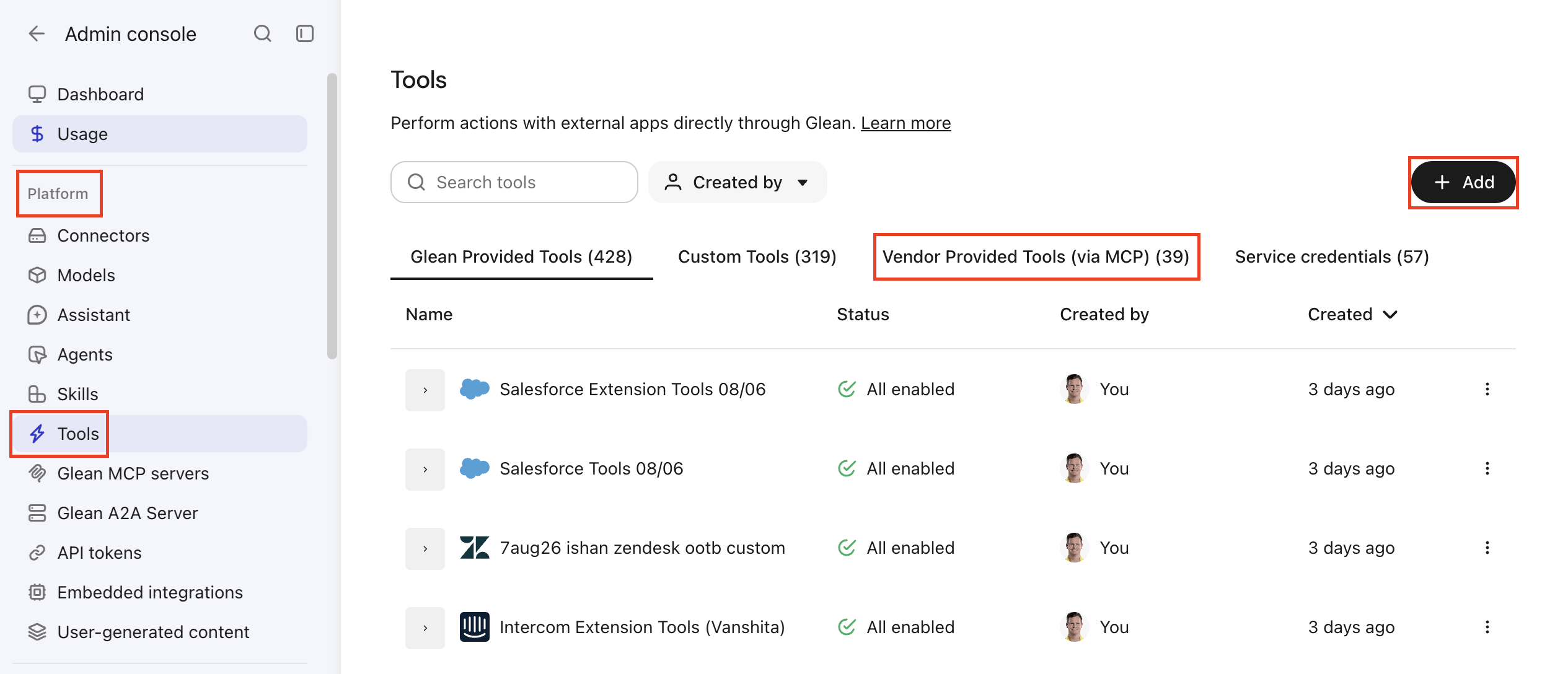
Open the Tools page
- In Glean, open the Admin console.
- Go to Platform → Tools.
- Open the Vendor Provided Tools (via MCP) tab.
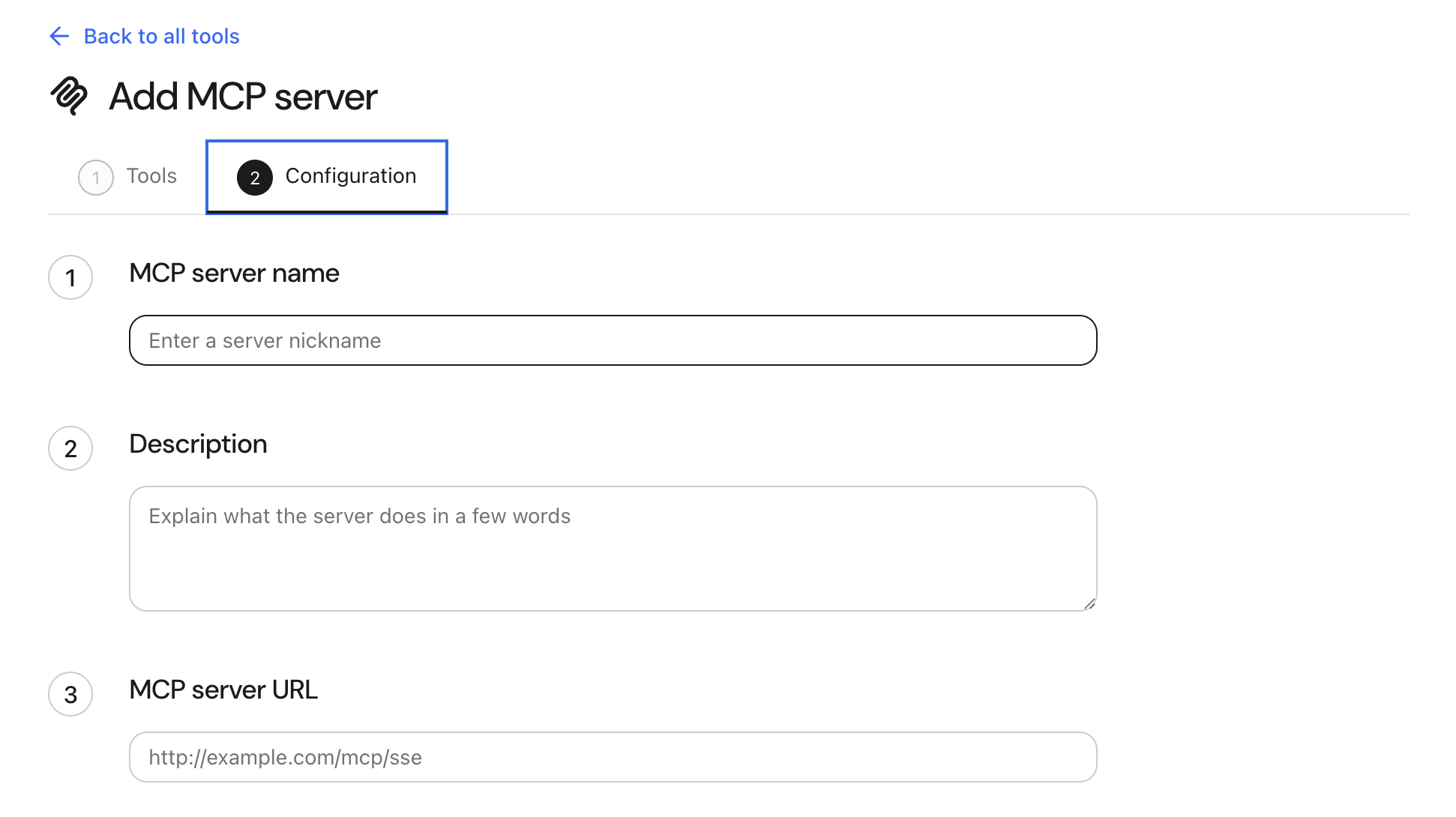
Add MCP tools
- Click Add.
- In the Add tools dialog, open the Vendor provided tools (via MCP) tab.
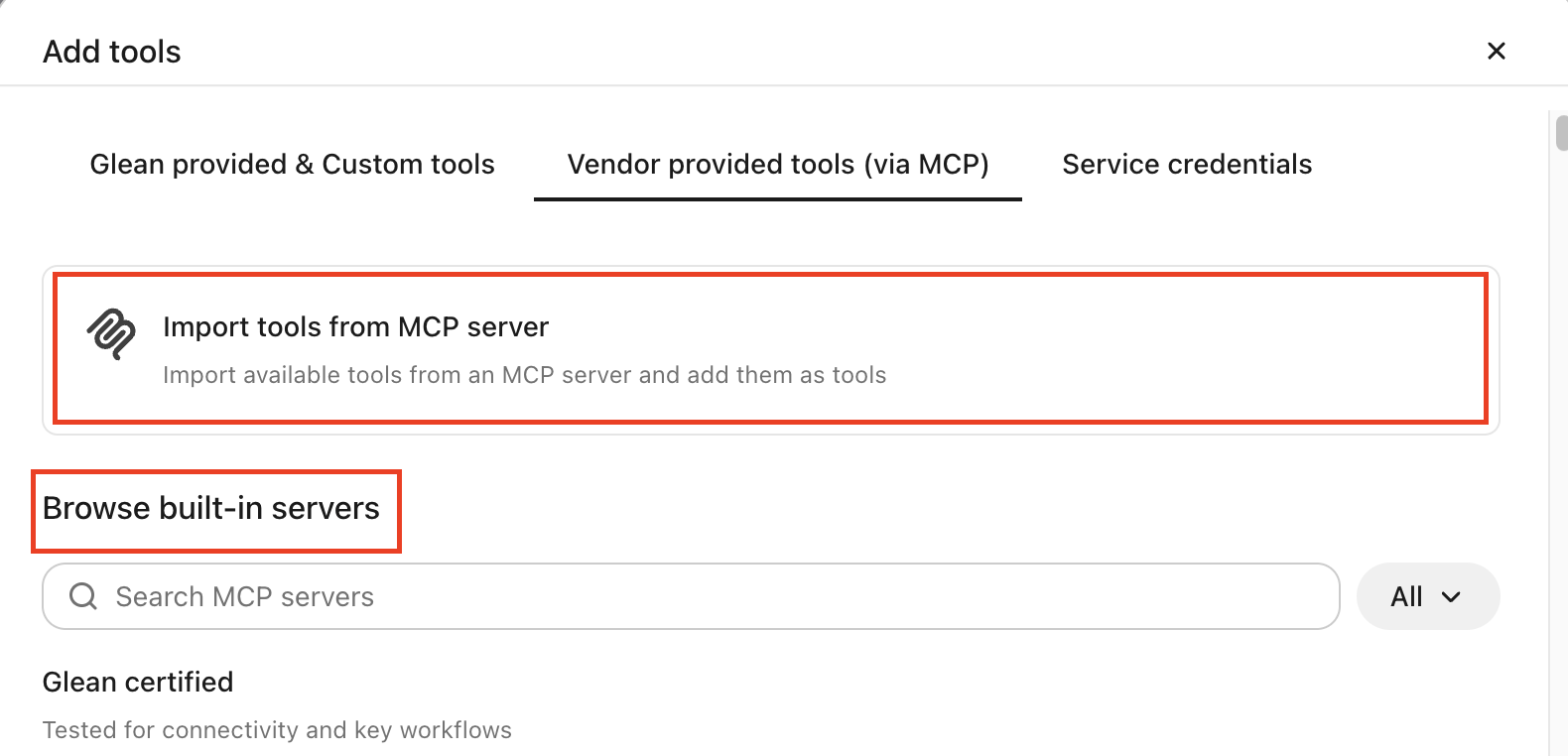
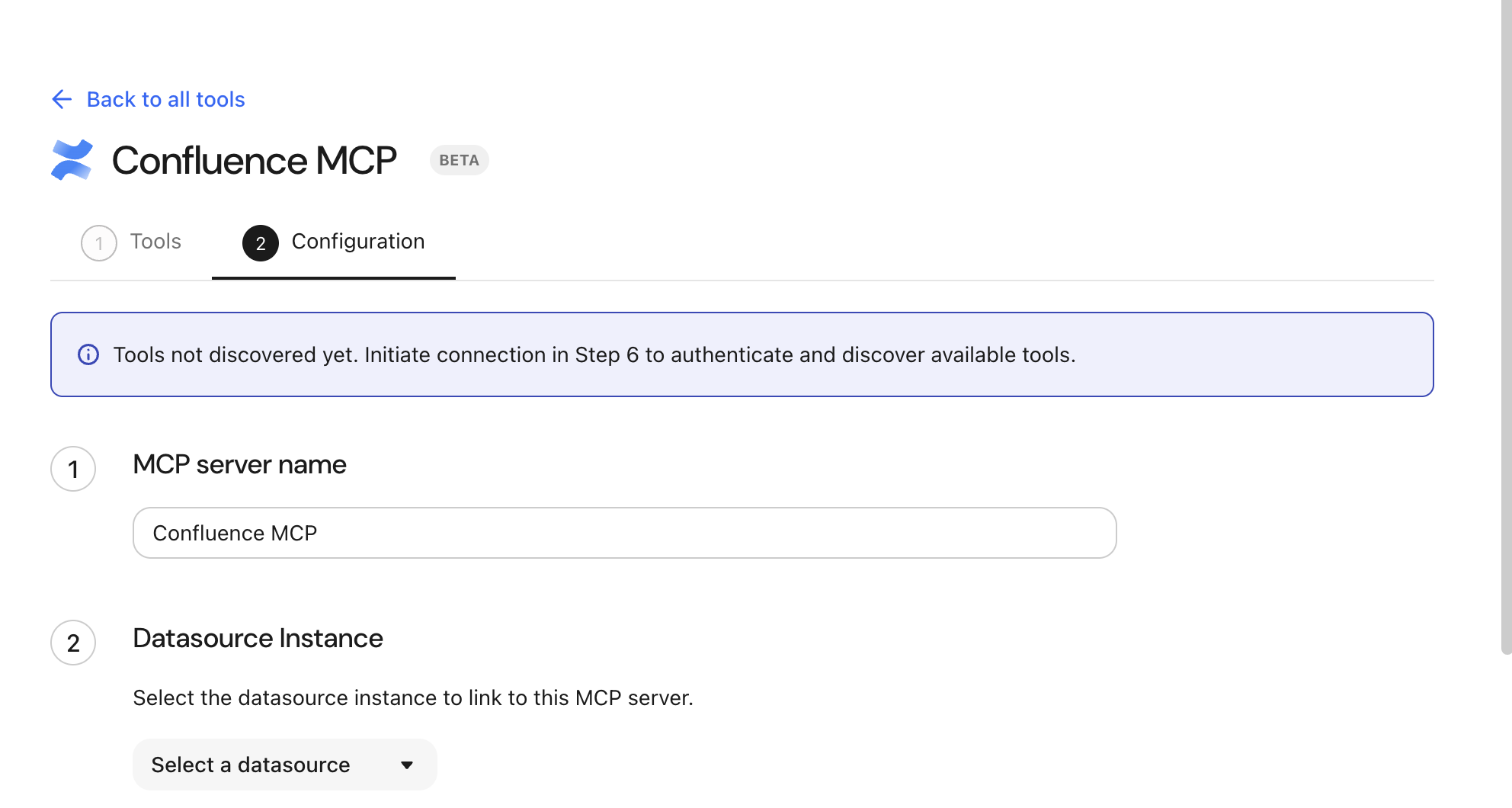
- Choose a Glean certified template under Browse built-in servers, or select Import tools from MCP server to connect a server from scratch.
Test the connection
Complete the following steps to validate that your MCP server is wired correctly:
From Agent Builder:
- Create a test agent.
- Add a Plan and execute step and use one of the available MCP servers.
- Run the agent with a sample query and confirm the MCP tool is invoked and returns expected output.
From Glean:
- Ask a query that should use the MCP tool (for example, “Use the [MCP tool name] tool to …”).
- Verify the assistant calls the tool and that results look correct.
If calls fail, check your internal MCP logs and any dedicated troubleshooting articles for MCP hosts, or contact your Glean account team.
Use MCP-backed tools in agents
After MCP tools are configured and published, agent creators can:
- Open Agent Builder and add MCP tools as steps in their workflows in the Plan + Execute step, just like any other tool.
- Chain MCP tools with other Glean tools, for example, use an MCP tool to fetch data, then pass results to another tool for summarization.
MCP servers are only available in Plan and execute steps and in autonomous agents. MCP servers are not available in single step selections.
You can set up access controls for MCP-backed tools in agents. Role‑based access ensures only approved creators can wire certain MCP tools into agents. End users running agents still experience permission‑aware behavior based on downstream app permissions and credentials. See Role-based access to tools for more information.
This lets you reuse your existing MCP capabilities inside complex, multi‑step agent workflows without duplicating integration logic.
Use MCP-backed tools in Assistant
If you publish MCP tools to Glean, users can invoke them using natural language, for example:
- “Use the [MCP server name] tool to run the monthly usage report for ACME.”
- “Ask the internal ticketing MCP server for open Sev-1 incidents this week.”
Glean chooses MCP tools similarly to other tools, based on the tool schema exposed by your MCP server and the user’s query and context.
All calls respect the underlying authentication and permissions defined by your MCP server and any downstream systems.
Security and hosting considerations for MCP servers
Note the following security and hosting considerations for MCP servers:
- Any model provider: Glean as an MCP host is compatible with any MCP‑compliant server regardless of which LLM or provider it uses internally.
- Customer‑hosted servers: You control where the MCP server runs (cloud, on‑prem, or VPC). Glean only needs network access to the server endpoint (directly or via an allowlisted proxy).
Best practices
- Least‑privilege OAuth: Use the smallest necessary scopes when configuring OAuth. Rotate client secrets according to your internal policies.
- Auditing and observability: Use your MCP server’s logs to monitor tool invocations and troubleshoot failures. Use Glean’s existing audit and insights capabilities to understand Glean Assistant and Glean Agents usage patterns where relevant.
- Start with a narrow server: Begin with a small set of high‑value tools so that LLMs can reliably pick the right tool.
- Align naming with jobs-to-be-done: Name MCP tools after clear outcomes, for example, “Run billing report”, “Lookup internal user” to improve tool selection.
- Coordinate with Glean SEs for VPC setups: Involve your Glean Solutions Engineer early when you plan to expose MCP servers from private networks, so they can help design and validate the allowlist/proxy configuration.