Microsoft 365 tools and extension tools setup
Microsoft 365 tools let you complete multi-step workflows without leaving Glean. You can export responses, analyze SharePoint Lists, update Excel workbooks, manage Outlook calendar events, or send Teams messages.
Use this page to configure Microsoft tool packs, their connector associations, and user OAuth. It covers permissions, admin consent, and verification. For available capabilities, see Microsoft 365 tools.
The following setup instructions apply to:
-
Microsoft 365 tools
-
Microsoft SharePoint Extension Tools, Microsoft Teams tools, Microsoft Excel tools, and Microsoft Outlook tools
Prerequisites
- You are a Glean admin with access to the Admin console and the Tools page in Glean.
- Configure the connector instance required by the tool pack. For native PowerPoint and Excel artifact exports, use the OneDrive or SharePoint connector instance for the destination.
- Your Microsoft 365 tenant allows registration and configuration of applications in Microsoft Entra ID (Azure AD), and you or a collaborating Microsoft 365 admin can:
- Register a new app.
- Create and manage client secrets.
- Configure delegated API permissions.
- Configure redirect URIs and tenant-wide consent for enterprise applications.
- If you plan to use the Central OAuth option, your tenant can authorize the default Glean OAuth app when users or admins are prompted to connect the tool.
- If you plan to use a Custom OAuth app:
- You know or can obtain your Tenant ID.
- You can configure the tenant specific authorization and token URLs.
- You can grant admin consent for the app in Enterprise applications after saving the configuration in Glean.
Setup instructions
Use these steps to add a Microsoft tool pack manually:
-
In Glean, go to the Admin console → Platform → Tools.
-
Click Add.
-
Under Add pre-set tools, select the tool pack you need:
- Microsoft SharePoint Extension Tools for SharePoint List analysis, site pages, and document library operations.
- Microsoft 365 Tools for creating Word documents and Excel spreadsheets, and uploading generated PowerPoint and Excel artifacts.
- Microsoft Teams tools, Microsoft Excel tools, or Microsoft Outlook tools for app-specific operations.
-
In the Configuration tab:
- Add the Instance Name.
- Under Datasource Instance, select the connector instance the tools will use. For native artifact exports, select the OneDrive or SharePoint instance that matches the destination.
- Configure authentication using the tabs below. Microsoft tools use user OAuth and apply the signed-in user's permissions. You can use a central Glean-managed app (recommended where available) or configure a custom OAuth app in the Microsoft Entra admin center.
- Central authentication (Recommended)
- Custom authentication
Use the central option if:
- Your organization is Glean‑hosted, and
- Central apps are available for Microsoft 365 in your environment.
Steps:
- Select Central under the Authenticate section on the Microsoft 365 Tools setup page.
- Click Save.
End users are prompted to connect their Microsoft 365 account the first time they run a tool, and tokens are managed centrally thereafter.
Use the custom option if:
- The central Microsoft 365 OAuth option is not available in your environment, or
- Your security model requires a customer-owned Microsoft 365 OAuth app.
tipIf you're switching an existing tool from central OAuth to custom OAuth, the recommended scopes stay pre-filled. Review them before saving and adjust only if your Microsoft app registration requires a different set.
Steps:
To set up OAuth for tools, follow these steps:
Step 1: Create a new OAuth app
- Navigate to the Microsoft Entra admin center.
- Go to App registrations under Entra ID and click New registration.
- Add Name.
- Select Accounts in this organizational directory only (Single tenant).
noteUse a single-tenant app for new custom OAuth configurations. If an existing Microsoft extension tool uses a multitenant app restricted to your tenant, no migration is required. The existing app continues to work, and you can switch it to single-tenant later.
After you register the app:
- Use your tenant-specific authorization and token URLs in Glean.
- Grant admin consent for the app in your tenant before asking users to connect. For more information, see One-time admin connection for Microsoft 365 extension tools.
- Leave Redirect URI field blank.
- Click Register to register the app.
- Copy the Application (client) ID.
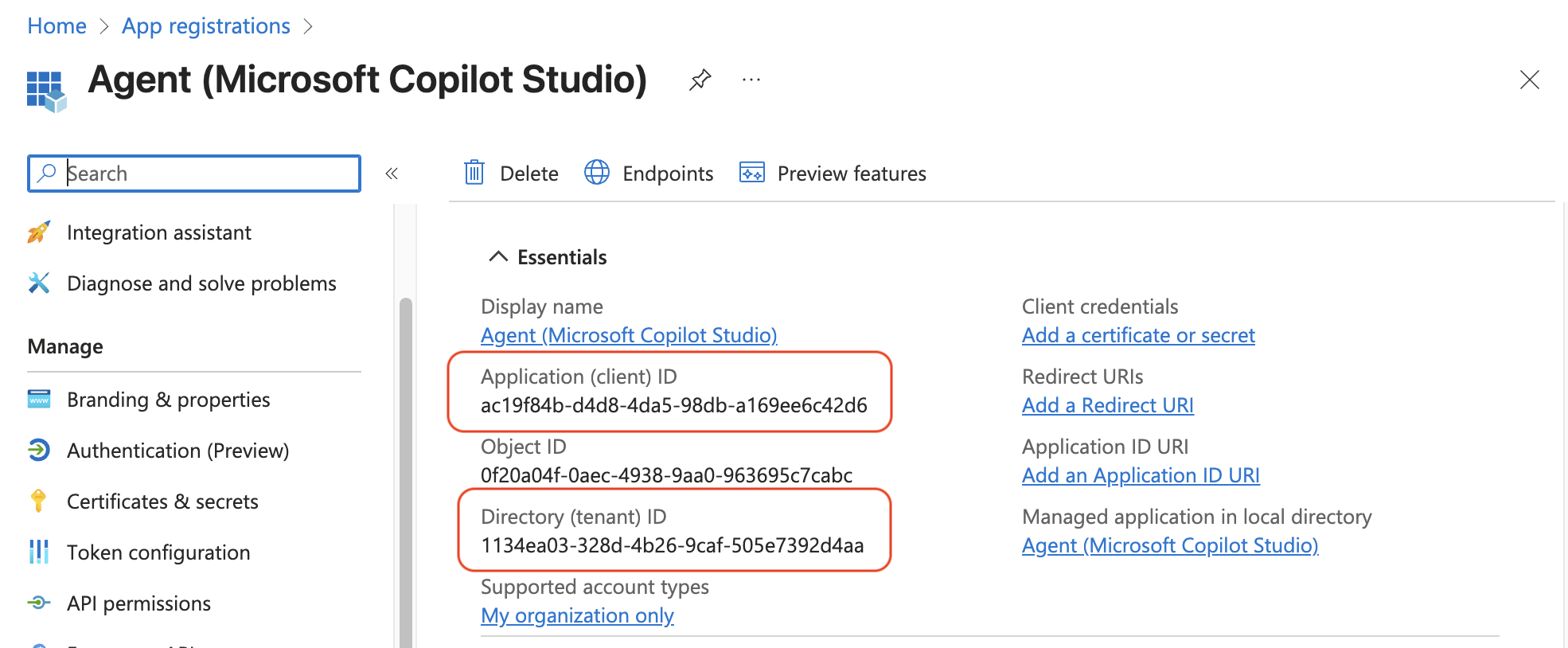
- Copy the Directory (tenant) ID.
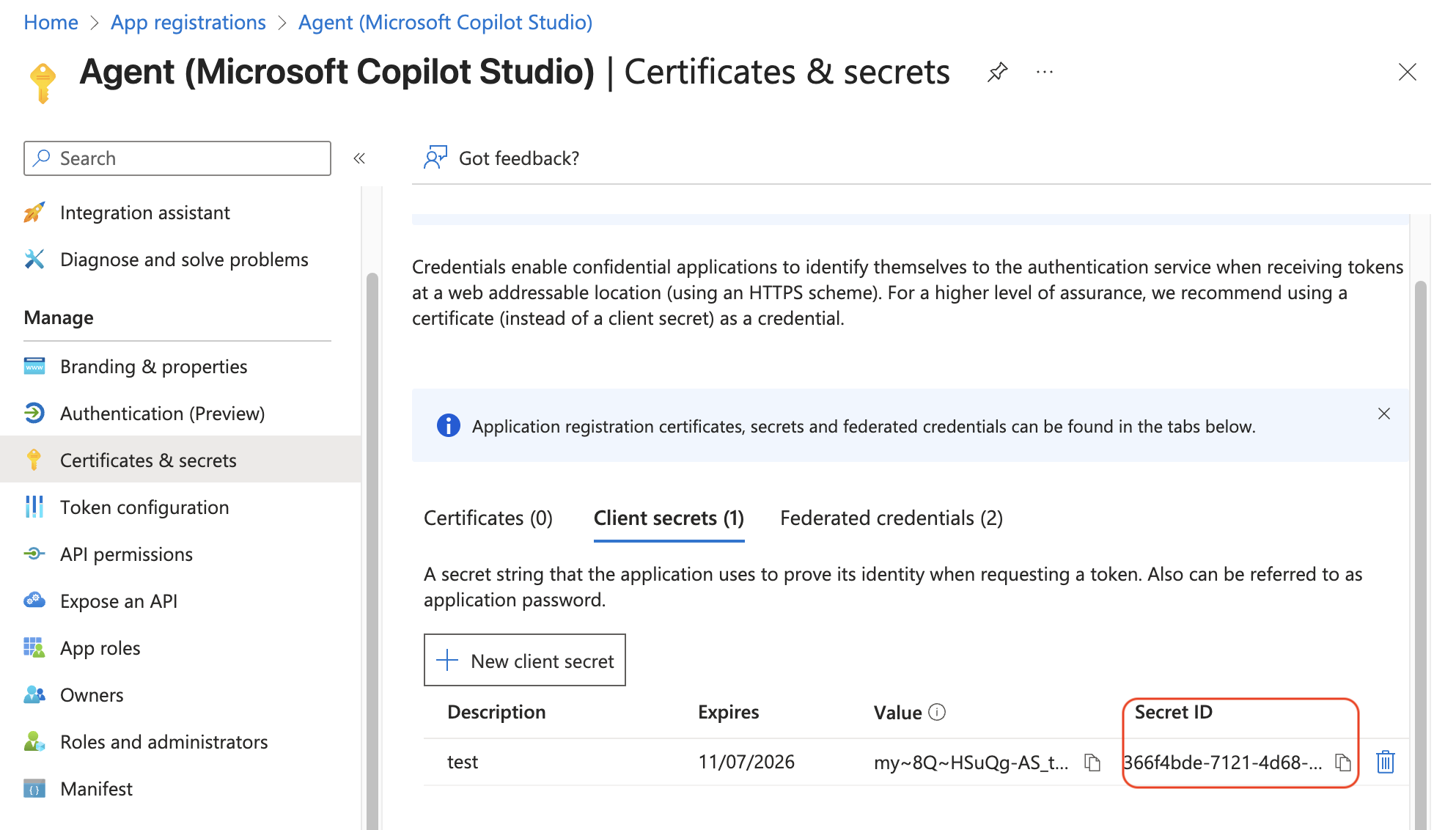
- Go to Certificates & secrets, create a new client secret, and copy the client secret value. The client secret value is shown only when you create the secret. Save it immediately, because you cannot view it again later.
Step 2: Set permissions
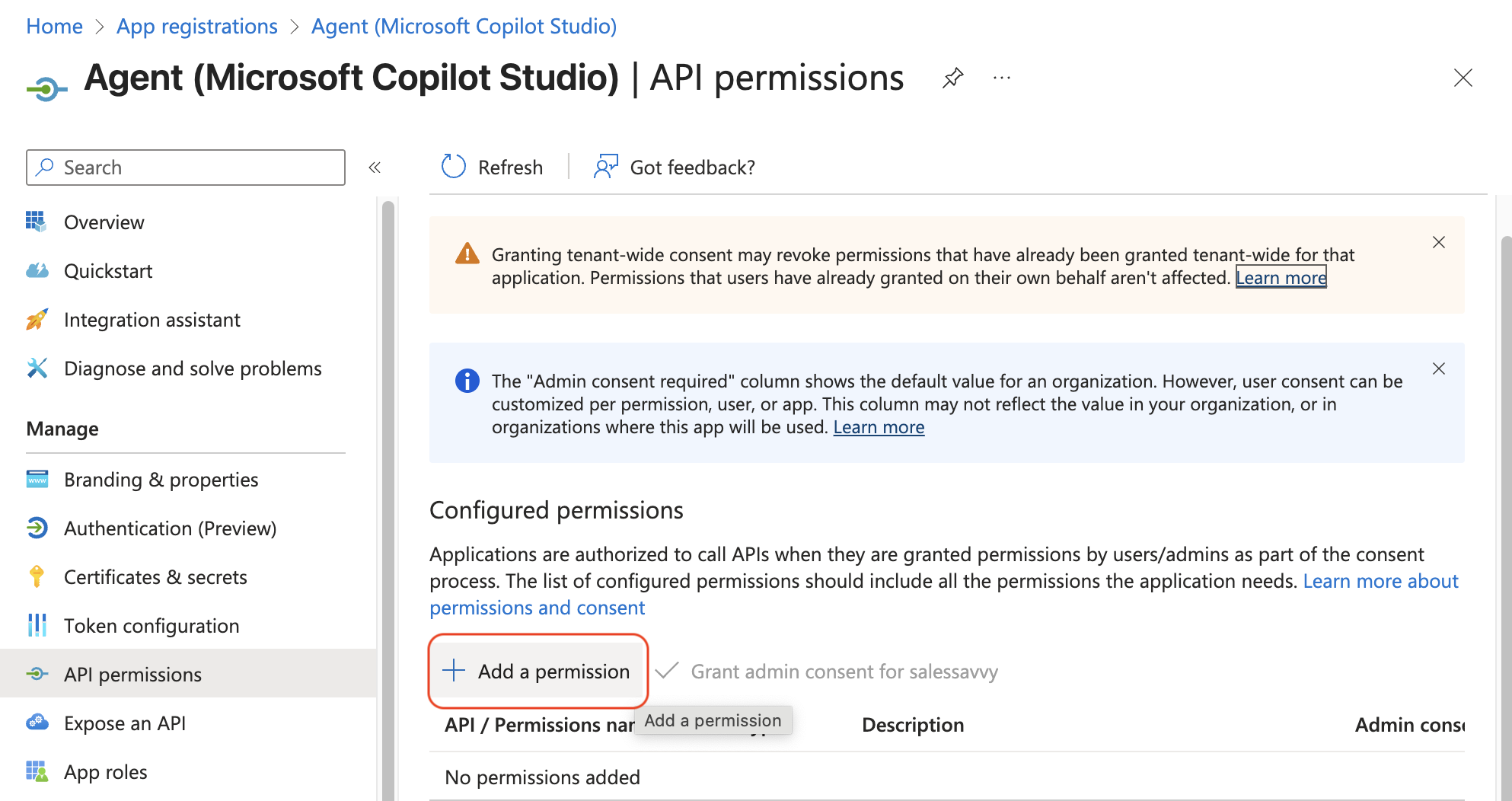
- Navigate to API permissions under Manage, select the API.
- Select Delegated permissions.
- Add scopes in the Select permissions field. These scopes are available in the Microsoft 365 tools configuration page on the Glean Admin console.
- Click Add permissions.
Step 3: Fill the client ID and client secret
- Navigate to Microsoft 365 tools or to the Microsoft Excel extension tools configuration page (based on what you are configuring for) on the Glean Admin console.
- Select custom under the Authenticate section.
- Add the Client ID and Client secret information. For Client secret, paste the client secret value copied earlier, not the client secret ID.
- Paste the following values for Authorization and Token URL fields. Ensure to replace <tenant_id> with the Tenant ID that was copied earlier:
- Authorization url:
https://login.microsoftonline.com/<tenant_id>/oauth2/v2.0/authorize - Token url:
https://login.microsoftonline.com/<tenant_id>/oauth2/v2.0/token
- Click Save.
- Copy the Callback URL.
Step 4: Configure the callback URL in your OAuth App
- Go to the Authentication tab of your app configuration on the Microsoft Entra admin center.
- Click Add Redirect URI under Redirect URI configuration.
- Select Web and paste the callback URL into the Redirect URI field.
- Click Configure.
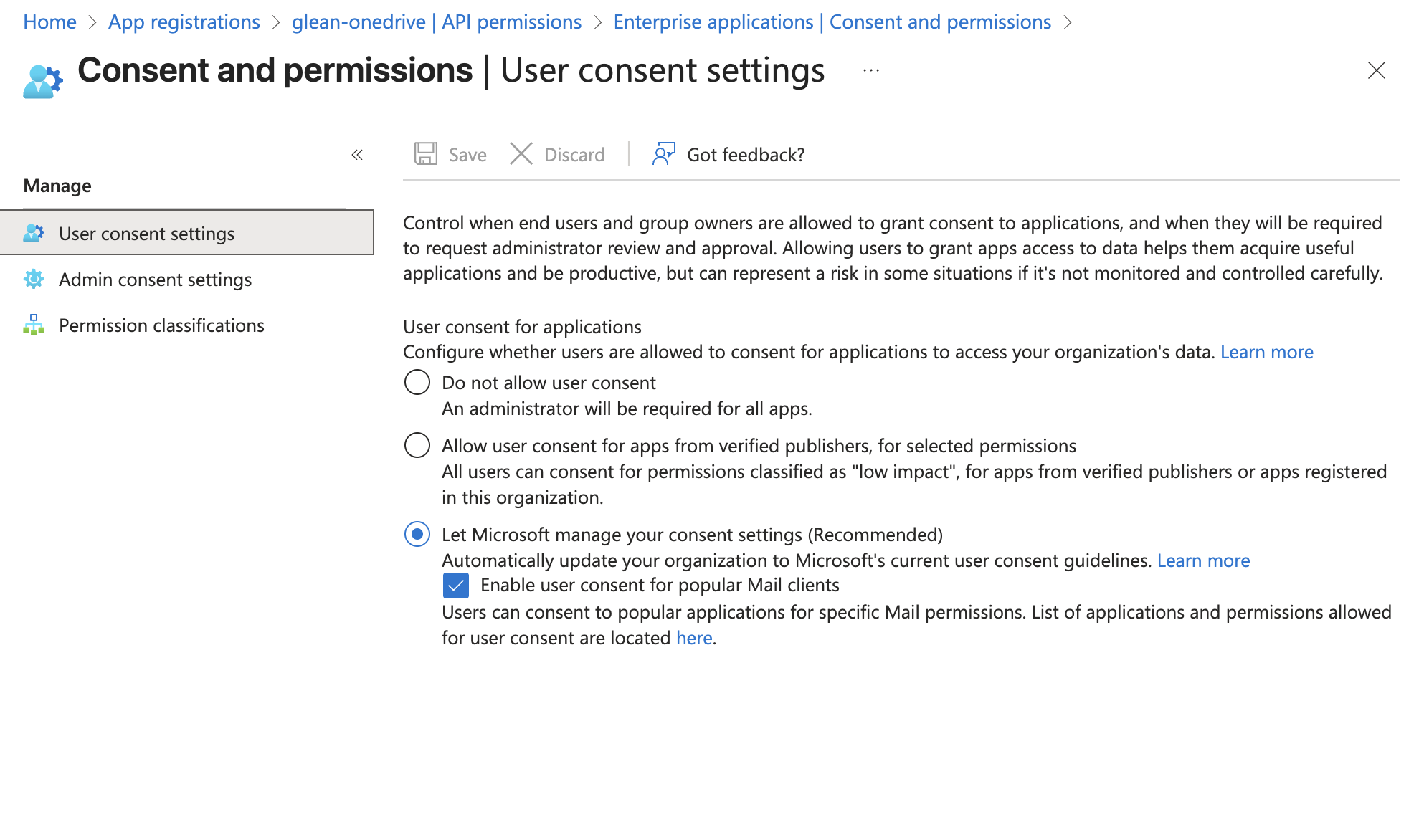
Step 5 (Optional): Set consent and permissions
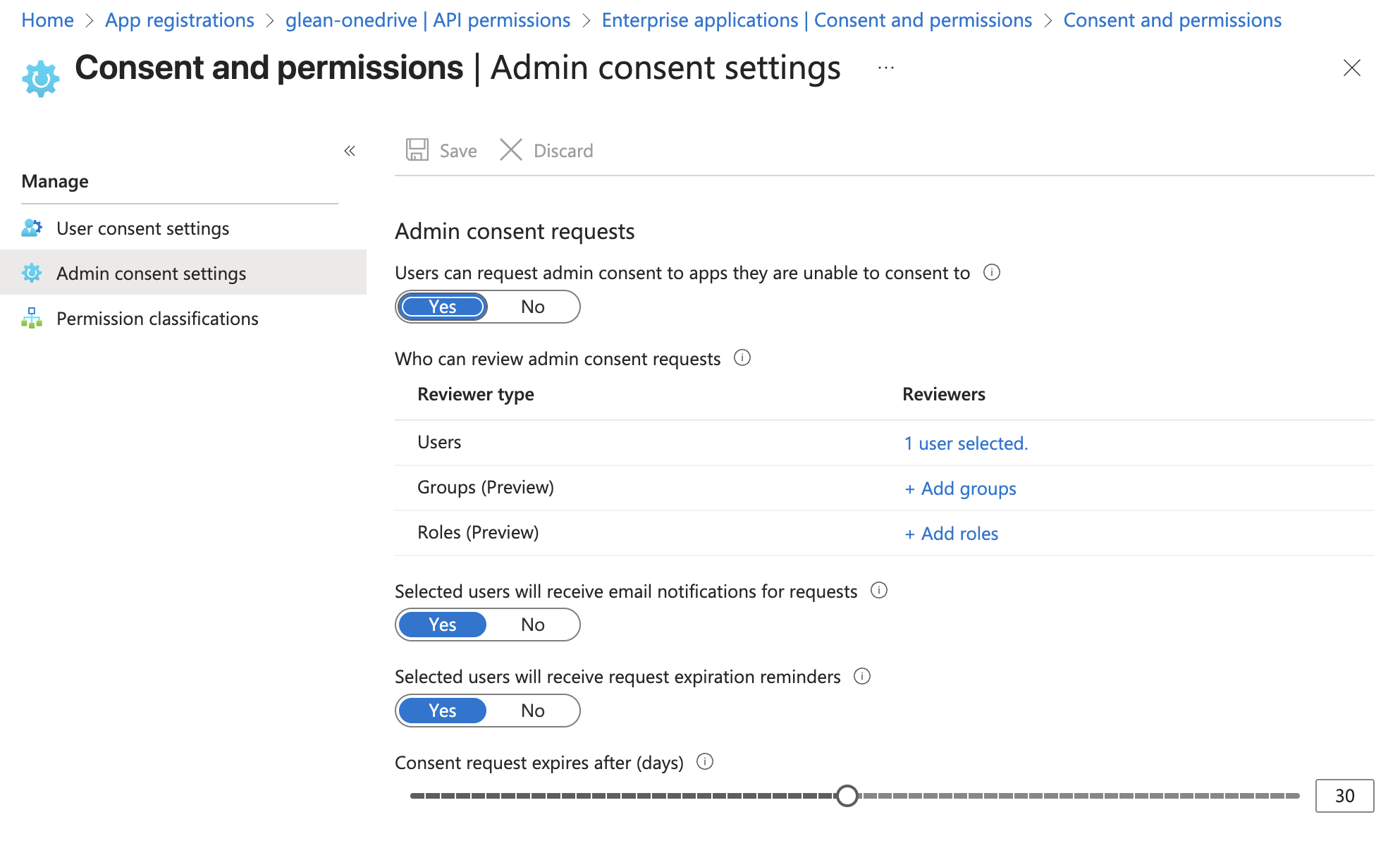
- Navigate to Enterprise apps under Entra ID in the Microsoft Entra admin console.
- Click Consent and permissions under Security.
- If you want admins to allow consent for organization, click Admin consent settings and choose the first option.
- If you want to add user consent settings, click User consent settings and choose the third option:
- For users to be able to consent individually the first time they use, choose the third option.
- If you want users to be able to consent but only for selected permissions, select the second option and add the above permissions added for the app, otherwise some users might be able to consent for more scopes than configured in the app.
 When the user/admin authenticates, you can see them along with the granted permissions on this page.
Configure presentation and spreadsheet exports
The artifact export menu uses the native upload tool in Microsoft 365 Tools. A general-purpose file-upload tool in an extension pack isn't a substitute.
Check the configured tool pack for each destination you want to offer. If connector setup already created the pack, update that pack rather than adding a duplicate. To offer both export destinations, configure a pack for a OneDrive instance and a pack for a SharePoint instance.
The connector association determines which export option appears. The installed upload tool's title and description also change to match that connector:
| Export option | Connector association | Upload tool name |
|---|---|---|
| Export to OneDrive | A OneDrive connector instance | Upload a Glean artifact to OneDrive |
| Export to SharePoint | A SharePoint connector instance | Upload a Glean artifact to SharePoint |
Make the upload tool available for use by agents and by the users who need exports. Users authorize the tool with their own Microsoft account, and their Microsoft permissions govern uploads. Indexing credentials don't replace this user authorization.
For custom OAuth, configure the delegated permissions requested by the native upload tool: Files.ReadWrite.All, Sites.ReadWrite.All, offline_access, User.Read, and openid. Grant admin consent as required by your tenant. Keep any additional permissions used by other tools in the pack. The generic scope lists in this guide don't replace the upload tool's requested scopes.
SharePoint export needs both the native upload tool and destination lookup tools. Relevant integrations include:
- SharePoint MCP for resolving a SharePoint site URL
- Microsoft SharePoint Graph Extension Actions for listing folder contents or resolving a sharing URL
A destination supplied by name also needs site and document-library lookups. The folder and sharing-URL lookup tools are in beta. Confirm tool availability for your setup with Glean Support, and check that the necessary tools are available and authorized for the intended users. The upload tool doesn't provide these lookups.
To verify the setup:
- Open a saved
.pptxor.xlsxartifact from chat or Library, then choose Export to OneDrive or Export to SharePoint from its export menu. - Sign in when prompted. After selecting Export to SharePoint, provide a destination name or link if Glean asks for one.
- Open the resulting file link and confirm that the file is in the intended location. OneDrive export uses the user's root folder. SharePoint uses the location you specify in chat.
If an export option is missing, check the artifact format, the pack's connector association, and the upload tool's availability to that user. See Export presentations and spreadsheets for file limits and upload behavior.
Scopes for other Microsoft apps
If you want to integrate with other Microsoft services, you can reuse the same Azure app. Add the required scopes in both Azure and Glean:
- OneDrive —
Files.ReadWrite.All,Sites.Read.All,offline_access - Teams —
Channel.Create,Channel.ReadBasic.All,ChannelMessage.Read.All,ChannelMessage.ReadWrite,ChannelMessage.Send,ChannelSettings.ReadWrite.All,Chat.Create,Chat.Read,Chat.ReadBasic,Chat.ReadWrite,Chat.ReadWrite.All,ChatMessage.Read,ChatMessage.Send,Directory.ReadWrite.All,Group.ReadWrite.All,offline_access,People.Read.All,Presence.ReadWrite,Team.Create,Team.ReadBasic.All,TeamMember.ReadWrite.All,TeamsActivity.Read,TeamsActivity.Send,User.Read,OnlineMeetings.ReadWrite - SharePoint —
Files.ReadWrite.All,Sites.Read.All,offline_access - Excel —
Files.ReadWrite,Sites.ReadWrite.All,offline_access,User.Read
After scopes are added, you can configure additional auth configs in Glean for each service.
Verification steps
Microsoft 365 tools
-
After you set up Microsoft 365 Tools, open Glean and export a response to Word or Excel. Choose Connect and sign in the first time. If an organizational policy blocks Connect, see Admin approval for using the tool.
-
In Glean, try prompts such as "Create a doc with …" or "Create a spreadsheet with …" and confirm Glean suggests the Microsoft 365 tools at the end of the response when they apply.
Microsoft 365 extension tools
-
After you configure an extension tool pack, open Agent builder and create a test agent that uses one of its tools. Run the agent before you make it available to other users.
-
Test an operation for the app you configured, such as counting SharePoint List items by status, posting a Teams message, updating an Excel workbook, or creating an Outlook calendar event.
-
For Microsoft Teams tools, post a channel message that mentions a user or team. Open the message in Teams and confirm the target appears as a mention instead of plain text.
For SharePoint List examples and Auto mode instructions, see SharePoint across Glean.
Admin approval for using the tool
Applies to Microsoft 365 Tools and to Microsoft Teams, Microsoft Excel, Microsoft Outlook, and Microsoft SharePoint extension tools. Extension tools may also need One-time admin connection for Microsoft 365 extension tools.
When using the tools for the first time, Glean prompts users to Connect and authorize the application.
Depending on your Microsoft Entra ID tenant policies, end users may be blocked until an administrator grants admin consent for the app. If a user sees a message that they must request approval from an admin when they choose Connect, a Microsoft 365 admin should complete Grant admin consent in Enterprise applications. This is a one-time step for the whole organization.
If users still see an Approval required screen after connector consent, an admin must:
- Open enterprise applications in the Microsoft Entra admin center.
- Locate the application that corresponds to your specific extension toolpack. Note that this is a separate enterprise application from the Microsoft 365 connector.
- Go to Security → Permissions and select Grant admin consent for the tenant.
Grant admin consent in Enterprise applications
- In the Azure portal, open Enterprise applications.
Central (Glean-managed) OAuth app
- Search for Glean, open the enterprise application, and go to the Permissions tab.
- Select Grant admin consent for Glean Technologies.
Custom OAuth app
- Search for your registered application name, open it, and go to the Permissions tab.
- Select Grant admin consent for your tenant (the exact label matches your directory name).
After admin consent is granted, users can usually connect without a separate admin approval step, unless other tenant policies still restrict consent.
One-time admin connection for Microsoft 365 extension tools
If you use Microsoft SharePoint, Microsoft Teams, Excel, or Outlook extension tools, a Glean admin must complete OAuth once after the tools are created so permissions are allowed for your environment:
- Create an autonomous agent.
- Add a workflow step that uses Microsoft SharePoint, Microsoft Teams, Excel, or Outlook.
- Choose Connect and sign in as an admin to authenticate and approve the requested permissions on behalf of users, as prompted.
Each Microsoft extension toolpack registers as a distinct enterprise application in your Microsoft Entra ID tenant:
- Microsoft SharePoint Extension Tools
- Microsoft Teams Extension Tools
- Microsoft Excel Extension Tools
- Microsoft Outlook Extension Tools
Admin consent is not shared across applications. Consenting to the primary Microsoft 365 connector or one extension toolpack does not grant consent to others.
To enable a toolpack, a Microsoft 365 administrator must either:
-
Grant admin consent directly on the specific enterprise application in Microsoft Entra ID of the tool pack, or
-
Complete the one-time Connect flow once for each enabled extension tool pack.
(Optional) Manage tenant restrictions for an existing multitenant app
Existing multitenant custom OAuth apps continue to work and do not require migration. If you keep an existing multitenant app, restrict access to your organization or other approved tenants:
- Go to the Azure portal.
- Click App registrations.
- Select your existing multitenant app registration.
- In Supported account types, select Multiple Entra ID tenants and Allow only certain tenants (Preview).
note
Select Allow all tenants to permit authentication from any Microsoft organization. Only enable this option if your application is intended for public use.
- Click Manage allowed tenants.
- Click Add and add the tenant ID or domain name of each organization you want to allow.
- Click Apply.
You can find the tenant ID details on the Overview page of Microsoft Azure portal. Go to the Microsoft Azure homepage → Microsoft Entra ID.
See also
-
Setup and integration
-
Available Microsoft tools