Set up redirect tools
Use the Redirect URL Builder to create redirect tools that send users from Glean to a specific destination URL, with path and query parameters filled in from the user's query. Redirect tools let Glean Assistant and agents deep link into other applications without leaving the flow of work.
With this setup, you can:
- Create a redirect tool from the Redirect URL Builder template using Add
- Map URL path and query parameters to fixed or LLM-selected values
- Preview and test the generated redirect URL before you publish the tool
Redirect tools require human-in-the-loop confirmation by default. Before a redirect tool runs, the user must review and confirm it. To learn more, see Human-in-the-loop experience for tools.
Prerequisites
Before creating a redirect tool:
- You must be able to access the Glean Admin console
- You have the destination URL, including the path and query parameters you want to populate
Setup instructions
- Navigate to Admin console → Platform → Tools.
- Click Add.
- Select Redirect URL Builder.
- Complete Basic info and Trigger condition. Describe when Glean should run the tool in enough detail to distinguish it from other tools.
- Under Functionality, click Customize the Redirect URL Builder template.
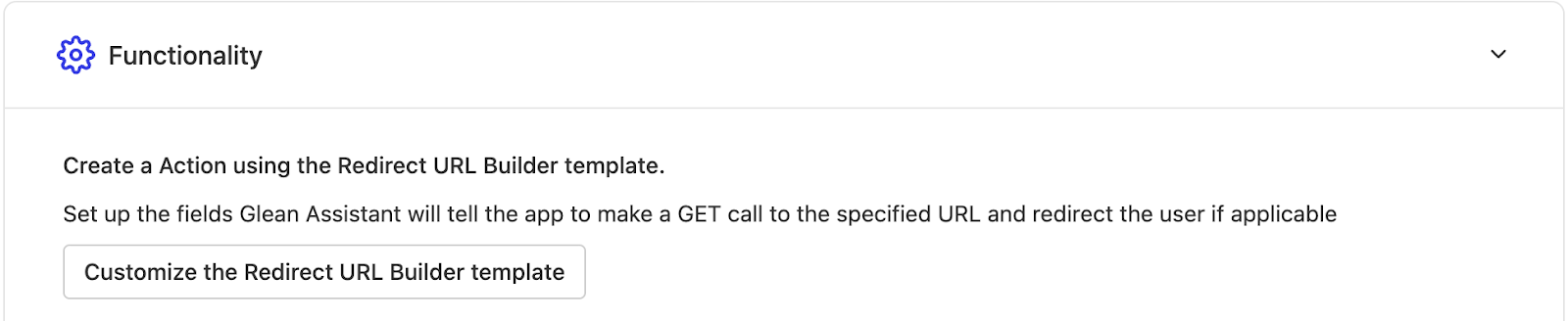
Configure the URL and parameters
Enter the destination in Target URL. Glean detects its path and query parameters and adds them to the parameter table.
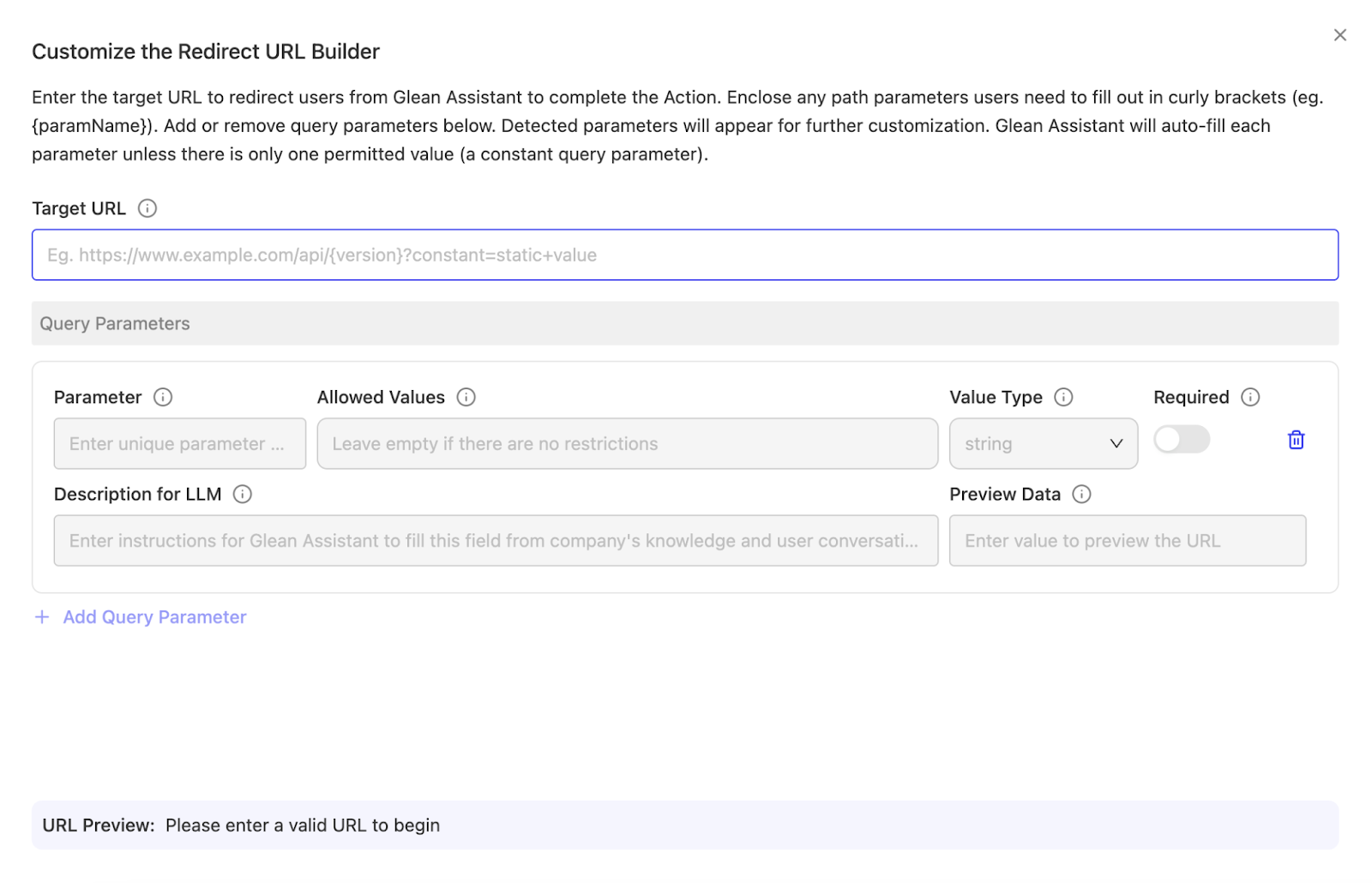
For each parameter, configure Allowed values:
- Enter one value to make it constant
- Enter multiple values to let Glean select a value based on the user's request and Description for LLM
- Leave the field empty to let Glean enter any value
Use Description for LLM to explain how Glean should determine the parameter value. To test the resulting URL, enter a sample value in Preview data for each parameter and review URL preview.
See also
- Learn how users confirm tools before they run: Human-in-the-loop experience for tools
- Build agents that use tools: Agent Builder