Web Search tools setup
Glean combines company knowledge, web knowledge, and LLM knowledge in All Knowledge mode, and can use web search to bring real-time internet information into responses. This capability is available in Glean Assistant and Glean Agents.
Web Search in Assistant
If web search is enabled by an administrator, Glean uses All Knowledge mode by default and automatically selects the most relevant sources for each question. You can control the sources for a specific query from the chat box by turning Search the web or Use company sources on or off.
Examples of requests that trigger a Web Search are:
- What was Glean's most recent funding round?
- What is the latest AI news?
- What are the 2025 trends for the financial services sector?
- Provide an overview of the most recent earnings report.
Web Search in Agents
Agent builders can add the Web Search tool to an agent step, so agents can combine company knowledge with real-time web information.
Set up Web Search tools
Admins can add one or more web search tools in Admin console → Platform → Tools. After you publish a tool, you can use it in chat, agents, or both.
Prerequisites
Before you set up web search, make sure you:
-
Have access to Admin console → Platform → Tools.
-
Know which provider you want to use: OpenAI, Brave, or Google Gemini.
-
Have any provider-specific credentials ready if you plan to use your own key.
OpenAI tools
Use this option to configure web search through OpenAI.
- In Admin console, go to Platform → Tools.
- Select Glean Provided Tools and click Add.
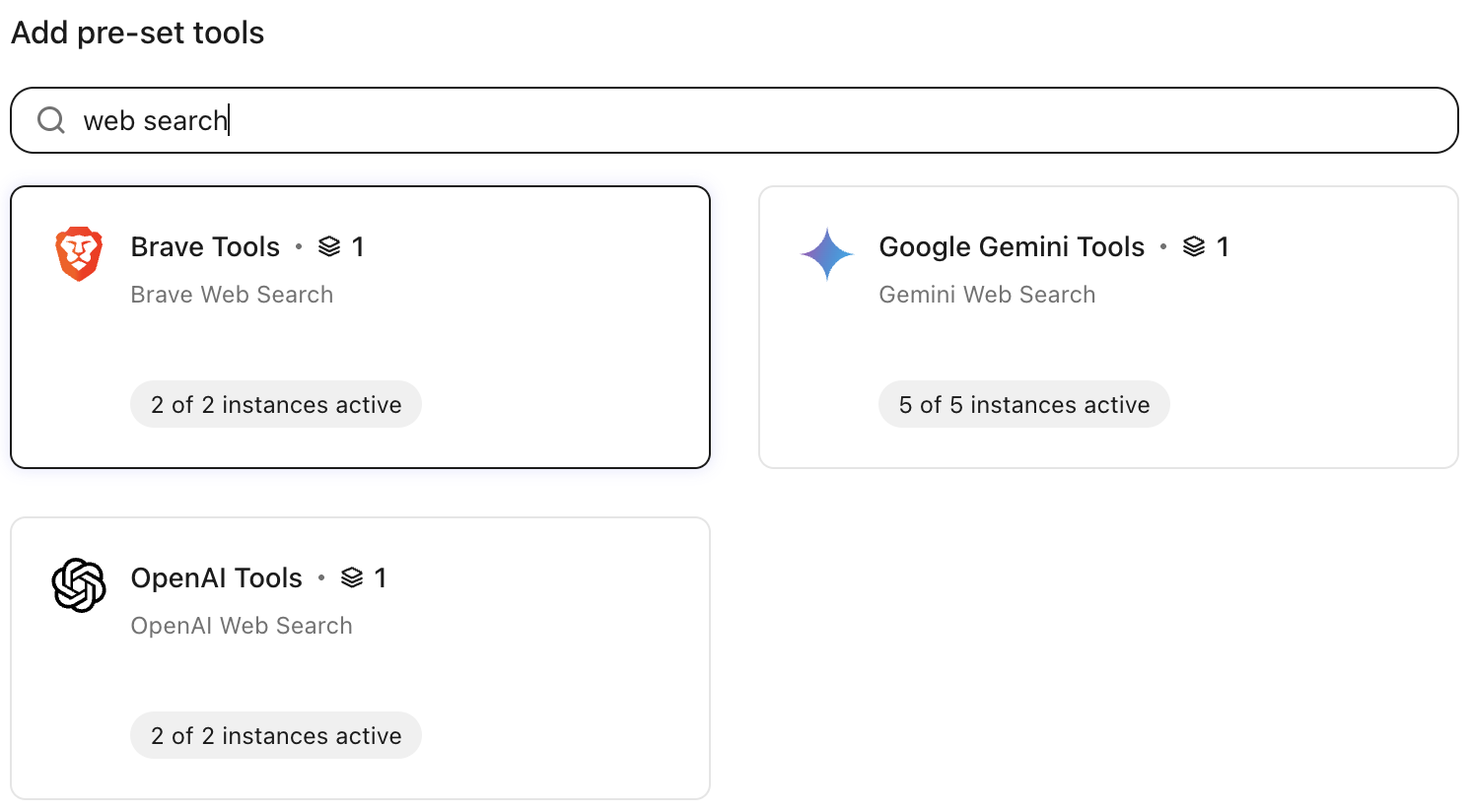
- Under Add pre-set tools, search and select OpenAI tools.
- Under the Configuration tab, enter an instance name, such as OpenAI Web Search.
- Enter the OpenAI organization ID.
- Under Authentication, choose whether to use a Glean's API key or Your own API key.
- If you use your own key, enter the required OpenAI credentials, including the Organization ID and OpenAI API key.
- Click Edit settings under Enable tools and choose whether to publish the tool to chat, agents, Glean MCP server or all.
- Click Save.
Brave tools
Use this option to configure web search through Brave.
- In Admin console, go to Platform → Tools.
- Select Glean Provided Tools and click Add.
- Under Add pre-set tools, search and select Brave tools.
- Under the Configuration tab, enter an instance name, such as Brave Web Search.
- Click Edit settings under Enable tools and choose whether to publish the tool to chat, agents, Glean MCP server or all.
- Click Save.
Google Gemini tools
Use this option to configure web search through Google Gemini.
- In Admin console, go to Platform → Tools.
- Select Glean Provided Tools and click Add.
- Under Add pre-set tools, search and select Google Gemini tools.
- Under the Configuration tab, enter an instance name, such as Google Gemini Web Search.
- Select a Gemini search tool:
- Google consumer search: Uses public web results and is a better fit when you need broader or more up-to-date information. For more information see, Grounding with Google search. You can use this option, when freshness and breadth of public web results matter most.
- Google enterprise search: Designed for regulated use cases that need additional compliance controls. For more information see, Web grounding enterprise. You can use this option, when you need stronger compliance controls for regulated use cases.
- Click Edit settings under Enable tools and choose whether to publish the tool to chat, agents, Glean MCP server or all.
- Click Save.