# Web Search tools setup
Glean combines company knowledge, web knowledge, and LLM knowledge in All Knowledge mode, and can use web search to bring real-time internet information into responses. This capability is available in Glean Assistant and Glean Agents.
## Web Search in Assistant[](#web-search-in-assistant "Direct link to Web Search in Assistant")
If web search is enabled by an administrator, Glean uses *All Knowledge* mode by default and automatically selects the most relevant sources for each question. You can control the sources for a specific query from the chat box by turning **Search the web** or **Use company sources** on or off.
Examples of requests that trigger a Web Search are:
* What was Glean's most recent funding round?
* What is the latest AI news?
* What are the 2025 trends for the financial services sector?
* Provide an overview of the most recent earnings report.
## Web Search in Agents[](#web-search-in-agents "Direct link to Web Search in Agents")
Agent builders can add the Web Search tool to an agent step, so agents can combine company knowledge with real-time web information.
## Set up Web Search tools[](#set-up-web-search-tools "Direct link to Set up Web Search tools")
Admins can add one or more web search tools in **Admin console → Platform → Tools**. After you publish a tool, you can use it in chat, agents, or both.
### Prerequisites[](#prerequisites "Direct link to Prerequisites")
Before you set up web search, make sure you:
* Have access to **Admin console → Platform → Tools**.
* Know which provider you want to use: **OpenAI**, **Brave**, or **Google Gemini**.
* Have any provider-specific credentials ready if you plan to use your own key.
### OpenAI tools[](#openai-tools "Direct link to OpenAI tools")
Use this option to configure web search through OpenAI.
1. In **Admin console**, go to **Platform → Tools**.
2. Select **Glean Provided Tools** and click **Add**.
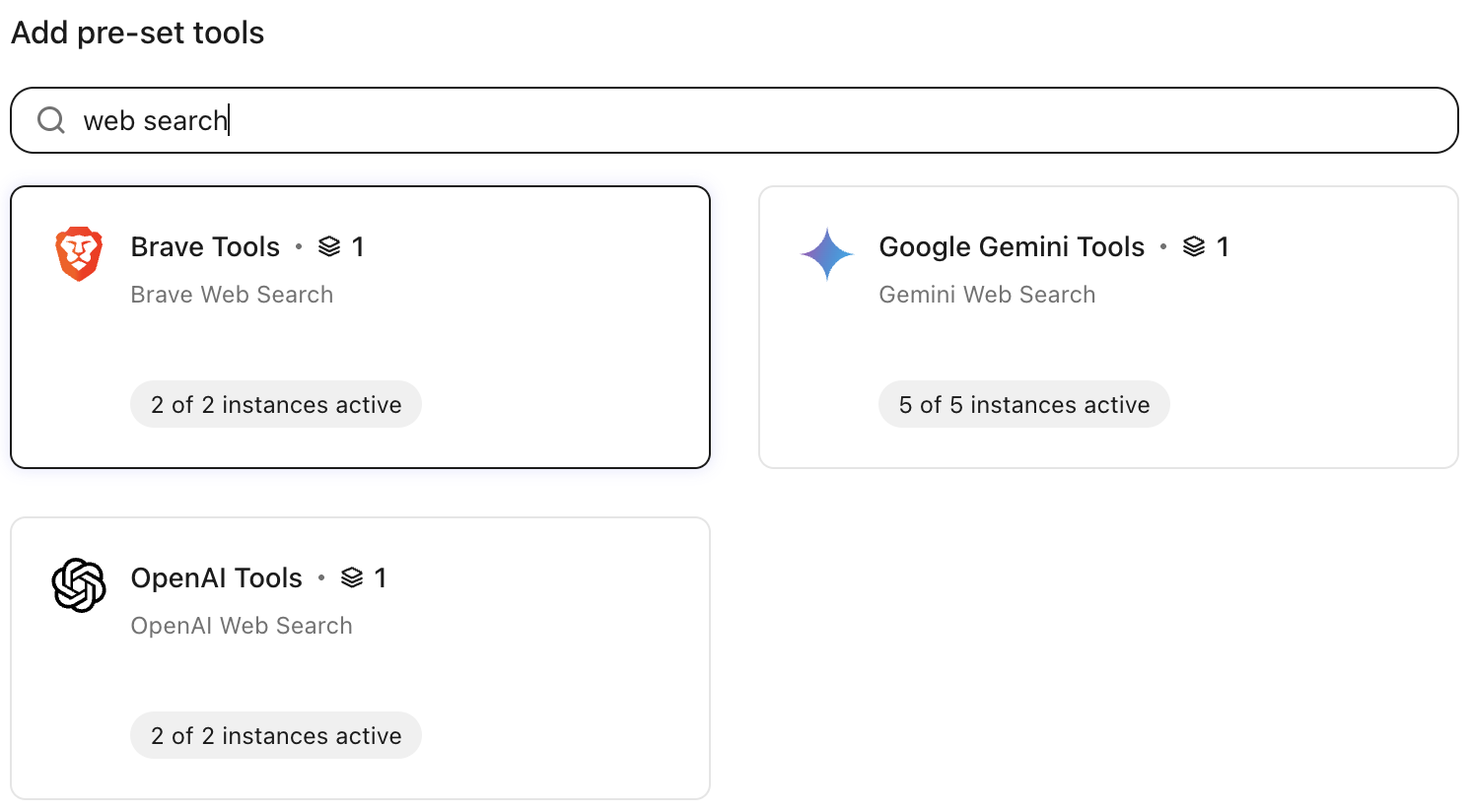
3. Under **Add pre-set tools**, search and select **OpenAI tools**.
4. Under the **Configuration** tab, enter an **instance name**, such as **OpenAI Web Search**.
5. Enter the **OpenAI organization ID**.
6. Under **Authentication**, choose whether to use a **Glean's API key** or **Your own API key**.
7. If you use your own key, enter the required OpenAI credentials, including the **Organization ID** and **OpenAI API key**.
8. Click **Edit settings** under **Enable tools** and choose whether to publish the tool to **chat**, **agents**, **Glean MCP server** or all.
9. Click **Save**.
### Brave tools[](#brave-tools "Direct link to Brave tools")
Use this option to configure web search through Brave.
1. In **Admin console**, go to **Platform → Tools**.
2. Select **Glean Provided Tools** and click **Add**.
3. Under **Add pre-set tools**, search and select **Brave tools**.
4. Under the **Configuration** tab, enter an **instance name**, such as **Brave Web Search**.
5. Click **Edit settings** under **Enable tools** and choose whether to publish the tool to **chat**, **agents**, **Glean MCP server** or all.
6. Click **Save**.
### Google Gemini tools[](#google-gemini-tools "Direct link to Google Gemini tools")
Use this option to configure web search through Google Gemini.
1. In **Admin console**, go to **Platform → Tools**.
2. Select **Glean Provided Tools** and click **Add**.
3. Under **Add pre-set tools**, search and select **Google Gemini tools**.
4. Under the **Configuration** tab, enter an **instance name**, such as **Google Gemini Web Search**.
5. Select a Gemini search tool:
* **Google consumer search**: Uses public web results and is a better fit when you need broader or more up-to-date information. For more information see, [Grounding with Google search](https://cloud.google.com/vertex-ai/generative-ai/docs/grounding/grounding-with-google-search). You can use this option, when freshness and breadth of public web results matter most.
* **Google enterprise search**: Designed for regulated use cases that need additional compliance controls. For more information see, [Web grounding enterprise](https://cloud.google.com/vertex-ai/generative-ai/docs/grounding/web-grounding-enterprise). You can use this option, when you need stronger compliance controls for regulated use cases.
6. Click **Edit settings** under **Enable tools** and choose whether to publish the tool to **chat**, **agents**, **Glean MCP server** or all.
7. Click **Save**.
## FAQ[](#faq "Direct link to FAQ")
### What is the recommended web search provider for each cloud provider?
We recommend that you use OpenAI with any cloud provider and Gemini search within the Google Cloud family.
### How should I compare the performance of Google enterprise search versus consumer search?
Google Enterprise Search is the only web provider currently supported by Glean with zero data retention, though it has a slightly longer content refresh delay—typically every few hours. If you are latency sensitive, running searches or agents that examine the most recent industry news, then we recommend using Google consumer search.
### What data is sent to a web search provider? What data is retained by a web search provider?
When a user submits a query, we construct a corresponding web search query and include the user's work location to personalize the search results based on their location. Glean does not log any of the information sent to or received from the web search provider.
* For OpenAI
Zero Data Retention is turned on and data sent to the OpenAI API is not used to train or improve OpenAI models.
* For Brave
Zero Data Retention is turned on and data sent to the Brave API is not used to train or improve Brave models.
* For Google Gemini
Data sent to Google will not be used to train or fine-tune any AI/ML models
If the consumer search option is chosen Google stores the web search query and contextual information sent to it (that is, the user’s work location) for thirty (30) days for (1) purposes of creating Grounded Results and Search Suggestions and (2) debugging and testing of systems that support Grounding with Google Search.
If the enterprise search option is chosen, Zero Data Retention is turned on and no data is stored. Google Terms can be found [here](https://cloud.google.com/terms/service-terms)
### How does Glean verify and protect against prompt injection attacks?
Only URLs entered by the user explicitly or returned by the web search provider are dereferenced. After parsing a URL, we perform an antivirus scan using ClamAV to confirm that the content is free from malware before using it for answer generation. Additionally, we leverage Google's Web Risk Checker service to verify the safety of shared URLs.
For Google, we get the response from the Gemini API grounded with the web URLs. We don’t crawl the content of the URLs.
Similarly, for OpenAI, we get the response from the OpenAI API grounded with the web URLs. We don’t crawl the content of the URLs.
### Does Glean web search access data behind paywalls?
Glean avoids all websites that are behind a paywall and have specific instructions in robots.txt that instruct crawlers to not fetch their data.
### What types of URLs and websites have crawling limitations?
**Robot Checks/CAPTCHA**: Sites with aggressive bot detection mechanisms (such as Cloudflare, reCAPTCHA, or security challenges) actively block automated crawlers and cannot be accessed by Glean's web search.
**Internal Domains**: Private IP addresses (10.x.x.x, 192.168.x.x, 172.16-31.x.x), localhost, corporate intranets, and VPN-only resources cannot be crawled as they are inaccessible from the public internet.
**Paywalled Content**: Subscription-based sites (for example, Wall Street Journal, Financial Times, premium news outlets, websites that require authentication) and explicitly blocklisted domains cannot be crawled by Glean's web search.