Content triggers
Content triggers let you build agents that run automatically when something changes in your connected connectors, no manual prompting required. Instead of you pasting a Gong transcript or Jira ticket into an agent, the system detects the event and kicks off the agent for you, passing the relevant content along as context.
Consider it as When X happens in my tools, automatically do Y.
Example use cases customers are running today:
- When a Gong call is transcribed: extract key deal information, update the Salesforce opportunity, and draft a follow-up email
- When a new Jira production or P0 ticket is created: summarize the issue, pull similar incidents and runbooks, and propose next steps
- When a Salesforce opportunity is created or moves to a key stage: summarize the deal, assess health, and recommend next actions
- Before a customer meeting: gather recent CRM, call, email, and support context into a concise meeting brief
- When a new email arrives in a monitored mailbox: draft a response
Supported sources
Content triggers work with a range of connected sources. Sources are grouped by reliability and latency:
- Recommended sources have stable trigger behavior and low latency. Use these for your most critical automations.
- Experimental sources are better suited for early testing and lower-risk workflows. Latency and reliability may vary.
The agent runs in the context of the activating user's data and permissions. Each user who activates a content-triggered agent creates their own trigger. The trigger fires only for that user, based on the content they can access.
Recommended sources
| Source | Available events | Common filters (examples) |
|---|---|---|
| Gong | New call | Account, Owner, Participants |
| Jira | New ticket created, Ticket updated, Ticket meets condition | Issue type (for example, task, bug, epic, or story), Project, Status, Priority, Assignee, Reporter, Label, Component, Sprint |
| Salesforce (Sales Cloud) | New record created, Record updated, Record meets condition | Object type (for example, opportunity, lead, or contact), and object fields such as Account, Owner, Stage, or Status |
| Gmail | New email | Subject, From, Sender domain, Recipient, Label |
| Google Calendar | New event created, Before the event starts | Title, Time before the event starts |
| Outlook | New email | Subject, From, Sender domain, Recipient, Importance, Folder, Category |
| Slack | New message, New private channel, New public channel | Channel, Author, Owner, Visibility, Message type |
For Jira and Salesforce, choose the event type based on when you want the trigger to fire:
- Meets condition: Fires when a document reaches a specific state, either on creation or after an update. Use this when you care about the resulting state rather than the change itself. For example, fire when an issue's status becomes Resolved.
- Updated: Fires whenever a selected field changes, regardless of its new value. Use this when you want to react to any change to that field. For example, fire whenever an issue's status changes.
Updated triggers fire more frequently than Meets condition triggers because they run on every field change, not just when a document reaches a specific state.
Start with one of the featured examples. They cover the most common use cases and are the fastest way to get started.
Experimental sources
| Source | Available events |
|---|---|
| Google Drive | New document, New presentation, New spreadsheet |
| GitHub | When a file is added, When an issue is created, When a PR is created, When a PR is assigned, When a review is requested, When a PR is labeled, When a PR is ready for review, When a ticket is created, When a commit is created |
| Microsoft OneDrive | New document, New presentation, New PDF, New spreadsheet, Spreadsheet updated |
| Microsoft SharePoint | New document, New presentation, New page, New PDF, New spreadsheet, Spreadsheet updated |
| ServiceNow | New incident, New request, New ticket, New knowledge article, New request item, Incident updated, Request updated, Ticket updated, Knowledge article updated |
| Zendesk | New ticket created, New article created, New post created, Ticket updated, Ticket meets condition, Ticket updated in real time |
| Zoom | New meeting scheduled, New recording completed |
| Outlook Calendar | Before the event starts |
Glean hasn't evaluated latency for each experimental source in detail. Expect latency on the order of a couple of hours, and always less than a day.
Filters and conditions
You can narrow when a trigger fires by adding filters. Filters are source-specific. For example, you can filter Gong calls by account or owner, Jira tickets by project or priority, and Gmail messages by sender or label.
The facet pickers in the filters also recognize user fields exposed by a data source's schema. Some known user fields are marked with a people icon; the icon is not shown for every user field. Select Current user to match records associated with the user who activated the agent, or select a specific person when you want the trigger to match that person instead. For example, you can filter a Jira trigger by Assignee or Reporter, or a Salesforce trigger by Owner.
At least one filter is recommended for every trigger. Unscoped triggers, for example, trigger on any Gong call can consume your hourly quota quickly and produce noisy results. See Execution limits for details on rate limits and quotas.
Slack limitations
For Slack, you can configure triggers for:
- New messages in direct messages, public channels, and private channels
- Newly created public channels and private channels
A Slack message can trigger an agent even when it has no text, as long as it includes a qualifying file or image. In that case, trigger input may include a link to the Slack message without any message text.
Triggers for new messages in external public channels and external private channels are not currently supported.
Bot messages
Messages sent by Gleanbot are intentionally excluded from content-triggered agents. This automatic restriction prevents infinite loops caused by an agent triggering itself or other agents in a monitored Slack channel.
Behavior matrix:
| Message source | Triggers agents | Configuration required |
|---|---|---|
| Gleanbot | No | None (Built-in) |
| Other Slack apps and bots | Yes | None |
| Human users | Yes | None |
If a content trigger fails to execute for a message in a monitored channel, verify the following:
- Sender identity: Ensure the message was posted by a human user or a non-Gleanbot Slack application.
- Condition criteria: Confirm the message content and target channel meet all configured trigger conditions.
This behavior is distinct from the Reply to messages from bots and workflows setting described in Configure bot responses in channels. That setting determines whether Glean responds to incoming bot or workflow messages and it does not dictate trigger eligibility.
Access controls
Content triggers respect the same access controls as the rest of Glean:
- The agent runs with the permissions of the user who activated it. If a user can't see a document in Glean, a content trigger won't fire for that document.
- Admins control who can build and run content-triggered agents from Admin console → Agents → Content triggers (On for everyone, On for some teammates, or Off).
- Agent creators must have both content trigger access and agent creator permission to build with content triggers. Users must have content trigger access and agent access to activate and run them.
Latency
Trigger latency depends on how frequently Glean crawls the source. For recommended sources, latency is typically a few minutes. For experimental sources, latency typically runs on the order of a couple of hours, and is always less than a day. See Connector crawl frequency for more information.
If a connector or event type isn't available in the UI, Glean may have determined it's too noisy or not yet reliably indexed. Contact your Glean account team to request support for additional sources or events.
Enable content triggers
Admin can enable the content trigger feature using the following steps:
-
In Glean, navigate to Agents in the Admin console.
-
Under Setup, go to Content triggers and select one of the following options available:
- On for everyone
- On for some teammates
- Off
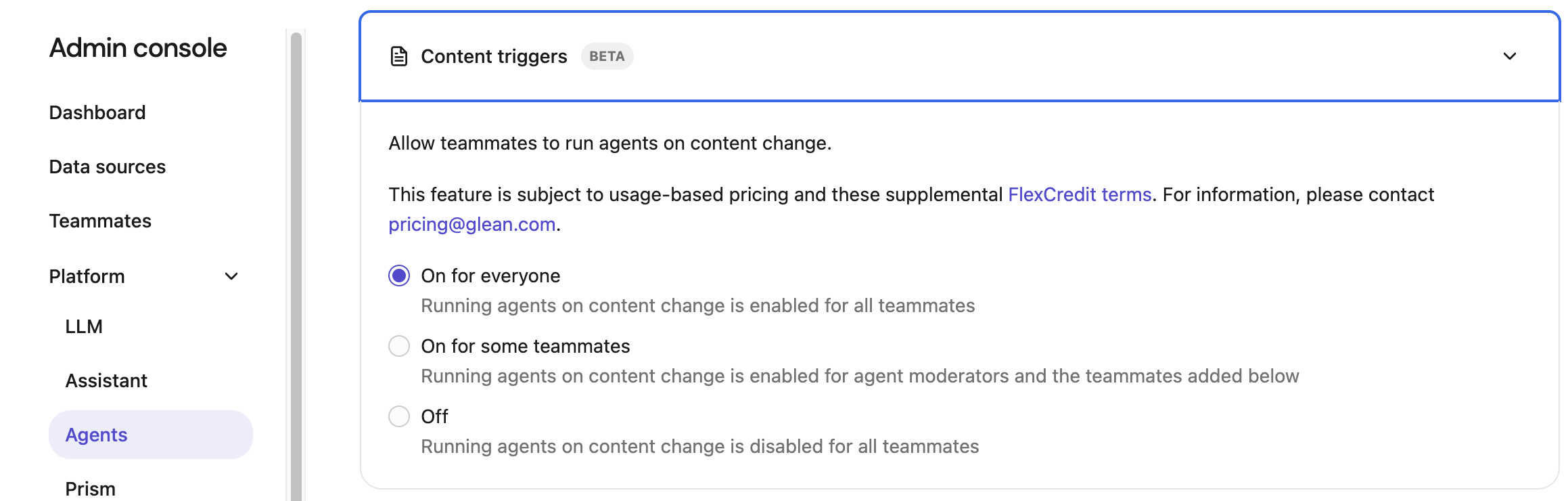
You can change the access setting at any time; changes take a few minutes to deploy. It is recommended to start with a limited audience and expand after the team is comfortable.
Set up a content trigger
Admins enable access to content triggers in Admin console → Agents → Content triggers. Agent creators with content trigger access and agent creator permission configure and publish agents. Each user who wants an agent to run needs content trigger access and agent access. They must then activate the agent for their own data.
Set up a content trigger for workflow mode agents
Configure a trigger in workflow mode using these steps:
-
Create an agent in the Glean Agent builder using the workflow mode.
-
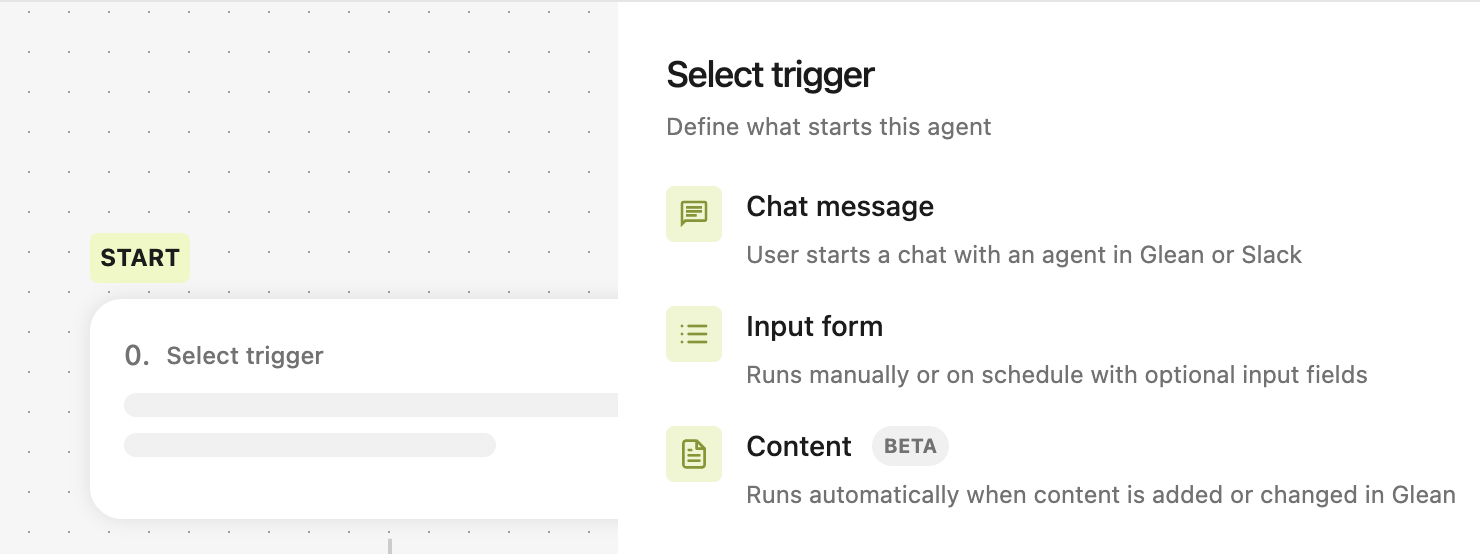
Select Content as the trigger type in the zero step. This tells the agent to activate based on a connector event rather than a manual chat message.
-
Click Add trigger and select the trigger as per your requirement.
-
After selecting trigger, choose the event type and add conditions. When a condition uses a user field, look for the people icon next to the field name. You can select Current user or a specific person from the facet picker.
-
After you add the trigger, add the Fields as needed.
-
Reference the trigger content in your agent. The data from the triggering event like the transcript, ticket body, email, and so on is automatically passed into the agent as content. You can reference it directly in your instructions and downstream tools by using double brackets: [[Trigger input]].
-
Save and publish the agent. After you publish the agent, Glean automatically opens the agent in the agent library.
-
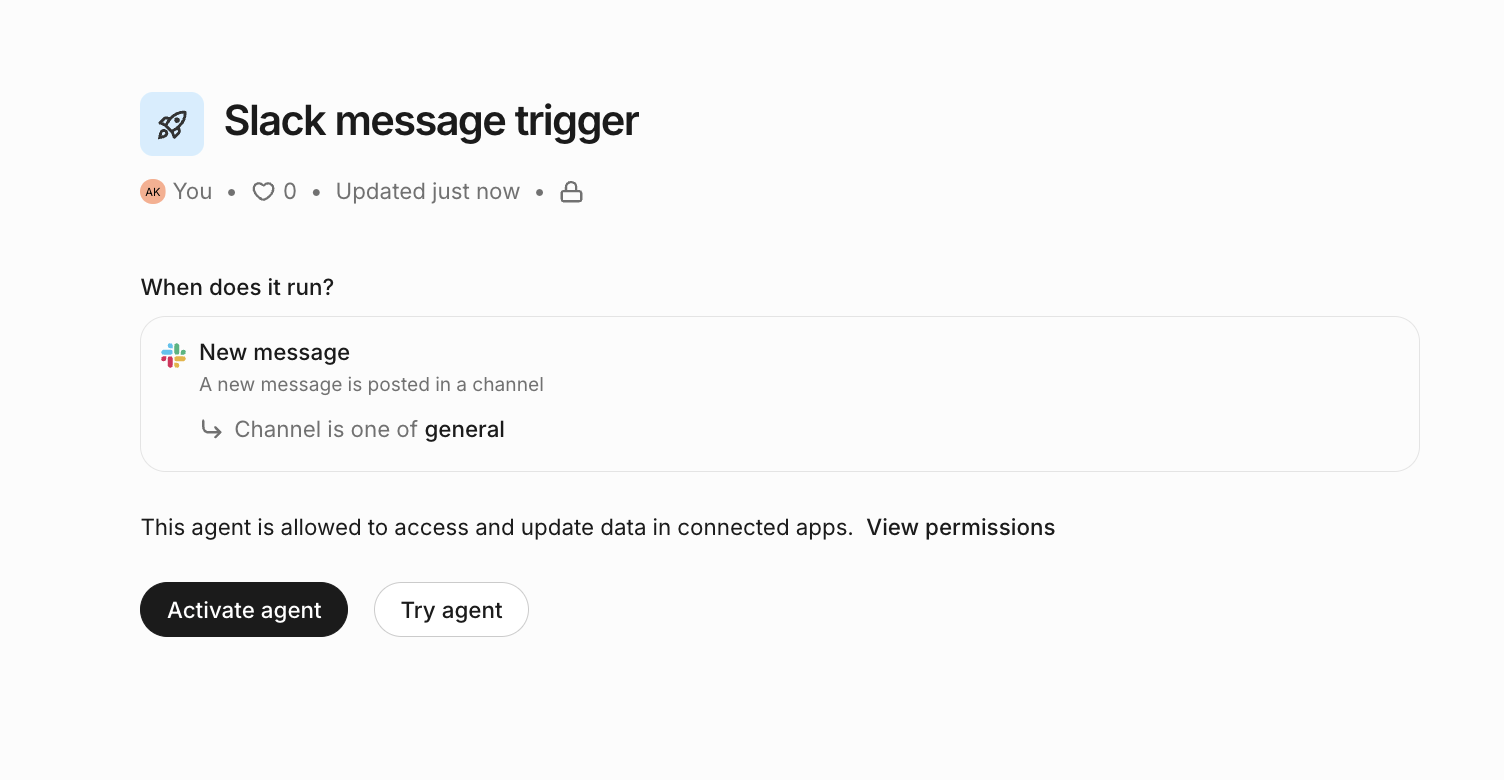
After the agent is published, each user who wants it to run must review the trigger summary under When does it run? and click Activate agent.
Activation is per user. Each user with access to the agent must manually activate it before the trigger runs for them.
Set up a content trigger for Auto mode agents
Configure a trigger in Auto mode using these steps:
- Create an agent in the Glean Agent builder using the Auto mode.
- Select Triggers.
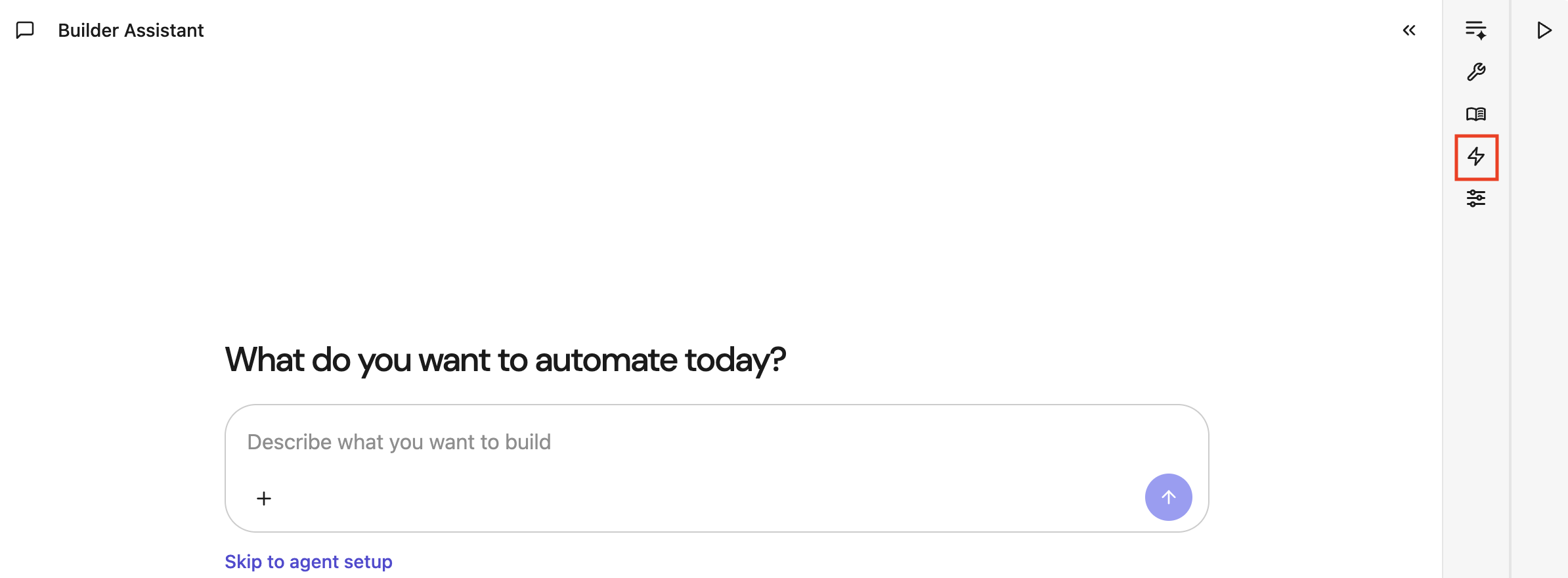
- Select Based on content updates for the field When should the agent run?.
- Click Add trigger and select the trigger as per your requirement.
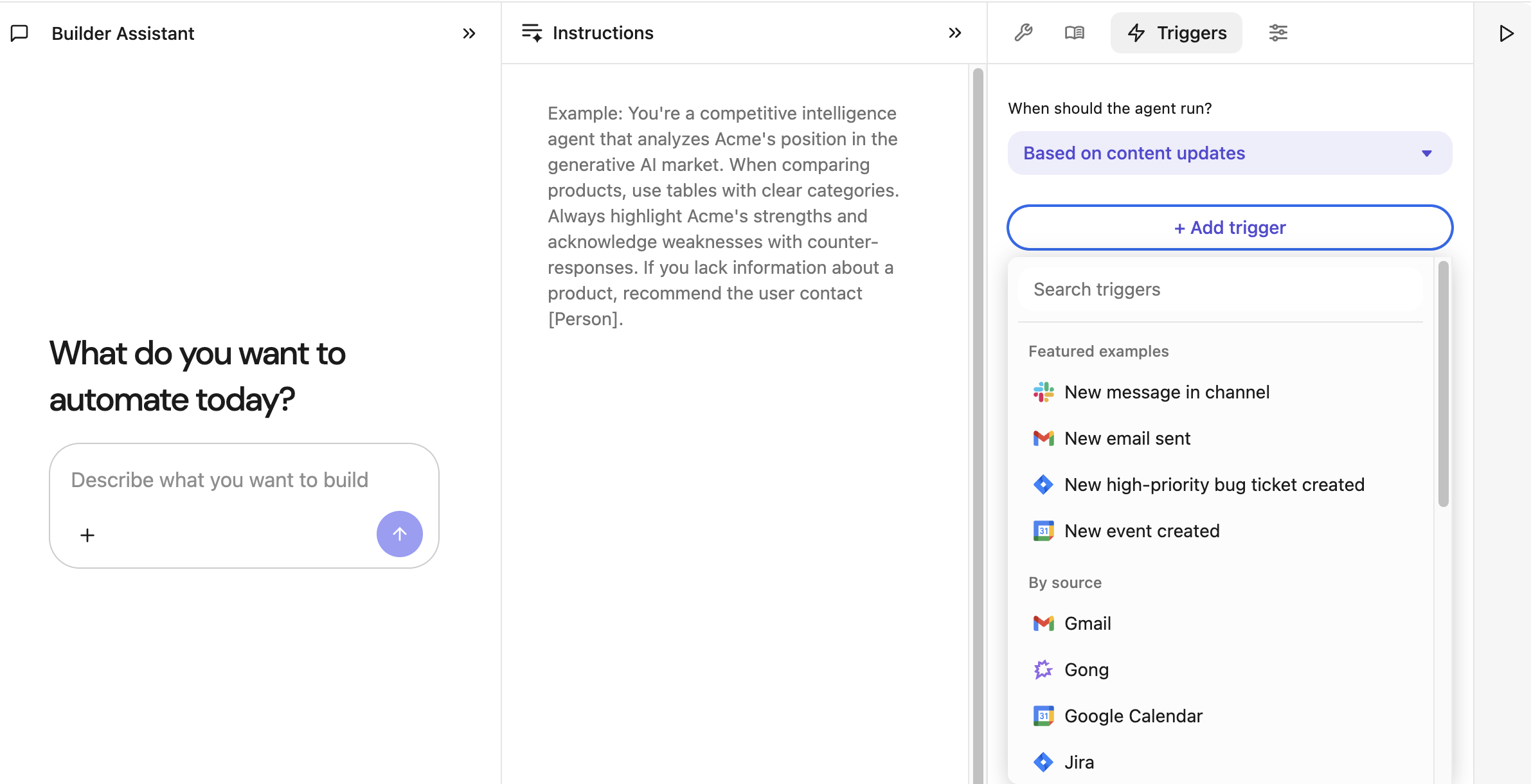
- After selecting trigger, add condition. When a condition uses a user field, look for the people icon next to the field name. You can select Current user or a specific person from the facet picker.
- To reference the content from the triggering event, use
[[Trigger input]]in the instruction box. For more information, see Use trigger data in agents. - Save and publish the agent. After you publish the agent, Glean automatically opens the agent in the Agent Library.
- After the agent is published, each user who wants it to run must review the trigger summary under When does it run? and click Activate agent.
Activation is per user. Each user with access to the agent must manually activate it before the trigger runs for them.
Test your trigger
Before you save and deploy the agent, use sample events to verify you selected the right event type and conditions.
You can also run the agent against a sample event by clicking the play button in the event list. This helps you confirm that the trigger passes the expected input into the agent.
Manage a content-triggered agent
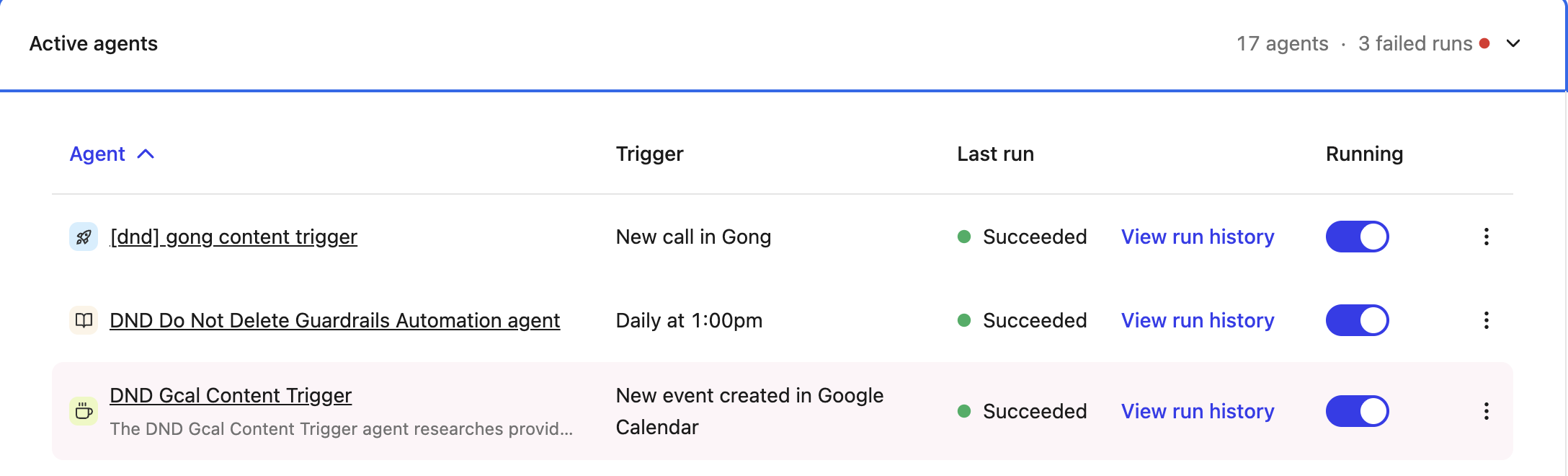
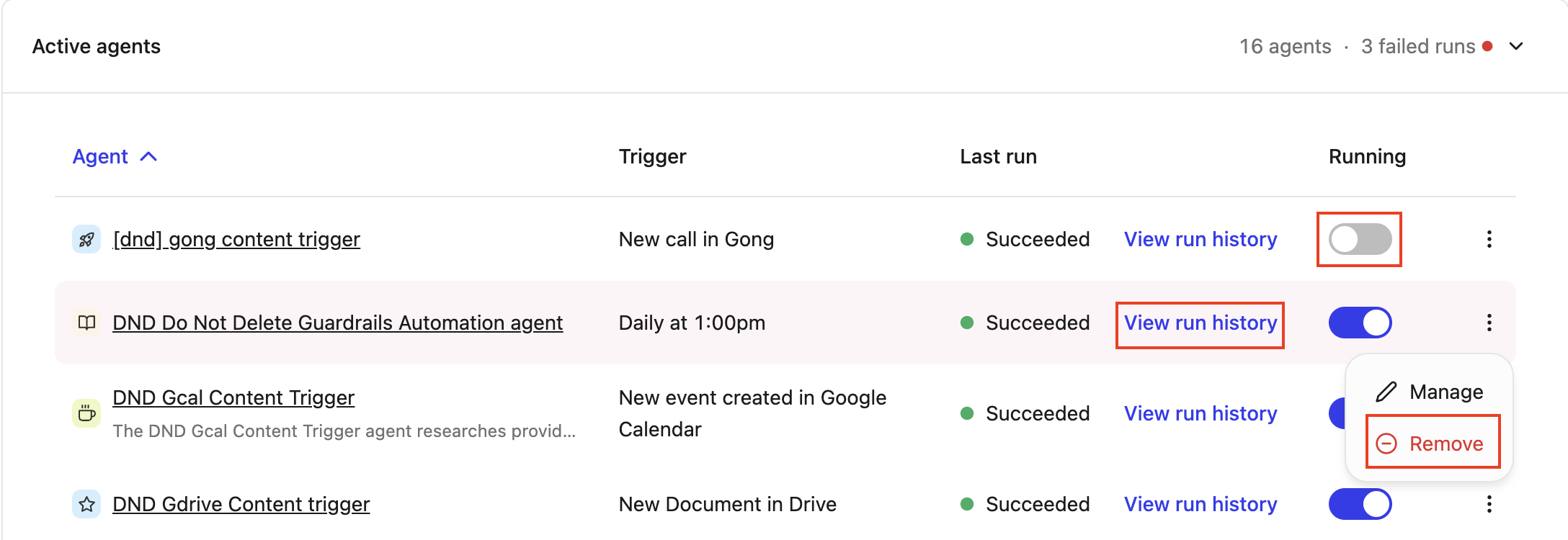
After you activate a content-triggered agent, you can manage it from the Active agents table in the agent library. From this view, you can:
-
Review the configured trigger and the last run status.
-
Pause or resume the agent with the Running toggle.
-
Click View run history to see past runs.
-
Open the overflow menu to Manage or Remove the agent.
How conditions work for new-item events
For New events, all configured conditions must be met at the time the event happens. If the record is created first and only later updated to match the conditions, the trigger does not run.
For example, if you configure a New Jira ticket created trigger with conditions such as component = mobile and owner = me, the trigger runs only if both conditions are already true when the ticket is created.
In many cases, it is better to use a meets condition event instead of a new item event. Use a meets condition event when the fields you care about may be populated or updated after the item is created.
Use trigger data in agents
When a trigger activates an agent, the content from the triggering event such as a meeting transcript, support ticket body, or email is automatically passed to the agent as input data.
Workflow mode agents
In Workflow mode, reference trigger data within specific step instructions:
- Full event content: Insert
[[Trigger input]]in a step instruction to reference the complete event content, such as a full transcript or email body. - Specific fields: Add the required variables under Fields in the trigger setup, then reference each item by its field name, for example,
[[Field Name]]in the step instructions.
Auto mode agents
In Auto mode, reference trigger data within the main agent instructions:
- Full event content: Insert
[[Trigger input]]directly in the main agent instruction box to reference the complete event content. - Specific fields: Add the required variables under Fields in the trigger setup, then reference each item by its field name (for example,
[[Field Name]]) in the main instructions.
For Slack, you can configure triggers for new messages in direct messages, public channels, and private channels. You can also configure triggers for newly created public channels and private channels.
Triggers for new messages in external public channels and external private channels are not currently supported.