Create an independent agent
Create an independent agent when a workflow needs to run continuously without depending on a user session. The agent can monitor events, respond through a dedicated Slack identity, and use admin-approved tools to execute work.
Independent agents are in beta. Your deployment determines which templates, tools, service credentials, and publishing options you can use.
Prerequisites
Ask your administrator to confirm that:
- Independent agents are enabled for your deployment.
- You have permission to create or edit agents.
- An independent agent template is available to you.
- The required knowledge sources and tools are available.
- If the agent acts in a connected app as a non-human identity, your administrator created and shared the required service credential.
- Your organization approved the workflow and its Slack presence, if the agent communicates in Slack.
For information about service credentials, see Add a service credential to your agent and Agent identity.
Choose a template
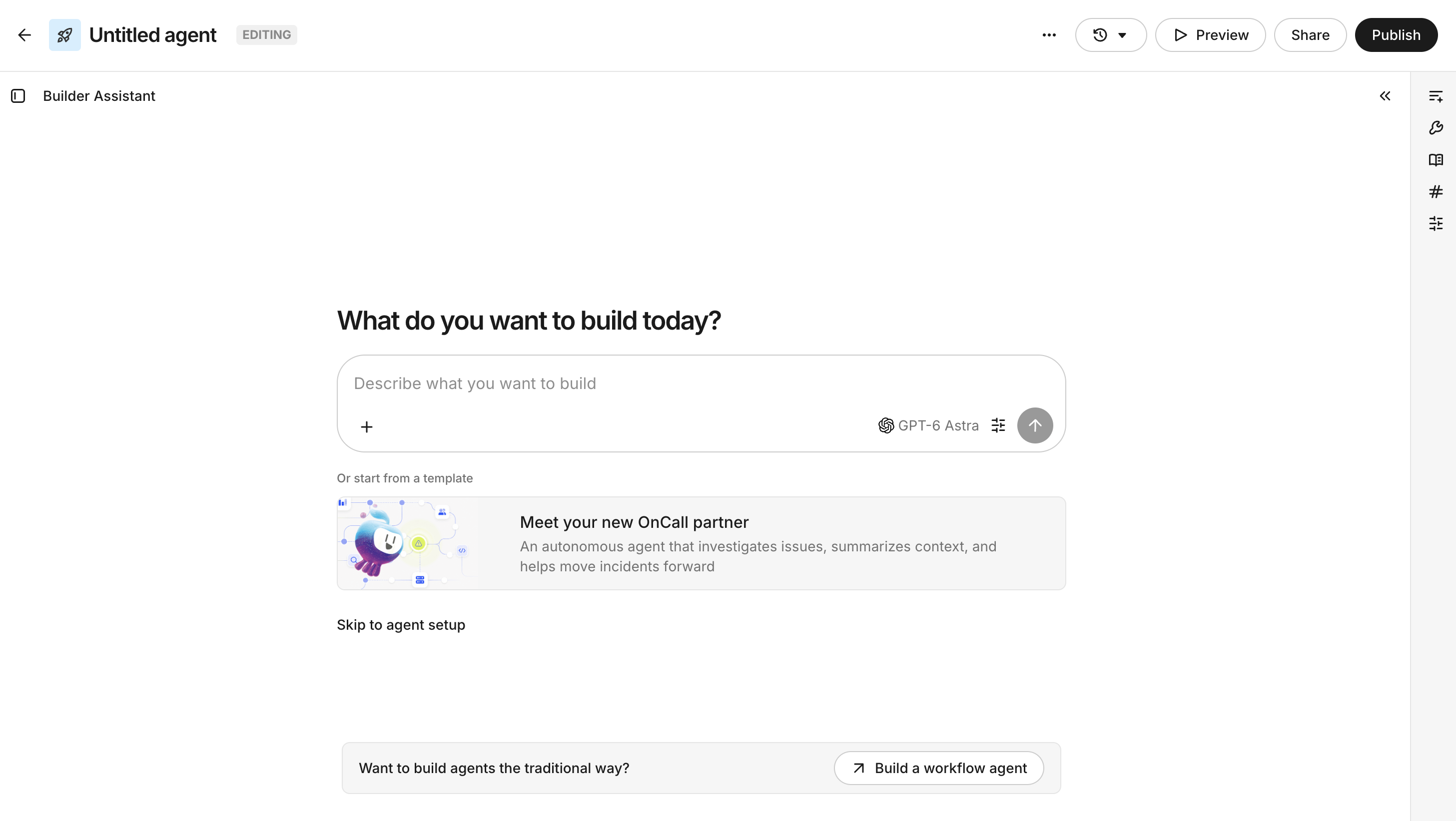
Start with an available Independent Agent template instead of building an agent from scratch. Templates provide a tested starting point with an initial workflow, instructions, and tool configuration. Customize the template after you confirm that it matches your use case.
Review the available templates before you create an agent. Choose a template that matches the goal of your workflow and connected systems.
Templates can differ by deployment. Review each template's description, required tools, knowledge sources, service credentials, and expected output before you select it.
Create the agent
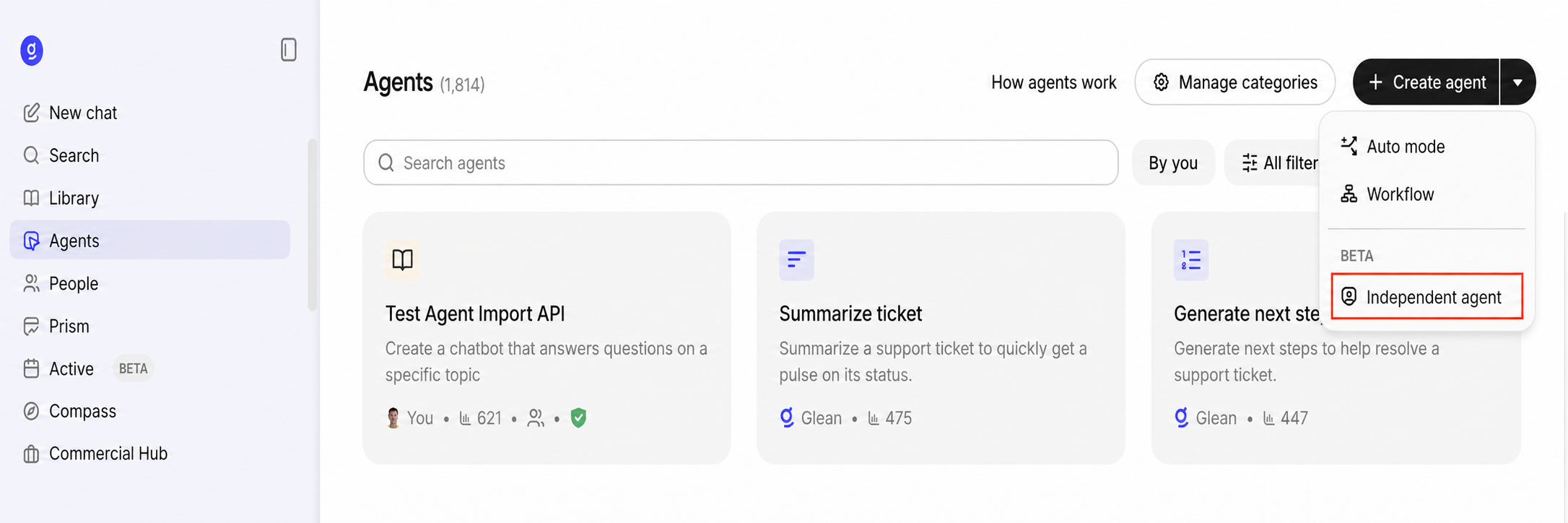
- In Glean, open Agents.
- Click Create agent.
- Click Independent agent.
- Select an available independent agent template. If it does not appear, ask your administrator to enable the feature or template.
- Review the template's workflow and required configuration.
- Enter a name and description that explain the role the agent owns.
- Save the draft and open it in Agent builder.
Keep the first version close to the template. Make one change at a time so you can identify which change affects the behavior of the agent.
Configure the agent profile
Give the agent a recognizable name and description. Explain what the agent handles, which systems it uses, and where people can interact with it.
For example:
- Name: On-call triage
- Description: Monitors the engineering escalation workflow, gathers context from approved sources, and assigns follow-up to the appropriate owner.
If your deployment exposes identity or profile settings, use them to configure the external name and profile of the agent.
Configure Slack presence
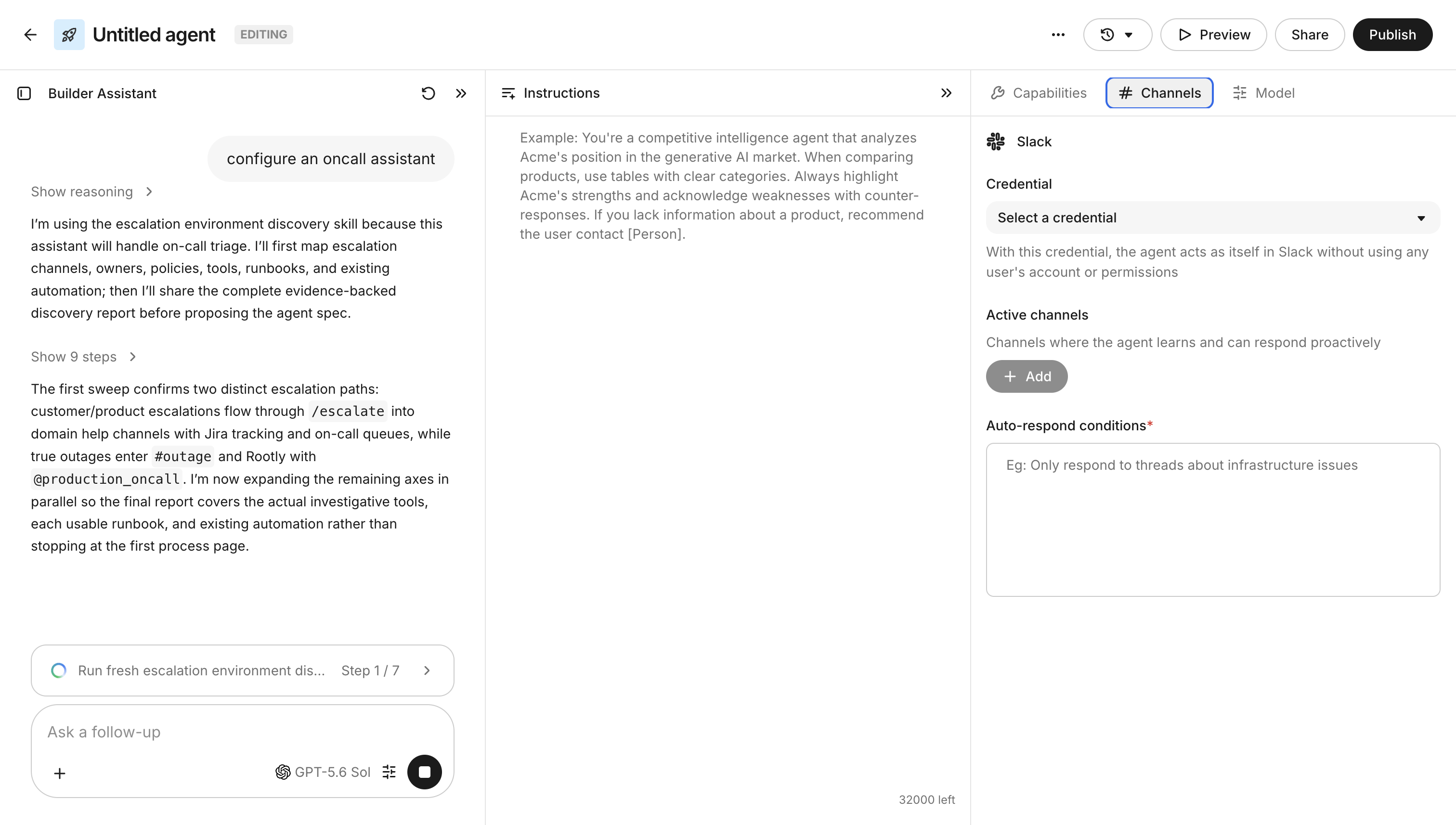
If the workflow communicates in Slack, configure the Slack presence that your administrator approved for the agent.
When selecting a Slack channel:
- Choose a channel dedicated to the workflow or one where the role of the agent is clear.
- Start with a private or test channel.
- Confirm that the agent's Slack app is installed in the target channel.
- Tell channel members what the agent does and how to report an incorrect response.
For setup instructions, see Set up a Slack service credential.
This flow supports Slack presence only. It does not provide channel configuration for other messaging platforms.
Add knowledge and tools
Add only the sources and tools that the workflow requires.
Use knowledge sources for context, such as runbooks, ownership records, or support procedures. Use tools for actions, such as reading a ticket, posting a message, or updating a record.
For every tool, choose the least permissive execution mode that supports the workflow:
- Read data only
- Draft a change for review
- Execute the change without user confirmation
Keep write tools interactive until you test and review the workflow.
Attach service credentials
If the agent acts in a connected system, attach a service credential that your administrator created and shared:
- Open the agent in Agent builder.
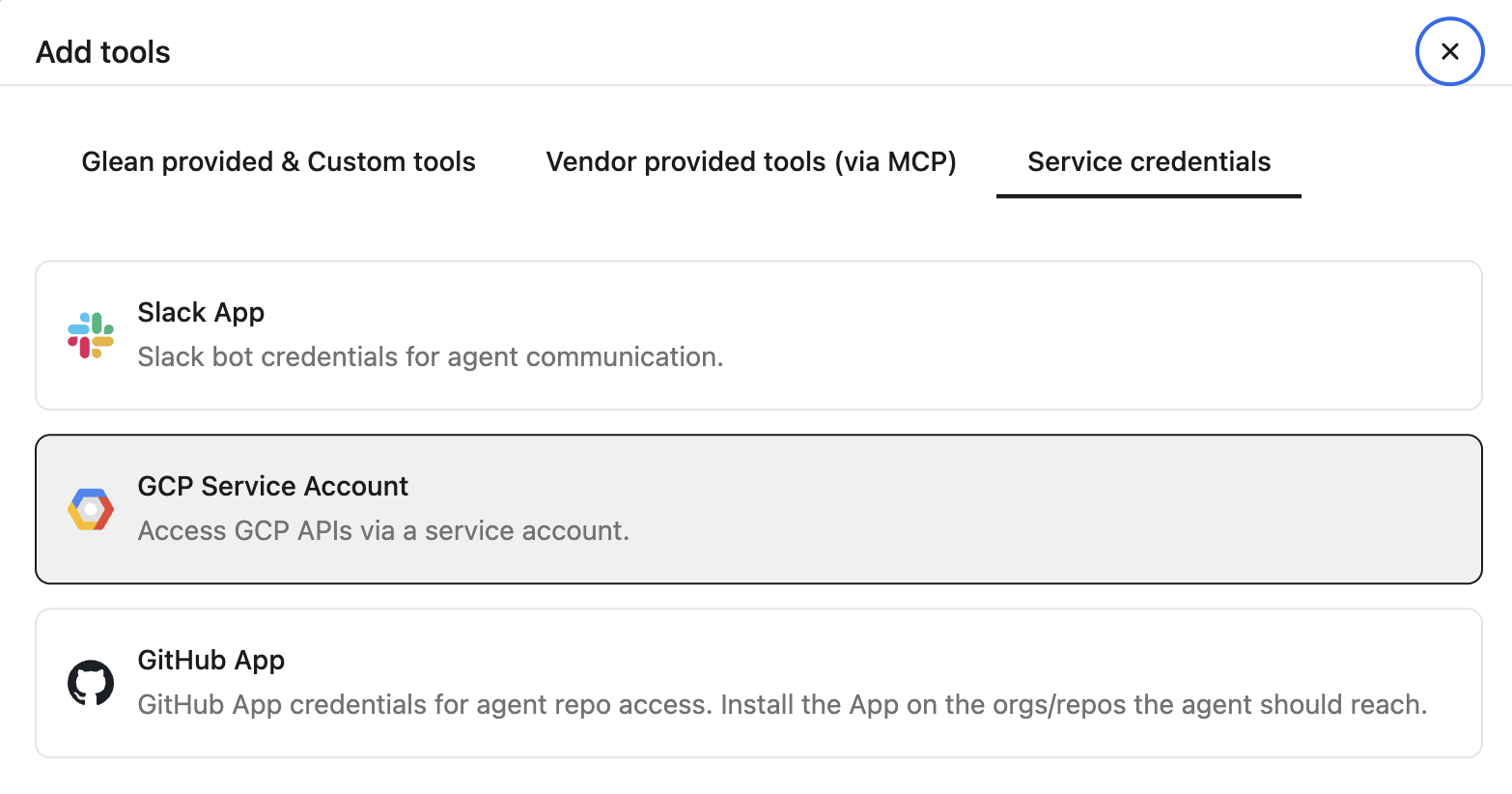
- Under Tools, select the Tools tab.
- Select Service credentials.
- Choose the credential that your administrator shared with you.
- Confirm that the credential matches the intended system, environment, and access scope.
- Save the agent.
An administrator creates, scopes, and manages credentials. The agent runtime receives authentication server-side and never exposes the raw credential to you or the agent.
An agent can use multiple credentials. For example, it can use a Slack credential for channel messages and a Jira credential for ticket updates. Each credential applies only to its connected system.
Define workflow behavior
Use the template's instructions as the starting point for the agent's behavior. Update them to define:
- The workflow's goal and expected outcome
- The knowledge sources the agent may use
- The tools the agent may call and the actions each tool may take
- The response format and destination
- The conditions that require human review
- The behavior the agent should follow when information or a connected system is unavailable
Keep the workflow narrow and give the agent only the context and tools it needs. Add more actions after the agent produces reliable results with read-only tools.
Test the workflow
Test the agent before you publish it to a shared audience:
- Test a normal request that matches the workflow.
- Test an unrelated request that the agent should decline or route elsewhere.
- Test missing, duplicate, and malformed inputs where they apply.
- Confirm that the agent retrieves only approved knowledge.
- Confirm that each tool uses the correct credential.
- Verify that write actions pause for approval when required.
- Inspect any message, ticket, or record that the agent creates.
- Review the run details and fix failed or unexpected steps.
Use a read-only or shadow configuration first if your deployment supports it. Do not test against production records unless the owner approves the test plan.
A test succeeds when the agent follows the intended workflow, uses approved sources and credentials, produces an actionable result, and handles unsafe or unsupported requests without making unintended changes.
Publish the agent
Before you publish, review:
- The agent's name, description, and owner
- Its Slack presence and audience, if applicable
- Its knowledge sources and permission boundaries
- Its tools and service credentials
- Its approval requirements for write actions
- Its failure and escalation behavior
- Its support contact or feedback channel
Publish to a limited audience first. Expand access only after the owner reviews initial runs and verifies the expected behavior.
Maintain the agent
Review the Independent Agent when:
- A connected system updates its API, app, or permissions.
- An administrator rotates, expires, or revokes a service credential.
- You add a new Slack channel or audience.
- Knowledge sources change.
- The agent produces errors or unexpected writes.
- The workflow no longer aligns with the process it owns.
Keep a record of the agent's purpose, credentials, connected systems, target channels, and rollback procedures to support ownership transitions.
Limitations
- Independent Agents do not provide event or schedule configuration in this creation flow.
- This flow supports Slack presence only.
- Available templates, tools, service credentials, and publishing options depend on your deployment.
- A service credential does not grant access beyond the permissions that an administrator assigns to it.