Add a service credential to your agent
A service credential lets your agent work in a connected app like Jira, Salesforce, Datadog, and others under a shared, non-human identity rather than your own login. Your admin creates each credential, scopes it to specific data and actions, and decides who can use it. Your part is choosing which one an agent uses.
You don't create or manage the credential itself; that stays with your admin. You attach an existing one so the agent behaves the same way for everyone who runs it, not just for you.
A service credential is one building block of an Independent Agent. It gives the agent scoped access to one connected system, but it does not create the agent or define its workflow.
Before you start
-
Your administrator must create the credential and add you to its audience. If the credential you need isn't visible, it is not shared with you yet.
-
Ensure you have permissions to edit the agent you want to attach the credential to.
Attach a credential
-
Go to Agents in Glean.
-
Select the agent you want to add the credential to.
-
In the Tools tab, select Service credentials, then pick the credential you want.
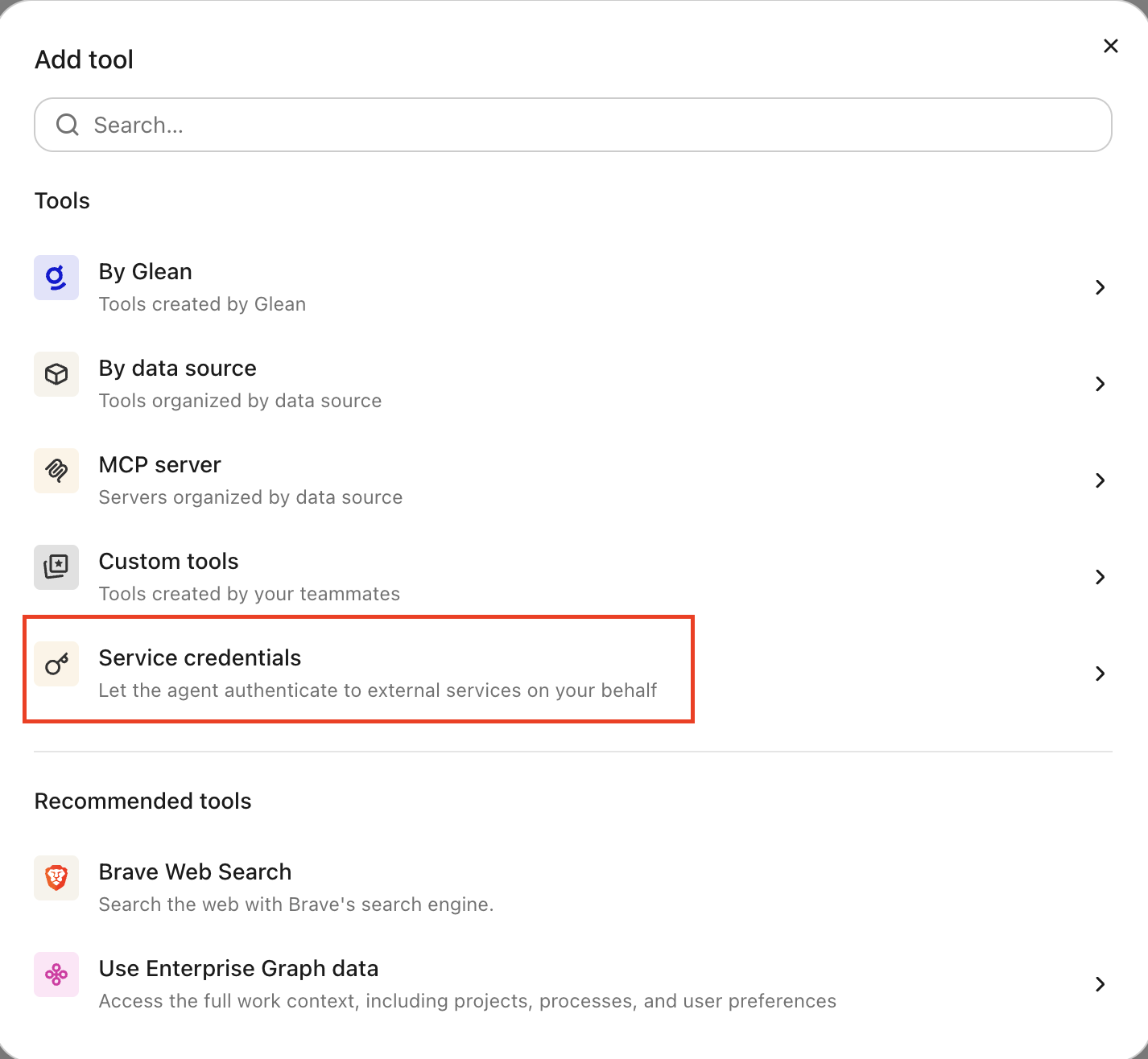
When the agent runs a tool that calls the app, Glean adds the authentication for you, you never see or handle the token and gives the agent a skill that explains how to call that app's API.
What the agent can do with it
The scope of the credential is fixed by your admin, so the agent can only do what that credential allows. Anything the agent does in the connected app is recorded under the identity of the credential, not under your name or the name of whoever runs the agent.
To see the exact capabilities a specific credential grants, check its page in the agent identity guide.
If you don't see the credential you need
Only credentials whose audience includes you appear in the list. If one is missing:
- Ask your admin to confirm the credential exists and to add you to its audience.
- After you are added, in the agent builder, reopen Tools → Service credentials and it will appear.
See also
- Agent identity and service credentials: how admins create, scope, and share credentials