Find and run an agent
The Agents page, also called the Agent library, lists every agent you can run based on your permissions. Use it to find an agent for a task, launch it, favorite the agents you use most, and manage the agents you rely on. Any team member can use this page to automate routine work.
Open the Agents page
- Open Glean.
- Click Agents in the left navigation. Glean opens the Agents page.
If you do not see Agents in the navigation, ask your administrator to enable the Agent library or assign you the right role.
Find an agent in the library
The Agent library is a single-page catalog where you browse, filter, and search for agents you can run. One page replaces the older two-tab layout of All agents and Active agents.
When you open the library, you see:
- A search bar to look for agents by name or purpose.
- Filters that narrow agents by who created them, verification status, and category.
- A list of agents with the name, badge, author, and usage of each one.
Use the library in three ways:
Search for an agent
Enter keywords that describe what you want to do, such as create a customer QBR deck or summarize Zendesk tickets. Glean searches the name, description, and steps of each agent, so you find the right one even when you do not know its exact title.
Filter by who created the agent
Common filters include:
- By you — agents you created or ran. This is the fastest way back to the agents you use most.
- Verified or By Company — agents that your administrators or moderators reviewed and marked as trusted for wider use. These are the agents your organization wants people to rely on.
Browse by category
Your administrators group related agents into categories such as Sales, Marketing, Support, and HR. Open the category dropdown to browse every agent in a group. Administrators curate categories to surface the most relevant agents for each audience.
Favorite an agent
Favorite the agents you return to most so they are easy to find again:
- Find the agent in the library.
- On a desktop, hover over the agent card to show its action buttons. On a touch-only or smaller screen, open the three-dot menu.
- Select the favorite (star) icon.
Your favorites stay easy to reach from the library, and each agent card shows its favorite count alongside its other usage signals.
Create an agent from a template
To build on a tested starting point, click Create agent and choose a template from the gallery. See Start from a template for how templates work and Agent templates for descriptions and requirements.
Activate and manage triggered agents
When you open a scheduled or content-triggered agent, the trigger details and activation controls appear at the top of the page. Glean also brings you here right after you publish a new agent.
You can also schedule an auto mode agent that uses Manually run. Open the agent and click Set schedule to choose inputs and a schedule for yourself. You need permission to run the agent and access to scheduled triggers, but you do not need edit access. See Schedule an agent set to Manually run.
Activate an agent
- Confirm the trigger details and setup before you turn the agent on.
- Use the activation controls to turn the agent on.
- Check that the agent moves to the Active agents table.
Manage active agents
From the Active agents table, you monitor and control the agents you run:
- Monitor performance — review trigger configurations and check the last run status.
- Control execution — pause or resume the agent as needed.
- Clean up — remove the agent when you no longer need it.
For setup details, see Content triggers and Schedule triggers.
Understand agent badges and metadata
Each row in the library shows information that helps you decide whether to trust and run an agent:
- Agent name — a short description of what the agent does.
- Verified or company badge — marks an agent that administrators or moderators created or curated as an official, trusted agent. The badge appears in the library list and on the detail view of the agent.
- Author — the person who created the agent, or your company name for branded agents.
- Usage signals — views, run counts, or other indicators that your deployment exposes to show how often people run an agent.
As a general rule:
- Prefer verified or company-branded agents when you need an officially supported workflow.
- Use personal or unverified agents for experiments or team-specific workflows.
Disable Glean-managed agents
Glean-managed agents show Glean as the author on the agent card. The set of available Glean-managed agents varies by workspace, so not every organization sees the same agents.
To turn off a Glean-managed agent:
- Open Agents in the left navigation.
- Browse or search for the Glean-managed agent you want to manage. Its card shows Glean as the author.
- On a desktop, hover over the agent card to show its action buttons. On a touch-only or smaller screen, open the three-dot menu.
- Select Disable agent.
- Confirm the action.
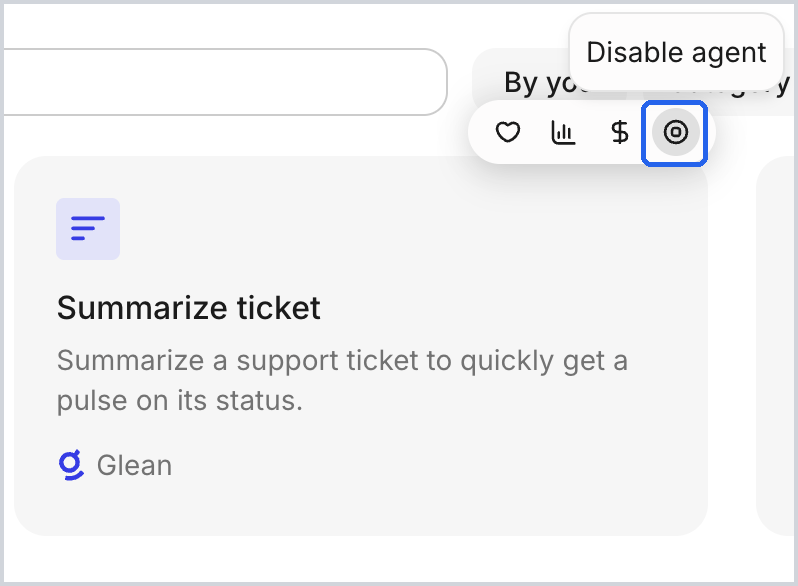
After you turn off the agent, the same control reads Enable agent. A turned-off agent stays visible in the Agent library, but no one in the organization can run it. The control is available to administrators and Agent Moderators with global agent-management permissions.
If you do not see the expected Glean-managed agent or the Disable agent or Enable agent control, contact your administrator or Glean Support.
See also
- Start from a template — launch an agent from a tested starting point
- Create your first auto mode agent — build your first agent in auto mode
- Monitor agent insights — review how your agents perform over time