Facets and filters
This page covers Search facets and connector controls for indexed content. Users apply facets and filters to narrow Search results, while admins use connector controls to decide which repositories, objects, records, or content types enter the index.
For indexed content, filtering happens at two stages:
- In Glean Search, users apply facets and filters to narrow the current result set to content they can access
- Admins apply connector rules during configuration to decide what Glean crawls and indexes
Live search can retrieve content without indexing it. Check the connector documentation for its supported filters and restrictions.
Continue with Use facets and filters in Search, or go to Explore connector examples.
Use facets and filters in Search
In Search, a facet is a category of indexed metadata that groups related filter values, such as source, content type, owner, status, or updated time. For example, source is a facet, and GitHub is a value you can select to filter the current results.
You can select a filter in the Search interface or type the equivalent structured expression in the query bar. For example, selecting Type: pr applies type:pr. Search filters change only the current query. They do not change what the connector indexes.
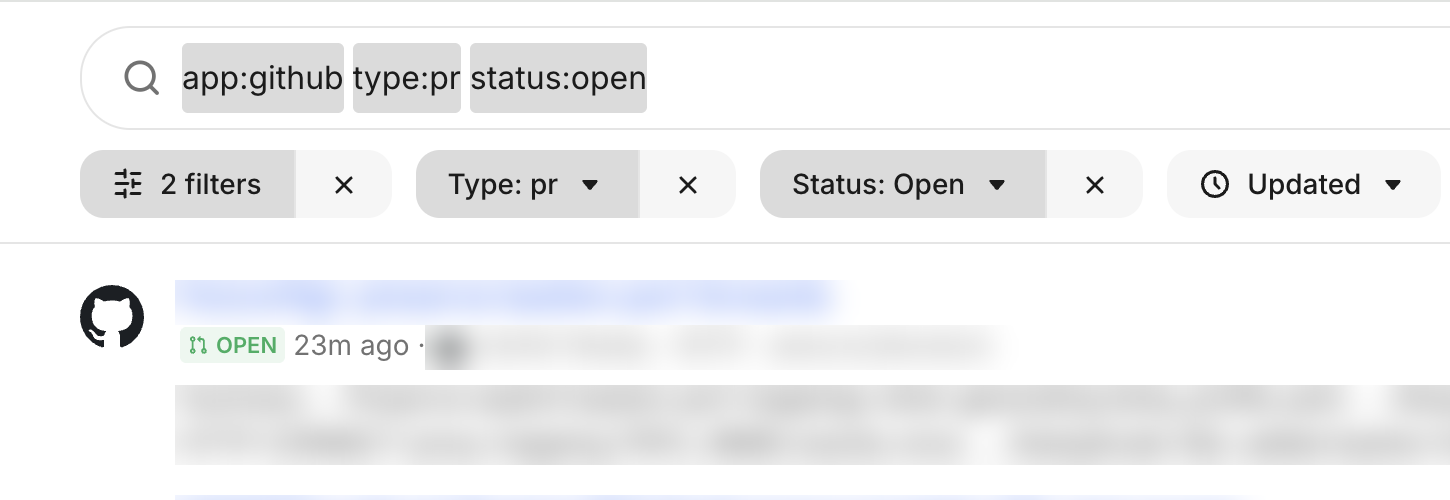
GitHub results narrowed to open pull requests with Search filters
Glean provides facets that work across sources, including app, type, person, and time. A connector can add fields for its own metadata, such as a GitHub repository or a Salesforce object property. The available facets and values depend on the connector, the indexed content, and the user's access to that content.
Compare Search and connector controls
Before choosing a control, identify whether you need to refine one Search query or change the content available in the index.
Where supported, a connector query filter adds conditions to the queries Glean sends to the source application during crawling. It limits the records retrieved for indexing, not the results of an individual search. Salesforce object query filters are one example. See Limit indexed records.
| Control | Location | Stage | Effect |
|---|---|---|---|
| Search facet | All filters | Query time | Shows categories and values from available metadata. |
| Search filter | Search interface or bar | Query time | Applies conditions that narrow the current result set. |
| Connector query filter | Connector configuration | Crawl time | Indexes only records that match source-field conditions. |
Inclusion and exclusion rules also define crawl scope, but they are a separate content-control concept. See Content exclusion for their configuration and behavior.
In indexed Search, filters cannot return content that the connector did not index. Changing Search filters cannot override a connector query filter, inclusion rule, or exclusion rule.
Connector pages document the query-filter fields and conditions that they support.
Follow a Search workflow
Start with a broad query so Glean can show the facets available for the matching content. Add filters in stages and review the result set after each change.
Start with a broad query
Search for the words that describe what you need. For example, search for
project phoenix.
Limit the source
Add an app filter such as app:github or app:confluence, or use the
source selector in Search.
Open the available filters
Run the search, select All filters, and choose from the facets available for the matching results.
Add one condition at a time
Select a value, review the result count, and add another value only when it makes the result set more useful.
Use this sequence to find open GitHub pull requests related to Project Phoenix:
- Search for
project phoenix. - Add GitHub as the source by selecting it in Search or adding
app:github. - Open All filters and select the pull request content type.
- Select the
example-org/main-apprepository. - Review the results, then add the Open status filter.
- Add the
customer escalationlabel. Because the value contains two words, keep it in quotes.
The Search bar now contains the broad query and each selected filter:
project phoenix app:github type:pr repository:"example-org/main-app" status:open label:"customer escalation"
Use quotes for any multi-word filter value. For example, use from:"Jane Doe" rather than from:Jane Doe. After you select filters in the interface, you can copy the generated syntax from the Search bar.
Build a query with Search operators
Search represents filters as structured expressions in the query bar. Use the field:value format to add a filter directly, then combine it with keywords or other fields to narrow the results.
The following operators work across connectors. Connector pages document any source-specific fields.
| Purpose | Syntax | Behavior |
|---|---|---|
| Search for any keyword | alpha beta | Matches results containing either word. |
| Search for an exact phrase | "alpha beta" | Matches the complete phrase in that order. |
| Require separate terms | "alpha" "beta" | Requires both terms, in any order. |
| Apply a filter | field:value | Narrows results by one field and value. |
| Use a multi-word value | field:"value with spaces" | Treats the quoted text as one filter value. |
| Exclude a keyword | -alpha | Removes results that match the keyword. |
| Exclude a filter value | -field:value | Removes results with that field value. |
| Match any value for one field | type:doc type:sheet | Repeating the same field uses OR logic. |
| Combine different fields | app:gdrive from:me | Different fields use AND logic. |
| Limit by relative update time | updated:past_week | Limits results to the selected relative period. |
| Limit by last-updated date | after:"2026-07-01" before:"2026-10-01" | Uses exclusive start and end boundaries. |
Use common Search filters
Glean commonly provides these filters across connected applications. A connector can add more fields when it indexes the required metadata.
| Filter | Purpose | Example |
|---|---|---|
app | Limit results to one or more source applications. | app:github |
type | Limit results to one or more content types. | type:pr |
from | Limit results by author or owner. | from:me |
updated | Limit results by a relative or specific update period. | updated:past_week |
after | Return results updated after a date, excluding that date. | after:"2026-07-01" |
before | Return results updated before a date, excluding that date. | before:"2026-10-01" |
my:history | Limit results to content you viewed in the previous six months. | my:history |
collection | Limit results to a Glean Collection. | collection:"Engineering Playbooks" |
has | Require a supported property. | has:golink |
in | Limit results to a container, space, or folder when the source exposes that metadata. | in:"Platform Team" |
Search does not support parentheses, custom Boolean grouping, regular expressions, or AND between two values of the same field. Run separate queries when the required logic cannot be represented. See Advanced search filters for date expressions, people filters, and examples across applications.
The result set and facet values are permission-aware. Two users can see different results and values for the same query when their source permissions differ.
Facet availability and values depend on the connector, the indexed content, and the user's permissions. A field that exists in the source application is not automatically a Glean facet.
Explore connector examples
These examples show how the same concept works differently in each connector.
GitHub
Use documented GitHub Search and Code Search filters. Admins can control repository scope and code-file crawling.
Salesforce
Configure eligible object fields as facets and use query filters to limit indexed records.
Check a missing filter or result
Use this sequence to determine whether the problem comes from the Search query or connector configuration:
- Remove the filters and run a broad query. If the content appears, add filters one at a time to find which condition removes it.
- Open All filters and confirm that the facet and value are available for the current result set.
- If the content does not appear without filters, confirm that the user can open it in the source application.
- Review the connector page for supported fields, indexed scope, query filters, and connector-specific checks.
Use facets with the Search API
Use the Search response to discover connector-specific facets. The response returns facetResults with facet fields and buckets. Each bucket includes a value and the count of results that would remain if that value were applied.
If an application needs facet results without document results, the Search API documentation describes using pageSize: 0 with FACET_RESULTS in requestOptions.responseHints.
See the Search API guide for source-specific facets for request and response examples.
See also
- Filtering results — filter Search API responses with structured expressions
- About connectors — understand how connectors make source content available in Glean